
1. はじめに
This manual provides essential information for setting up, operating, maintaining, and troubleshooting your HP Chromebook 14a-ne1013dx. This device is designed for productivity and entertainment, featuring a reliable Intel Celeron N4500 processor, a 14-inch HD display, and the Chrome OS operating system.
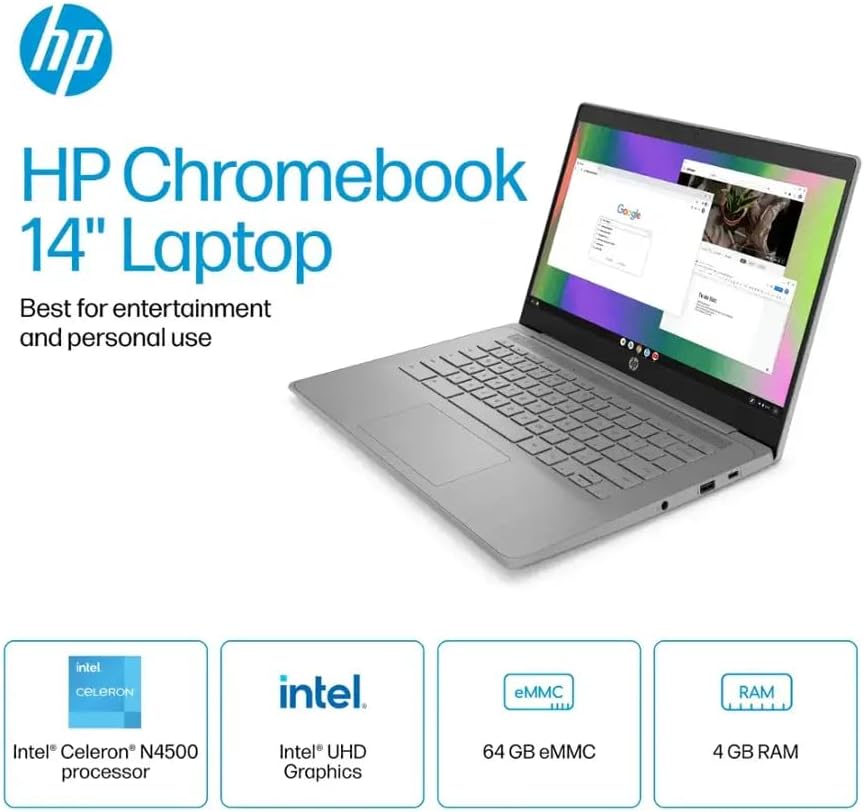
図1.1: HP Chromebook 14a-ne1013dx overview, highlighting its core components: Intel Celeron N4500 processor, Intel UHD Graphics, 64GB eMMC storage, and 4GB RAM.
2. セットアップ
2.1 開梱と初期検査
すべての部品をパッケージから慎重に取り出してください。下記のすべての部品が揃っていて、損傷がないことを確認してください。

図2.1: Items included in the box: HP Chromebook 14-inch Laptop, 45W USB Type-C power adapter, and setup instructions.
箱の中身:
- HP Chromebook 14-inch Laptop (Model: 14a-ne1013dx)
- 45W USB Type-C Power Adapter
- セットアップ手順
- 統合された Webカム
2.2 電源投入と初期設定
- Connect the 45W USB Type-C power adapter to the Chromebook and a power outlet.
- Open the laptop lid. The Chromebook should power on automatically. If not, press the power button located on the keyboard.
- Follow the on-screen prompts to select your language, connect to a Wi-Fi network, and sign in with your Google account. A Google account is required to use Chrome OS.
3. Chromebookの操作
3.1 Chrome OS Basics
Your HP Chromebook runs on Chrome OS, a lightweight operating system designed for speed, simplicity, and security. It integrates seamlessly with Google services and provides access to a wide range of web-based applications and Android apps.

図3.1: Chrome OS security features, including built-in virus protection and automatic updates, ensuring a secure and efficient user experience.
3.2 ディスプレイとマルチメディア
The 14-inch HD (1366 x 768) micro-edge, anti-glare display provides clear visuals for work and entertainment. Dual speakers enhance the audio experience.

図3.2: The 14-inch micro-edge display is ideal for streaming and multimedia consumption, allowing multiple applications to be view同時に編集されました。
3.3 ポートと接続
Your Chromebook is equipped with various ports for connecting peripherals and external displays.

図3.3: Port layout of the HP Chromebook 14a-ne1013dx, including HDMI 1.4b, USB Type-A, USB Type-C, and a headphone/microphone combo jack.
- 1x SuperSpeed USB 3.1 Type-C: For data transfer, power delivery, and display output.
- 2x SuperSpeed USB 3.0 Type-A: マウス、キーボード、外部ストレージなどの USB デバイスを接続します。
- HDMI 1.4 x 1: 外部モニターやテレビに接続します。
- ヘッドフォン/マイクコンボ x 1: オーディオの入出力用。
Wireless connectivity includes Wi-Fi (802.11a/b/g/n/ac) and Bluetooth for connecting to wireless networks and accessories.
4. メンテナンス
4.1 Chromebookのクリーニング
- 画面: 柔らかく糸くずの出ない布を軽く拭いてください。amp水または電子機器専用のスクリーンクリーナーで拭き取ってください。クリーナーを画面に直接吹き付けないでください。
- キーボードとシャーシ: 柔らかく乾いた布を使用してください。頑固な汚れには、軽く湿らせた布で拭いてください。amp 布で拭いても構いません。刺激の強い化学薬品や研磨剤は使用しないでください。
- ポート: Ensure ports are free of dust and debris. Use compressed air if necessary, holding the can upright to prevent liquid propellant from spraying.
4.2バッテリーケア
- バッテリーの寿命を最大限に延ばすには、極端な温度を避けてください。
- 時々バッテリーを 20% 以下に放電してから完全に充電することをお勧めします。
- The Chromebook supports HP Fast Charge for quick recharging.
5。 トラブルシューティング
5.1 一般的な問題と解決策
| 問題 | 考えられる解決策 |
|---|---|
| Chromebook の電源が入りません。 | Ensure the power adapter is securely connected to both the Chromebook and a working power outlet. Try a different outlet. If the battery is completely drained, it may take a few minutes to show signs of charging. |
| Wi-Fiに接続できません。 | Check if Wi-Fi is enabled in Chrome OS settings. Restart your router and modem. Verify the Wi-Fi password. Try connecting to a different network if available. |
| 外部ディスプレイが検出されません。 | Ensure the HDMI cable is securely connected to both the Chromebook and the external display. Check the input source on your external display. Try a different HDMI cable or port if available. |
| パフォーマンスが遅い。 | Close unnecessary browser tabs and applications. Clear browser cache and cookies. Ensure Chrome OS is up to date. Consider a powerwash (factory reset) as a last resort, backing up your data first. |
| Webカメラが動作しません。 | Ensure no physical cover is obstructing the webcam. Check privacy settings in Chrome OS to ensure applications have permission to access the camera. Restart the Chromebook. |
6. 仕様
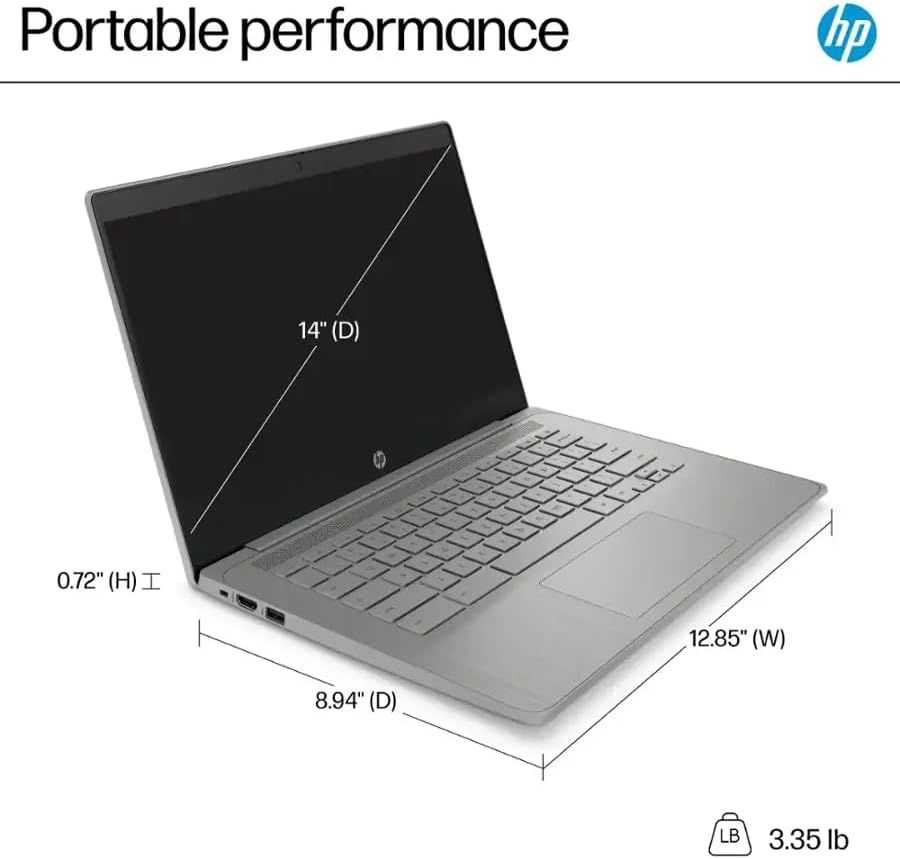
図6.1: Physical dimensions and weight of the HP Chromebook 14a-ne1013dx.
| 特徴 | 詳細 |
|---|---|
| モデル名 | 14a-ne1013dx |
| プロセッサ | Intel Celeron N4500 (1.1 GHz, up to 2.8 GHz burst) |
| グラフィックス | Intel UHD グラフィックス(統合) |
| 画面 | 14-inch diagonal, HD (1366 x 768), micro-edge, anti-glare, 250 nits, 60Hz LCD |
| ラム | 4GB DDR4 SDRAM |
| ストレージ | 64GB eMMC |
| オペレーティング·システム | Chrome OS |
| ワイヤレス接続 | 802.11a/b/g/n/ac Wi-Fi、Bluetooth |
| ポート | 1x SuperSpeed USB 3.1 Type-C, 2x SuperSpeed USB 3.0 Type-A, 1x HDMI 1.4, 1x Headphone/microphone combo |
| 内蔵メディア | Webカム |
| 寸法(長さ×幅×高さ) | 12.85インチ x 8.94インチ x 0.72インチ (32.64 cm x 22.71 cm x 1.83 cm) |
| 重さ | 3.35ポンド(1.52キログラム) |
| 色 | グレー |
| 特集 | Chrome OS, HP Fast Charge |
7. 保証情報
Your HP Chromebook 14a-ne1013dx comes with a 1年間の限定保証保証条件の全文については、製品に付属の保証書をご覧ください。保証請求の際は、購入証明書を保管してください。
8. サポート
技術サポート、ドライバーのダウンロード、または製品に関する詳細情報については、HPの公式サポートをご覧ください。 website. You can typically find support resources by searching for your model number (14a-ne1013dx) on the HP support portal.
HPサポート Webサイト: www.hp.com/support


