
導入
This manual provides detailed instructions for the installation, operation, and maintenance of your Ossuret 7-inch Android 14 Car Stereo. Please read this manual thoroughly before using the product to ensure proper functionality and to prevent damage.
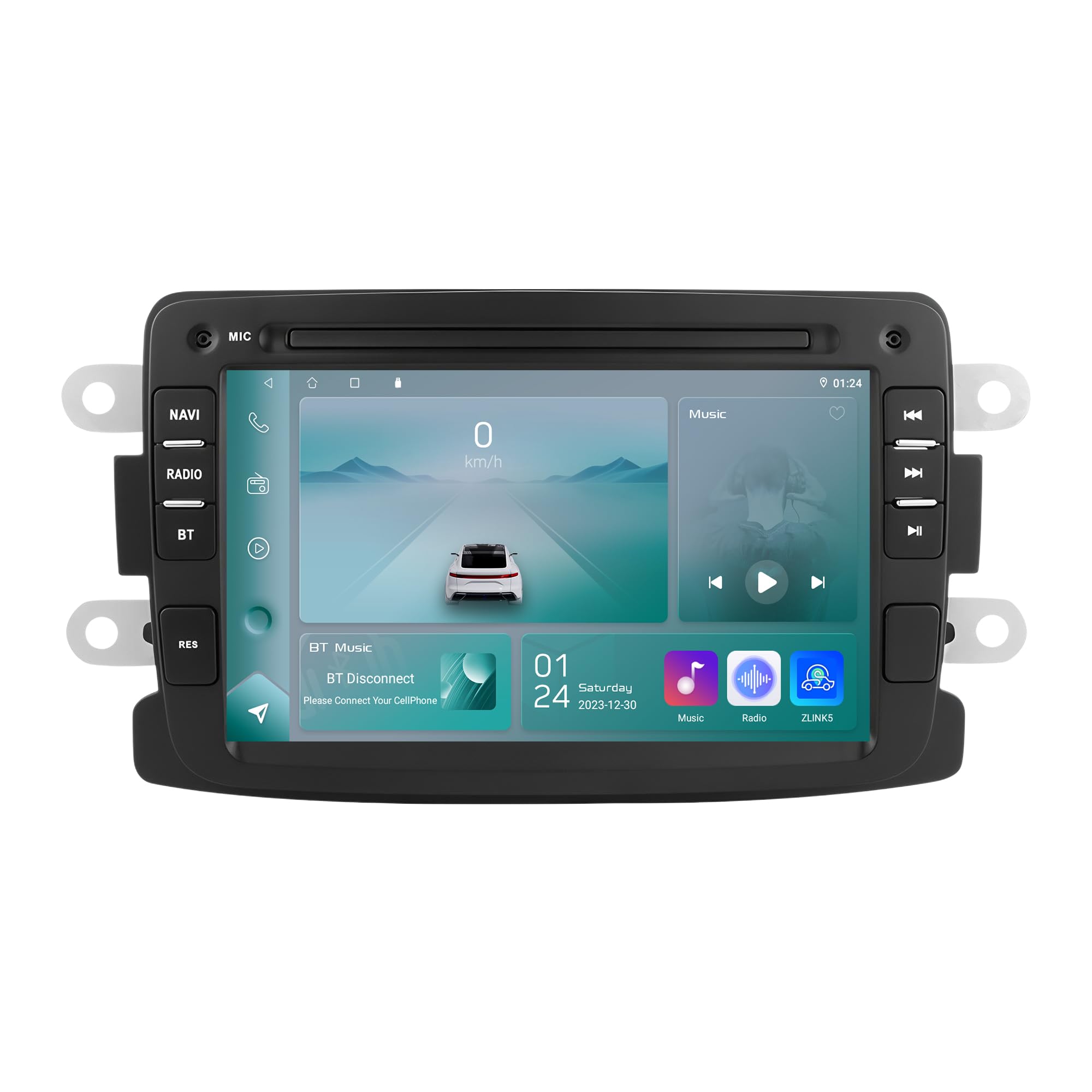
Figure 1: Ossuret 7-Inch Android 14 Car Stereo. This image shows the main unit with its display.
車両の互換性
This car stereo is designed for specific vehicle models. Please verify your vehicle's compatibility before installation.
- For Dacia: Logan (2012-2017), DOKKER (2012-2017), Duster (2011-2017), Sandero (2012-2017), Lodgy (2012-2017)
- ルノーの場合: キャプチャー (2013-2017)、シンボル (2013-2017)
- For LADA: Xray 2 (Note: Some steering wheel control buttons may not function with LADA Xray 2)
箱の中身
Ensure all components listed below are present in the package before proceeding with installation.

図 2: パッケージの内容。 This image displays all items included with your Ossuret car stereo, such as various cables, adapters, and the main unit.
- USBケーブル
- RCAハーネス
- GPSアンテナ
- リアカメラ入力RCAケーブル
- 外部マイク
- 4ピンUSBケーブル
- 6ピンUSBケーブル
- 電源ケーブル
- CANbusデコーダー
- ラジオアンテナアダプターケーブル
- ラジオアンテナアダプター
インストールガイド
Professional installation is recommended. Disconnect the vehicle's battery before starting the installation process. Refer to your vehicle's specific wiring diagrams for accurate connections.

図 3: インストール前とインストール後。 This image illustrates the visual transformation of the dashboard after the Ossuret car stereo is installed, replacing the original unit.
一般的なインストール手順:
- 準備: 車両の電源がオフになっており、バッテリーが取り外されていることを確認してください。
- 古いユニットを削除します: 既存のカーステレオとトリムパネルを慎重に取り外します。
- 配線を接続: Connect the power cable, RCA harness, GPS antenna, and other necessary cables to the new Ossuret unit. Ensure all connections are secure.
- Canbusデコーダー: If your vehicle requires a Canbus decoder (included), connect it as per the wiring diagram to ensure proper communication with vehicle systems.
- テスト機能: Before fully reassembling the dashboard, reconnect the battery and test the basic functions of the stereo (power, audio, touch screen).
- セキュアユニット: 新しいステレオをダッシュボードの開口部にしっかりと取り付けます。
- 組み立て直す: Reinstall all trim panels and ensure a neat finish.
Operating Your Car Stereo
基本操作
- 電源オン/オフ: ユニットの電源をオンまたはオフにするには、電源ボタン (通常は前面パネルにあります) を長押しします。
- 音量コントロール: Adjust the volume using the physical knob or the on-screen controls.
- タッチスクリーン: Navigate through menus and applications using the capacitive touch screen.
- ホーム画面: Access the main Android interface by pressing the Home button or icon.
ワイヤレスカープレイ / Android Auto
The unit supports wireless Apple Carplay and Android Auto via the pre-installed Zlink application. This allows seamless integration of your smartphone's features onto the car stereo display.

Figure 4: Carplay and Android Auto System. This image demonstrates how your smartphone's interface can be mirrored and controlled directly from the car stereo screen.
- スマートフォンの Wi-Fi と Bluetooth が有効になっていることを確認してください。
- On the car stereo, open the "Zlink" application.
- Follow the on-screen prompts to connect your phone via Bluetooth or Wi-Fi.
- 接続すると、お使いの携帯電話の互換性のあるアプリがステレオ画面に表示されます。
Bluetooth機能
ハンズフリー通話やオーディオストリーミングを行うには、Bluetooth 経由で携帯電話を接続します。

図 5: Bluetooth 機能。 This image highlights the hands-free calling feature and the built-in microphone for clear communication.
- ペアリング: ステレオと携帯電話の Bluetooth 設定に移動します。 検索する available devices and select "Ossuret" (or similar name). Enter the PIN if prompted (usually 0000).
- ハンズフリー通話: Once paired, you can make and receive calls directly from the stereo. The built-in microphone captures your voice.
- Bluetooth Music (A2DP): Stream audio from your phone to the car stereo. Control playback (play/pause, skip) from the stereo screen.
- Phonebook Download: The unit supports downloading your phone's contact list for easy access.
GPSナビゲーション
The car stereo features integrated GPS navigation with preloaded European maps and supports online navigation apps.

図 6: GPS ナビゲーション。 This image shows the detailed map interface with navigation guidance and support for various navigation applications.
- オフラインナビゲーション: Use the preloaded maps without an internet connection.
- オンラインナビゲーション: Connect to Wi-Fi and use popular navigation apps like Google Maps, Waze, etc.
- 音声ガイド: ターンバイターン方式の音声案内を受信します。
- デュアルゾーン機能: Navigate while listening to music or other audio.
USB接続
Connect external USB devices for media playback or data transfer. The unit supports up to 2TB external memory.

図 7: USB 接続。 この画像は file browsing capability when a USB device is connected, allowing access to various media and data files.
- Insert your USB drive into the designated USB port.
- アクセス file コンテンツを閲覧および再生するには、マネージャーまたはメディア プレーヤー アプリケーションを使用します。
マルチメディア再生
The unit supports a wide range of audio and video formats for an enhanced entertainment experience.

Figure 8: Multimedia Playback. This image shows the car stereo playing a video, indicating its support for various multimedia formats.
- 音楽フォーマット: MP3, WMA, AAC, RM, FLAC, etc.
- ビデオフォーマット: MPEG-1/2/4, H264, H263, VC1, RV, RMVB, DivX, Sorenson Spark, Spark, VP8, AVS Stream, etc.
- 画像形式: JPG/BMP/JPEG/GIF/PNG
ステアリングホイールコントロール
The car stereo is compatible with your vehicle's factory steering wheel controls, allowing you to manage volume, tracks, and channels without taking your hands off the wheel. This feature helps minimize distractions while driving.
後方 View カメラ入力
ユニットは後部 view camera (not included). When the vehicle is shifted into reverse gear, the display will automatically switch to the rear camera feed, providing a clear view of obstacles behind the vehicle and assisting with safe parking.
お手入れとメンテナンス
- 画面の掃除: Use a soft, lint-free cloth to gently wipe the touch screen. Avoid abrasive cleaners or solvents that may damage the screen.
- 一般的な清掃: 本体を埃やゴミから守ってください。外装の清掃には、柔らかく乾いた布をご使用ください。
- 温度: ユニットを極端な温度、長時間の直射日光、高湿度にさらさないでください。
- ソフトウェアアップデート: 定期的にメーカーの web最適なパフォーマンスと新機能を確保するために、利用可能なソフトウェア アップデートをサイトで確認してください。
トラブルシューティング
If you encounter issues, refer to the table below for common problems and their solutions. If the problem persists, contact customer support.
| 問題 | 考えられる原因 | 解決 |
|---|---|---|
| ユニットの電源が入りません。 | 電源接続の緩み、ヒューズの切れ、車両バッテリーの問題。 | 電源ケーブルと接続を確認してください。車両のヒューズを点検してください。車両のバッテリーが充電されていることを確認してください。 |
| 音が出ません。 | 音量が低すぎる、ミュートが有効になっている、オーディオソースが正しくない、スピーカーの配線に問題がある。 | 音量を上げてください。ミュートが有効になっているか確認してください。正しいオーディオソースを選択してください。スピーカーの接続を確認してください。 |
| タッチスクリーンが反応しません。 | ソフトウェアの不具合、画面の調整の問題。 | Restart the unit. If available, perform screen calibration in settings. |
| Bluetooth接続の問題。 | 電話が検出できない、ペアリングが正しくない、干渉がある。 | Ensure phone Bluetooth is on and discoverable. Delete previous pairings and re-pair. Move phone closer to the unit. |
| GPS 信号が失われたか不正確です。 | GPS antenna obstruction, poor satellite reception, outdated maps. | GPSアンテナがクリアであることを確認する view 空の。必要に応じて地図を更新してください。 |
技術仕様
| 特徴 | 仕様 |
|---|---|
| ブランド | オスレト |
| オペレーティング·システム | アンドロイド14 |
| ラム | 2ギガバイト |
| ロム | 32ギガバイト |
| CPU | 4Core*A53 1.5Ghz |
| 画面サイズ | 7インチ |
| タッチスクリーンタイプ | 容量性タッチスクリーン |
| 画面解像度 | 1024×600 |
| 接続技術 | Bluetooth、USB、Wi-Fi |
| 特集 | Android Auto, Apple CarPlay, GPS Navigation, Steering Wheel Control, Rear Camera Input |
| 対応デバイス | スマートフォン |
| オーディオ出力モード | ステレオ |
| チャンネル数 | 2.0 |
| 制御方法 | 触覚 |
| USBポートの互換性 | Up to 2TB external memory |
| 保証 | 1年 |
| 原産国 | 中国 |
保証とサポート
保証情報
This Ossuret car stereo comes with a 1年間保証 ご購入日から1年間有効です。本保証は、通常の使用における製造上の欠陥および故障を対象としています。保証請求の際は、購入証明書を保管してください。
カスタマーサポート
For technical assistance, troubleshooting beyond this manual, or warranty inquiries, please contact Ossuret customer support through the retailer where the product was purchased or visit the official Ossuret web連絡先情報のサイト。