
1. はじめに
The SCULPFUN iCube Pro is a compact desktop laser engraver and cutter designed for precision and ease of use. It features a 5000mW diode laser, an ultra-fine 0.06mm laser focus, and a built-in smoke filtration system. This manual provides essential information for safe and effective operation of your device.
Official product video demonstrating the SCULPFUN iCube Pro laser engraver's features and capabilities.

The SCULPFUN iCube Pro, a compact laser engraver, shown with various engraved items, highlighting its versatility.
2. 安全情報
This device is a Laser Class 4 product. Always adhere to safety guidelines to prevent injury.
- 目の保護: The device includes a detachable laser filter enclosure that allows direct observation of the laser without goggles. However, always wear the provided laser safety goggles when operating the machine, especially if the enclosure is removed or damaged.
- 過熱アラーム: An integrated temperature alarm system will sound and stop the machine if the internal temperature exceeds 45°C, preventing overheating.
- Smoke Filtration: The built-in smoke filtration system effectively filters smoke and odors during operation. Ensure the filter is clean and properly installed for optimal performance.
- 傾き検出: The machine is equipped with a gyroscope that detects tilting beyond 15° or unexpected movement during operation, immediately stopping the laser for safety.
- 緊急停止: An emergency stop button is provided for immediate shutdown in case of any unforeseen incident.
- 換気: Despite the smoke filtration system, ensure adequate ventilation in the work area.
- 可燃性物質: Do not engrave or cut highly flammable materials without proper precautions and supervision.

The laser filter enclosure and safety goggles provide eye protection during operation.

The overheat alarm system activates if the internal temperature exceeds 45°C.

The built-in smoke filtering system helps maintain a clean working environment.

Tilt detection automatically stops the laser if the machine is moved or tilted excessively.
3. セットアップ
The SCULPFUN iCube Pro is designed for immediate use with no assembly required.
- 開梱: Carefully remove the engraver from its packaging.
- 配置: Place the engraver on a stable, level surface. Ensure adequate space around the device for ventilation.
- 電源接続: 電源アダプタを彫刻機に接続し、適切な電源コンセントに接続します。
- ソフトウェアのインストール: Download the official SCULPFUN mobile App or connect to a computer via Bluetooth or Type-C data cable. Compatible software includes LightBurn and LaserGRBL.

The iCube Pro requires no assembly, offering a plug-and-play experience.

The device is ready to use right out of the box.
4. 操作手順
4.1 素材の配置と焦点
- 場所素材: Position the material to be engraved or cut within the designated engraving area (125x125mm).
- Quick Focusing: Use the built-in focus knob to adjust the distance between the laser module and the material until the laser spot is at its smallest point. This ensures optimal engraving and cutting precision.
- Detachable Hood: For engraving larger objects that do not fit inside the machine, the laser filter hood can be detached. This allows the machine to be placed directly on the surface of the object.

Adjust the focus using the built-in knob for precise results.

The detachable hood enables engraving on objects larger than the internal work area.
4.2 ソフトウェア制御
Control the iCube Pro using either the SCULPFUN mobile App or computer software (LightBurn, LaserGRBL).
- モバイルアプリ: The SCULPFUN App offers a user-friendly interface for beginners to quickly start engraving projects.
- コンピューターソフトウェア: Connect via Bluetooth or Type-C data cable to use LightBurn or LaserGRBL for more advanced control and design capabilities.

The iCube Pro supports control via smartphone app or computer software.
4.3 彫刻と切断材料
The iCube Pro can engrave on a wide range of materials and cut specific ones:
- 彫刻可能な素材: Wood, leather, bamboo, ceramics, stainless steel, acrylic, cardboard, food, fabric, rubber, coated metal, glass.
- 切断可能な材料: Soft wood (up to 10mm thick), black acrylic (up to 6mm thick).
- Note for Reflective Materials: For materials like metal, glass, or ceramics, it is recommended to blacken the surface first to improve laser absorption and achieve better engraving results. Do not attempt to cut hard materials such as metal, ceramic, and glass.
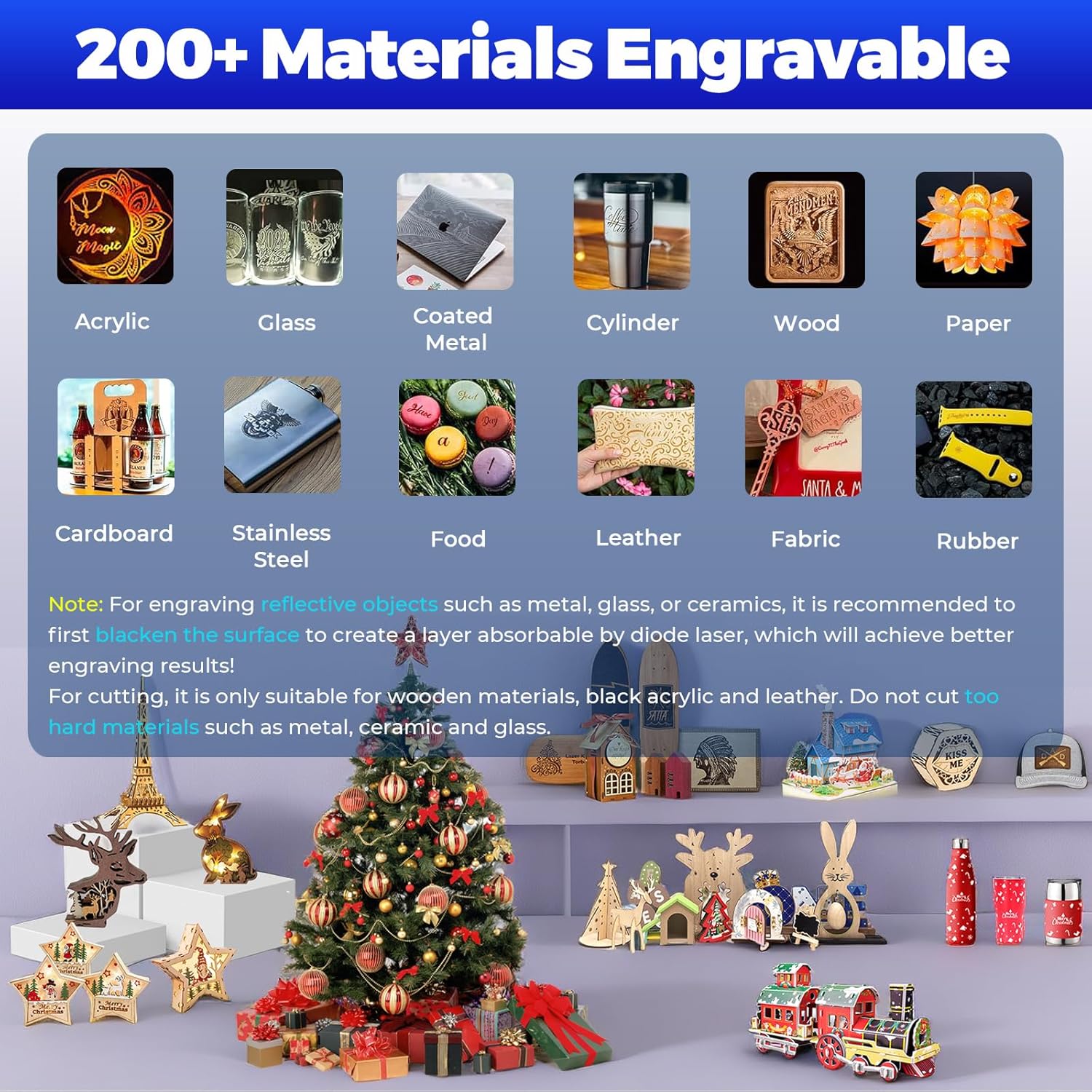
The iCube Pro supports engraving on over 200 types of materials.

The 5W laser can cut soft wood up to 10mm and black acrylic up to 6mm.
5. メンテナンス
Regular maintenance ensures optimal performance and longevity of your SCULPFUN iCube Pro.
- クリーニング: Regularly clean the engraving area and the laser module to remove dust and debris. Use a soft, dry cloth.
- Smoke Filter: Inspect and clean or replace the smoke filter as needed. A clogged filter can reduce filtration efficiency.
- レンズクリーニング: Periodically clean the laser lens with a specialized lens cleaning solution and cloth to maintain engraving precision.
6。 トラブルシューティング
If you encounter issues with your iCube Pro, refer to the following common solutions:
- デバイスの電源が入っていない: Ensure the power adapter is securely connected to both the engraver and the power outlet. Check the power switch.
- レーザーが発射されない: Verify that the device is properly connected to the control software/app and that the safety features (e.g., overheat alarm, tilt detection) are not activated. Ensure the material is correctly placed and focused.
- 彫刻/切断品質が悪い: Check the laser focus. Ensure the material is clean and flat. Adjust power and speed settings in the software according to the material type. For reflective materials, ensure the surface is blackened if necessary.
- Overheat Alarm Activation: If the temperature alarm sounds, allow the machine to cool down. Ensure the ventilation vents are not obstructed.
- 予期せぬ停止: If the machine stops unexpectedly, check for tilt detection activation (due to movement) or if the emergency stop button was pressed.
- 接続の問題: For Bluetooth connections, ensure the device is discoverable and within range. For Type-C, check the cable and port integrity.
7. 仕様
| 特徴 | 仕様 |
|---|---|
| モデル番号 | iCube Pro |
| レーザーパワー | 5000mW (5W) Diode Laser |
| レーザーフォーカス | 0.06mm |
| 彫刻速度 | 最大10000 mm/分 |
| 彫刻エリア | 125mm×125mm |
| Max. Cutting Thickness (Soft Wood) | 10mm |
| Max. Cutting Thickness (Black Acrylic) | 6mm |
| 製品寸法 | 10.31 x 11.81 x 8.89インチ |
| アイテム重量 | 7.05ポンド |
| メーカー | SCULPFUN Technology Co., Ltd. |
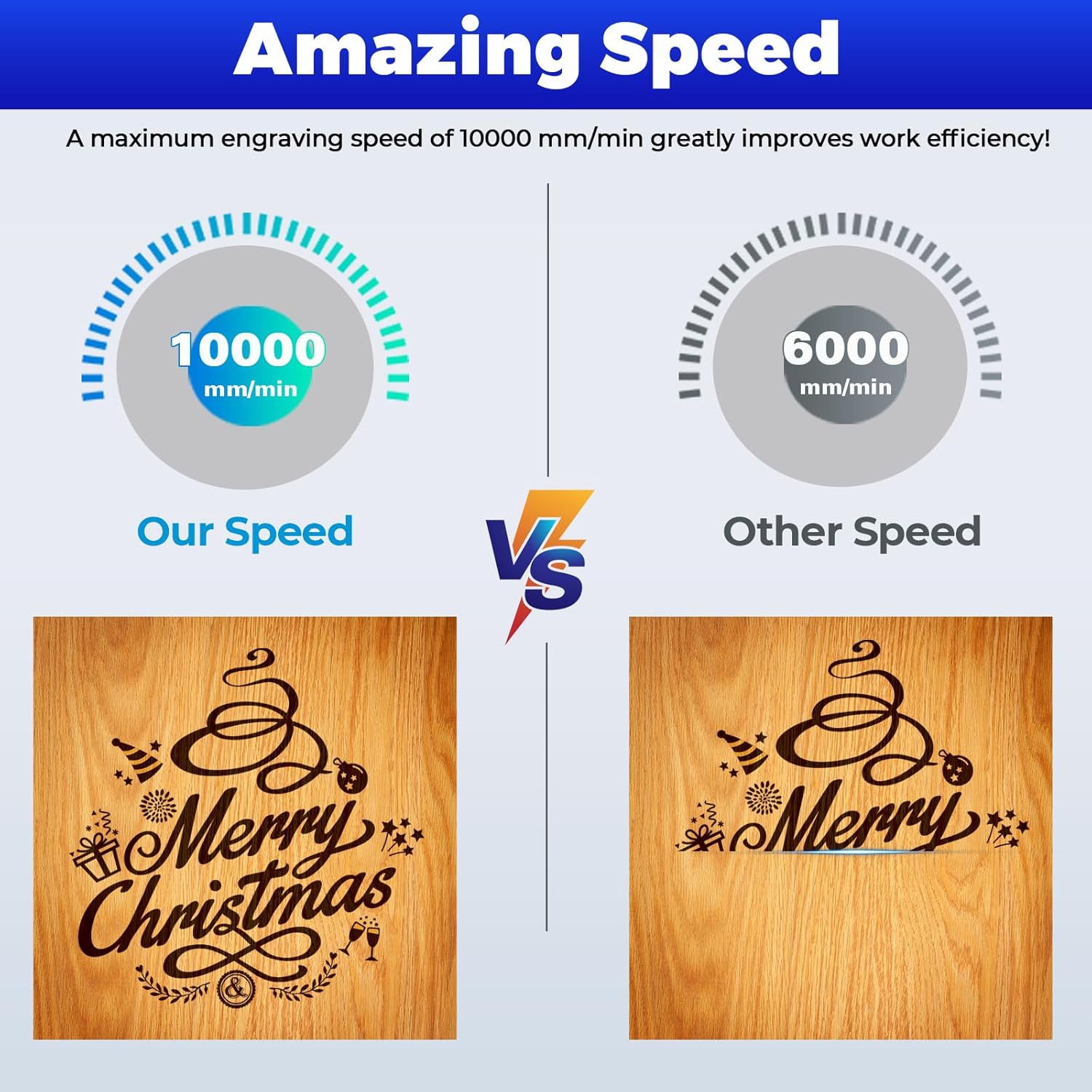
The iCube Pro offers an engraving speed of up to 10000 mm/min.
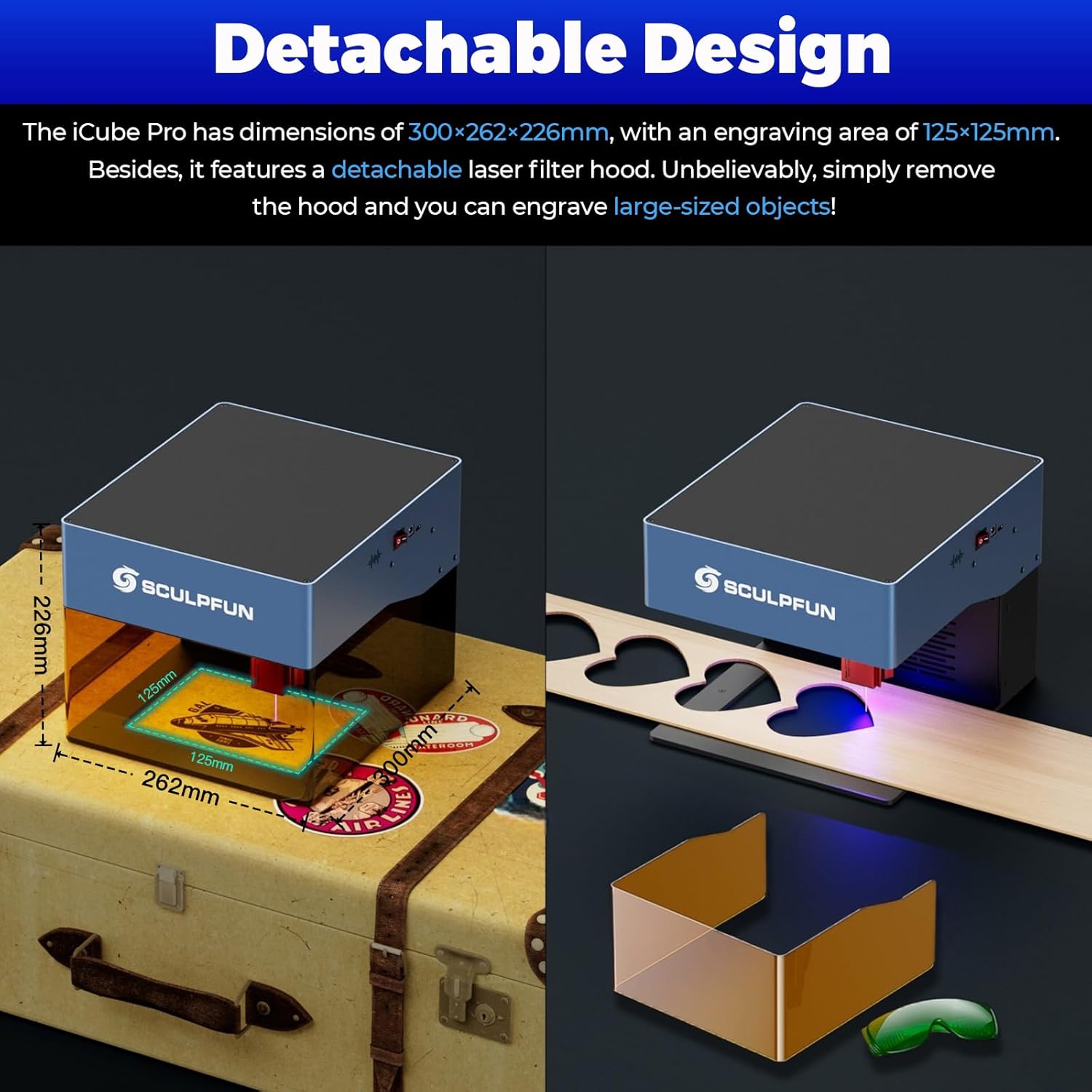
The compact design (262x300x226mm) and detachable hood offer versatility.
8. 保証とサポート
For warranty information and technical support, please refer to the official SCULPFUN web公式サイトをご覧いただくか、カスタマーサービスに直接お問い合わせください。保証請求の際は、購入証明としてレシートを保管してください。
オンラインリソース:
- Visit the official SCULPFUN webFAQ、ソフトウェアの更新、および追加リソースに関するサイト。
- Consult the SCULPFUN App for in-app support and tutorials.