
1.製品オーバーview
This Ossuret car stereo is designed to upgrade the infotainment system in your Renault Clio 3 (models 2005-2014). It features a 9-inch Android 13 touchscreen, offering modern connectivity and navigation capabilities. The system integrates seamlessly with your vehicle's existing controls and provides a range of multimedia options.

Image: The Ossuret 9-inch Android 13 Car Stereo seamlessly integrated into a Renault Clio 3 dashboard, showcasing its large display and modern interface.
2. セットアップとインストール
2.1 パッケージ内容
インストールする前に、すべてのコンポーネントが存在していることを確認してください。
- Main Head Unit (9-inch Android 13 Car Stereo)
- 電源ケーブル
- 外部マイク
- GPSアンテナ
- RCA Harness (for WiFi version only)
- USBケーブル(2本)
- リアカメラ入力RCAケーブル
- CANbusデコーダー
- ファクトリーUSBアダプター
- ラジオアンテナアダプターケーブル
- ラジオアンテナアダプター

Image: A comprehensive layout of all included accessories, such as power cables, USB cables, GPS antenna, external microphone, RCA harness, Canbus decoder, and various adapters.
2.2 互換性
This car stereo is specifically designed for Renault Clio 3 models manufactured between 2005 and 2014. Ensure your vehicle falls within this range for proper fitment and functionality.
2.3 インストール手順(一般ガイド)
Installation typically involves removing the factory radio and installing the new head unit using the provided frame and wiring harnesses. Professional installation is recommended.
- 準備: 電気作業を始める前に車両のバッテリーを外してください。
- 工場ユニットの削除: Carefully remove the existing car stereo and trim panels from your Renault Clio 3 dashboard.
- 配線を接続: Connect the provided power cable, RCA harness, USB cables, and antenna adapters to the new head unit and the vehicle's wiring. The Canbus decoder ensures compatibility with factory features like steering wheel controls.
- GPSアンテナの取り付け: GPSアンテナは、障害物のない場所に設置してください。 view 通常はダッシュボードの上やフロントガラスの下に設置される空。
- テスト接続: Before fully reassembling, temporarily connect the battery and test the unit's basic functions (power, audio, display).
- セキュアユニット: Mount the new head unit into the dashboard using the custom frame, ensuring a secure and flush fit.
- 組み立て直す: Reinstall all trim panels and reconnect the vehicle battery.

Image: A visual comparison showing the original Renault Clio 3 dashboard setup (left) versus the modernized dashboard with the Ossuret 9-inch car stereo installed (right).
3. 操作手順
3.1 電源のオン/オフと基本的なナビゲーション
Press and hold the power button (usually located on the front panel or side) to turn the unit on or off. Navigate the Android 13 interface using the responsive 9-inch capacitive touchscreen.

Image: A hand demonstrating interaction with the responsive touchscreen interface of the car stereo.
3.2 ワイヤレスCarPlayとAndroid Auto
The unit supports wireless Apple CarPlay and Android Auto via the pre-installed and activated Zlink application. Connect your smartphone via Wi-Fi or Bluetooth to access phone functions, navigation, music, and messages directly on the car stereo display.
- 繋がり: Enable Wi-Fi and Bluetooth on your smartphone. Open the Zlink app on the car stereo and follow the on-screen instructions to pair your device.
- 特徴: Access apps like Google Maps, Spotify, Podcasts, and make calls hands-free.

Image: The car stereo displaying the Apple CarPlay and Android Auto interfaces, showing various compatible applications like Phone, Music, Maps, and Messages.
3.3 Bluetooth機能
ハンズフリー通話やオーディオストリーミングを行うには、Bluetooth 経由で携帯電話を接続します。
- ペアリング: Go to the Bluetooth settings on the car stereo and your phone. Select the car stereo from your phone's available devices to pair.
- 通話: Use the built-in microphone for clear hands-free conversations. You can download your phone's contacts to the radio.
- 音楽ストリーミング: 携帯電話の音声を車のスピーカーから再生します。

Image: The car stereo displaying a phone dialer interface, indicating an active Bluetooth connection for hands-free calling, with a built-in microphone for voice input.
3.4GPSナビゲーション
The unit features integrated GPS navigation with support for online and offline map applications (e.g., Waze, Navitel, Google Maps). It offers voice guidance and a dual-zone function, allowing navigation to run in the background while other media plays.
- マップの更新: Ensure your map data is up-to-date for accurate navigation.
- オンラインナビゲーション: Connect to Wi-Fi to use online navigation apps.
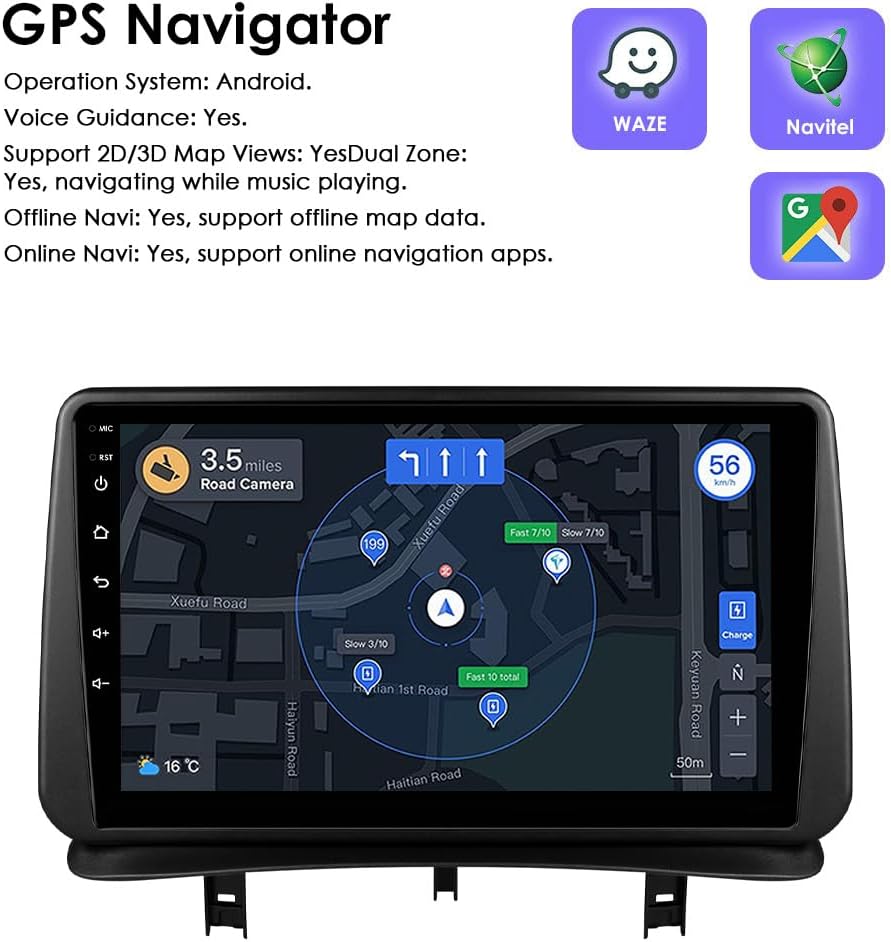
Image: The car stereo displaying a detailed GPS navigation map with route information, current speed, and road camera alerts.
3.5 USBメディア再生
Connect external USB devices (up to 2TB) to play audio and video files. The unit supports various multimedia formats.
- サポートされているオーディオ形式: MP3, WMA, AAC, RM, FLAC, etc.
- サポートされているビデオ形式: MPEG-1/2/4, H264, H263, VC1, RV, RMVB, DivX, Sorenson Spark, VP8, AVS Stream, etc.

Image: The car stereo displaying a file browser interface for USB storage, showing various folders and files, with two USB ports connected at the bottom.
3.6FMラジオ
Access the FM radio function to listen to local stations. The interface allows for easy tuning and station saving.

Image: The car stereo displaying the FM radio interface, showing frequency tuning and station presets.
3.7 ステアリングホイールコントロール
The unit is compatible with your vehicle's factory steering wheel controls. This allows you to adjust volume, change tracks, and answer calls without taking your hands off the wheel.

Image: The car stereo displaying media playback controls, indicating compatibility with steering wheel controls for safe operation.
3.8 バックアップカメラ入力
このシステムは、リアview camera input. When the vehicle is shifted into reverse, the display automatically switches to the camera feed, providing a clear view of the area behind your car and assisting with parking maneuvers.

Image: A technical diagram illustrating the backup camera display interface on the car stereo, complete with dynamic parking guidelines.
3.9 分割画面表示
Utilize the split-screen feature to run two applications simultaneously, such as navigation and music playback, or a camera feed and music, enhancing multitasking capabilities.

Image: The car stereo displaying a split-screen view, with navigation on one side and music playback on the other, demonstrating simultaneous application usage.
3.10 音声制御
The system supports voice commands, allowing you to control various functions hands-free. Voice control sensitivity is enhanced for better responsiveness.

Image: The car stereo interface showing voice command prompts, such as "Hey Siri, find a restaurant" and "OK, Navigate home," indicating active voice control functionality.
3.11 Wi-Fi接続
Connect the car stereo to a Wi-Fi hotspot (e.g., from your smartphone) to access online features, download apps, and browse the internet.

Image: The car stereo displaying a YouTube interface, with a smartphone showing a Wi-Fi signal, illustrating the unit's Wi-Fi connectivity for online content.
3.12 Sound Adjustment (Built-in DSP)
The integrated Digital Sound Processor (DSP) allows for advanced audio customization, including a 48-band EQ adjustment, to optimize sound quality to your preference.

Image: The car stereo displaying a graphic equalizer interface, indicating the presence of a built-in DSP for detailed sound adjustments.
4. メンテナンス
Ossuret カーステレオの寿命と最適なパフォーマンスを確保するには、次のメンテナンス ガイドラインに従ってください。
- クリーニング: Use a soft, dry cloth to clean the touchscreen and exterior. For stubborn smudges, a slightly damp cloth with a mild, non-abrasive cleaner can be used, followed by drying. Avoid harsh chemicals or abrasive materials.
- ソフトウェアアップデート: システムが効率的に実行され、最新の機能とセキュリティ パッチが適用されていることを確認するために、利用可能なソフトウェア アップデートを定期的に確認してください。
- 温度: ユニットを長時間極端な温度にさらさないでください。
- 接続: すべてのケーブルがしっかりと接続されていることを確認してください。接続が緩んでいると、断続的な問題が発生する可能性があります。
5。 トラブルシューティング
カーステレオで問題が発生した場合は、次の一般的な問題と解決策を参照してください。
| 問題 | 考えられる原因 | 解決 |
|---|---|---|
| ユニットの電源が入りません。 | 電源接続の緩み、ヒューズの切れ、車両バッテリーの問題。 | 電源ケーブルの接続を確認してください。車両のヒューズを点検してください。車両のバッテリーが充電されていることを確認してください。 |
| 音が出ない、または音声が歪む。 | Speaker wiring issues, incorrect audio settings, volume too low. | Verify speaker connections. Adjust volume and audio settings (EQ, balance). |
| ステアリングホイールのコントロールが機能しません。 | Canbus decoder not correctly installed or configured. | Ensure the Canbus decoder is properly connected and configured in the system settings. Refer to the installation guide for specific wiring. |
| GPS 信号が弱いか不正確です。 | GPS antenna improperly placed, environmental interference. | GPSアンテナをよりクリアな位置に移動してください view 空の障害物を避けてください。 |
| CarPlay/Android Autoが接続されません。 | Bluetooth/Wi-Fi off on phone, Zlink app not running, phone compatibility. | Ensure Bluetooth and Wi-Fi are active on your phone. Restart the Zlink app. Check phone compatibility with CarPlay/Android Auto. |
| システムが遅くなったりフリーズしたりします。 | 実行中のアプリが多すぎる、メモリが不足している、ソフトウェアに不具合がある。 | Close unnecessary applications. Restart the unit. Check for and install any available software updates. |
6. 仕様
- ブランド: オスレト
- 適合車両: ルノー クリオ 3 (2005-2014)
- 画面サイズ: 9インチ
- オペレーティング·システム: アンドロイド13
- メモリ: 2GB RAM + 32GB ストレージ
- 特別な機能: Wireless CarPlay, Android Auto, GPS Navigation, Bluetooth, Wi-Fi, Steering Wheel Control, Backup Camera Input, Split Screen Display, Voice Control, Built-in DSP
- 接続技術: Bluetooth、USB、Wi-Fi
- 制御方法: タッチ、ボイス
- オーディオ出力モード: ステレオ
- 対応デバイス: スマートフォン

Image: A graphic highlighting key specifications such as 48 EQ adjustment, Quad-Core processor, 2GB RAM, and 32GB storage, alongside the car stereo interface.
7. 保証とサポート
7.1 保証情報
This Ossuret car stereo comes with a 1年間保証 ご購入日から1年間有効です。本保証は、通常の使用における製造上の欠陥および故障を対象としています。保証請求の際は、購入証明書を保管してください。
7.2 カスタマーサポート
For technical assistance, troubleshooting beyond this manual, or warranty inquiries, please contact Ossuret customer support through the retailer where the product was purchased. You may also visit the official Ossuret web追加のリソースと連絡先情報のサイト。