
1.製品オーバーview
The PeriPage P92 is a compact and lightweight thermal tattoo stencil printer designed for both professional tattoo artists and enthusiasts. It utilizes inkless thermal technology to produce clear and precise tattoo lines, streamlining the stencil creation process. This printer offers versatile connectivity options, including Bluetooth and USB, making it compatible with a wide range of devices such as smartphones, tablets, and PCs.

Image: The PeriPage P92 Tattoo Stencil Printer, a sleek black device, shown on a desk with a printed tattoo stencil.
主な特徴:
- ポータブルデザイン: Compact and lightweight (approximately 15.2 ounces) for easy transport.
- インクレスサーマルテクノロジー: インクカートリッジが不要になり、運用コストが削減されます。
- 高い互換性: Supports Android, iOS, Windows, and macOS devices.
- 多彩な接続性: Connects via Bluetooth for wireless printing or USB for wired connections.
- 強力なモバイルアプリ: The "PeriPage APP" provides abundant resources, including built-in tattoo templates and design editing tools.
- 効率的な印刷: Capable of printing clear and precise tattoo lines in seconds.
- 長いバッテリー寿命: Built-in 2600mAh rechargeable battery, capable of printing up to 200 pages per charge.
2.セットアップガイド
2.1 開梱と初期充電
Carefully remove all components from the packaging. Before first use, ensure the printer is fully charged using the provided USB cable and a compatible power adapter. The power indicator light will typically change to indicate a full charge.
2.2 ソフトウェアのインストール
To operate the PeriPage P92, you will need to install the appropriate software:
- For Smartphones/Tablets (Android/iOS): Download the "PeriPage APP" from your device's respective app store (Google Play Store for Android, Apple App Store for iOS).
- For PCs (Windows/macOS): Download the printer driver from the official PeriPage webサイト: https://www.ileadtek.com/en/download.html.

Image: The PeriPage P92 printer connected to a laptop via USB and a smartphone via Bluetooth, illustrating multi-device compatibility.
2.3 ステンシル紙のセット
- プリンタの電源がオフになっているか、スタンバイ モードになっていることを確認します。
- Gently insert the tattoo stencil paper (thermal paper, 8.5x11 inches) into the paper feed slot at the front of the printer.
- The printer will automatically detect and feed the paper into position. Ensure the transfer film side is facing up.

Image: A step-by-step visual guide showing how to power on the printer, insert stencil paper, and initiate printing via the app.
3. 操作手順
3.1 電源のオン/オフ
To power on the printer, press and hold the power button (usually located on the top or side) for approximately 2 seconds until the indicator light illuminates. To power off, press and hold the power button again until the light turns off.
3.2 デバイスへの接続
- Bluetooth接続:
- スマートフォンまたはタブレットで Bluetooth が有効になっていることを確認してください。
- Open the "PeriPage APP".
- Within the app, search for and select the PeriPage P92 printer to establish a connection.
- USB接続:
- 付属の USB ケーブルを使用してプリンターを PC に接続します。
- Ensure the printer driver is installed on your PC.
- プリンターが印刷デバイスとして認識されるはずです。
3.3 Using the PeriPage App for Printing
The "PeriPage APP" is your primary interface for creating and printing tattoo stencils.
- Open the "PeriPage APP" on your connected device.
- You can choose to use built-in tattoo templates or import your personal designs. The app offers tools for editing, resizing, and adjusting your designs.
- Once your design is ready, select the print option within the app.
- Confirm print settings (e.g., density, size) if prompted.
- The printer will then feed the stencil paper and print your design.

Image: Screenshots of the PeriPage mobile application interface, demonstrating design editing, template selection, and 3D preview 特徴。

Image: The PeriPage P92 printer actively printing a tattoo stencil design onto thermal paper, with a smartphone displaying the design.
4. メンテナンス
4.1プリンターのクリーニング
定期的にクリーニングすると、印刷品質が維持され、プリンターの寿命が延びます。
- 外観: プリンターの外側は、柔らかく乾いた布で拭いてください。研磨剤入りの洗剤や溶剤の使用は避けてください。
- サーマルプリントヘッド: If print quality degrades, gently clean the thermal print head with an alcohol wipe or a specialized thermal printer cleaning pen. Ensure the printer is off and cooled down before cleaning.
- 用紙パス: Periodically check the paper path for any dust or debris and remove it carefully.
4.2 ストレージ
Store the printer in a cool, dry place away from direct sunlight and extreme temperatures. When not in use for extended periods, ensure the printer is fully charged and then powered off.
5。 トラブルシューティング
This section addresses common issues you might encounter with your PeriPage P92 printer.
5.1 印刷品質が悪い
- かすかな印刷物:
- Check if the thermal paper is loaded correctly with the transfer film side facing up.
- Ensure the printer's battery is sufficiently charged.
- サーマルプリントヘッドをクリーニングします(セクション4.1を参照)。
- Adjust print density settings within the PeriPage APP.
- Streaks or Gaps:
- Clean the thermal print head.
- Ensure the paper is free from wrinkles or damage.
- Incomplete Designs (Large Shadows/Complex Images): The printer is optimized for clear line drawings. Complex images with large shaded areas may not transfer optimally.
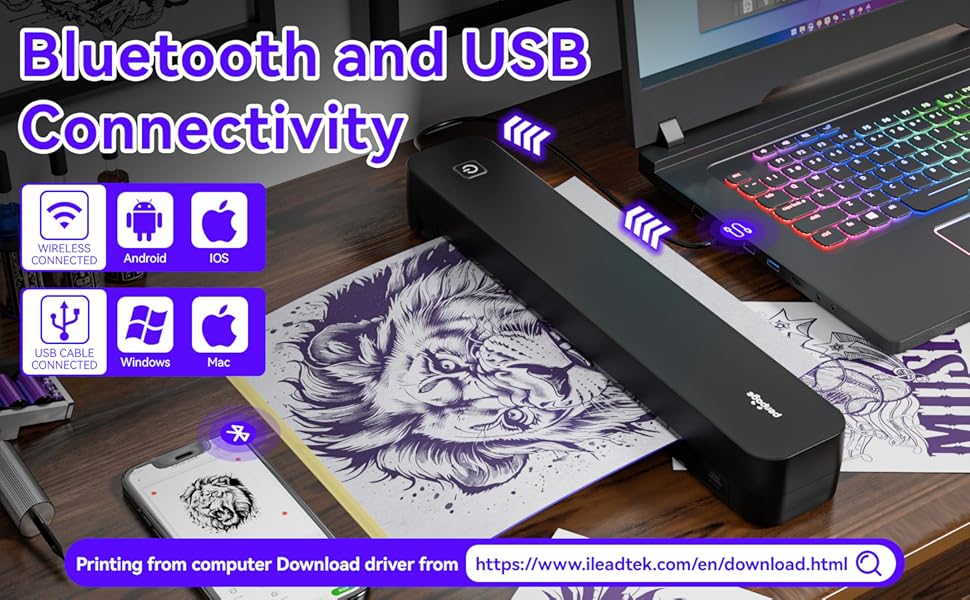
Image: A comparison showing effective line drawings and less shadowy prints versus bad effects with large shadows and complex images, illustrating optimal design types for the printer.
5.2 接続の問題
- Bluetoothが接続されない:
- プリンターの電源がオンになっており、デバイスの範囲内にあることを確認します。
- デバイスで Bluetooth が有効になっていることを確認します。
- プリンターとデバイスの両方を再起動します。
- Bluetooth 設定でデバイスを削除し、再度ペアリングを試みてください。
- USBが認識されません:
- Ensure the USB cable is securely connected to both the printer and your PC.
- Verify that the correct printer drivers are installed on your PC.
- 別の USB ポートまたはケーブルを試してください。
5.3 紙詰まり
If paper gets jammed, gently pull the paper out in the direction of the paper path. Avoid forcing it, as this can damage the printer mechanisms. Ensure paper is loaded straight and not wrinkled.
6. 仕様
| 特徴 | 詳細 |
|---|---|
| ブランド | ペリページ |
| モデル名 | HDD-P92 |
| 接続技術 | ブルートゥース、USB |
| 印刷技術 | サーマル(インクレス) |
| 特集 | ポータブル |
| 色 | 黒 |
| プリンタ出力 | モノクロ |
| 最大印刷速度(白黒) | 6ページ/分 |
| アイテム重量 | 15.2オンス |
| 商品の寸法(奥行き x 幅 x 高さ) | 奥行き2.13インチ x 幅4インチ x 高さ11.4インチ |
| コントローラータイプ | アンドロイド、iOS |
| 印刷メディア | 感熱紙 |
| 対応デバイス | ノートパソコン、PC、スマートフォン、タブレット |
| 制御方法 | アプリ |
| 最大メディアサイズ | A4, 8.5x11 Inches |
| バッテリー | 2600mAh rechargeable, prints ~200 pages per charge |
7. 保証情報
製品仕様によると、 "Not Application" for warranty. Please refer to your retailer's return policy or contact the seller directly for any issues or concerns regarding your purchase.
8. サポート
さらにサポートが必要な場合は、次のリソースを参照してください。
- PeriPage APP: The mobile application often includes help sections, FAQs, and direct support contact options.
- 正式 Webサイト: Visit the PeriPage official website for updated drivers, FAQs, and support contact information: www.ileadtek.com.
- 販売者サポート: Contact the seller (Ileadtek Inc.) through the platform where you purchased the product for specific purchase-related inquiries.

