
ASUS RNUC15C7
ASUS NUC 15 Pro ミニPC ユーザーマニュアル
Model: RNUC15C7
導入
This user manual provides comprehensive instructions for setting up, operating, maintaining, and troubleshooting your ASUS NUC 15 Pro Mini PC. Please read this manual thoroughly before using the device to ensure optimal performance and longevity.
パッケージ内容
以下にリストされているすべてのアイテムがパッケージに含まれていることを確認してください。
- ASUS NUC 15 Pro Mini PC
- ACアダプターと電源コード
- ワイヤレスキーボード
- ワイヤレスマウス
- VESAマウント
- ユーザーマニュアル(このドキュメント)

Image: The ASUS NUC 15 Pro Mini PC, shown with its compact form factor, alongside the included wireless keyboard and mouse. This image illustrates the complete package contents.
セットアップガイド
1. 周辺機器の接続
Connect your monitor(s), keyboard, and mouse to the appropriate ports on the ASUS NUC 15 Pro. The device supports multiple display outputs for enhanced productivity.

画像: 詳細 view of the ASUS NUC 15 Pro's multiple ports, including HDMI 2.1, Thunderbolt 4, USB 3.2 Gen2 Type-A, USB 2.0 Type-A, USB 3.2 Gen2x2 Type-C, and 2.5Gb Ethernet. This highlights the extensive connectivity options.
- HDMI ポート: Connect up to two HDMI displays.
- Thunderbolt 4 ポート: Use for high-speed data transfer or connecting compatible displays.
- USB ポート: Connect the included wireless keyboard and mouse, or other USB devices.
- イーサネットポート: 有線ネットワーク接続用。
2. 電源接続
Connect the AC adapter to the DC-In port on the Mini PC, then plug the power cord into a power outlet.
3. 初期起動
Press the power button located on the front of the device. The system will boot into Windows 11 Pro. Follow the on-screen instructions for initial Windows setup.
操作手順
ディスプレイ設定
The ASUS NUC 15 Pro supports up to four 4K HDR displays or a single 8K display, leveraging its Intel Graphics. To configure multiple displays:
- Ensure all monitors are connected to the available HDMI and Thunderbolt 4 ports.
- デスクトップを右クリックし、「ディスプレイ設定」を選択します。
- Under "Multiple displays", you can extend or duplicate your desktop across the connected screens.

Image: The ASUS NUC 15 Pro Mini PC demonstrating its capability to support a quad 4K HDR display setup, showcasing its versatility for multi-monitor environments.
ワイヤレス接続
The Mini PC features Wi-Fi 7 and Bluetooth 5.4 for robust wireless connections.
- Wi-Fi: Access network settings in Windows to connect to your preferred Wi-Fi network.
- ブルートゥース: Windows の Bluetooth 設定を使用して、ヘッドフォンやスピーカーなどの Bluetooth デバイスをペアリングします。
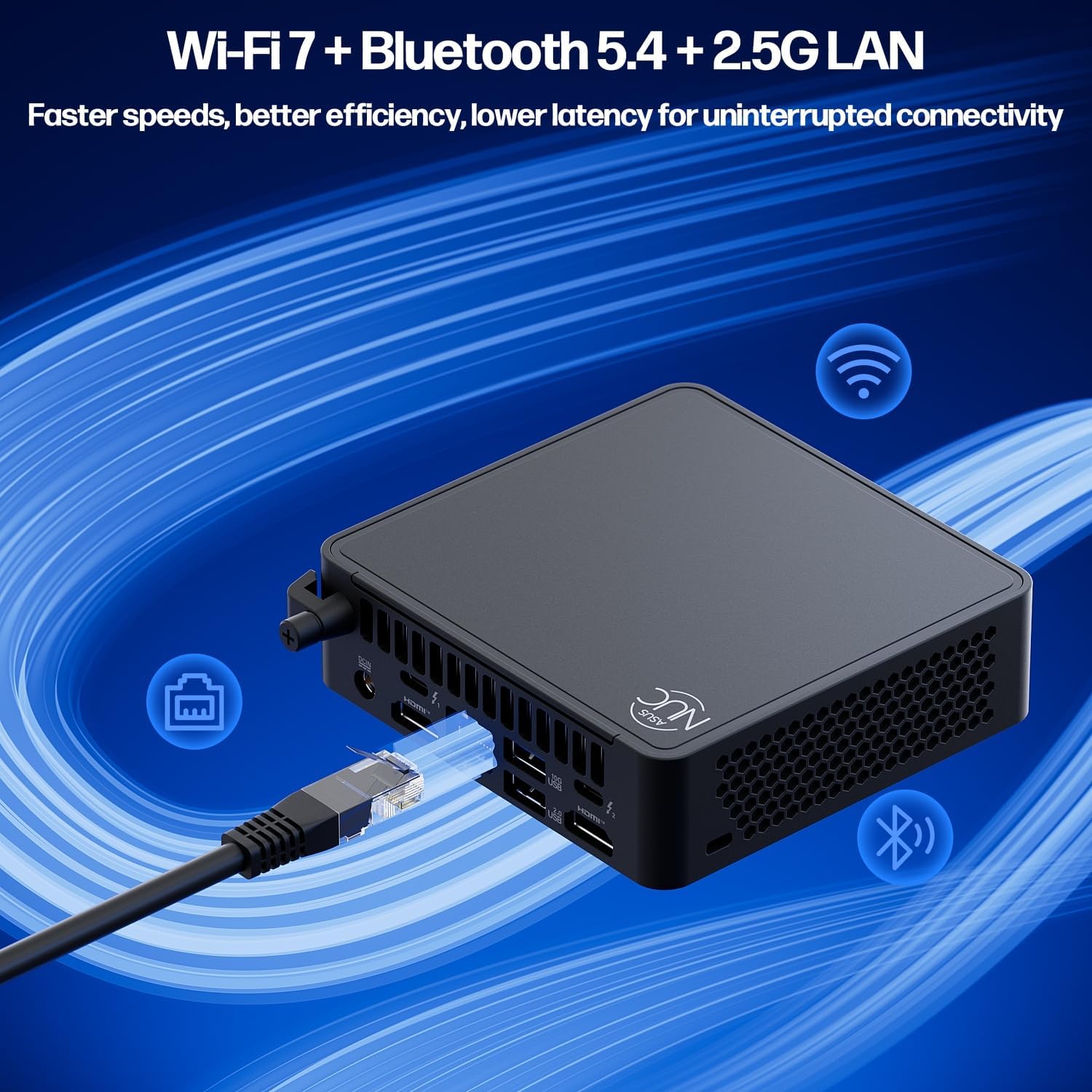
Image: Visual representation of the ASUS NUC 15 Pro's advanced connectivity options, including Wi-Fi 7, Bluetooth 5.4, and 2.5G LAN, emphasizing faster speeds and lower latency.
メンテナンス
システムアップデート
最適なパフォーマンスとセキュリティを確保するため、Windows オペレーティング システムとドライバーを定期的に更新してください。Windows の「設定」>「Windows Update」に移動して、更新プログラムを確認してください。
クリーニング
Keep the Mini PC clean to prevent dust buildup, which can affect cooling. Use a soft, dry cloth for external surfaces. For vents, use compressed air sparingly.
Hardware Upgrades (Tool-Free)
The ASUS NUC 15 Pro features a tool-free design for easy upgrades of RAM and SSD storage.
- 電源を切る: Ensure the device is completely powered off and unplugged from the power source.
- オープンシャーシ: 内部コンポーネントにアクセスするには、上部カバーをゆっくりとスライドまたは持ち上げます。
- RAM アップグレード: The device supports dual channel DDR5 SO-DIMM, extendable up to 96GB. Insert new RAM modules into the available slots.
- SSD アップグレード: The device supports M.2 2280 PCIe SSDs up to 2TB. Additionally, there are built-in 2.5" SATA slots for further storage expansion.
- クローズシャーシ: Securely reattach the top cover.

画像: 爆発した view of the ASUS NUC 15 Pro, illustrating its tool-less design for easy access to and upgrade of DDR5 SO-DIMM RAM and M.2 2280 PCIe SSD storage.

Image: Diagram showing the internal cooling system of the ASUS NUC 15 Pro, featuring dual copper heat pipes and an intelligent fan for efficient and quiet operation.
トラブルシューティング
| 問題 | 考えられる原因 | 解決 |
|---|---|---|
| 電源が入らない/電源が入らない | Power cable not connected; Faulty power adapter | Ensure power cable is securely connected to the PC and outlet. Test with a different outlet if possible. |
| 表示出力なし | Monitor not connected; Incorrect input source on monitor; Driver issue | Check display cable connections. Ensure monitor is set to correct input (HDMI/Thunderbolt). Update graphics drivers. |
| パフォーマンスが遅い | Too many applications running; Insufficient RAM/Storage; Overheating | Close unnecessary applications. Consider upgrading RAM or SSD. Ensure proper ventilation and clean vents. |
| Wi-Fi/Bluetooth接続の問題 | Driver issues; Interference; Incorrect settings | Restart the PC. Check Wi-Fi/Bluetooth settings in Windows. Update wireless drivers. Move closer to the router. |
仕様
| 特徴 | 詳細 |
|---|---|
| プロセッサ | Intel Series 2 Core 7 240H (10 Cores, 16 Threads, up to 5.20 GHz) |
| グラフィックス | Intel グラフィックス(統合) |
| ラム | 64GB DDR5(最大96GBまで拡張可能) |
| ストレージ | 2TB PCIe Gen4 x4 SSD (Supports 2.5" SATA) |
| オペレーティング·システム | ウィンドウズ11プロ |
| 接続性 | Wi-Fi 7, Bluetooth 5.4, 2.5G Gigabit Ethernet |
| ポート | 2x HDMI 2.1, 2x Thunderbolt 4, 1x USB 3.2 Gen2x2 Type-C, 3x USB 3.2 Gen2 Type-A, 1x USB 2.0 Gen2 Type-A |
| 寸法(長さx幅x高さ) | 4.6 x 4.4 x 1.5インチ |
| 重さ | 1.2ポンド |
保証とサポート
保証情報およびテクニカルサポートについては、ASUSの公式サポートサイトをご覧ください。 web購入サイトをご覧いただくか、カスタマーサービスまでお問い合わせください。購入証明書としてレシートを保管してください。
オンラインサポート: www.asus.com/サポート/
This product is certified for 24/7 use and MIL-STD-810H durability.
Ask a question about this manual
Ask about setup, troubleshooting, compatibility, parts, safety, or missing instructions. Manuals+ will review the question and use this page’s manual context to help answer it.