
1. はじめに
Thank you for choosing the Pisichen 27 Inch 2K 165Hz Gaming Touch Screen Computer Monitor. This manual provides essential information for setting up, operating, and maintaining your new monitor. Please read it thoroughly before use to ensure optimal performance and longevity of your device.
This monitor features a 27-inch QHD (2560x1440) display with a 165Hz refresh rate and 10-point multi-touch functionality, offering a responsive and immersive visual experience for gaming, business, and everyday use. It supports versatile connectivity options including HDMI, DisplayPort, and USB Type-C.

Image: The Pisichen 27 Inch 2K 165Hz Touchscreen Monitor, showcasin洗練されたデザインと鮮やかなディスプレイが特徴です。
2.製品オーバーview
2.1 主な特徴
- 10-Point Touch Control: Intuitive interaction with pinch, zoom, and swipe gestures directly on the screen.
- 2K QHD Resolution & 165Hz Refresh Rate: Delivers sharp visuals and ultra-smooth motion for gaming and multimedia.
- 多彩な接続性: Equipped with HDMI, DisplayPort (DP), and USB Type-C ports for broad compatibility.
- High-Speed Type-C: Single cable solution for video, data, and peripheral connectivity with compatible devices.
- アイケアテクノロジー: Features reduced blue light and flicker-free backlighting for comfortable extended viewing。
2.2 パッケージ内容
以下の項目のボックスにチェックを入れてください。
- Pisichen 27 Inch 2K 165Hz Touch Screen Monitor
- モニターベース
- HDMIケーブル
- DC電源アダプター
- USB A-B Cable (for touch functionality)
- USBCCケーブル
- DPケーブル
- ユーザーマニュアル(このドキュメント)

Image: All components included in the package, such as the monitor, stand, and various connection cables.
3. セットアップ
3.1 モニターの組み立て
- モニターとそのベースをパッケージから慎重に取り出します。
- Attach the monitor stand to the back of the monitor by aligning the mounting points and securing it with the provided screws (if applicable). Ensure it is firmly attached.
- 組み立てたモニターを安定した平らな面に置きます。
The monitor also supports VESA mounting (100x100mm) for wall or arm installation, providing flexibility to optimize your workspace.

Image: Comparison of the monitor mounted on its base versus a VESA wall mount, illustrating space-saving benefits.
3.2 モニターの接続
The monitor offers multiple input options. Choose the appropriate cable for your device:
- 電源接続: Connect the DC Power Adapter to the monitor's DC Power port and plug it into a power outlet.
- ビデオ接続:
- HDMI: HDMI ケーブルの一方の端をモニターの HDMI ポートに接続し、もう一方の端をコンピューターの HDMI 出力に接続します。
- ディスプレイポート (DP): Connect one end of the DP cable to the monitor's DP port and the other end to your computer's DP output.
- USBタイプC: For compatible devices (e.g., laptops with USB-C video output), connect the USB C-C cable to the monitor's Type-C port and your device's Type-C port. This can transmit video, data, and power simultaneously.
- Touch Functionality Connection: To enable touch functionality, connect the USB A-B cable from the monitor's USB B port to an available USB-A port on your computer. This cable transmits the touch signal.
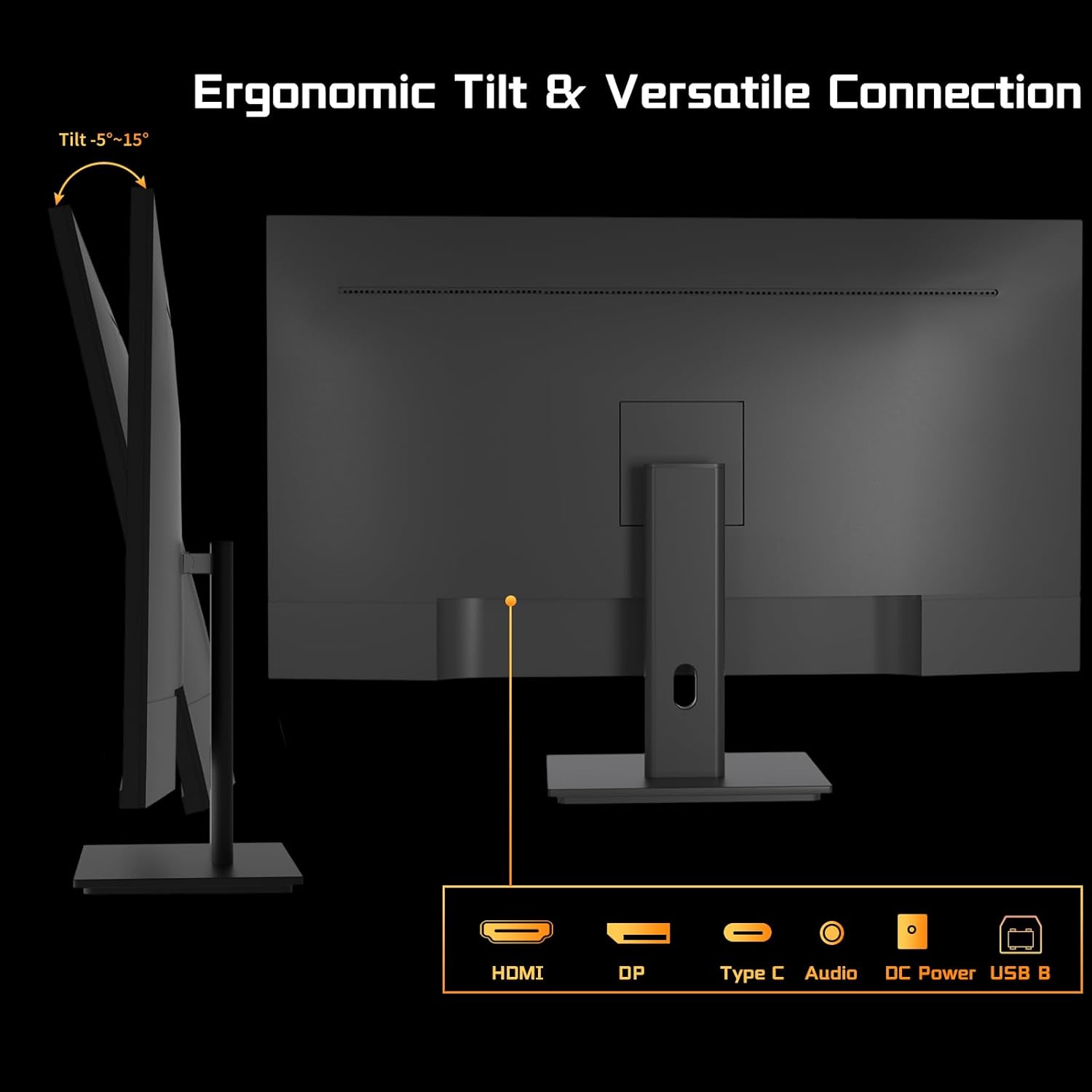
画像: 背面 view of the monitor highlighting the HDMI, DP, Type-C, Audio, DC Power, and USB B ports, along with tilt adjustment range.

Image: The monitor connected to both a desktop PC and a laptop, demonstrating its compatibility with various interfaces. Note: For touch, the USB 2.0 signal cable must be connected.

Image: The monitor connected to a smartphone via Type-C, showcasing its ability to extend display to mobile devices. An iPhone connection via Lightning to HDMI adapter is also shown, with a note about touch functionality limitations.
4. 操作手順
4.1 基本操作
- 電源オン/オフ: Press the power button (location not specified, typically on the back or bottom right) to turn the monitor on or off.
- OSDメニュー: Use the OSD (On-Screen Display) buttons (not specified) to navigate and adjust settings such as brightness, contrast, color, input source, and audio.
4.2 リフレッシュレートと応答時間
This monitor boasts a 165Hz refresh rate and a 2ms response time, crucial for smooth and fluid visuals, especially in fast-paced gaming and video playback. A higher refresh rate reduces motion blur and screen tearing, providing a more immersive experience.

Image: Visual comparison demonstrating the smoothness of a 165Hz refresh rate compared to lower rates, reducing lag and delay.

Image: Illustration of premium performance with 165Hz refresh rate and 2ms response time, showing crisp motion compared to a 75Hz/10ms display.
4.3 タッチスクリーン機能
The monitor features a 10-point capacitive multi-touch panel, allowing for direct and intuitive interaction with your content. You can use gestures such as pinching to zoom, swiping to navigate, and tapping for selection, enhancing productivity and creativity.

Image: A user interacting with the 27-inch touch panel monitor, demonstrating its use for tasks like data analysis and presentations without a mouse or keyboard.

Image: A person interacting with the touch screen, illustrating the ease of use for zooming, handwriting, and navigating content with 10-point multi-touch technology.
4.3.1 Touch Compatibility
The touch functionality is compatible with a wide range of devices, supporting multi-touch for:
- ノートパソコン
- スマートフォン
- タブレット
- オールインワンPC
- Desktop Hosts
However, due to platform-specific restrictions, touch functionality is サポートされていません 次のデバイスで:
- アイフォン
- iPad
- ニンテンドースイッチ
- Xbox (all models)
- PlayStation (PS3, PS4, PS5)
- ファイアTVキューブ
- スチームデッキ
- Certain Apple products (e.g., Mac mini M1/M2/M3 series when connecting to front USB-C ports without video output)

Image: A chart illustrating devices that support multi-touch (laptops, smartphones, tablets, all-in-one PCs, desktop hosts) and single-touch (MacBook, iMac), along with a note about Mac mini compatibility.
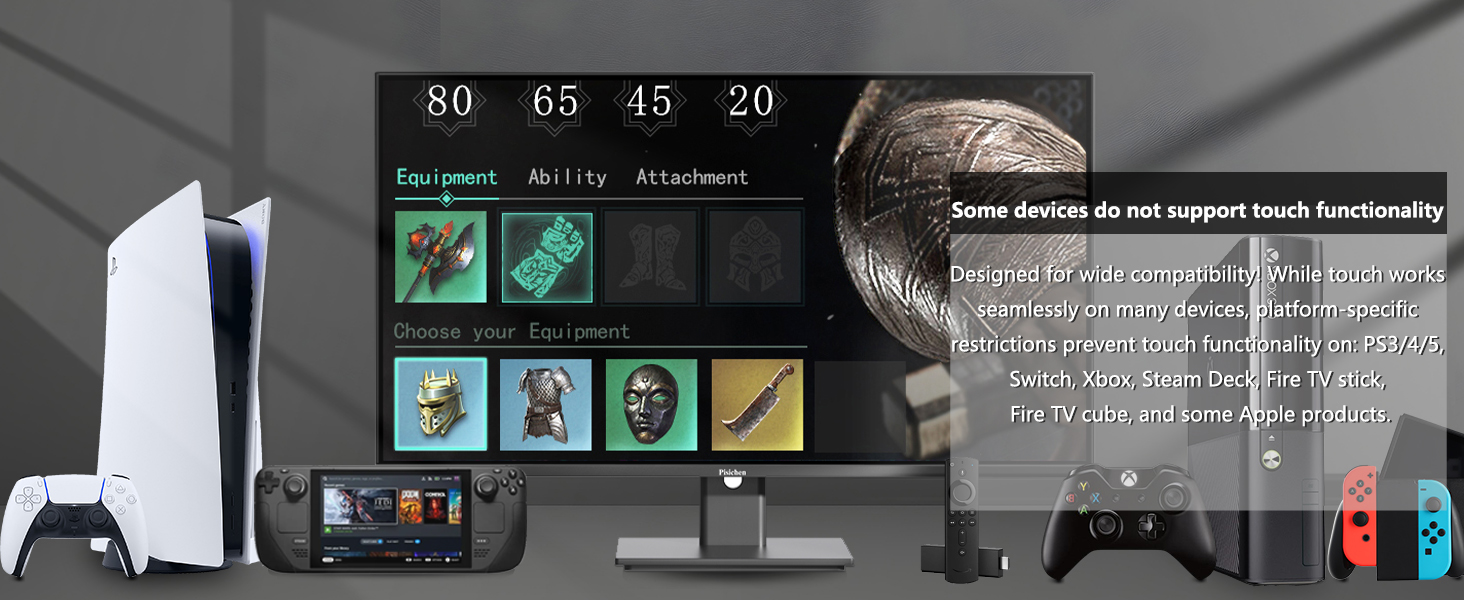
Image: A visual representation of devices that do not support touch functionality, including various gaming consoles and Apple products.
4.4 アイケアテクノロジー
The monitor is designed with eye-care features to reduce strain during extended use. It incorporates reduced blue light modes and flicker-free backlighting, which help minimize eye fatigue and provide a more comfortable viewing の経験。

Image: A visual demonstrating the monitor's low blue light mode, which adjusts brightness and color temperature to alleviate eye strain.
5. アプリケーション
The versatility of the Pisichen touchscreen monitor extends to various professional and interactive environments:
5.1 Interactive Teaching
In educational settings, the touchscreen allows students and instructors to directly interact with content, answer questions, and collaborate on the screen, enhancing engagement and participation.

Image: An instructor and students using the touchscreen monitor for interactive teaching, writing directly on the display.
5.2 Conference Collaboration Whiteboard
During team meetings, the monitor can function as a digital whiteboard, enabling participants to edit, discuss, and share ideas in real-time, fostering dynamic collaboration.

Image: A business meeting where the touchscreen monitor is used as a collaborative whiteboard, with a presenter pointing to data on the screen.
5.3 Self-service Terminals
Ideal for retail or hospitality, the monitor can serve as an information or ordering terminal, allowing customers to browse products, place orders, and interact with the system independently.

Image: A person using the touchscreen monitor as a self-service terminal in a retail environment, interacting with product information.
5.4 Industrial Monitoring and Control
In industrial settings, the touchscreen facilitates monitoring production processes and equipment control, enabling operators to quickly input data and view analytical results directly on the screen.

Image: An engineer using the touchscreen monitor for industrial monitoring and control, interacting with a technical diagram.
6. メンテナンス
モニターの寿命を延ばし、最適なパフォーマンスを確保するには、次のメンテナンス ガイドラインに従ってください。
- 画面の掃除: Gently wipe the screen with a soft, lint-free cloth. For stubborn smudges, use a screen-specific cleaning solution applied to the cloth, not directly to the screen. Avoid harsh chemicals or abrasive materials.
- Cのクリーニングasing: モニターを清掃するには、柔らかく乾いた布を使用してください。asing.
- 換気: 過熱を防ぐために、モニターの通気口が塞がれていないことを確認してください。
- ストレージ: モニターを長期間保管する場合は、電源を外して涼しく乾燥した場所に保管してください。
7。 トラブルシューティング
If you encounter issues with your monitor, refer to the common problems and solutions below. For problems not listed, please contact customer support.

Image: Frequently Asked Questions (FAQs) for the monitor, addressing common issues and solutions.
一般的な問題と解決策:
- How to connect to touch function?
For USB-C (DP Alt Mode) or Thunderbolt 3/4 devices: Use a 12V/3A mini adapter for power + USB C-C cable for video + touch. For other devices: Use HDMI/DP cable for video + 12V/3A mini adapter for power + USB A-B cable for touch. - Why does touching the 27" display move the cursor on my PC screen instead?
Setup required (Windows only): Control Panel > Hardware and Sound > Tablet PC Settings > Setup > Press ENTER > Select 27" Touch screen monitor when prompted. - How to set the resolution of this monitor?
Right-click on the mouse to select Display Settings, and select Extend Mode in Multi Monitor Settings. Find this monitor and select the recommended resolution of 2560x1440P in the resolution column. - Does the monitor support touch when connected to an iPhone?
Unfortunately, due to system restriction, the touch function of the monitor will not work after connecting to the iPhone.
8. 仕様
Below are the detailed technical specifications for the Pisichen 27 Inch 2K 165Hz Gaming Touch Screen Computer Monitor:
| 特徴 | 仕様 |
|---|---|
| 製品寸法 | 0.7 x 24 x 14.1 インチ (1.9 x 61.2 x 36.3 cm) |
| アイテム重量 | 15.52ポンド |
| メーカー | 深セン・コノワ・エレクトロニクス株式会社 |
| ASIN | B0FGX87VPF |
| 商品型番 | 27INCM2K-165HZ |
| 初回利用可能日 | 29年2025月XNUMX日 |
| 立ち画面表示サイズ | 27インチ |
| アスペクト比 | 16:9 |
| 解決 | 2560 x 1440ピクセル(2K UHD) |
| 画像の明るさ | 350カンデラ |
| ブランド | ピシチェン |
| スクリーン表面の説明 | 光沢のある |

Image: A diagram illustrating the precise dimensions of the monitor in both centimeters and inches.
9. 保証とサポート
For warranty information, please refer to the documentation provided with your purchase or contact the seller directly. Pisichen is committed to providing quality products and customer satisfaction.
If you are experiencing a problem that is not listed in the troubleshooting section or require further assistance, please contact our customer service team via email:
メールアドレス: サポート_2308@163.com
Please describe the issue in detail and include pictures or a video if possible to help our technical team identify and resolve the problem promptly.