1. はじめに
This manual provides essential information for setting up, operating, maintaining, and troubleshooting your HP Omen 45L GT22 Gaming Desktop. Please read this manual thoroughly before using your new system to ensure proper functionality and longevity.
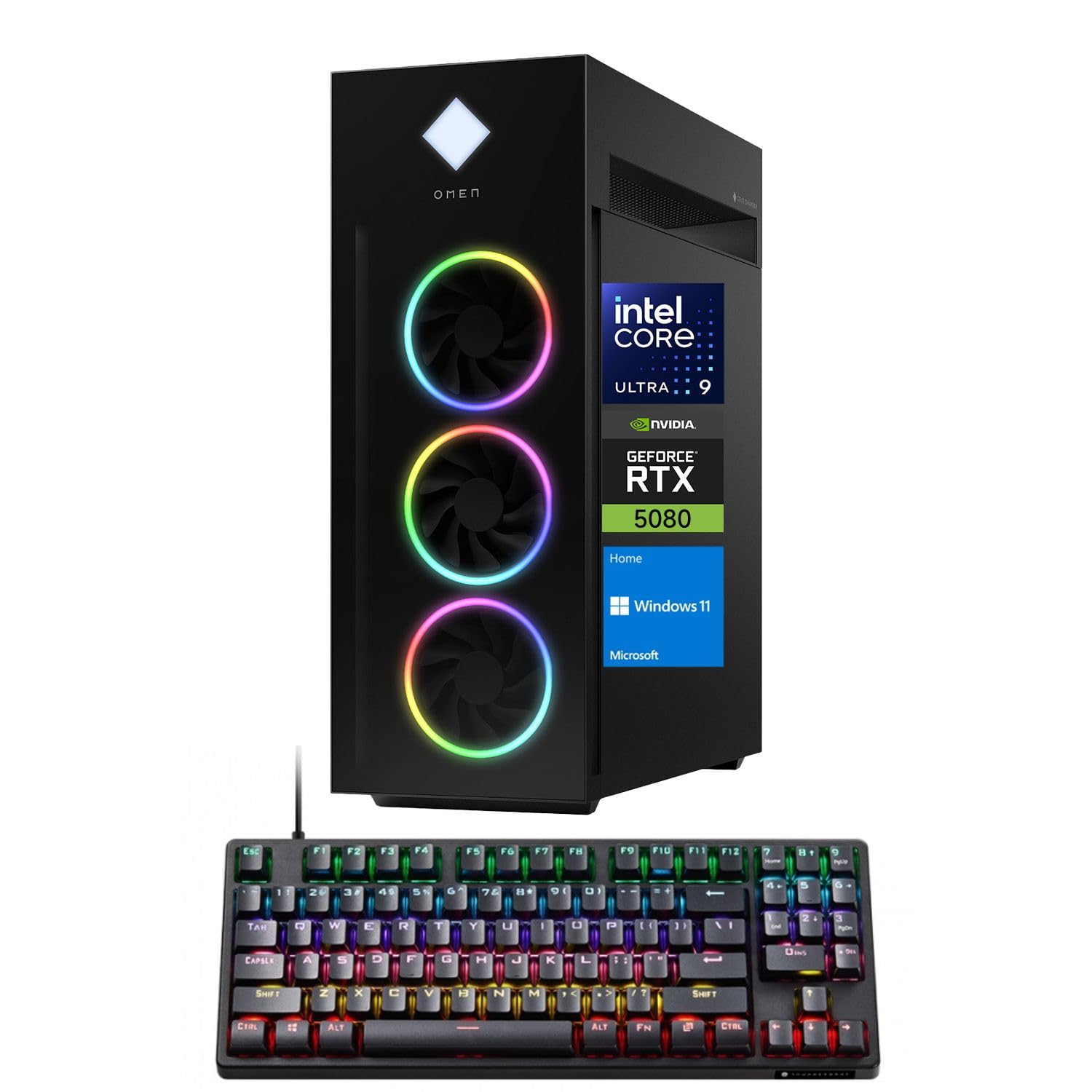
Figure 1: HP Omen 45L GT22 Gaming Desktop. This image displays the front and side of the desktop tower, highlighting its design and RGB lighting elements.
2. 箱の中身
パッケージ内にすべてのコンポーネントが揃っていることを確認します。
- HP Gaming Tower Desktop
- Thunderobot KG3089R ゲーミングキーボード
- 電源ケーブル
- ドキュメント(このマニュアル、保証情報)
3.セットアップガイド
3.1開梱と配置
- デスクトップとすべての付属品をパッケージから慎重に取り出します。
- Place the desktop on a stable, flat surface with adequate ventilation around all sides. Avoid placing it in enclosed spaces or near heat sources.
3.2 周辺機器の接続
Connect your monitor, keyboard, mouse, and other devices to the appropriate ports on the desktop.

Figure 2: Rear Ports of the HP Omen 45L GT22. This image illustrates the various input/output ports available on the back of the desktop, including USB, HDMI, DisplayPort, and Ethernet.
- モニター: HDMI または DisplayPort ケーブルを使用して、モニターを専用のグラフィック カード ポートに接続します。
- キーボードとマウス: Connect the Thunderobot KG3089R Gaming Keyboard and your mouse to any available USB Type-A ports.
- ネットワーク: For a wired connection, connect an Ethernet cable to the RJ-45 port. For wireless, ensure Wi-Fi antennas are connected (if external) or that the internal Wi-Fi is enabled during software setup.
- 力: Connect the power cable to the desktop's power supply port and then to a power outlet.
3.3 初期電源投入とオペレーティングシステムのセットアップ
- デスクトップの前面にある電源ボタンを押します。
- 画面の指示に従って、Windows 11 Home オペレーティングシステムのセットアップを完了してください。これには、ユーザーアカウント、ネットワーク接続、プライバシー設定が含まれます。
- Once Windows is set up, ensure all drivers are installed and updated. You can typically find driver updates through Windows Update or the HP support webサイト。
4. 操作手順
4.1 電源管理
- 電源オン: デスクトップの前面にある電源ボタンを押します。
- シャットダウン: Windows の [スタート] ボタンをクリックし、[電源] > [シャットダウン] をクリックします。
- 再起動: Click the Start button in Windows, then Power > Restart.
- 寝る: Click the Start button in Windows, then Power > Sleep.
4.2 Understanding Your System Components
Your HP Omen 45L GT22 is equipped with high-performance components for demanding tasks and gaming.

Figure 3: Intel Core Ultra 9 285K Processor. This image highlights the specifications of the Intel Core Ultra 9 285K CPU, including its cache, cores, and threads.
- プロセッサ: Intel Core Ultra 9 285K (24 Cores, 24 Threads, 36MB L3 Cache, up to 5.70GHz). This powerful CPU handles complex computations and multitasking.
- グラフィックカード: NVIDIA GeForce RTX 5080 (16GB GDDR7). This dedicated GPU is responsible for rendering high-fidelity graphics for gaming and creative applications.
- メモリ: 32GB DDR5 RAM. High-speed memory ensures smooth operation when running multiple applications simultaneously.
- ストレージ: 2TB PCIe NVMe M.2 SSD. Provides fast boot times and rapid data access for your operating system and applications.
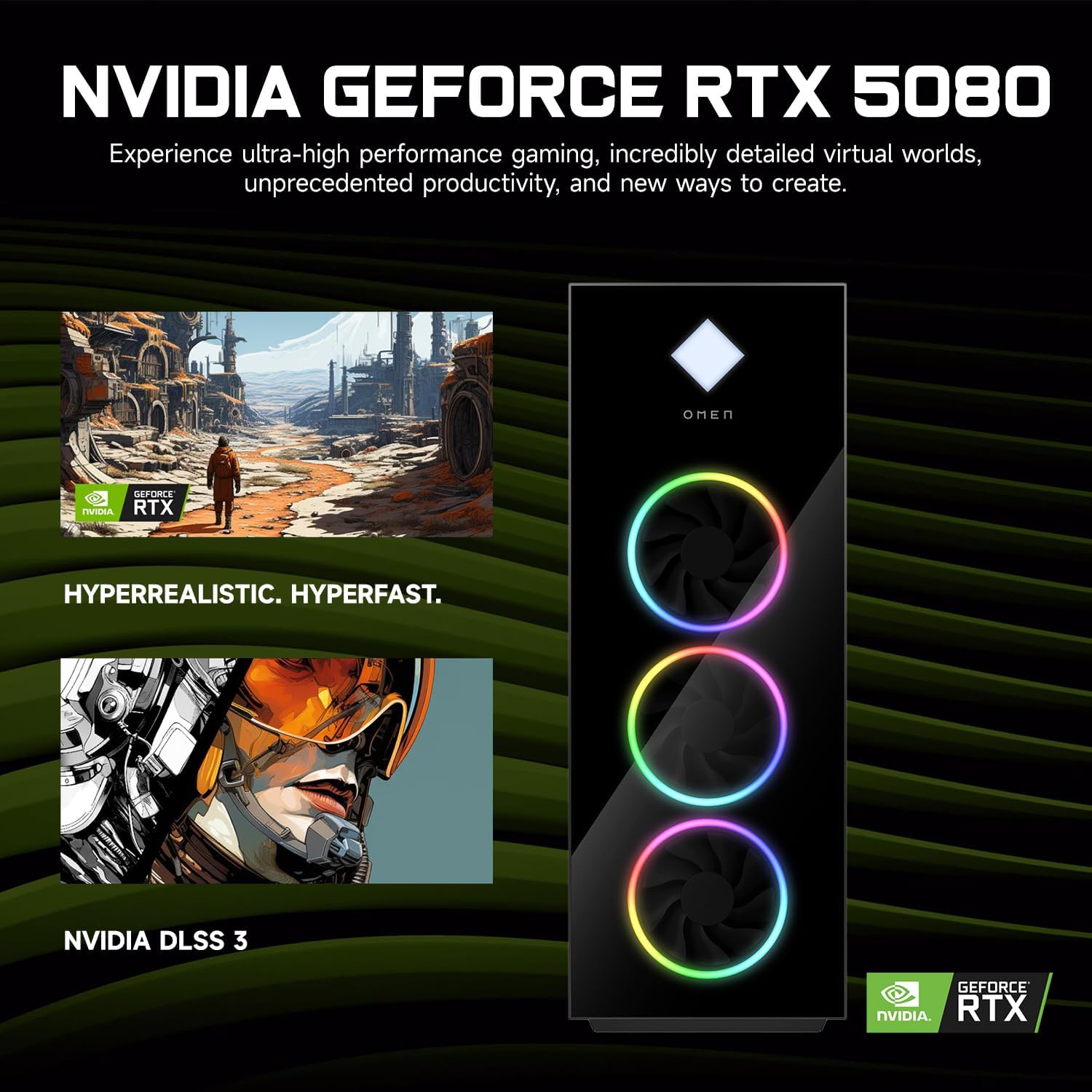
Figure 4: NVIDIA GeForce RTX 5080 Graphics. This image details the capabilities of the NVIDIA GeForce RTX 5080, emphasizing its performance for gaming and content creation.
4.3 RGB Light Studio
The HP Omen 45L GT22 features customizable RGB lighting. Use the pre-installed Omen Gaming Hub software to personalize the lighting effects on your desktop's fans and chassis. Refer to the Omen Gaming Hub's in-app help for detailed instructions on customization options.

Figure 5: Gaming Setup with HP Omen 45L GT22. This image shows the desktop integrated into a complete gaming station, including a monitor, keyboard, and mouse, demonstrating its aesthetic appeal.
5. メンテナンス
5.1 デスクトップの掃除
- 外観: Use a soft, lint-free cloth to wipe down the exterior surfaces. For stubborn marks, slightly damp布を水で濡らしてください。刺激の強い化学薬品は避けてください。
- 換気: Regularly check and clean the ventilation grilles and fan openings to prevent dust buildup, which can impede airflow and cause overheating. Use compressed air to gently clear dust from vents. Ensure the system is powered off and unplugged before cleaning.
5.2ソフトウェアアップデート
最適なパフォーマンスとセキュリティを確保するために、オペレーティング システムとドライバーを最新の状態に保ってください。
- Windows アップデート: Windows 設定 > 更新とセキュリティ > Windows Update から、定期的に更新プログラムを確認してインストールします。
- ドライバーの更新: Update graphics drivers (NVIDIA GeForce Experience) and other system drivers (HP Support Assistant or HP website) periodically.
5.3 データのバックアップ
データの損失を防ぐために、重要なデータを定期的に外部ドライブまたはクラウド ストレージにバックアップしてください。
6。 トラブルシューティング
This section addresses common issues you might encounter. For more complex problems, contact HP Support.
- 電源なし:
- 電源ケーブルがデスクトップと電源コンセントの両方にしっかりと接続されていることを確認します。
- 別のデバイスを接続して、電源コンセントが機能していることを確認します。
- Check the power supply unit (PSU) switch on the back of the desktop (if present) is in the 'ON' position.
- モニターに表示がありません:
- Confirm the monitor is powered on and connected to the graphics card's HDMI or DisplayPort output, not the motherboard's integrated graphics ports (if applicable).
- 可能であれば、別のケーブルまたはモニターを試してください。
- モニターで正しい入力ソースが選択されていることを確認してください。
- システムが遅い、または応答しない:
- バックグラウンドで実行されている不要なアプリケーションを閉じます。
- タスク マネージャー (Ctrl + Shift + Esc) で、CPU、RAM、またはディスクの使用率が高くないか確認します。
- Windows とドライバーが最新であることを確認します。
- ウイルス/マルウェアスキャンを実行します。
- ネットワーク接続の問題:
- 有線接続の場合は、イーサネット ケーブルが正しく接続され、ルーター/モデムが動作していることを確認します。
- For Wi-Fi, check if Wi-Fi is enabled in Windows settings and ensure you are connected to the correct network with the right password.
- ルーター/モデムとデスクトップを再起動します。
7. 仕様
| 特徴 | 詳細 |
|---|---|
| モデル番号 | GT22 |
| プロセッサ | Intel Core Ultra 9 285K (24 Cores, 24 Threads, 36MB L3 Cache, 3.20GHz base, up to 5.70GHz max turbo) |
| グラフィックス | NVIDIA GeForce RTX 5080 (16GB GDDR7) |
| ラム | 32GB DDR5 (4800 MHz) |
| ストレージ | 2TB PCIe NVMe M.2 SSD |
| オペレーティング·システム | Windows 11 ホーム |
| ワイヤレス接続 | Wi-Fi 6(802.11ax)、Bluetooth |
| ポート(前面) | 2 x USB Type-A 5Gbps (HP Sleep and Charge), 2 x USB 2.0 Type-A, 1 x headphone/microphone combo, 1 x microphone |
| ポート(背面) | 1 x USB Type-C 10Gbps, 2 x USB Type-A 5Gbps, 4 x USB 2.0 Type-A, 1 x 3.5 mm audio jack, 1 x RJ-45, 1 x Thunderbolt 4 with USB Type-C 40Gbps, 1 x HDMI, 3 x DisplayPort, 5 x Audio Port |
| 寸法(長さx幅x高さ) | 21.85 x 18.5 x 8.03インチ |
| 重さ | 49.8ポンド |
| 色 | 黒 |
8. 保証とサポート
保証情報については、製品に付属のマニュアルを参照するか、HPの公式サポートをご覧ください。 website. HP provides various support resources, including drivers, manuals, and troubleshooting guides.
HPサポート Webサイト: サポート
When contacting support, please have your product model number (GT22) and serial number ready.