
1. はじめに
The PGST A107F Wireless Home Alarm System provides comprehensive security for your home or office. This smart system integrates 4G SMS and Tuya App instant alerts, motion detection, and door alarm sensors, offering reliable protection without monthly fees. It supports voice control via Alexa and Google Assistant for convenient operation.
主な特徴:
- アプリコントロール: Manage your system and receive alerts via the Smart Life or Tuya App.
- カスタマイズ可能&拡張可能: Add various sensors (door, motion, camera) to suit your security needs.
- SOS機能: One-click SOS button for immediate distress signals and contact to pre-set numbers.
- 簡単なインストール: Simple setup process, suitable for all users.
- 音声コントロール: Compatible with Alexa and Google Assistant for hands-free arming and disarming.
- 月額料金なし: Enjoy security without recurring subscription costs.
2. パッケージ内容
Upon opening your PGST A107F Wireless Home Alarm System package, you should find the following components:
- 1 x PGST A107F Home Alarm System Control Panel
- Motion Detectors (quantity varies by package)
- Door/Window Sensors (quantity varies by package)
- Remote Controls (quantity varies by package)
- 電源アダプター
- ユーザーマニュアル
Please verify all items are present and undamaged. If any components are missing or damaged, contact customer support.
3.システムオーバーview
Familiarize yourself with the main components and interfaces of the PGST A107F control panel.

図3.1: PGST A107F Control Panel Main Parameters. This diagram illustrates the various parts of the alarm system's main panel, including the speaker, capacitive touch and IPS display, SOS button, RFID card sensing area, anti-prying switch, Type C power interface, battery switch, SIM card interface (for 2G/4G version), and wall hanging plates with screw holes. Dimensions are also indicated.
コントロールパネルの機能:
- スピーカー: For audible alerts and system prompts.
- Capacitive Touch & IPS Display: User interface for system configuration and status.
- SOSボタン: Emergency call button.
- RFIDカード検知エリア: For quick arm/disarm using RFID tags.
- Anti-Prying Switch: パネルがtの場合にアラームを発動しますampとしました。
- Type C Power Interface: 電源アダプタを接続します。
- バッテリースイッチ: To manage the internal backup battery.
- SIMカードインターフェース: (For 2G/4G versions) For cellular communication and SMS alerts.
- Wall Hanging Plates: 安全な壁取り付け用。
4. セットアップとインストール
4.1 初期電源投入
- Connect the power adapter to the Type C power interface on the control panel.
- 電源アダプタを標準のコンセントに差し込みます。
- Ensure the battery switch is in the 'ON' position to activate the backup battery.
- The control panel display will light up, indicating the system is powering on.
4.2 アプリのインストールとアカウント作成
The PGST A107F system is controlled via the Smart Life or Tuya App. Download the app from your smartphone's app store (iOS App Store or Google Play Store).
- 検索する "Smart Life" or "Tuya Smart" in your app store.
- アプリをダウンロードしてインストールします。
- Open the app and register a new account if you don't already have one. Follow the on-screen prompts to complete registration.

図4.1: All-in-One App Control. This image displays a smartphone with the Tuya Smart Life app open, showing options to add various smart home devices such as electrical, sensors (Wi-Fi, Zigbee), cameras, and alarms, highlighting the system's comprehensive control capabilities.
4.3ネットワーク構成
To connect your alarm system to the internet via Wi-Fi, follow one of the methods below:

図4.2: Network Configuration Steps. This diagram outlines two methods for connecting the alarm system to your network: Method 1 (Soft AP Configure) involves selecting Wi-Fi and Soft AP on the host, then using the Smart Life app to add devices via Bluetooth. Method 2 (Airlink Configure) involves selecting Wi-Fi and Airlink on the host, then using the Smart Life app to add devices by selecting Alarm, Wi-Fi, and blinking quickly.
Method 1: Soft AP Configure
- Host Operation: コントロールパネルで、 メニュー > Wi-Fi > ソフトAP設定.
- Phone Operation: Open the Smart Life app. Ensure your phone's Wi-Fi (2.4GHz) and Bluetooth are enabled. In the app, select デバイスを追加 and follow the prompts to connect via Bluetooth.
Method 2: Airlink Configure
- Host Operation: コントロールパネルで、 メニュー > Wi-Fi > エアリンク構成.
- Phone Operation: Open the Smart Life app. Ensure your phone's Wi-Fi (2.4GHz) is enabled. In the app, select デバイスを追加 > センサー > アラーム > Wi-Fi. Follow the instructions, which may include a "Blink Quickly" step to confirm pairing.
4.4 Sensor Pairing and Placement
The included sensors are typically pre-paired with the control panel. If you purchase additional sensors or need to re-pair them, use the Smart Life/Tuya App.
- ドア/窓センサー: Install these on doors and windows. Ensure the two parts of the sensor are aligned and within 1 cm of each other when the door/window is closed.
- Motion Detectors: Place motion detectors in areas where intruders are likely to pass, such as hallways or living rooms. Mount them at a height of approximately 2-2.5 meters for optimal coverage. Avoid placing them near heat sources or direct sunlight.
- Adding New Sensors: In the Smart Life/Tuya App, navigate to the alarm system device, then select "Add Sub-device" or a similar option. Follow the app's instructions to put the new sensor into pairing mode.

図4.3: Door and PIR Detection Technology. This image illustrates how the system detects intrusions: a door sensor is triggered by an intruder, and a motion sensor (PIR) would detect movement. Simultaneously, a smartphone receives an instant alert notification, ensuring real-time awareness.
5. 操作手順
5.1 システムの武装と武装解除
You can arm or disarm your PGST A107F system using the control panel, remote controls, the mobile app, or voice commands.
- アーム: すべてのセンサーを作動させます。作動したセンサーはアラームを発します。
- ステイアーム(ホームアーム): Activates perimeter sensors (e.g., door/window sensors) while allowing free movement within the property (motion sensors may be disarmed).
- 武装解除: Deactivates all sensors, allowing you to move freely without triggering an alarm.
コントロールパネル:
Use the touch screen interface to select Arm, Stay Arm, or Disarm options.
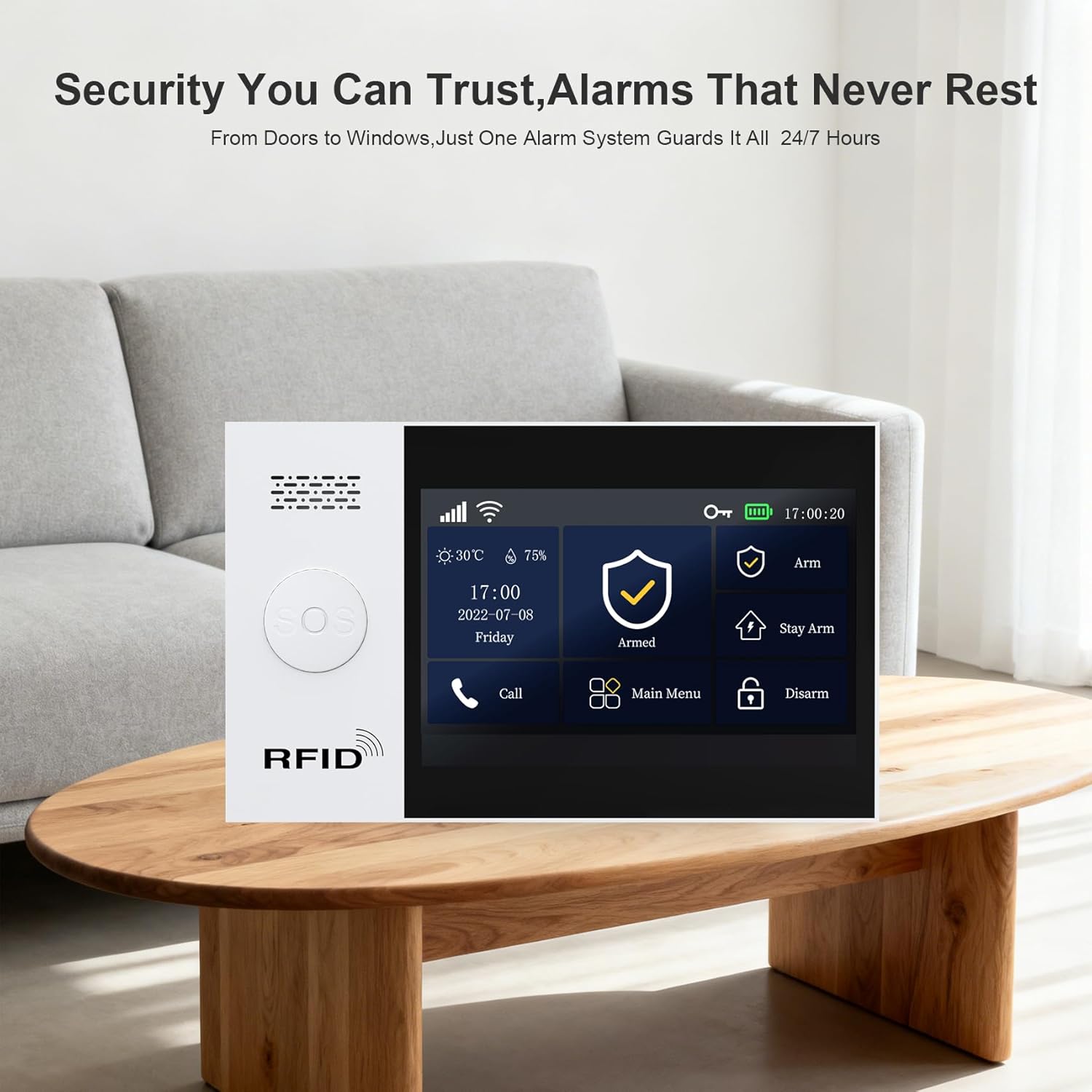
図5.1: Control Panel Interface. This image shows the PGST A107F control panel's display, featuring clear icons for Arm, Stay Arm, Disarm, Call, and Main Menu, indicating its user-friendly interface for managing security settings.
モバイルアプリ:
Open the Smart Life/Tuya App, select your alarm system, and tap the corresponding Arm, Stay Arm, or Disarm button.
音声コントロール(Alexa/Google アシスタント):
Integrate your alarm system with Alexa or Google Assistant through the Smart Life/Tuya App settings. Once linked, you can use voice commands such as:
- "Alexa, arm my home."
- "Hey Google, disarm the alarm."
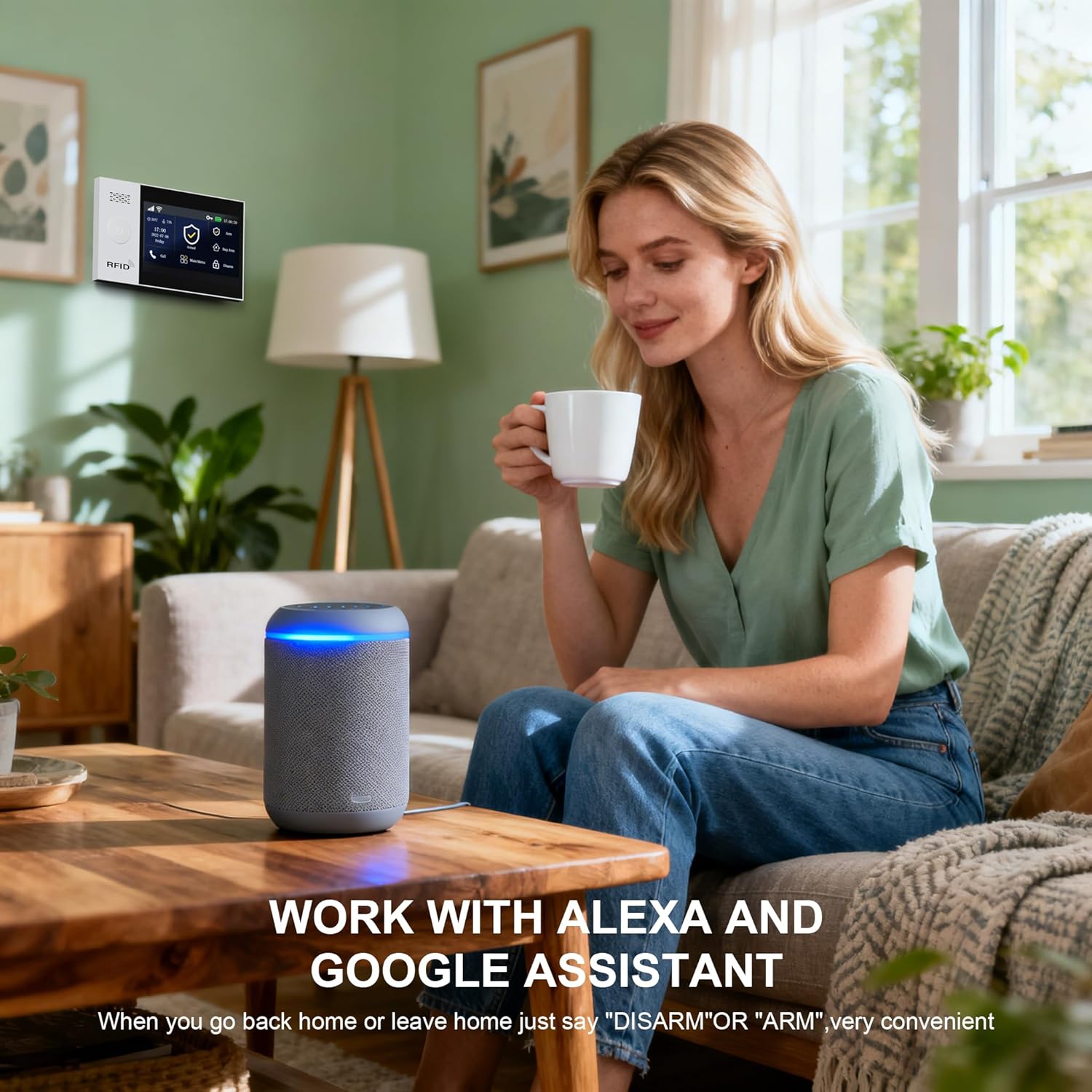
図5.2: Voice Control with Alexa. This image shows a woman using an Alexa smart speaker to control her home security system, illustrating the convenience of voice commands for arming or disarming the alarm.

図5.3: Voice Control by Alexa and Google Assistant. This image depicts a couple in a modern kitchen, with a smart speaker on the counter, illustrating how the PGST A107F system can be controlled using voice commands like "Disarm my home!" through Alexa or Google Assistant, offering convenient hands-free operation.
5.2 アラートの受信
アラームが作動すると、システムは複数のチャネルを通じて通知します。
- アプリのプッシュ通知: Instant alerts sent to your smartphone via the Smart Life/Tuya App.
- SMSアラート: Text messages sent to pre-set phone numbers (requires a SIM card in the control panel for 4G versions).
- 電話: The system can automatically call pre-set phone numbers.
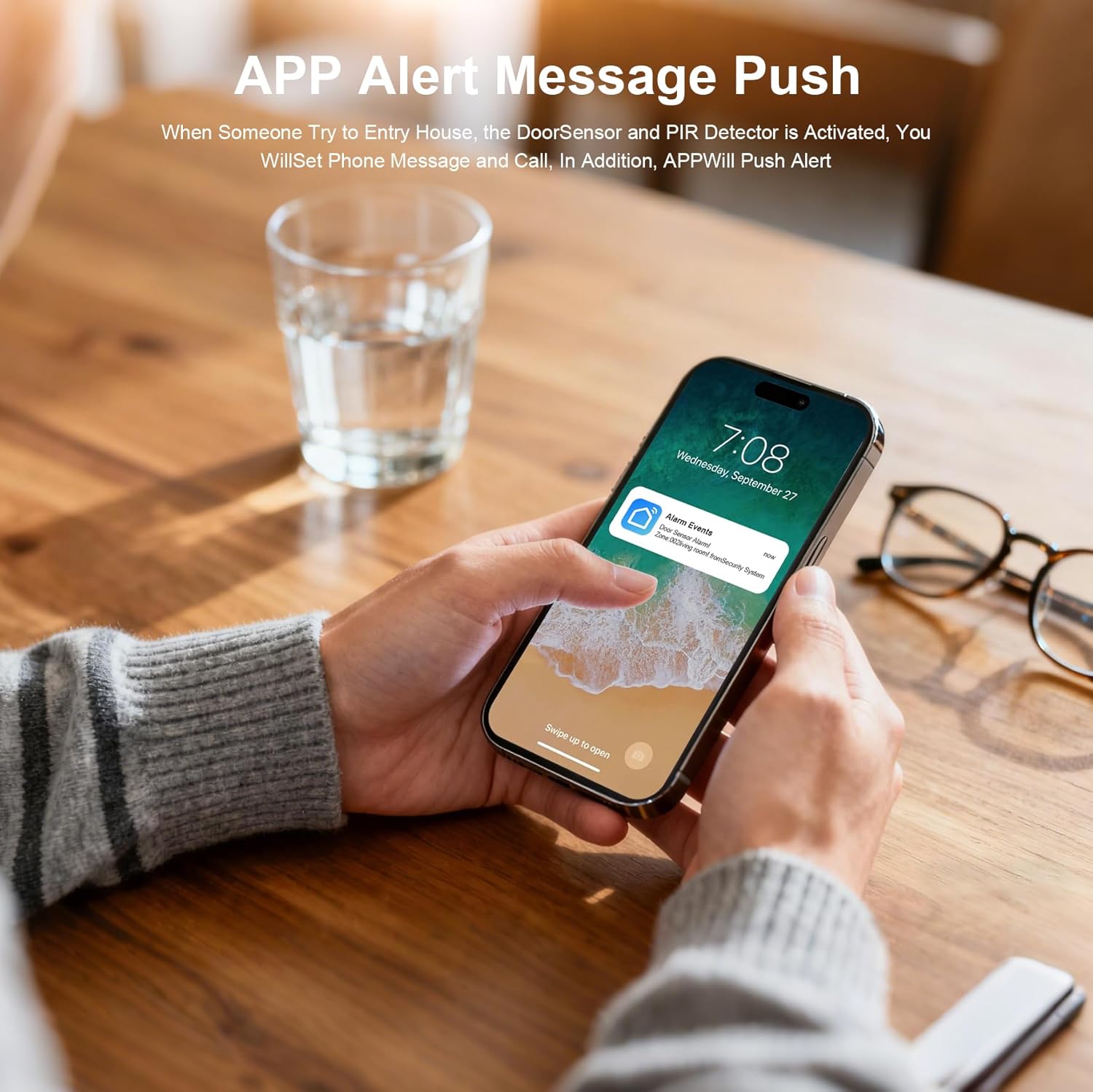
図5.4: App Alert Message Push. This image shows a smartphone receiving an "Alarm Events" push notification on its lock screen, demonstrating how the system provides instant alerts when a sensor is activated.
5.3 SOSボタンの機能
The SOS button on the control panel (and potentially on remote accessories) is for emergency situations.
- Pressing the SOS button will immediately send a distress signal.
- The system will call and send messages to pre-set emergency contacts.
5.4 Monitoring Schedule
You can set up a monitoring schedule to automatically arm or disarm the system at specific times, aligning with your daily routine.

図5.5: Monitoring Schedule. This graphic demonstrates how users can set a daily schedule for the alarm system, automatically arming it when leaving for work (08:00) or going to bed (22:20), and disarming it upon returning from work (19:00) or waking up (06:30).
Configure these schedules within the Smart Life/Tuya App under the alarm system settings.
6. メンテナンス
6.1 バッテリー管理
- コントロールパネル: The control panel has a built-in backup battery. Ensure the battery switch is ON. The system will automatically switch to battery power during a power outage.
- センサー: Wireless sensors are powered by alkaline batteries. Replace batteries promptly when the low battery indicator appears on the control panel or in the app. Refer to individual sensor manuals for specific battery types and replacement instructions.
6.2 クリーニング
- Wipe the control panel and sensors with a soft, dry cloth.
- Do not use liquid cleaners or abrasive materials, as these can damage the devices.
6.3ファームウェアアップデート
Periodically check the Smart Life/Tuya App for available firmware updates for your alarm system. Updates can improve performance, add new features, and enhance security.
7。 トラブルシューティング
| 問題 | 考えられる原因 | 解決 |
|---|---|---|
| システムが起動しない | No power, battery switch OFF | Check power adapter connection, ensure battery switch is ON. |
| Wi-Fiに接続できません | Wi-Fiパスワードが間違っています、5GHzネットワーク、信号が弱い | Verify password, ensure 2.4GHz Wi-Fi, move closer to router, retry network configuration. |
| センサーが警報を発しない | Sensor battery low, sensor not paired, system disarmed | Replace sensor battery, re-pair sensor via app, ensure system is armed. |
| アプリ通知なし | App permissions, phone settings, internet connectivity | Check app notification permissions, ensure phone has internet, verify system's internet connection. |
| 音声制御が機能しない | Incorrect linking, voice assistant issues | Ensure Alexa/Google Assistant is correctly linked to Smart Life/Tuya app. Check voice assistant settings. |
8. 仕様
| 特徴 | 詳細 |
|---|---|
| ブランド | PGST |
| モデル番号 | A107F |
| 電源 | コード式電気 |
| 接続技術 | Wireless (Wi-Fi, 4G/2G for SIM card versions) |
| 対応デバイス | Smartphone (Tuya/Smart Life App), Alexa, Google Assistant |
| アラートの種類 | Audio & Motion, App Push, SMS, Phone Call |
| 制御方法 | App, Control Panel, Remote Control, Voice |
| センサー技術 | Motion Sensor, Door/Window Sensor |
| 商品の寸法 (長さ x 幅 x 高さ) | 8 x 6 x 4 inches (Control Panel) |
| バッテリーセルタイプ | Alkaline (for sensors), Built-in rechargeable (for control panel backup) |
9. 保証とサポート
9.1 保証情報
The PGST A107F Home Alarm System comes with a 1年間保証 ご購入日から1年間有効です。本保証は、通常の使用における製造上の欠陥および故障を対象としています。保証請求の際は、購入証明書を保管してください。
9.2 カスタマーサポート
If you encounter any issues during installation, operation, or maintenance, or have any questions regarding your PGST A107F system, please contact PGST customer support. Refer to the contact information provided in your product packaging or on the official PGST webサイト。