
1. はじめに
Thank you for choosing the Dierya x TMKB M1 Wireless Gaming Mouse. This manual provides detailed instructions on how to set up, operate, and maintain your new gaming mouse. The M1 mouse offers versatile connectivity, high-precision tracking, and customizable features to enhance your gaming and productivity experience.
2.製品オーバーview
2.1 コンポーネントとコントロール
Familiarize yourself with the various buttons and features of your Dierya M1 mouse:
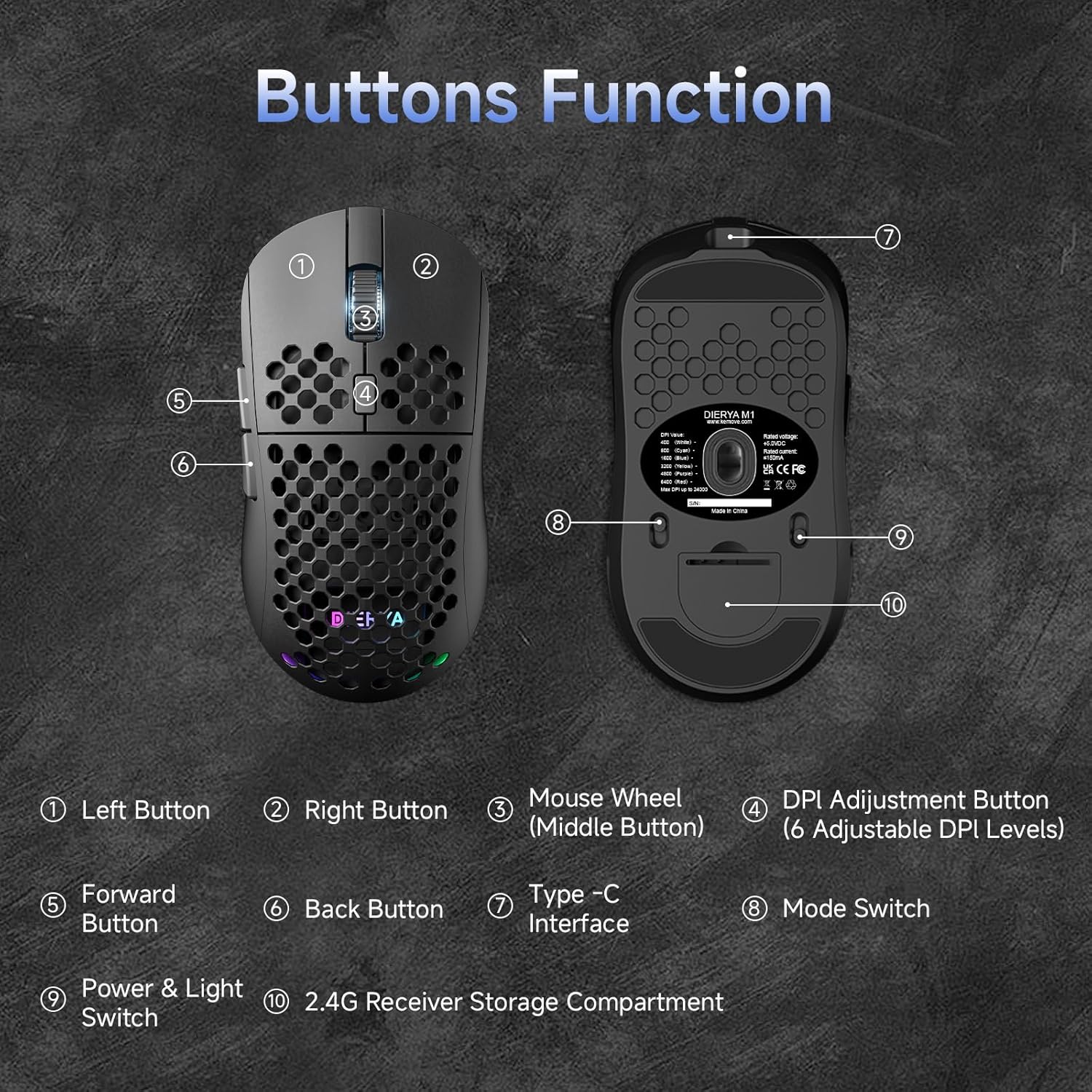
This diagram illustrates the various components of the Dierya M1 wireless gaming mouse. It highlights the 左ボタン(1), 右ボタン(2), Mouse Wheel (Middle Button) (3), DPI Adjustment Button (4) with 6 adjustable DPI levels, 進むボタン(5), 戻るボタン (6), Type-C Interface (7) for charging and wired connection, モードスイッチ (8) for selecting connection type, Power & Light Switch (9)、そして 2.4G Receiver Storage Compartment (10) 下側にあります。
2.2 主な特徴
- 24,000 DPI光学センサー: Adjustable DPI range from 200 to 24,000, with 6 preset levels (400-6400 DPI).
- トライモード接続: Supports ultra-fast 2.4GHz wireless, energy-efficient Bluetooth 5.2, and stable USB-C wired connections.
- 長いバッテリー寿命: 1000mAh battery provides up to 180 hours in ECO mode or 48 hours with RGB lighting, with 1-hour fast charging.
- 軽量で人間工学に基づいたデザイン: Weighs only 90g with a honeycomb shell for breathability and a symmetrical design (125x63x41 mm).
- プログラム可能なボタン: 6 customizable buttons via the M1 Driver software (Windows only).
- ダイナミックRGB照明: 13 integrated RGB lighting effects with 16.8 million customizable colors.
- 高性能: 125-1000 Hz polling rate, 300 IPS tracking speed, and 35G acceleration.
- 耐久性のあるスイッチ: Equipped with Huano switches rated for 20 million clicks and 100% PTFE feet for smooth gliding.
3. セットアップ
3.1 マウスの充電
Before first use, it is recommended to fully charge the mouse. Connect the provided USB-C cable to the Type-C Interface (7) on the mouse and the other end to a USB power source (e.g., computer USB port, USB wall adapter).
- The mouse charges in approximately 1 hour.
- The scroll wheel LED will indicate charging status (e.g., red for charging, green for fully charged).
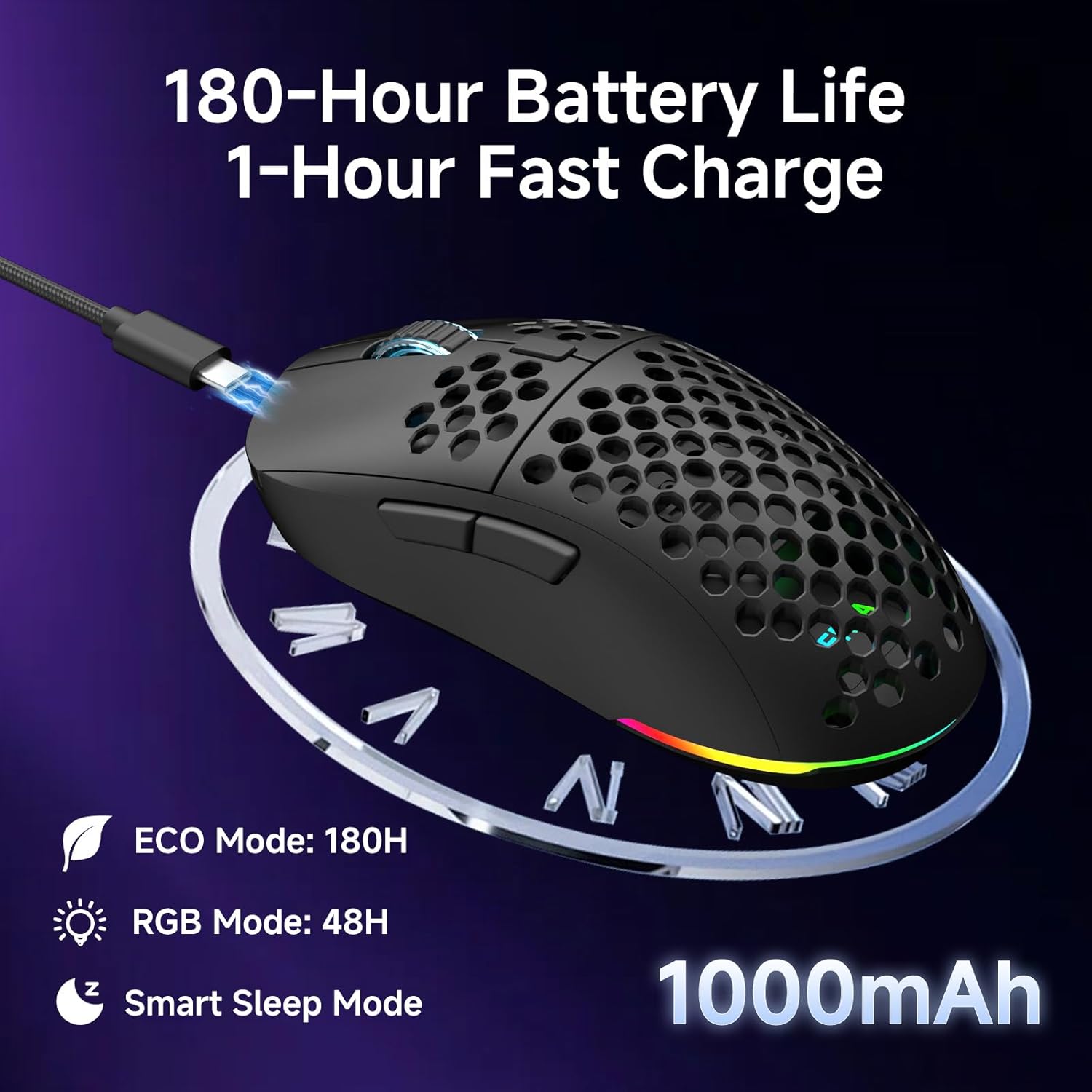
The Dierya M1 mouse features a 1000mAh battery, providing up to 180 hours of use in ECO mode or 48 hours with RGB lighting enabled. It supports fast charging, reaching full capacity in approximately 1 hour via the included USB-C cable. The mouse also includes a smart sleep mode to conserve power during inactivity.
3.2 マウスの接続
The Dierya M1 mouse offers three connection modes: 2.4GHz Wireless, Bluetooth 5.2, and USB-C Wired.

The Dierya M1 mouse supports three flexible connection modes: Bluetooth 5.2 for energy-efficient pairing with up to two devices, 2.4GHz Wireless via a USB dongle for ultra-fast response, and a stable USB-C Wired connection for charging and direct use. Each mode offers a different polling rate, with 2.4GHz and wired modes providing 1000Hz, and Bluetooth offering 125Hz.
3.2.1 2.4GHzワイヤレス接続
- Locate the 2.4G receiver in the storage compartment (10) on the underside of the mouse.
- 2.4G レシーバーをコンピューターの使用可能な USB ポートに接続します。
- Set the Mode Switch (8) on the underside of the mouse to the '2.4G' position.
- The mouse should connect automatically. The polling rate for this mode is 1000 Hz.
3.2.2 Bluetooth 5.2接続
- Set the Mode Switch (8) on the underside of the mouse to the 'BT' position.
- コンピューターまたはデバイスで Bluetooth 設定を開き、新しいデバイスを検索します。
- Select 'Dierya M1' from the list of available devices to pair.
- The mouse supports Bluetooth 5.2 and has a polling rate of 125 Hz in this mode.
3.2.3 USB-C有線接続
- Connect the USB-C cable to the Type-C Interface (7) on the mouse.
- USB-C ケーブルのもう一方の端をコンピューターの使用可能な USB ポートに接続します。
- The mouse will automatically switch to wired mode and begin charging. The polling rate for this mode is 1000 Hz.
4. 操作手順
4.1 DPI調整
The Dierya M1 mouse features a dedicated DPI Adjustment Button (4) to cycle through preset DPI levels. The scroll wheel LED color indicates the current DPI setting.
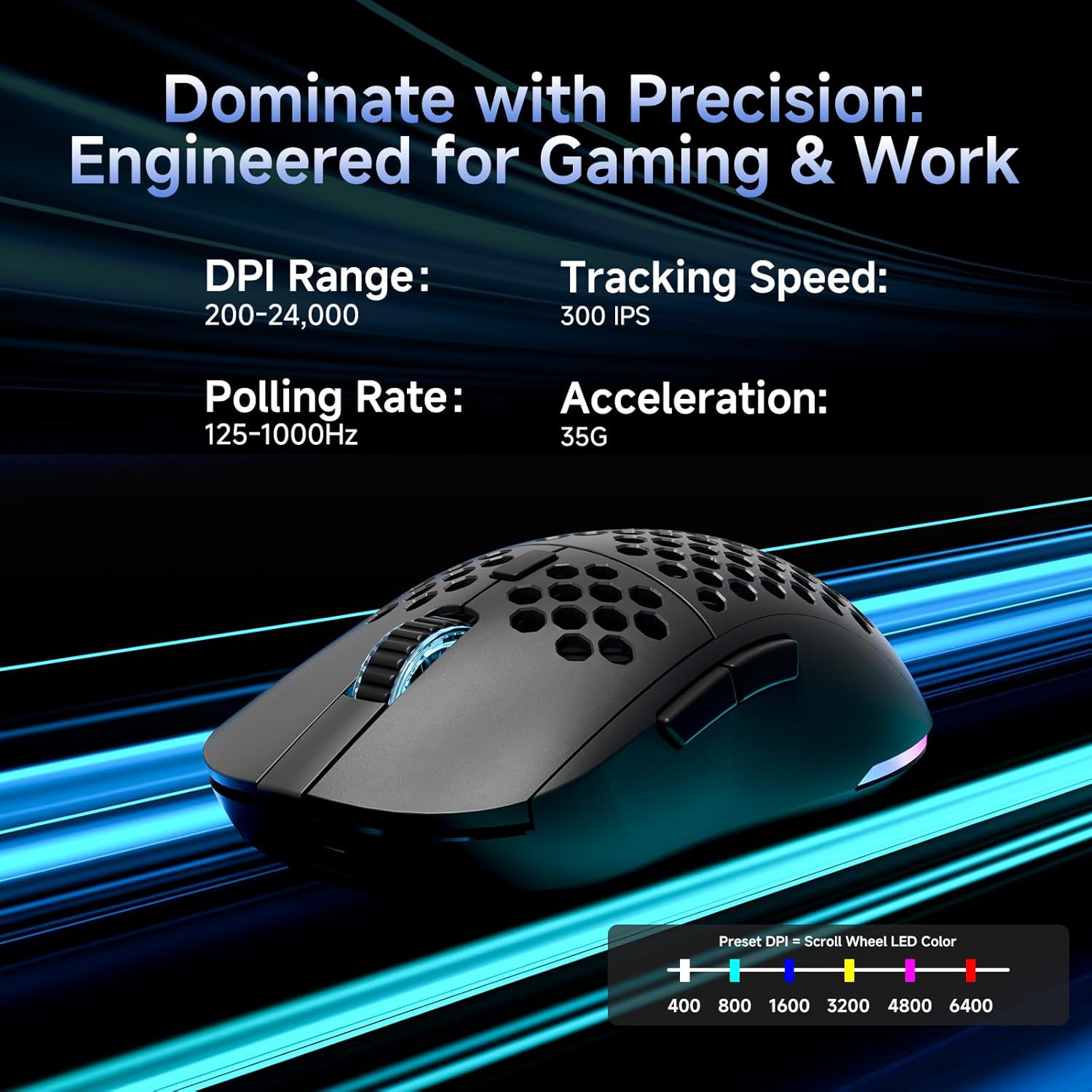
This image details the performance specifications of the Dierya M1 mouse, including a DPI range of 200-24,000, a tracking speed of 300 IPS, a polling rate of 125-1000Hz, and 35G acceleration. It also shows the preset DPI levels (400, 800, 1600, 3200, 4800, 6400) and the color indicators on the scroll wheel for each setting.
- Press the DPI Adjustment Button (4) to cycle through the 6 default DPI settings: 400, 800, 1600, 3200, 4800, and 6400 DPI.
- Each DPI level is indicated by a specific color on the scroll wheel LED.
- For custom DPI settings and a wider range (200-24,000 DPI), use the M1 Driver software.
4.2 RGB照明制御
The Dierya M1 mouse features dynamic RGB lighting. You can control the lighting effects and colors using the M1 Driver software.
- The mouse has 13 built-in RGB lighting effects.
- Use the M1 Driver software to customize colors (16.8 million options), brightness, and speed of the lighting effects.
- The Power & Light Switch (9) on the underside can be used to turn the lighting on or off.
4.3 プログラム可能なボタンとソフトウェア
The M1 mouse has 6 programmable buttons that can be customized using the dedicated M1 Driver software.

The Dierya M1 driver software, currently available for Windows, allows users to customize various aspects of the mouse. This includes reassigning the 6 programmable buttons, creating macros, adjusting DPI settings, modifying the polling rate, and personalizing the 13 dynamic RGB lighting effects with 16.8 million colors.
- ソフトウェアの互換性: The M1 Driver software is currently only available for Windows operating systems.
- キーの割り当て: Reassign functions to any of the 6 programmable buttons (Left, Right, Middle, DPI, Forward, Back).
- マクロ作成: Create and assign complex macros to streamline in-game actions or productivity tasks.
- DPI & Polling Rate: Fine-tune DPI settings beyond the presets and adjust the polling rate.
- RGB カスタマイズ: Personalize lighting effects, colors, and patterns.
- プロfile 管理: 保存して別のプロをロードするfileさまざまなゲームやアプリケーションに使用できます。
4.4 省電力モード
The M1 mouse is designed with automatic power-saving features to extend battery life:
- The mouse will enter an automatic power-saving mode after 1-5 minutes of inactivity.
- This inactivity time can be adjusted via the M1 Driver software.
- マウスを起動するには、マウスを動かすか、任意のボタンをクリックするだけです。
5. メンテナンス
Proper maintenance ensures the longevity and optimal performance of your Dierya M1 mouse.
- クリーニング: マウスの表面は、柔らかく乾いた布で拭いてください。頑固な汚れには、軽く湿らせた布で拭いてください。amp 布で拭いても構いませんが、マウスに水分が入らないようにしてください。刺激の強い化学薬品や研磨剤入りの洗剤は使用しないでください。
- センサーのメンテナンス: 正確なトラッキングを確保するために、マウスの下側にある光学センサーを清潔に保ち、ほこりやごみを除去してください。
- バッテリーのケア: バッテリーを頻繁に完全に放電することは避けてください。長期保管する場合は、マウスを約50%まで充電し、涼しく乾燥した場所に保管してください。
- ストレージ: 使用していないときは、マウスを極端な温度を避け、清潔で乾燥した環境に保管してください。
6。 トラブルシューティング
If you encounter issues with your Dierya M1 mouse, refer to the following common troubleshooting steps:
| 問題 | 考えられる原因 | 解決 |
|---|---|---|
| マウスが反応しない(2.4GHz) | 電池残量が少ない、受信機が接続されていない、モードが正しくない、干渉がある。 | Charge the mouse. Ensure 2.4G receiver is securely plugged in. Set Mode Switch to '2.4G'. Try a different USB port. Reduce distance to receiver. |
| マウスが反応しない(Bluetooth) | バッテリー残量が少ない、モードが正しくない、ペアリングされていない、デバイスの Bluetooth がオフになっている。 | Charge the mouse. Set Mode Switch to 'BT'. Ensure Bluetooth is enabled on your device. Re-pair the mouse in Bluetooth settings. |
| マウスが反応しない(有線) | Cable not connected, faulty cable/port. | Ensure USB-C cable is securely connected to both mouse and computer. Try a different USB port or cable. |
| 不正確な追跡 | Dirty sensor, unsuitable surface, incorrect DPI. | Clean the optical sensor. Use a mouse pad or a clean, non-reflective surface. Adjust DPI settings. |
| RGB照明が機能しない | Lighting switched off, low battery, software issue. | Check Power & Light Switch (9). Charge the mouse. Check settings in M1 Driver software. |
| ボタンはプログラムできません | M1 Driver not installed/running, not on Windows. | Ensure M1 Driver software is installed and running (Windows only). Check software settings. |
7. 仕様
| モデル名 | M1 |
| ブランド | ディエリヤ |
| 接続技術 | 2.4GHzワイヤレス、Bluetooth 5.2、USB-C有線 |
| 動き検出技術 | 光学 |
| DPI範囲 | 200 - 24,000 DPI (6 preset levels: 400, 800, 1600, 3200, 4800, 6400) |
| ポーリングレート | 125~1000Hz |
| 追跡速度 | 300 IPS |
| 加速度 | 35G |
| ボタンの数 | 6(プログラム可能) |
| バッテリー容量 | 1000 mAhのリチウムイオン |
| バッテリー寿命 | Up to 180 hours (ECO mode), 48 hours (RGB mode) |
| 充電時間 | 約1時間 |
| 重さ | 90グラム |
| 寸法 | 125 x 63 x 41 ミリメートル |
| スイッチタイプ | ワノ(20万クリック) |
| 足の素材 | 100% PTFE |
| オペレーティングシステムの互換性 | Windows、macOS、Linux、Chrome OS |
| Driver Software Compatibility | Windowsのみ |
8. 保証とサポート
8.1 メーカー保証
Dierya M1ワイヤレスゲーミングマウスには、 1年間のメーカー保証この保証は、通常の使用状況における材料および製造上の欠陥を対象としています。保証請求の際は、購入証明書を保管してください。
8.2 カスタマーサポート
For further assistance, technical support, or warranty inquiries, please refer to the official Dierya website or contact your retailer. Ensure you have your product model (M1) and proof of purchase ready when seeking support.