
1.製品オーバーview
The DIERYA Falcon M1 is a high-performance wireless gaming mouse designed for precision and versatility. It features multiple connectivity options, customizable settings, and an ergonomic design for extended use.

図1.1: 以上view of the DIERYA Falcon M1 Wireless Gaming Mouse, illustrating its honeycomb design, 2.4GHz/Bluetooth 5.2/USB-C connectivity, 200-24000 DPI range, 125-1000Hz polling rate, 1000mAh battery, 6 programmable buttons, customizable RGB strip, dedicated software support, 20 million click durability, and ultra-light 90-gram weight.

図1.2: The Falcon M1 mouse from a side view, highlighting its performance specifications including a maximum tracking speed of 300 IPS, a DPI range of 200-24000, a polling rate of 125-1000Hz, and 35G acceleration.
2. パッケージ内容
以下にリストされているすべてのアイテムがパッケージに含まれていることを確認してください。
- DIERYA Falcon M1 Wireless Gaming Mouse
- USB-Cケーブル
- 取扱説明書
3. セットアップ
3.1. マウスの充電
Before initial use, fully charge the mouse. Connect the provided USB-C cable to the mouse's charging port and the other end to a USB power source (e.g., computer USB port, USB wall adapter). A full charge typically takes approximately 1 hour.
3.2. マウスの接続
The Falcon M1 supports three connection modes: 2.4GHz Wireless, Bluetooth 5.2, and USB-C Wired.
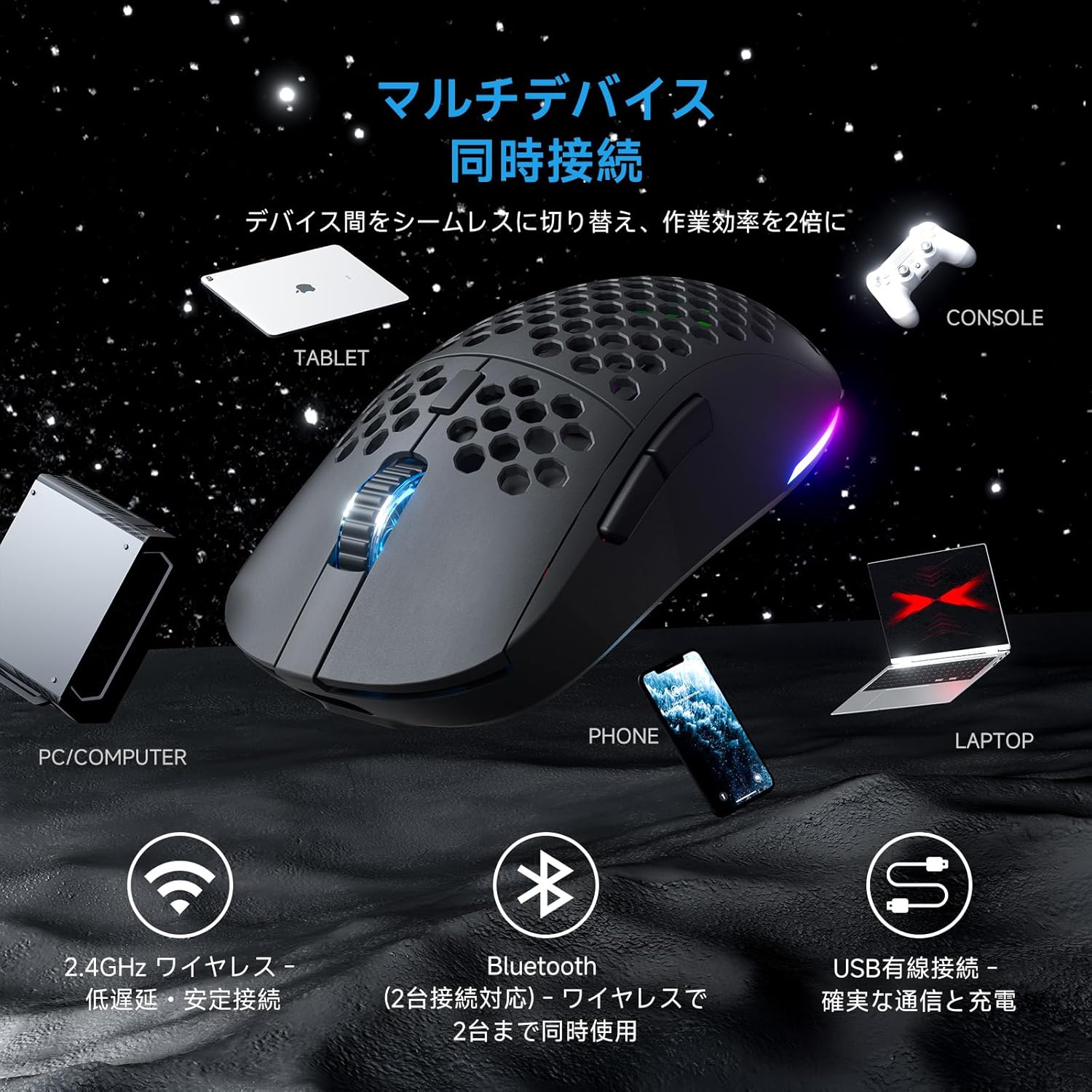
図3.1: The Falcon M1 mouse demonstrating multi-device simultaneous connection capabilities, including PC/Computer, Tablet, Phone, Laptop, and Console via 2.4GHz wireless, Bluetooth 5.2, and USB wired connections.
3.2.1. 2.4GHzワイヤレス接続
- Locate the USB 2.4GHz receiver (dongle) inside the mouse's bottom compartment.
- USBレシーバーをコンピューターの使用可能なUSBポートに接続します。
- Turn on the mouse using the power switch on the bottom. The mouse will automatically connect to the receiver.
- The LED indicator on the mouse will show the connection status.
3.2.2. Bluetooth 5.2接続
- Turn on the mouse and switch to Bluetooth mode using the mode switch on the bottom.
- デバイス(PC、ラップトップ、タブレット、スマートフォン)で Bluetooth を有効にし、新しいデバイスを検索します。
- Select "DIERYA Falcon M1" from the list of available devices to pair.
- The mouse supports simultaneous connection to two Bluetooth devices. Use the bottom button to switch between saved profiles.
3.2.3. USB-C有線接続
- Connect the provided USB-C cable to the mouse and the other end to your computer's USB port.
- マウスは自動的に有線モードに切り替わり、充電を開始します。
4. 操作手順
4.1. DPI調整
The Falcon M1 offers a wide DPI range from 200 to 24,000, adjustable in 1-unit increments. It comes with 6 preset DPI levels (400/800/1600/3200/4800/6400). You can cycle through these presets using the dedicated DPI button on the mouse. The current DPI setting is indicated by the color of the wheel LED and RGB strip (White/Yellow/Light Blue/Blue/Green/Red).
4.2. ボタンのカスタマイズ
The mouse features 6 programmable buttons. To customize button functions, assign macros, or fine-tune settings, download and install the dedicated driver software from the official DIERYA website. The software is compatible with Windows systems.

図4.1: Screenshot of the DIERYA Falcon M1 customization software, showing options for key functions, DPI adjustment, USB report rate, and various lighting effects. Note: This software is primarily for Windows systems.
4.3. RGB照明制御
The Falcon M1 features customizable RGB lighting with 13 preset effects (e.g., breathing, flicker, flow, starlight) and 16.8 million color options. Lighting effects can be adjusted through the dedicated driver software.

図4.2: The Falcon M1 mouse showcasing its customizable RGB full-color lighting, with options for 13 preset light effects and 16.7 million colors, allowing for personalized lighting modes.
4.4.電力管理
The mouse is equipped with a 1000mAh battery, offering up to 180 hours of use in ECO mode (RGB lighting off) and 48 hours with full RGB lighting. It features automatic sleep functions to conserve power:
- 浅い睡眠: Activates after 1 minute of inactivity.
- 深い眠り: 5 分間操作しないとアクティブになります。
The sleep activation times can be configured via the dedicated software.

図4.3: Illustration of the Falcon M1's smart power management, showing a 1000mAh battery providing up to 180 hours in ECO mode (RGB off) and 45 hours with RGB on. It also details light sleep (1 min inactivity) and deep sleep (5 min inactivity) features.
5. メンテナンス
5.1. 清掃
最適なパフォーマンスと外観を維持するために、マウスを定期的にクリーニングしてください。
- 柔らかく乾いた布を使用してマウスの表面を拭きます。
- 頑固な汚れには、軽くamp布を水または中性洗剤で拭いてください。刺激の強い化学薬品は避けてください。
- Use compressed air to clear dust from the honeycomb structure and sensor area.
5.2. ストレージ
長期間使用しない場合は、マウスを直射日光や極端な温度を避け、涼しく乾燥した場所に保管してください。バッテリーを長持ちさせるため、マウスの電源を必ずオフにしてください。
6。 トラブルシューティング
If you encounter issues with your DIERYA Falcon M1 mouse, please refer to the following common solutions:
- マウスが反応しない: Ensure the mouse is charged and turned on. Check the connection mode (2.4GHz, Bluetooth, or wired) and ensure it matches your device's connection. For 2.4GHz, ensure the USB receiver is properly plugged in. For Bluetooth, re-pair the device.
- DPIが変化しない: Press the DPI button to cycle through presets. If using custom DPI settings, ensure the driver software is installed and configured correctly.
- RGB照明が機能しない: Check if RGB lighting is enabled in the driver software. Ensure the mouse has sufficient battery charge, as RGB consumes power.
- 遅延または切断: For wireless connections, ensure there are no strong interferences (e.g., other wireless devices, large metal objects) between the mouse and the receiver/device. Try moving closer to the receiver or switching to a wired connection.
For further assistance, please visit the official DIERYA support webサイト。
7. 仕様
Detailed technical specifications for the DIERYA Falcon M1 Wireless Gaming Mouse:

図7.1: The Falcon M1 mouse with its dimensions (125mm length, 63mm width, 41mm height) and illustrations of compatible grip styles: Palm Grip, Finger Tip Grip, and Claw Grip. Optimized for medium to large hands (approx. 17cm or larger).

図7.2: 閉じる view of the Falcon M1 mouse, highlighting its breathable honeycomb structure for comfort, sure-grip matte texture, and ultra-smooth PTFE feet for effortless gliding.
| 特徴 | 仕様 |
|---|---|
| ブランド | ディリア |
| モデル | M1 |
| 色 | 黒 |
| 接続性 | 2.4GHzワイヤレス、Bluetooth 5.2、USB-C有線 |
| 動き検出 | 光学 |
| DPI範囲 | 200 - 24,000 DPI (adjustable in 1-unit increments) |
| DPIプリセット | 400、800、1600、3200、4800、6400 |
| ポーリングレート | 125-1000Hz |
| ボタン | 6(プログラム可能) |
| スイッチ | Huano (20 million click durability) |
| 重さ | 約90g |
| 寸法 | 125 x 63 x 41 ミリメートル |
| バッテリー容量 | 1000mAh |
| バッテリー寿命 | Up to 180 hours (ECO mode), 48 hours (Full RGB) |
| 充電時間 | 約1時間(USB-C) |
| 対応OS | Windows 10, Windows 11, macOS, Linux |
| 手の向き | 右利き |
| 外装材 | プラスチック |
8. 保証とサポート
8.1. 保証情報
The DIERYA Falcon M1 Wireless Gaming Mouse comes with a 1年間保証 against manufacturing defects from the date of purchase. Please retain your proof of purchase for warranty claims. This warranty does not cover damage caused by misuse, accidents, unauthorized modifications, or normal wear and tear.
8.2. カスタマーサポート
For technical support, warranty claims, or additional product information, please visit the official DIERYA web公式サイトまたはカスタマーサービスにお問い合わせください。パッケージまたは公式ウェブサイトをご覧ください。 web最新の連絡先情報については、サイトをご覧ください。