
1. はじめに
This manual provides essential information for setting up, operating, and maintaining your NIMO N156 15.6" FHD Laptop. Please read this guide thoroughly before using your device to ensure proper function and longevity. Keep this manual for future reference.
2. パッケージ内容
パッケージにすべてのアイテムが含まれていることを確認します。
- 1 x NIMO N156 Laptop
- 1 x Type-C 100W PD Fast Charger
- ユーザーマニュアル (本書) x 1
- Windows 11 Home Operating System (pre-installed)

Image: The NIMO N156 laptop, showcasing its 15.6-inch Full HD IPS display, Intel Core i5-12450H processor, 32GB RAM, 1TB SSD, fingerprint reader, Type-C PD charger, and backlit keyboard.
3.製品オーバーview
3.1. コンポーネントと機能
- 画面: 15.6" Full HD (1920x1080) IPS Anti-glare Panel with 178° wide view角度を変える。
- プロセッサ: Intel Core i5-12450H (8 Cores, up to 4.4GHz).
- メモリ: 32GB DDR4 RAM (user-expandable).
- ストレージ: 1TB PCIe NVMe SSD (user-expandable).
- キーボード: テンキー付きのフルサイズのバックライト付きキーボード。
- 安全: Integrated fingerprint reader, Webcam privacy shield.
- 充電: 100W Type-C Power Delivery (PD) fast charging.
- 接続性: Wi-Fi 6.

Image: A detailed diagram illustrating the various ports on the NIMO N156 laptop, including Micro SD, USB 2.0, USB 3.0, Headphone Jack, Kensington lock, Type-C (multifunction), Type-C (PD Charger Only), HDMI, and Charge LED.
3.2. ポートレイアウト
Familiarize yourself with the port locations for connecting peripherals:
- 左側: USB 3.0 Port, USB 2.0 Port, Micro SD Card Slot, Headphone Jack, Kensington Lock.
- 右側: HDMI Port, USB 3.0 Port, Type-C Port (multifunction), Type-C Port (for PD Charger only), Charge LED.
4. セットアップ
4.1. 初回電源投入
- Unpack the laptop and charger from the box.
- Connect the 100W Type-C PD Fast Charger to the designated Type-C charging port on the laptop and plug it into a power outlet.
- Open the laptop lid. The power button is typically located on the top right of the keyboard or on the side. Press and hold the power button for a few seconds until the screen illuminates.
- 特にバッテリーが完全に消耗している場合は、初めて使用する前に少なくとも 30 分間ノートパソコンを充電してください。

Image: The NIMO 100W Type-C PD Fast Charger, designed for rapid charging of the laptop and compatible devices.
4.2. Windows 11 のセットアップ
Follow the on-screen instructions to complete the Windows 11 setup process. This typically includes:
- 地域とキーボード レイアウトを選択します。
- Wi-Fiネットワークに接続しています。
- Microsoft アカウントでサインインするか、アカウントを作成します。
- PIN またはパスワードの設定。
- Reviewプライバシー設定を変更します。
5. 操作手順
5.1.電力管理
- 電源オン: 電源ボタンを押します。
- スリープモード: 電源ボタンを短く押すか、蓋を閉じます。
- シャットダウン: Windows のスタート ボタンをクリックし、電源 > シャットダウンをクリックします。
- 再起動: Windows のスタート ボタンをクリックし、電源 > 再起動をクリックします。
5.2. キーボードの機能

画像: クローズアップ view of the NIMO N156 laptop's backlit keyboard, highlighting the numeric keypad and the integrated fingerprint sensor on the touchpad.
- バックライト付きキーボード: Use the dedicated function key (often Fn + Fx, where Fx is an icon resembling a keyboard with light) to toggle the backlight on/off or adjust brightness levels.
- テンキー: The full-size numeric keypad on the right provides convenient data entry.
5.3. 指紋リーダー
The integrated fingerprint reader allows for secure and quick login. To set it up:
- Windows の設定 > アカウント > サインイン オプションに移動します。
- Under 'Windows Hello Fingerprint', click 'Set up' and follow the on-screen prompts to register your fingerprints.
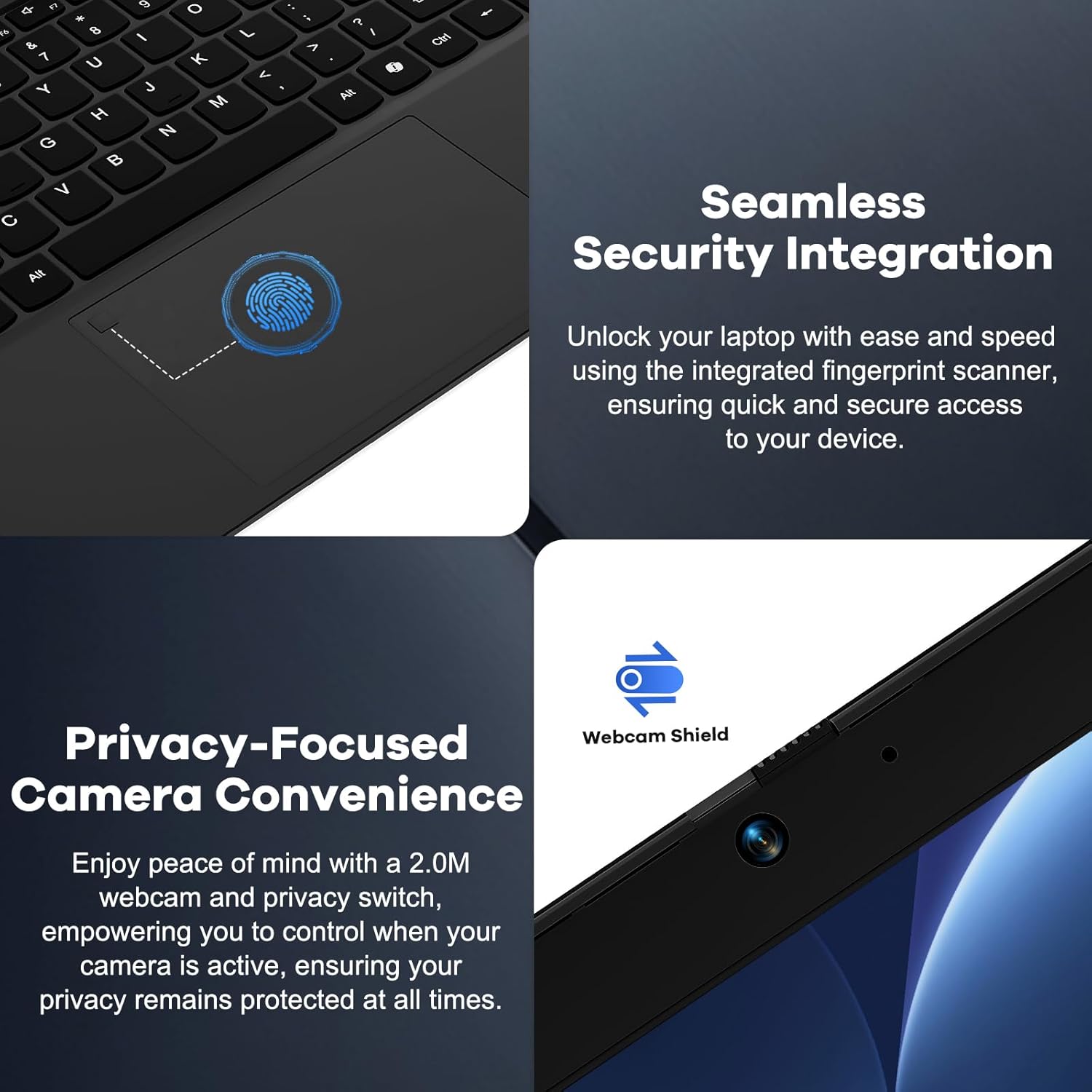
Image: A split image showing a close-up of the fingerprint reader on the touchpad for seamless security integration, and the physical webcam shield for privacy control.
5.4. Webcam Privacy Shield
The laptop features a physical privacy shield for the webcam. Slide the cover to the left to open the webcam for use, and slide it to the right to cover it when not in use, ensuring your privacy.
5.5. 周辺機器の接続
さまざまなポートを利用して外部デバイスを接続します。
- USB ポート: Connect USB drives, external keyboards, mice, or other USB accessories.
- HDMIポート: 外部モニターまたはテレビに接続して、表示を拡張します。
- タイプCポート: One port supports multifunctionality (data transfer, display output via adapter), and the other is dedicated for the 100W PD charger.
- ヘッドフォンジャック: ヘッドホンまたは外部スピーカーを接続します。
- マイクロSDカードスロット: 追加のストレージまたはデータ転送のために Micro SD カードを挿入します。
6. メンテナンス
6.1. 清掃
- 清掃する前に必ずノートパソコンの電源をオフにし、充電器を外してください。
- 柔らかく糸くずの出ない布で軽く拭き取ってください。amp水またはディスプレイ用スクリーンクリーナーで拭いてください。
- キーボードとシャーシの掃除には、柔らかく乾いた布を使用してください。隙間の埃は、圧縮空気の缶で取り除くことができます。
- 刺激の強い化学薬品、研磨剤、過度の湿気を避けてください。
6.2. ストレージとRAMのアップグレード
The NIMO N156 laptop features user-expandable DDR4 RAM and PCIe NVMe SSD storage. Refer to the official NIMO support resources or a qualified technician for detailed instructions on performing upgrades to avoid voiding your warranty or damaging the device.

Image: The NIMO N156 laptop displaying multiple open applications, emphasizing its high-speed 32GB RAM and 1TB PCIe SSD for faster performance and multitasking.
6.3. バッテリーのお手入れ
- バッテリーを頻繁に完全に放電することは避けてください。
- 長期間使用しない場合は、バッテリーを 50 ~ 70% 程度充電した状態で、ノートパソコンを涼しく乾燥した場所に保管してください。
- Use only the provided NIMO 100W Type-C PD Fast Charger.
7。 トラブルシューティング
問題が発生した場合は、次の基本的なトラブルシューティング手順を試してください。
- ノートパソコンの電源が入らない: Ensure the charger is properly connected and plugged into a working outlet. Try a different outlet. If the battery is completely drained, allow it to charge for a while before attempting to power on.
- 画面が空白です: Check if the laptop is powered on. Try connecting an external monitor via HDMI to see if there's a display output.
- Wi-Fi 接続の問題: Windowsの設定でWi-Fiが有効になっていることを確認してください。ルーターとノートパソコンを再起動してください。ネットワークドライバーが更新されているか確認してください。
- パフォーマンスが遅い: Close unnecessary applications. Check for sufficient free storage space. Ensure Windows and drivers are up to date.
- 過熱: 通気口が塞がれていないことを確認してください。ノートパソコンは硬くて平らな場所で使用してください。
For more complex issues, refer to the NIMO support webサイトをご覧いただくか、カスタマーサービスにお問い合わせください。
8. 仕様
| 特徴 | 仕様 |
|---|---|
| モデル | Nimo N156 |
| 画面 | 15.6インチ フルHD (1920x1080) IPS アンチグレア |
| プロセッサ | Intel Core i5-12450H (8 コア、最大 4.4 GHz) |
| ラム | 32 GB DDR4 (3200 MHz) |
| ストレージ | 1TB PCIe NVMe SSD |
| オペレーティング·システム | Windows 11 ホーム |
| グラフィックス | 統合されたIntelグラフィックス |
| ワイヤレス接続 | Wi-Fi 6 (802.11a/b/g/n/ac) |
| ポート | 2x USB 3.0, 1x USB 2.0, 2x Type-C (1x PD Charging), 1x HDMI, 1x Headphone Jack, 1x Micro SD Card Slot, 1x Kensington Lock |
| バッテリー寿命 | Approx. 5 hours (average usage), up to 9 hours (standby) |
| 充電器 | 100W Type-C PD Fast Charger |
| 寸法(長さx幅x高さ) | 14.07 x 8.98 x 0.76インチ |
| 重さ | 5ポンド |
| 特集 | バックライトキーボード、指紋リーダー、 Webcam Shield, Numeric Keypad, 180° Lay-Flat Hinge |
9. 保証とサポート
Your NIMO N156 laptop is backed by a comprehensive 2-Year Manufacturer's Guarantee from Nimo Direct Inc. This warranty covers defects in materials and workmanship under normal use.
Additionally, NIMO offers a 90-Day Hassle-Free Returns policy. If you are not satisfied with your purchase, you may return it within 90 days according to the return policy terms.
For technical assistance, warranty claims, or support inquiries, please visit the official NIMO support website or contact their customer service department. Please have your model number (Nimo N156) and purchase information ready when contacting support.

Image: An illustration highlighting NIMO's after-sales services, including partially assembled domestically, 90-day returns, and 2 years of support.