1。 オーバーview
The Razer BlackShark V3 Wireless Gaming Headset for Xbox is designed for high-performance gaming across multiple platforms. It features advanced wireless technology, high-fidelity audio drivers, and a clear microphone for effective communication.
- Razer HyperSpeed ワイヤレス Gen-2: Provides ultra-low latency wireless audio, with speeds as low as 10 ms.
- Razer TriForce Titanium 50mm ドライバー Gen-2: Engineered for precise and powerful sound reproduction, enhancing positional awareness.
- 取り外し可能なRazer HyperClearスーパーワイドバンド9.9mmマイク: Captures voice with high-definition clarity across a wide frequency range.
- 3つの接続モード: Supports simultaneous 2.4 GHz and Bluetooth connections, plus USB-C for versatile use.
- 次世代サラウンドサウンド: Compatible with Windows Sonic on Xbox and THX Spatial Audio on PC for immersive audio.
- Pro-Tuned FPS Profiles and Customizable EQ: Offers game-specific EQ profiles and custom equalization settings via Razer Synapse 4.

Image: Razer BlackShark V3 Wireless Gaming Headset on a stand.
2. 箱の中身
製品パッケージには次のものが含まれています。
- Razer BlackShark V3 ワイヤレスゲーミングヘッドセット
- 取り外し可能なRazer HyperClearスーパーワイドバンド9.9mmマイク
- Razer HyperSpeed ワイヤレス Gen-2 ドングル
- USB Type A to Type C Cable
- ユーザーマニュアル(このドキュメント)
ビデオ: 当局者がview of the Razer BlackShark V3 headset line, highlighting key features and design.
3. セットアップ
3.1 初期充電
Before first use, fully charge the headset using the provided USB Type A to Type C cable. Connect the USB-C end to the headset and the USB-A end to a powered USB port (e.g., computer, wall adapter).
3.2 マイクの接続
Insert the detachable HyperClear Super Wideband Mic into the microphone port located on the left earcup until it clicks into place.

Image: The detachable HyperClear Super Wideband Microphone.
4. 操作手順
4.1 電源オン/オフ
- 電源を入れるには:LED インジケーターが点灯するまで電源ボタンを押し続けます。
- 電源を切るには: LED インジケーターが消えるまで電源ボタンを押し続けます。
4.2 ボリュームコントロール
Adjust the volume using the volume wheel located on the earcup.
4.3 マイクミュート
Toggle the microphone mute switch to enable or disable the microphone.
5. 接続性
The Razer BlackShark V3 offers three primary modes of connectivity:
- 2.4 GHz Wireless (Razer HyperSpeed Wireless Gen-2): For ultra-low latency connection to PC, Mac, PlayStation, Nintendo Switch, and Xbox. Use the included USB-C dongle.
- ブルートゥース: For wireless connection to smartphones and other Bluetooth-enabled devices.
- USB-C有線: For a direct wired connection and charging.
The headset supports simultaneous 2.4 GHz and Bluetooth audio, allowing you to mix audio from two devices concurrently.

Image: The Razer HyperSpeed Wireless Gen-2 USB-C dongle.

画像: 3 つの接続モードの視覚的な表現。
6. オーディオ機能
6.1 Razer TriForce Titanium 50mm Drivers Gen-2
These drivers provide clear highs, rich mids, and powerful bass, optimized for competitive gaming to deliver precise audio cues.
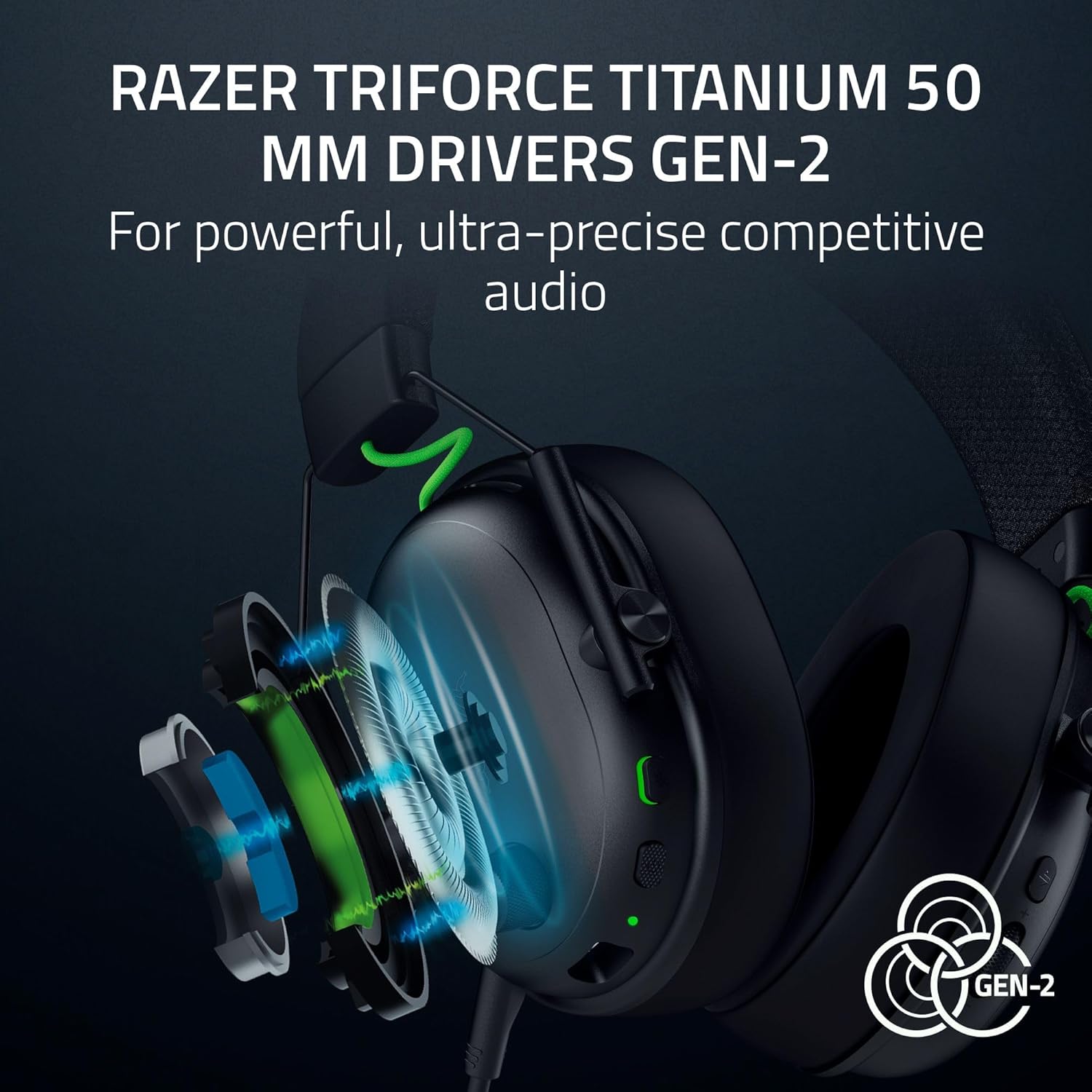
画像: 分解図 view of the TriForce Titanium 50mm Drivers.
6.2 サラウンドサウンド
Experience enhanced positional audio with Windows Sonic on Xbox and THX Spatial Audio on PC. This feature provides an expanded soundstage for improved in-game awareness.

Image: Visual representation of surround sound technology.
6.3 Customizable EQ Profiles
Utilize Razer Synapse 4 (on PC) to access pro-tuned FPS profiles and create custom equalization settings to optimize your audio experience for different games or media. These settings can be saved directly to the headset.

Image: Razer Synapse 4 interface for customizing EQ settings.
7. マイク
The detachable Razer HyperClear Super Wideband 9.9mm Mic is designed for high-definition voice capture. Its wide frequency response ensures clear and natural communication. The microphone can be removed when not in use.
8. 仕様
| 特徴 | 仕様 |
|---|---|
| モデル名 | ブラックシャーク V3 |
| 接続技術 | Bluetooth, USB, Wireless (2.4 GHz) |
| 無線通信技術 | 2.4 GHz, Bluetooth |
| ヘッドフォンジャック | USB-C |
| オーディオドライバータイプ | ダイナミックドライバ |
| オーディオドライバーのサイズ | 50ミリメートル |
| 周波数応答 | 28 kHz |
| 感度 | 106デシベル |
| 騒音制御 | Sound Isolation (Passive Noise Control) |
| 対応デバイス | Mac, Nintendo Switch, PC, PlayStation, Xbox, Smartphones |
| 材料 | 金属 |
| アイテム重量 | 1.7ポンド |
| バッテリー | 1 個のリチウムイオン電池が必要 (付属) |
9. メンテナンス
9.1 クリーニング
Wipe the headset with a soft, dry cloth. Avoid using harsh chemicals or abrasive materials. For earcups, gently wipe with a damp 使用する前に布で拭き、完全に自然乾燥させてください。
9.2バッテリーケア
To prolong battery life, avoid fully discharging the headset frequently. Charge the headset regularly, even if not in constant use. Store in a cool, dry place.
10。 トラブルシューティング
10.1 音声なし/音声が途切れる
- ヘッドセットの電源がオンになっており、完全に充電されていることを確認します。
- Verify the correct audio output device is selected in your system settings (PC/Mac/Console).
- For 2.4 GHz wireless, ensure the USB-C dongle is securely connected to your device and within range.
- For Bluetooth, ensure the headset is paired and connected to your device. Try re-pairing if issues persist.
- ヘッドセットと接続されたデバイスの両方の音量レベルを確認します。
10.2 マイクが機能しない
- マイクがヘッドセットにしっかりと接続されていることを確認してください。
- Check that the microphone mute switch on the headset is not engaged.
- Verify the correct microphone input device is selected in your system's audio settings.
- Adjust microphone volume/gain settings in your system or communication software.
10.3 接続の問題
- If experiencing 2.4 GHz interference, try moving closer to the dongle or ensuring no other devices are causing interference.
- For Bluetooth, ensure the headset is not simultaneously connected to another device that might be interfering.
- ヘッドセットと接続されたデバイスの両方を再起動します。
11. 保証とサポート
This Razer product is covered by a limited manufacturer's warranty. For detailed warranty information, please refer to the official Razer webサイトまたは製品パッケージに同梱されている保証カードをご覧ください。
For technical support, driver downloads, and further assistance, visit the official Razer support page:
オプションの保護プランは別途購入できる場合があります。
- 2年間の保護プラン
- 3年間の保護プラン
- コンプリートプロテクト(月額プラン)


