
NIMO Nimo N157L
NIMO 15.6" FHD IPS Student Laptop Computer User Manual
Model: Nimo N157L
導入
Thank you for choosing the NIMO 15.6" FHD IPS Student Laptop Computer. This manual provides essential information for setting up, operating, maintaining, and troubleshooting your new device. Please read this manual thoroughly to ensure optimal performance and longevity of your laptop.
箱の中身
以下にリストされているすべてのアイテムがパッケージに含まれていることを確認してください。
- 1 x Nimo N157 Laptop
- 1 x Type-C 65W PD Fast Charger
- ユーザーマニュアル (本書) x 1
- Windows 11 Home Operating System (pre-installed)
- Warranty Information (2 Years Warranty, 90 Days Return)
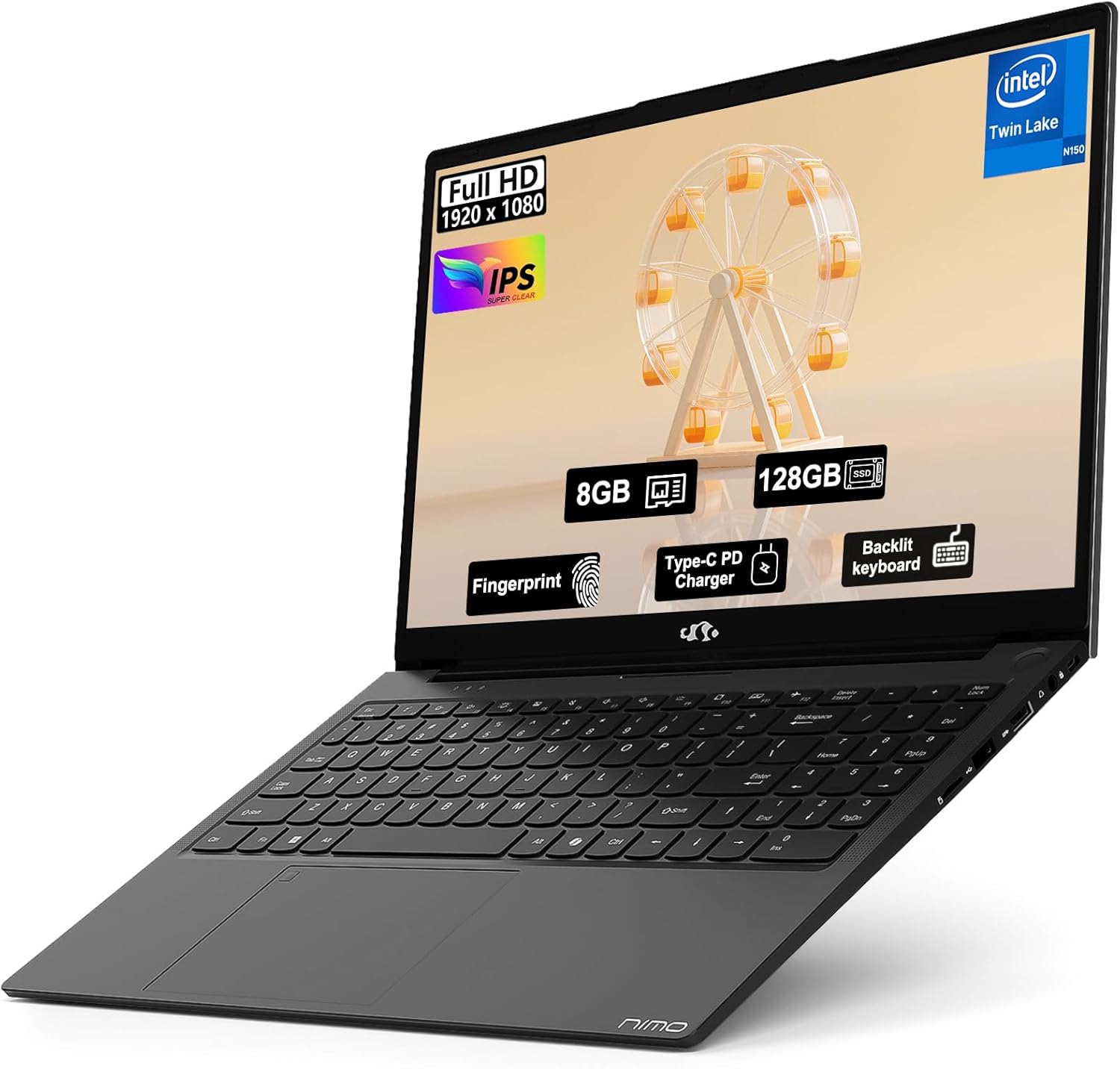
Image: The NIMO 15.6" FHD IPS Student Laptop Computer. The screen highlights key features such as Full HD 1920x1080 resolution, IPS display, 8GB RAM, 128GB SSD, Fingerprint reader, Type-C PD Charger, and Backlit keyboard. The laptop is shown in a sleek black finish.
セットアップガイド
1. 初回電源投入と充電
Before first use, it is recommended to fully charge your NIMO laptop. Connect the included Type-C 65W PD Fast Charger to the laptop's Type-C port and a power outlet. The charging indicator light will illuminate. A 15-minute charge can provide approximately 2 hours of standby time.
2. オペレーティング システムのセットアップ
Your NIMO laptop comes with Windows 11 Home pre-installed. Upon first boot, follow the on-screen instructions to complete the initial Windows setup, including language selection, network connection, and user account creation.
3. 指紋リーダーの設定
For enhanced security and convenient login, set up the fingerprint reader. Navigate to 設定 > アカウント > サインイン オプション > 指紋認証 (Windows Hello) and follow the prompts to register your fingerprints. The fingerprint sensor is integrated into the touchpad.
4. Backlit Keyboard Adjustment
The backlit keyboard allows for comfortable typing in low-light environments. Use the dedicated function keys (usually Fn + a specific F-key, refer to keyboard legends) to turn the backlight on/off and adjust its brightness levels.
操作手順
1. 表示機能
Your laptop features a 15.6-inch Full HD (1920x1080) IPS Anti-Glare Display. This provides wide viewing angles, accurate colors, and reduces reflections for a comfortable viewing experience. The 85% screen-to-body ratio and 16:9 aspect ratio optimize screen real estate.
2. タッチパッドの使い方
The integrated touchpad supports multi-touch gestures for intuitive navigation. Common gestures include:
- 一本指でタップ: 左クリック
- 2本指タップ: 右クリック
- 2本指でスクロール: 上下または左右にスクロールします
- ピンチしてズーム: ズームイン/ズームアウト
3. 接続性
The NIMO laptop supports various connectivity options:
- Wi-Fi 6: 高速ワイヤレスインターネット接続用。
- Bluetooth 5.2: ヘッドフォン、マウス、キーボードなどのワイヤレス周辺機器を接続します。
- USB ポート: Includes 1 x USB 2.0 port and 3 x USB 3.0 ports for connecting external devices.
- タイプCポート: 充電やデータ転送に使用されます。
4.バッテリー管理
The laptop is equipped with a Lithium Polymer battery providing an average battery life of approximately 5 hours. To maximize battery life, adjust screen brightness, close unused applications, and utilize power-saving modes in Windows settings.
メンテナンス
1. RAMとSSDのアップグレード
The NIMO laptop supports user-detachable RAM and SSD, allowing for future upgrades. If you plan to upgrade, ensure you use compatible components (DDR4 RAM, PCIe SSD) and follow proper electrostatic discharge (ESD) precautions. Consult a professional if you are unsure.
2. ノートパソコンの掃除
ノートパソコンの外観と機能を維持するには:
- 画面と外側を清掃するには、柔らかく糸くずの出ない布を使用してください。
- 頑固な汚れには、軽くamp布に水または画面洗浄液を含ませます。
- Avoid using harsh chemicals, abrasive cleaners, or direct spraying of liquids onto the laptop.
- キーボードとタッチパッドを定期的に掃除して、ほこりやゴミを取り除いてください。
トラブルシューティング
このセクションでは、発生する可能性のある一般的な問題に対する解決策を示します。
| 問題 | 考えられる解決策 |
|---|---|
| ノートパソコンの電源が入りません。 | Ensure the charger is properly connected and the power outlet is functional. Allow the battery to charge for at least 30 minutes before attempting to power on again. |
| 画面が空白またはちらつきます。 | Check display cable connections (if external monitor is used). Restart the laptop. Update graphics drivers. |
| Wi-Fi接続の問題。 | Windowsの設定でWi-Fiが有効になっていることを確認してください。ルーター/モデムを再起動してください。Wi-Fiドライバーを更新してください。 |
| キーボードまたはタッチパッドが応答しません。 | Restart the laptop. Check for driver updates. Ensure no external devices are interfering. |
If you encounter issues not covered here or require further assistance, please contact NIMO customer support.
仕様
Detailed technical specifications for your NIMO N157L laptop:
| 特徴 | 詳細 |
|---|---|
| モデル名 | Nimo N157L |
| 画面サイズ | 15.6インチ |
| 画面解像度 | 1920 x 1080 pixels (FHD IPS Anti-Glare) |
| プロセッサ | Intel 4 Core N150 (up to 3.6 GHz) |
| ラム | 8 GB DDR4 (3200 MHz, detachable) |
| ハードドライブ | 128 GB PCIe SSD (detachable) |
| グラフィックスコプロセッサ | 統合グラフィックス |
| オペレーティング·システム | Windows 11 ホーム |
| ワイヤレスタイプ | 802.11a/b/g/n/ac(Wi-Fi 6)、Bluetooth 5.2 |
| USBポート | 1のx USB 2.0、3のx USB 3.0 |
| その他のポート | Type-C (65W PD Fast Charging), Memory Card Slot |
| 特集 | バックライトキーボード、指紋リーダー、HDオーディオ、テンキー |
| バッテリー寿命 | Approx. 5 Hours (Lithium Polymer) |
| アイテム重量 | 3.8ポンド |
| 製品寸法 | 14.07 x 8.98 x 0.76インチ |
| 色 | 黒 |
| 後方 Webカム解像度 | 2 MP |
保証とサポート
NIMO Direct Inc. offers a comprehensive 2年間のメーカー保証 for your laptop. This warranty covers defects in materials and workmanship under normal use. Additionally, a 90-Day Hassle-Free Return and Exchange Service ご購入日より提供されます。
For warranty claims, technical support, or any concerns regarding your NIMO laptop, please contact the manufacturer's dedicated support team. Refer to the contact information provided on the product packaging or the official NIMO webサイト。
注記: The laptop is partially assembled in the USA. Please retain your proof of purchase for warranty purposes.
Ask a question about this manual
Ask about setup, troubleshooting, compatibility, parts, safety, or missing instructions. Manuals+ will review the question and use this page’s manual context to help answer it.