
NIMO Nimo N155
NIMO 15.6-inch FHD Laptop Nimo N155 User Manual
Model: Nimo N155
1. はじめに
This manual provides essential information for setting up, operating, and maintaining your NIMO 15.6-inch FHD Laptop Nimo N155. Please read this manual thoroughly before using your device to ensure proper function and longevity.

Figure 1: NIMO 15.6-inch FHD Laptop Nimo N155 Overview
The NIMO N155 laptop is equipped with an AMD Ryzen 7 6800H processor, 32GB DDR5 RAM, and a 1TB PCIe 4.0 SSD, designed for efficient performance in various computing tasks. It features a 15.6-inch Full HD IPS anti-glare display, a backlit keyboard, and an integrated fingerprint sensor for enhanced security and user experience.
2. 箱の中身
パッケージにすべてのアイテムが揃っていることを確認します。
- 1 x Nimo N155 Laptop
- 1 x Type-C 100W PD Fast Charger
- ユーザーマニュアル (本書) x 1
- Windows 11 Home Operating System (pre-installed)
3. 初期設定
3.1. ノートパソコンの充電
Before first use, connect the laptop to the power adapter and charge it fully. The Type-C 100W PD Fast Charger provides rapid charging capabilities.
- Connect the Type-C charger to a power outlet.
- Plug the Type-C connector into one of the Type-C ports on your laptop.
- The charge LED indicator will illuminate, indicating that the laptop is charging.

Figure 2: Connecting the Type-C 100W PD Fast Charger
3.2. 電源を入れる
Press the power button located on the keyboard to turn on the laptop. Follow the on-screen instructions to complete the initial Windows 11 setup, including language selection, network connection, and user account creation.
4. Laptop Components and Ports
Familiarize yourself with the various components and ports of your NIMO N155 laptop.

図3: ノートパソコンのポートとコネクタ
4.1. 左側面ポート
- USB 2.0ポート: 古い USB デバイスを接続するために使用します。
- USB 3.0ポート: 高速 USB デバイスを接続します。
- マイクロSDカードスロット: Micro SD カードの読み取りと書き込み用。
- ヘッドフォンジャック: ヘッドホンや外部スピーカーを接続します。
- ケンジントンロックスロット: 互換性のあるロックを使用してラップトップを保護します。
4.2. 右側面ポート
- 充電LED: 充電状態を示します。
- Type-C (PD/Charging) Port: Primarily for power delivery and charging.
- Type-C (Multifunction) Port: Supports data transfer and display output.
- USB 3.0 ポート (x2): 高速 USB デバイスを接続します。
- HDMIポート: 外部ディスプレイやプロジェクターに接続します。
4.3. 内部コンポーネント
- プロセッサ: AMD Ryzen 7 6800H (8 Cores, 16 Threads, up to 4.7 GHz).
- グラフィック: Integrated AMD Radeon 680M GPU.
- ラム: 32GB DDR5 (upgradeable).
- ストレージ: 1TB PCIe 4.0 SSD (upgradeable).
- 画面: 15.6-inch FHD (1920x1080) IPS Anti-Glare Display.
- Webカム: 2.0 MP with privacy shield.
- 無線: 802.11a/b/g/n/ac (Wi-Fi 5) and Bluetooth 5.2.

Figure 4: AMD Ryzen 7 6800H Processor Details

Figure 5: High-Speed RAM and PCIe SSD
5. ノートパソコンの操作
5.1. ディスプレイ
The 15.6-inch Full HD IPS display offers a resolution of 1920x1080 pixels. Adjust brightness and display settings through Windows settings (Right-click on desktop > Display settings).
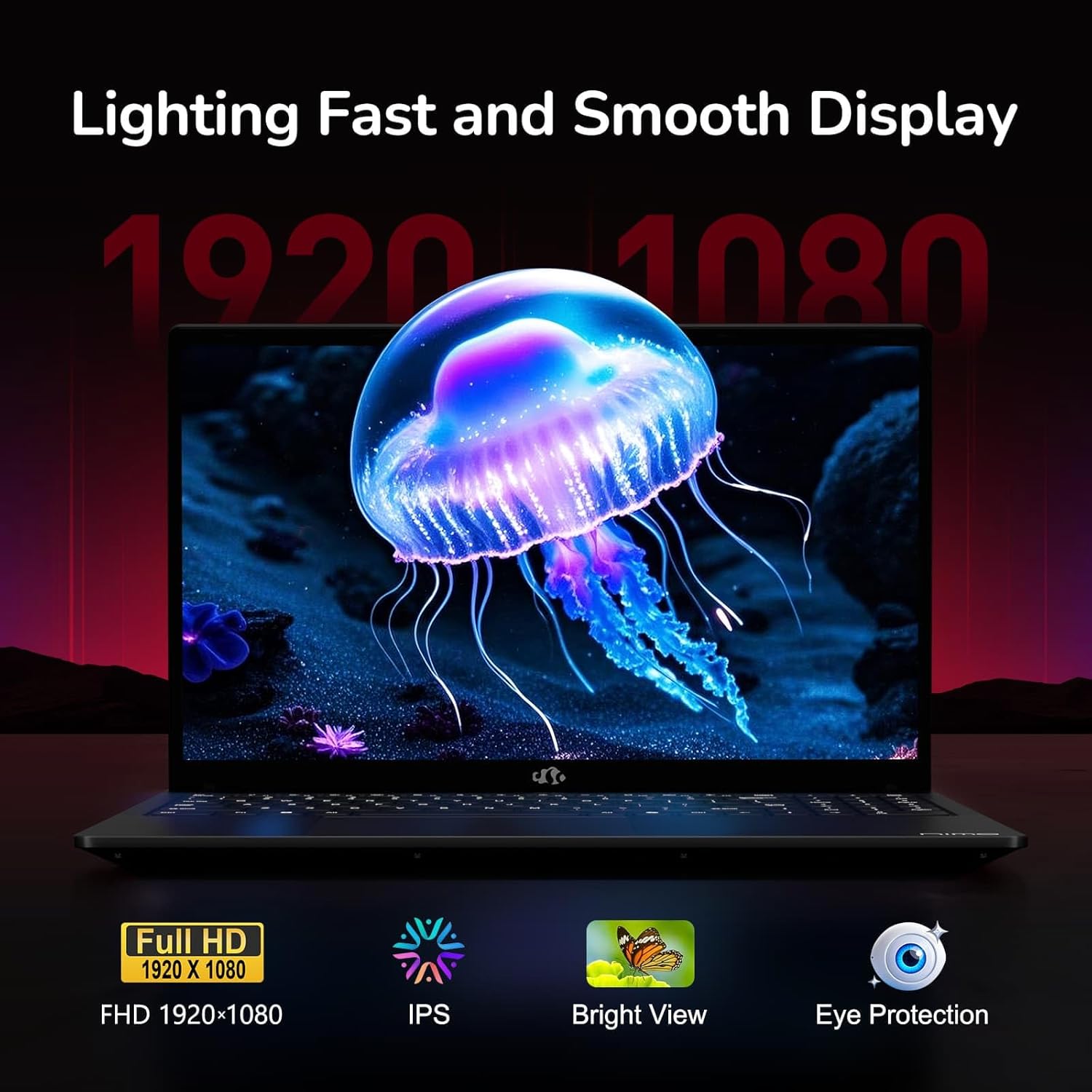
Figure 6: Laptop Display Features
5.2. キーボードとタッチパッド
The laptop features a backlit keyboard and a responsive touchpad with multi-touch gesture support. The integrated fingerprint sensor is located on the touchpad for secure login.
- バックライト付きキーボード: プレス Fn + Fx (where Fx is the backlight key, typically F3 or F4) to adjust keyboard backlight brightness.
- 指紋センサー: Enroll your fingerprints via Windows Settings > Accounts > Sign-in options for quick and secure access.
- Webcam Privacy Shield: Slide the physical cover over the webcam for privacy when not in use.

Figure 7: Keyboard and Input Features

Figure 8: Seamless Security Integration (Fingerprint and Webcam Shield)
5.3.電力管理
The laptop is equipped with a 4700mAh (53.58Wh) Lithium Polymer battery. Battery life can vary based on usage. To optimize battery life, adjust power settings in Windows and close unnecessary applications.

図9: バッテリーの仕様
6. メンテナンスとケア
6.1. 清掃
- 画面と外側を清掃するには、柔らかく糸くずの出ない布を使用してください。
- 頑固な汚れには、amp布に水またはスクリーンクリーナーを含ませてください。刺激の強い化学薬品は使用しないでください。
- 掃除する前に、ノートパソコンの電源がオフになっており、プラグが抜かれていることを確認してください。
6.2. 保管と取り扱い
- ノートパソコンは、直射日光や極端な温度を避け、涼しく乾燥した場所に保管してください。
- ノートパソコンの上に重い物を置かないでください。
- ノートパソコンを液体にさらさないでください。
6.3. アップグレード
The NIMO N155 laptop supports detachable RAM and SSD, allowing for user upgrades. Refer to the official NIMO support website or contact customer service for detailed upgrade instructions to avoid voiding your warranty.
7。 トラブルシューティング
This section addresses common issues you might encounter with your NIMO N155 laptop.
| 問題 | 考えられる解決策 |
|---|---|
| ノートパソコンの電源が入りません。 | Ensure the charger is properly connected and the battery has sufficient charge. Try a different power outlet. |
| 画面が空白です。 | Check if the laptop is powered on. Adjust screen brightness. Connect to an external monitor to check if the issue is with the laptop's display. |
| Wi-Fi接続の問題。 | Windowsの設定でWi-Fiが有効になっていることを確認してください。ルーターとノートパソコンを再起動してください。Wi-Fiドライバーを更新してください。 |
| キーボードのバックライトが機能しません。 | Press the Fn key combined with the appropriate function key (e.g., F3 or F4) to toggle or adjust the backlight. |
| 指紋センサーが反応しません。 | Ensure your finger is clean and dry. Re-enroll your fingerprints in Windows settings. Update fingerprint sensor drivers. |
If you encounter issues not listed here or require further assistance, please contact NIMO customer support.
8. 技術仕様
| 特徴 | 仕様 |
|---|---|
| モデル名 | Nimo N155 |
| 画面 | 15.6-inch FHD (1920x1080) IPS Anti-Glare |
| プロセッサ | AMD Ryzen 7 6800H(8コア、16スレッド、最大4.7GHz) |
| グラフィックス | 統合型AMD Radeon 680M |
| ラム | 32GB DDR5 4800 MHz (Dual-channel, upgradeable) |
| ストレージ | 1TB PCIe 4.0 SSD (upgradeable) |
| オペレーティング·システム | Windows 11 ホーム |
| ワイヤレス接続 | Wi-Fi 5(802.11a/b/g/n/ac)、Bluetooth 5.2 |
| ポート | 1x USB 2.0, 3x USB 3.0, 2x Type-C (1x PD, 1x Multifunction), 1x HDMI, 1x Micro SD, 1x Headphone Jack, 1x Kensington Lock |
| Webカム | 2.0 MP (with privacy shield) |
| バッテリー | 4700mAh / 53.58Wh Lithium Polymer |
| 電源アダプター | Type-C 100W PD Fast Charger |
| 寸法(長さx幅x高さ) | 14.07 x 8.98 x 0.76 インチ (357.4 x 228 x 19.2 mm) |
| 重さ | 3.8ポンド(1.7kg) |
| 特集 | バックライトキーボード、指紋リーダー、HDオーディオ、テンキー |
9. 保証とサポート
9.1. 製造元の保証
Your NIMO N155 laptop comes with a 2年間のメーカー保証この保証は、通常の使用状況における材料および製造上の欠陥を対象としています。保証請求の際は、購入証明書を保管してください。
9.2. 返品ポリシー
NIMO offers a 90日間の返品ポリシー from the date of purchase. For details on eligibility and the return process, please refer to your purchase documentation or contact customer support.
9.3. カスタマーサポート
For technical assistance, warranty claims, or any other inquiries, please visit the official NIMO support website or contact their customer service team. Contact information can typically be found on the NIMO brand store page or included documentation.
NIMO Brand Store: Visit NIMO Store on Amazon
Ask a question about this manual
Ask about setup, troubleshooting, compatibility, parts, safety, or missing instructions. Manuals+ will review the question and use this page’s manual context to help answer it.