
1. 箱の中身
The DBIT AX1500 WiFi 6 Mesh Wi-Fi System (2-Pack) includes the following components:
- 2 Mesh Router Units
- 2つの電源アダプター
- RJ1 イーサネットケーブル 45 本
- クイックインストールガイド

Image: Contents of the DBIT AX1500 WiFi 6 Mesh Wi-Fi System box.
2. セットアップ
2.1.システムオーバーview
The DBIT AX1500 Mesh Wi-Fi System provides whole-home Wi-Fi 6 coverage, eliminating dead zones and supporting up to 120 devices across 3,900 sq ft. It operates on dual bands (2.4GHz and 5GHz) and features 4 Gigabit Ethernet ports per unit for stable wired connections.

画像: 上view of the DBIT AX1500 Mesh Wi-Fi System features.
2.2. Initial Setup of the Primary Mesh Router
Follow these steps to set up your primary mesh router:
- 電源オン: Insert the power adapter into the mesh router and plug the other end into a power outlet. The LED indicator will turn solid red, then flash yellow as it starts up.
- モデムに接続します: Turn off your cable modem. Plug one end of the included Ethernet cable into your modem and the other end into the WAN/LAN port of your primary mesh router.
- モデムの電源オン: Turn on your cable modem and wait for it to complete its startup sequence.
- 接続を確認します: Wait for the LED indicator light on the mesh router to turn solid green, indicating a normal network connection.
Video: Instructions on how to set up the primary mesh router.

画像: 背面 view of a mesh router unit with Gigabit Ethernet ports.
2.3. Adding More Mesh Nodes
You can add additional mesh nodes to expand your network coverage using either the mobile app or the Mesh button.
Method 1: Add nodes via APP
- Power up the secondary mesh router(s). Wait for the secondary node's light to blink yellow.
- Connect your phone to the primary mesh router's Wi-Fi SSID. The default SSID is printed on the product label.
- Download, install, and launch the MU-LINK APP. Log in using the details on the product label.
- The APP will automatically detect the number of devices to be mesh-networked. Click to complete the networking process.
- The LED turning solid green indicates a successful connection. If the LED doesn't turn solid green, reset the secondary nodes and try the process again.
Method 2: One-button networking via Mesh button
- Press the Mesh button on the connected primary node. The green light will blink rapidly.
- Press the Mesh button on the powered-up secondary node. The yellow light will blink rapidly.
- Both devices will enter the automatic networking process.
- The LED turning solid green on both nodes indicates a successful connection.
Note: Complete the networking process sequentially; do not operate multiple nodes at the same time.
Video: Instructions on how to add more mesh nodes to your system.
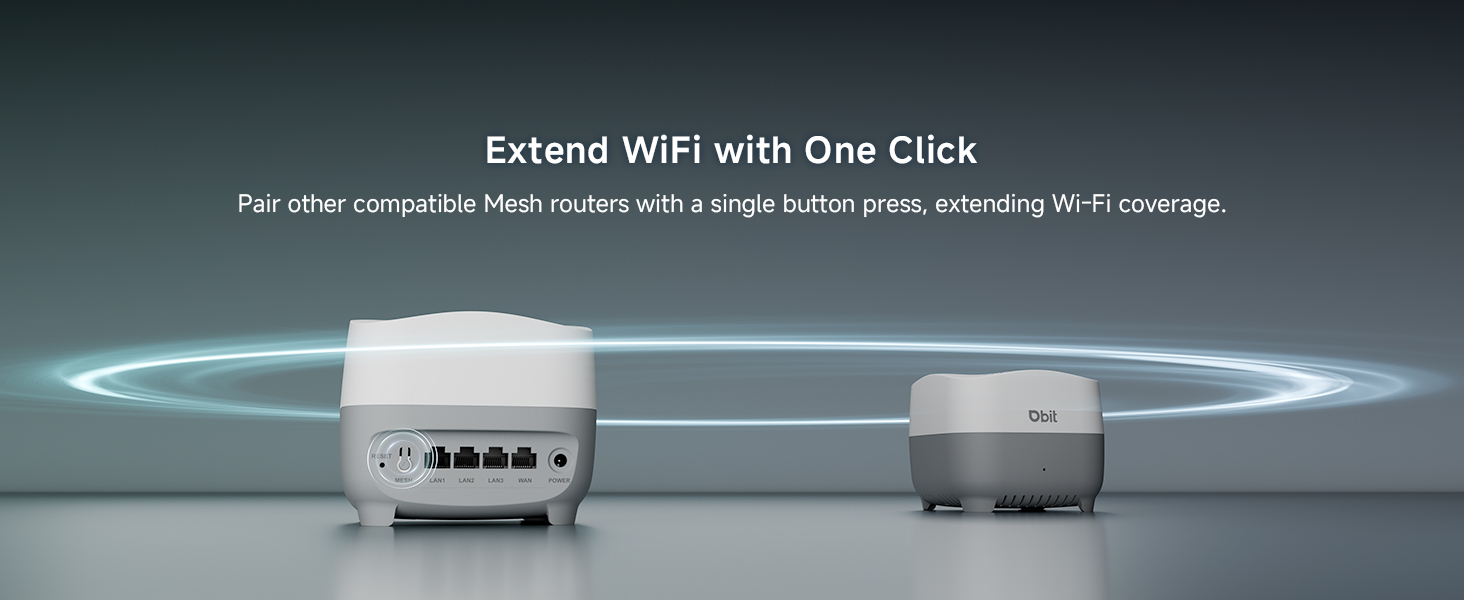
Image: One-Click Mesh pairing via button or app.

Image: Quick Setup with MU-LINK APP.
3. 操作手順
3.1. Whole-Home Coverage and Seamless Roaming
The AX1500 Mesh System provides up to 3,900 sq ft of Wi-Fi coverage, eliminating dead zones. With smart roaming technology, your devices automatically switch between nodes without dropped connections as you move around your home, ensuring a stable and continuous internet experience.
ビデオ: 終了view of the DBIT Mesh WiFi System for whole home coverage.

Image: Whole-Home WiFi Coverage illustration.

Image: Seamless Roaming in a multi-story home.
3.2. High Capacity Connectivity
The mesh system supports over 120 simultaneous connections without lag, making it suitable for smart homes, offices, and gaming setups. Advanced mesh technology maintains fast speeds even with multiple devices streaming 4K/8K content, gaming online, and video conferencing.
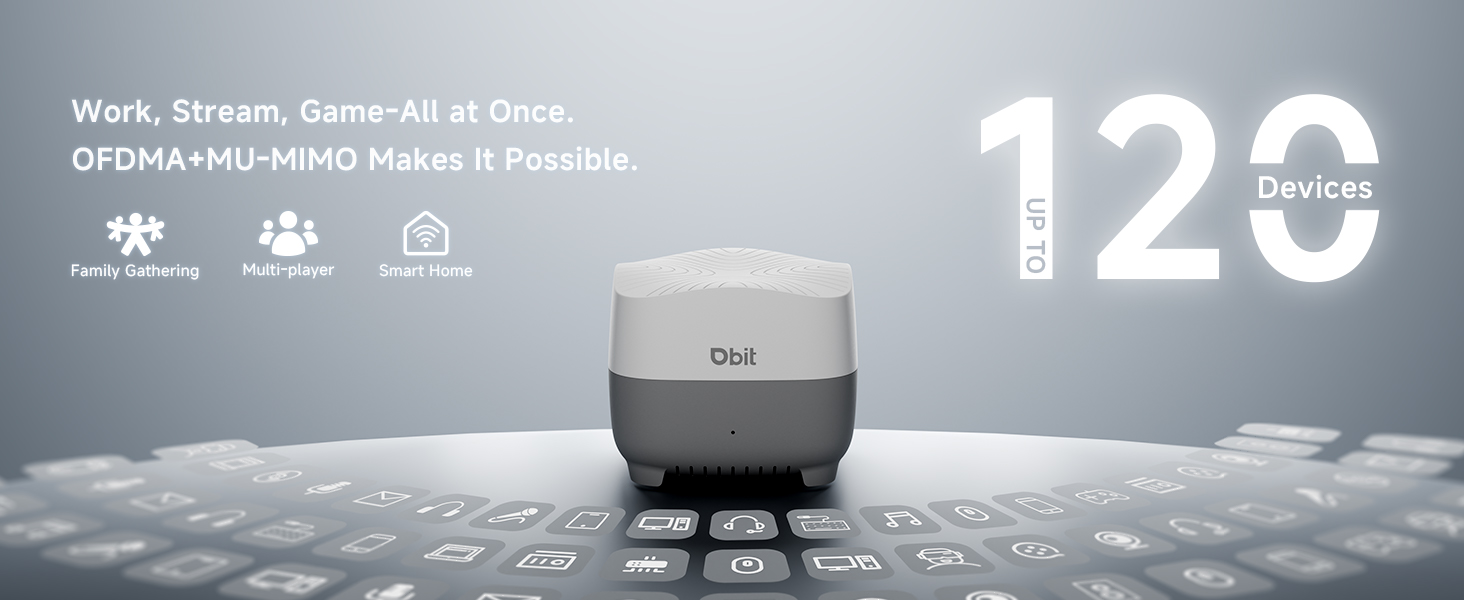
Image: High-speed connectivity for multiple devices.

Image: High-speed connectivity for multiple devices.
3.3. ペアレンタルコントロール
Utilize the parental control features through the intuitive mobile app or web GUI to manage internet access for your family. You can block harmful content, balance screen time, and ensure a safe online environment for all home devices.

Image: Parental Controls features.
3.4. ゲストネットワーク
Create an isolated guest network to provide Wi-Fi access for visitors while maintaining the privacy and security of your main network and smart home devices. This ensures complete separation between guest and private network traffic.
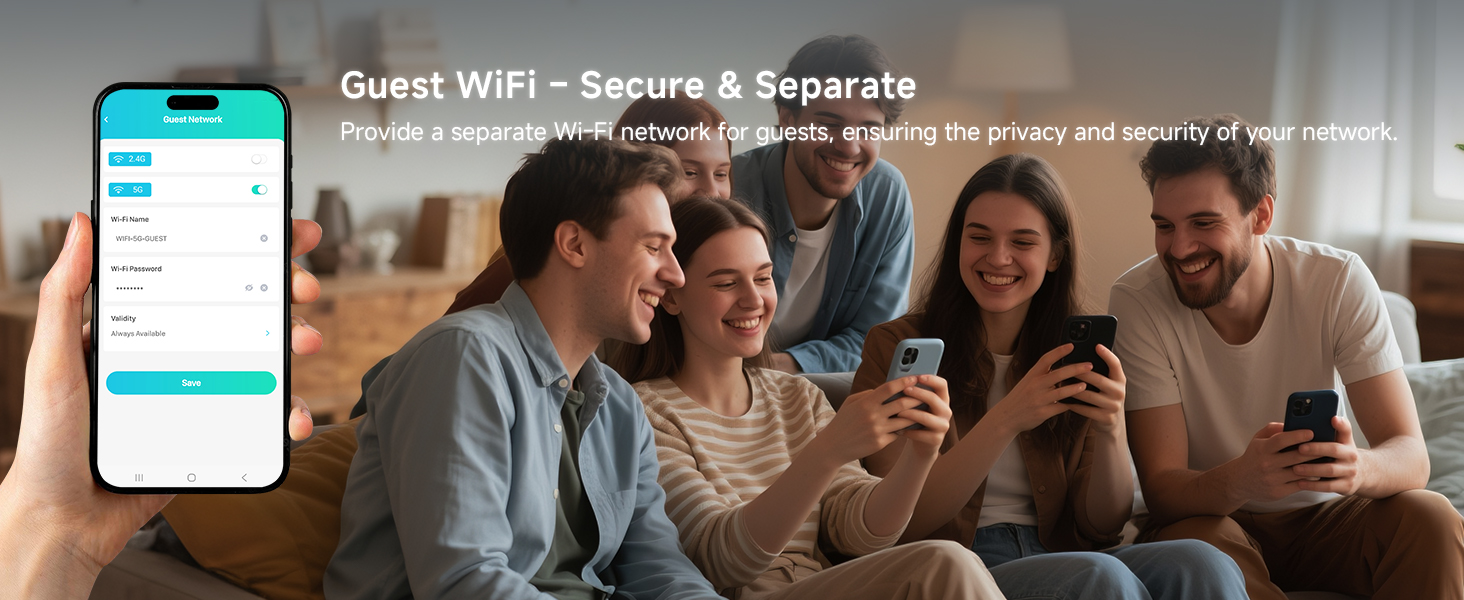
Image: Guest Network setup for secure visitor access.
3.5. ネットワークセキュリティ
The DBIT AX1500 Mesh Wi-Fi System incorporates enterprise-grade WPA3-SAE encryption to safeguard your entire network. This advanced security protocol proactively blocks unauthorized access and cyber threats, protecting your sensitive data.
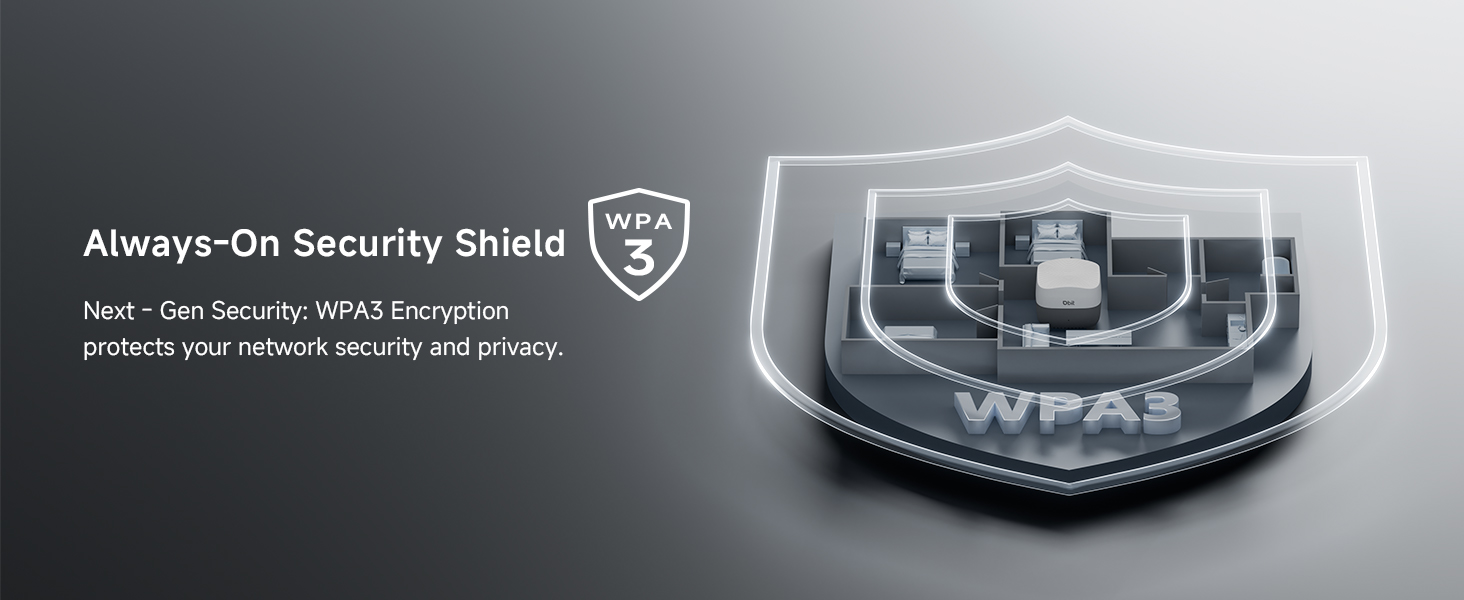
Image: WPA3 Encryption for enhanced network security.
4. メンテナンス
To ensure optimal performance and longevity of your DBIT AX1500 Mesh Wi-Fi System, consider the following maintenance tips:
- 配置: Regularly check for and install firmware updates through the MU-LINK app or web インターフェース。アップデートには、パフォーマンスの向上、セキュリティ パッチ、新機能などが含まれることがよくあります。
- ファームウェアの更新: Periodically restart your mesh system (both primary and secondary nodes) to refresh network connections and resolve minor performance issues.
- クリーニング: Keep the mesh units clean and free from dust to prevent overheating. Use a soft, dry cloth for cleaning.
- 再起動: Place mesh nodes in central locations within your home, avoiding obstructions like thick walls or large metal objects. Refer to the "Flexible Node Placement" image for suggestions.
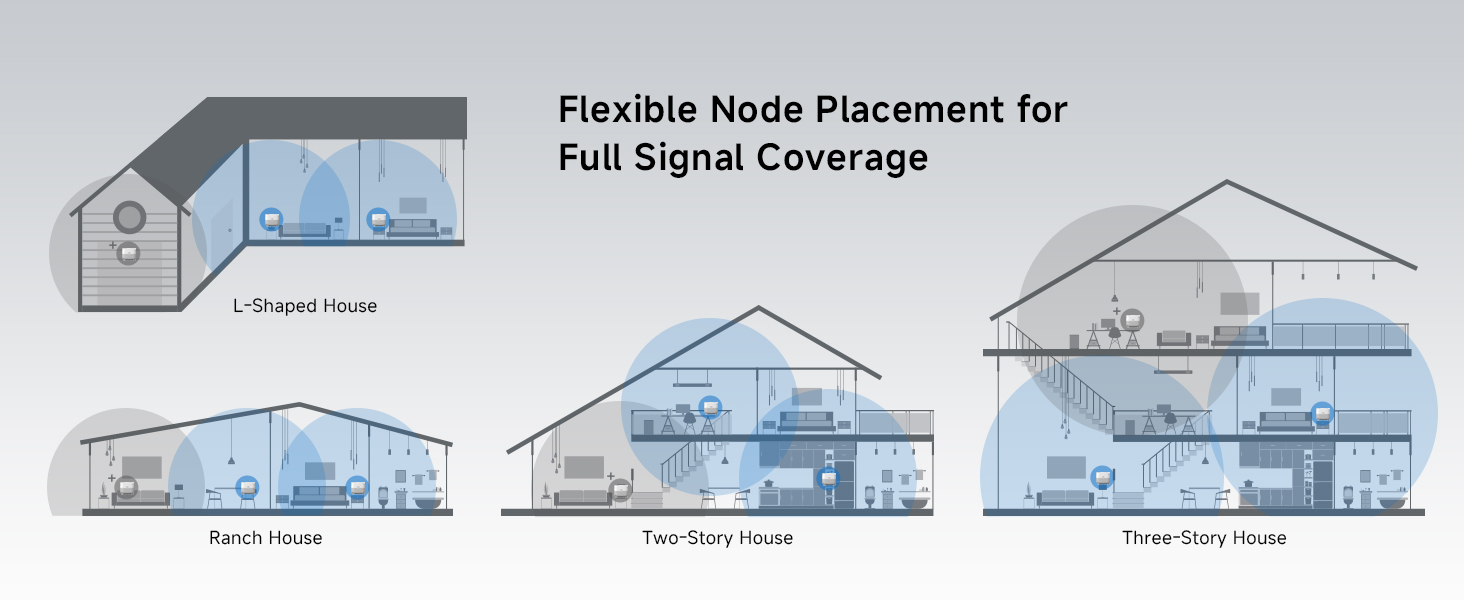
Image: Flexible Node Placement for Full Signal Coverage.
5。 トラブルシューティング
If you encounter issues with your DBIT AX1500 Mesh Wi-Fi System, try the following steps:
- インターネット接続なし:
- モデムが正しく動作しているかどうかを確認してください。
- すべてのイーサネット ケーブルが確実に接続されていることを確認します。
- Restart your modem and primary mesh router.
- Wi-Fi信号が弱い/デッドゾーン:
- Relocate secondary mesh nodes closer to the primary node or to areas with weak signals.
- ノード間に大きな障害物 (大型家電、コンクリートの壁など) がないことを確認します。
- Add more mesh nodes for extended coverage if necessary.
- 接続できないデバイス:
- Wi-Fiパスワードを確認します。
- Check if the device is within the mesh network's range.
- Ensure the device is not blocked by parental controls or guest network settings.
- Restart the problematic device and the mesh node it's trying to connect to.
- LEDインジケーターのステータス:
- 赤一色: 起動します。
- 黄色の点滅: Startup complete, pending mesh networking or network connection.
- 緑色の点灯: Successful connection / Normal network operation.
Video: General guide on how to set up the mesh system, which can help with troubleshooting initial setup issues.
6. 仕様
| 特徴 | 詳細 |
|---|---|
| ブランド | DBIT |
| モデル名 | D-MAX4 2-PACK |
| 周波数帯域クラス | デュアルバンド(2.4GHz、5GHz) |
| 無線通信規格 | 802.11ac、802.11ax、802.11b、802.11g、802.11n |
| データ転送速度 | 1500 Megabits Per Second (300Mbps on 2.4GHz + 1201Mbps on 5GHz) |
| カバレッジ | 3,900平方フィート |
| ポート数 | 4 Gigabit Ethernet ports per unit (3 LAN, 1 WAN/LAN) |
| セキュリティプロトコル | WPA-PSK, WPA2-PSK, WPA3 |
| 特集 | Beamforming, Guest Mode, Internet Security, Parental Control, Seamless Roaming |
| 対応デバイス | Gaming Console, Personal Computer, Tablet, Smart Television, Smartphone, Printer, Security Camera |
| 制御方法 | アプリ、プッシュボタン |
| アイテム重量 | 1.39 ポンド |
| 商品の寸法 (長さ x 幅 x 高さ) | 長さ5.04インチ x 幅5.04インチ x 高さ4.01インチ |
7.保証とサポート
保証: The DBIT AX1500 WiFi 6 Mesh Wi-Fi System comes with a 1-Year Manufacturer Warranty.
サポート: For technical assistance, troubleshooting, or warranty claims, please contact DBIT customer support through their official website or the contact information provided in your Quick Installation Guide.