
1. はじめに
This manual provides detailed instructions for setting up, operating, and maintaining your LEFFOT RK3518 Android 14.0 4K Ultra HD Streaming Device. Please read this manual thoroughly before use to ensure proper functionality and to maximize your entertainment experience.
パッケージ内容
開梱したら、以下にリストされているすべてのアイテムが揃っていることを確認してください。
- LEFFOT RK3518 Android 14.0 4K Ultra HD Streaming Device
- 音声リモコン
- HDMIケーブル
- 電源アダプタ(5V / 2A)
- ユーザーマニュアル(このドキュメント)

Image 1.1: Contents of the LEFFOT RK3518 package, including the streaming device, remote, cables, and manual.
2.製品オーバーview
The LEFFOT RK3518 is a high-performance Android 14.0 TV Box designed to deliver a cinematic 4K streaming experience. It features a powerful Rockchip RK3518 Quad-Core A53 processor, 2GB RAM, and 16GB ROM, ensuring smooth operation and ample storage for applications. Advanced connectivity options include dual-band WiFi 6 (2.4G & 5G), Bluetooth 5.4, and USB 3.0.
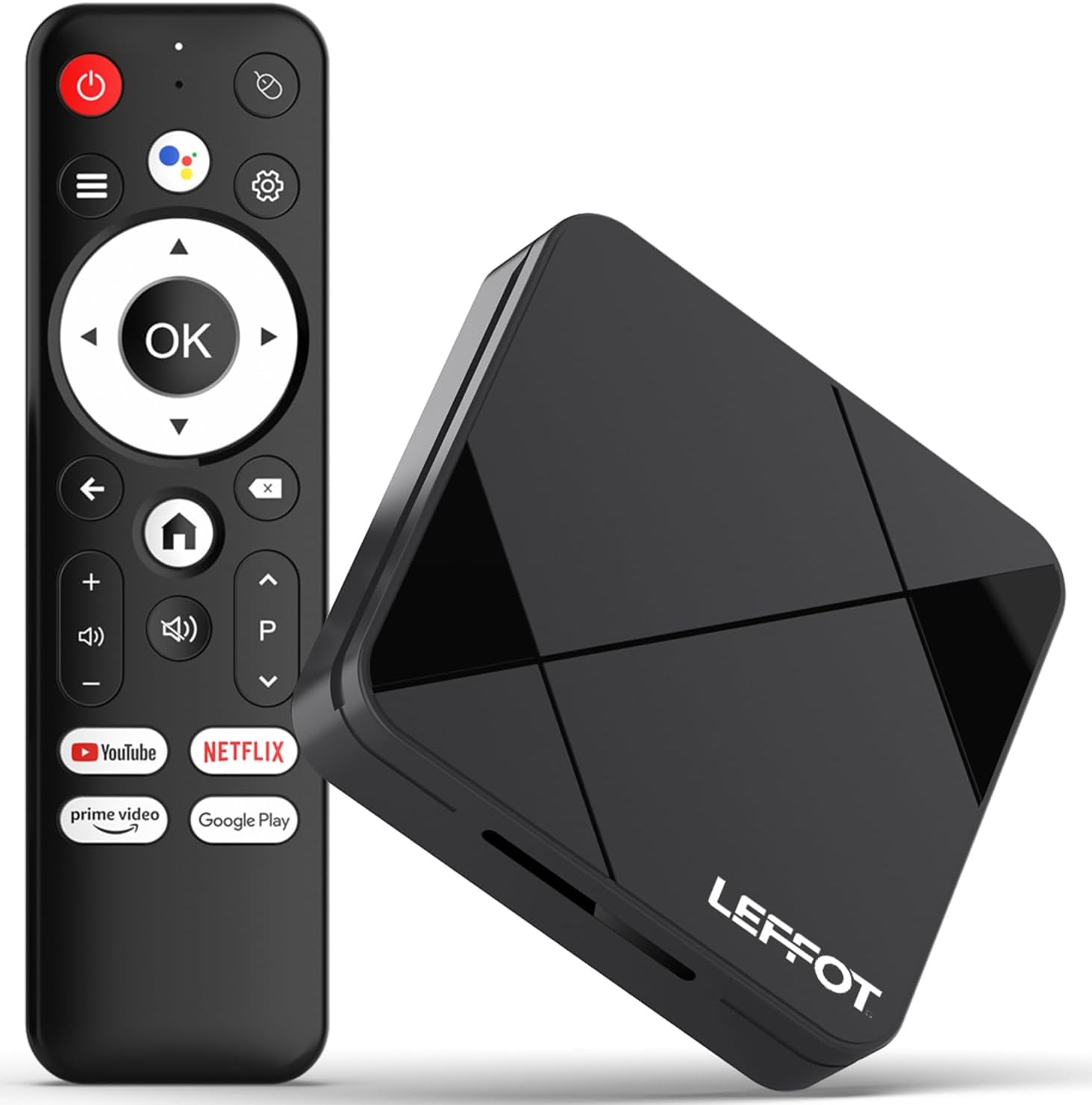
Image 2.1: The LEFFOT RK3518 streaming device and its accompanying voice remote control.
主な特徴:
- 4K ウルトラ HD 解像度: Supports 4K@60fps and HDR10 for vibrant colors and sharp details.
- 強力なプロセッサ: Rockchip RK3518 Quad-Core A53 with Mali-450 GPU for smooth performance.
- 高度な接続性: Dual-band WiFi 6 (2.4G & 5G), Bluetooth 5.4, USB 3.0, and Ethernet.
- 音声リモコン: Intuitive navigation and hands-free control with built-in voice assistant.
- Android 14.0 エコシステム: Access to thousands of apps via Google Play.
- スクリーンミラーリング: Supports AirPlay, DLNA, and WiFi Display for sharing content from mobile devices.
3. セットアップ
3.1デバイスの接続
- テレビに接続する: Insert one end of the provided HDMI cable into the HDMI port on the LEFFOT RK3518 device and the other end into an available HDMI input on your television.
- 電源に接続: Plug the power adapter into the DC 5V/2A port on the device, then plug the adapter into a wall outlet.
- インターネットに接続する(オプション):
- 有線接続: For a stable connection, connect an Ethernet cable from your router to the Ethernet port on the device.
- ワイヤレス接続: The device supports 2.4G and 5G WiFi 6. You will configure this after initial power-on.

Image 3.1: Diagram showing the various ports on the LEFFOT RK3518 device, including TF card slot, USB, USB 3.0, AV, HDMI, Ethernet, and DC 5V/2A power input.
3.2 初回電源投入とセットアップウィザード
- テレビの電源を入れ、正しい HDMI 入力ソースを選択します。
- The LEFFOT RK3518 device will automatically power on and display the boot-up screen.
- Follow the on-screen instructions of the Android setup wizard to:
- 言語を選択します。
- Wi-Fi ネットワークに接続します (イーサネットを使用していないとき)。
- Sign in with your Google account to access Google Play Store and other services.
- 利用規約に同意します。
3.3リモコンのペアリング
The included voice remote control is typically pre-paired. If the remote does not respond, ensure batteries are correctly inserted. If issues persist, follow these steps to re-pair:
- デバイスの電源がオンになっていることを確認します。
- を押し続けます OK ボタンと 音量を下げる button simultaneously for a few seconds until a pairing indicator appears on the screen or the remote's LED flashes.
- Release the buttons. The remote should now be paired.
4. 操作手順
4.1 インターフェースの操作
Use the directional pad (up, down, left, right) on the remote control to navigate through menus and select items. The OK ボタンをクリックすると選択が確定し、 戻る button returns to the previous screen. The 家 button takes you directly to the main home screen.
4.2 音声制御の使用
The LEFFOT RK3518 features a voice-enabled remote control for convenient hands-free operation.
- を押す Googleアシスタント button (usually a microphone icon) on your remote.
- Speak clearly into the remote's microphone. You can ask to search for content, open applications, check weather, or control smart home devices.
- The device will process your command and display results or perform the requested action.

Image 4.1: Illustration of using the voice remote control to interact with the LEFFOT RK3518 streaming device.
4.3 アプリケーションのインストールと管理
Your device comes with the Google Play Store pre-installed, allowing access to a vast library of applications.
- ホーム画面から、 Google Playストア icon and select it.
- 必要なアプリケーションを参照または検索します。
- Select an app and choose インストール.
- To manage installed apps, go to 設定 > アプリ.
4.4 Screen Mirroring (AirPlay, DLNA, WiFi Display)
The device supports various screen mirroring protocols to cast content from your smartphone or tablet to your TV.
- Ensure your mobile device and the LEFFOT RK3518 are connected to the same Wi-Fi network.
- On your mobile device, open the screen mirroring feature (e.g., AirPlay for iOS, Smart View/Screen Cast for Android).
- Select the LEFFOT RK3518 device from the list of available devices.
- Your mobile device's screen will now be mirrored on your TV.
5. メンテナンス
5.1デバイスのクリーニング
To clean the exterior of the device, use a soft, dry, lint-free cloth. Do not use liquid cleaners, aerosols, or abrasive materials, as these can damage the finish or internal components.
5.2ソフトウェアアップデート
The LEFFOT RK3518 may receive periodic software updates to improve performance, add features, or enhance security. It is recommended to keep your device's software up to date.
- 移動 設定 > デバイス設定 > バージョン情報 > システムアップデート.
- If an update is available, follow the on-screen prompts to download and install it. Ensure the device remains powered on during the update process.
5.3 ストレージ管理
Periodically check the device's storage to ensure optimal performance. You can uninstall unused apps or clear cache data to free up space.
- へ移動 設定 > アプリ to manage individual applications.
- へ移動 Settings > Device Preferences > Storage に view storage usage and manage external storage (TF card).
6。 トラブルシューティング
If you encounter issues with your LEFFOT RK3518 device, refer to the following common problems and solutions:
| 問題 | 考えられる原因 / 解決策 |
|---|---|
| 電源なし/デバイスの電源が入りません。 | 電源アダプターがデバイスにしっかりと接続され、電源コンセントが機能していることを確認してください。別のコンセントをお試しください。 |
| テレビに信号がありません。 | Verify the HDMI cable is securely connected to both the device and the TV. Ensure your TV is set to the correct HDMI input source. Try a different HDMI port or cable. |
| リモコンが応答しません。 | Check the batteries in the remote control and replace if necessary. Re-pair the remote control as described in Section 3.3. |
| Wi-Fi接続の問題。 | Ensure your Wi-Fi router is on and functioning. Check Wi-Fi settings on the device (Settings > Network & Internet). Try restarting your router and the streaming device. Ensure you are within range of your Wi-Fi network. |
| アプリケーションが遅くなったりクラッシュしたりします。 | Close unused applications. Clear the cache of problematic apps (Settings > Apps > [App Name] > Clear cache). Ensure sufficient storage space is available. Restart the device. |
| Poor video quality (not 4K). | Ensure your TV supports 4K resolution. Verify the content being streamed is 4K. Check your internet speed; 4K streaming requires a stable, high-speed connection. Ensure HDMI cable is 4K compatible. |
7. 仕様
Below are the technical specifications for the LEFFOT RK3518 Android 14.0 4K Ultra HD Streaming Device:
| 特徴 | 仕様 |
|---|---|
| モデル名 | RK3518 |
| オペレーティング·システム | アンドロイド14.0 |
| プロセッサ | Rockchip RK3518 Quad-Core A53 |
| グラフィックプロセッサ | Mali-450 MP2 |
| ラム | 2GB |
| 内部ストレージ (ROM) | 16GB (expandable via TF card) |
| ビデオ出力 | HDMI 2.0 (4K@60fps, HDR10) |
| 接続性 | 2.4G & 5G WiFi 6 (802.11 a/b/g/n/ac/ax), Bluetooth 5.4, 100M Ethernet |
| ポート | HDMI, USB 3.0, USB 2.0, LAN, TF Card Slot, AV, DC 5V/2A |
| サポートされているインターネットサービス | Netflix, Prime Video, YouTube, and more via Google Play |
| 寸法 | 3.2 x 3.2 x 0.67インチ(約90 x 90 x 18.8 mm) |
| 重さ | 3.25オンス |
8. 保証とサポート
8.1 保証情報
Your LEFFOT RK3518 Android 14.0 4K Ultra HD Streaming Device is covered by a manufacturer's warranty against defects in materials and workmanship. The specific terms and duration of the warranty may vary by region and retailer. Please retain your proof of purchase for warranty claims.
8.2 カスタマーサポート
For technical assistance, troubleshooting beyond this manual, or warranty inquiries, please contact LEFFOT customer support through the retailer where the product was purchased or refer to the official LEFFOT web連絡先情報のサイト。