
1. はじめに
This manual provides detailed instructions for the setup, operation, and maintenance of your Prechen 12.3-inch Portable Monitor, Model HD-123. Please read this manual thoroughly before using the product to ensure proper functionality and to prevent damage. Keep this manual for future reference.
2.製品オーバーview
The Prechen HD-123 is a 12.3-inch IPS stretched bar display designed for use as a secondary monitor. It features a 1920x720 resolution, 300 nits brightness, 1200:1 contrast ratio, and 178° wide viewing angles. It includes built-in speakers and supports both USB-C and HDMI connectivity.
ポートとコントロール

画像: クローズアップ view of the monitor's side, highlighting the 3.5mm headphone jack, power button, menu button, return button, and shortcut keys for brightness and volume. Two USB-C ports and one HDMI port are also visible.
- USB-Cポート(x2): One port supports both video transmission and power delivery (full-featured USB 3.1). The other is for power only.
- HDMIポート: ビデオ入力用。
- 3.5mmヘッドフォンジャック: オーディオ出力用。
- 電源ボタン: モニターのオン/オフを切り替えます。
- メニューボタン: オンスクリーン ディスプレイ (OSD) メニューにアクセスします。
- 戻るボタン: OSD メニュー内を戻ります。
- ショートカットキー Adjust brightness and volume directly.
3. セットアップ
モニターの接続
モニターは、USB-C (単一ケーブル) と HDMI (別電源) の 2 つの主な接続方法をサポートしています。

Image: Illustration demonstrating how to connect the monitor using a single USB-C cable for both video and power, and an alternative method using an HDMI cable for video and a USB-A to USB-C cable for power.
- USB-C接続(シングルケーブル):
- Ensure your device (laptop, smartphone, etc.) has a full-featured USB-C port that supports DisplayPort Alternate Mode and power delivery.
- 付属の USB-C - USB-C ケーブルの一方の端をデバイスの USB-C ポートに接続します。
- Connect the other end of the USB-C to USB-C cable to the monitor's full-featured USB-C port. The monitor should automatically receive video signal and power.
- HDMI Connection (with separate power):
- Connect one end of an HDMI cable to your device's HDMI output.
- Connect the other end of the HDMI cable to the monitor's HDMI port.
- Connect the provided USB-A to USB-C power cable to a power source (e.g., wall adapter, laptop USB-A port) and the monitor's power-only USB-C port.
VESAマウント
The monitor supports 75x75mm VESA mounting for flexible positioning.

画像: 背面 view of the monitor, indicating the 75x75mm VESA mounting pattern. A separate stand is shown next to it, demonstrating alternative placement options.
- モニターの背面にある 4 つのネジ穴を見つけます。
- Attach the monitor to a compatible 75x75mm VESA mount or arm using appropriate screws (not included).
4. 操作手順
電源オン/オフ
- Press the Power Button to turn the monitor on.
- Press and hold the Power Button for 3 seconds to turn the monitor off.
オンスクリーンディスプレイ(OSD)メニュー
Press the Menu Button to access the OSD menu. Use the shortcut keys (brightness/volume) to navigate and adjust settings. Press the Return Button to exit a submenu or the OSD menu.
- 輝度コントラスト: ディスプレイの輝度とコントラストのレベルを調整します。
- 色の設定: 色温度、色相、彩度を変更します。
- 入力ソース: 自動検出が失敗した場合は、USB-C と HDMI 入力を手動で選択します。
- オーディオ設定: 内蔵スピーカーまたは接続されたヘッドフォンの音量を調整します。
- アスペクト比: Change the display aspect ratio if needed.
表示モード
コンピューターに接続すると、オペレーティング システムのディスプレイ設定を通じて表示モードを構成できます。
- 複製モード: モニターはプライマリディスプレイのコンテンツをミラーリングします。
- 拡張モード: The monitor acts as an extension of your primary display, providing additional screen space.
- セカンドスクリーンのみ: Only the portable monitor displays content.
5. メンテナンス
- 画面の掃除: 柔らかく糸くずの出ない布で軽く拭き取ってください。amp水またはスクリーンクリーナーで拭いてください。スクリーンに直接クリーナーを吹き付けないでください。
- Cのクリーニングasing: モニターを拭くasin柔らかく乾いた布で拭いてください。研磨剤入りの洗剤は使用しないでください。
- ストレージ: 長期間使用しない場合は、モニターを直射日光や極端な温度を避け、涼しく乾燥した場所に保管してください。
- 取り扱い: Handle the monitor with care to avoid dropping or impacting the screen.
6。 トラブルシューティング
- 信号なし:
- すべてのケーブルがしっかりと接続されていることを確認してください。
- Verify that your device's USB-C port supports video output (DisplayPort Alt Mode) if using a single USB-C cable.
- If using HDMI, ensure the monitor is receiving power via the separate USB-C power cable.
- Try selecting the input source manually through the OSD menu.
- 電源なし:
- Check the power cable connection and the power source.
- Ensure the power adapter (if used) is functioning correctly.
- 画面のちらつき:
- ケーブル接続に緩みがないか確認してください。
- 別のケーブルまたはポートを試してください。
- デバイスのグラフィック ドライバーが最新であることを確認してください。
- 音が出ない:
- Adjust the volume through the monitor's OSD menu and your connected device.
- Ensure the audio output is directed to the monitor in your device's sound settings.
7. 仕様
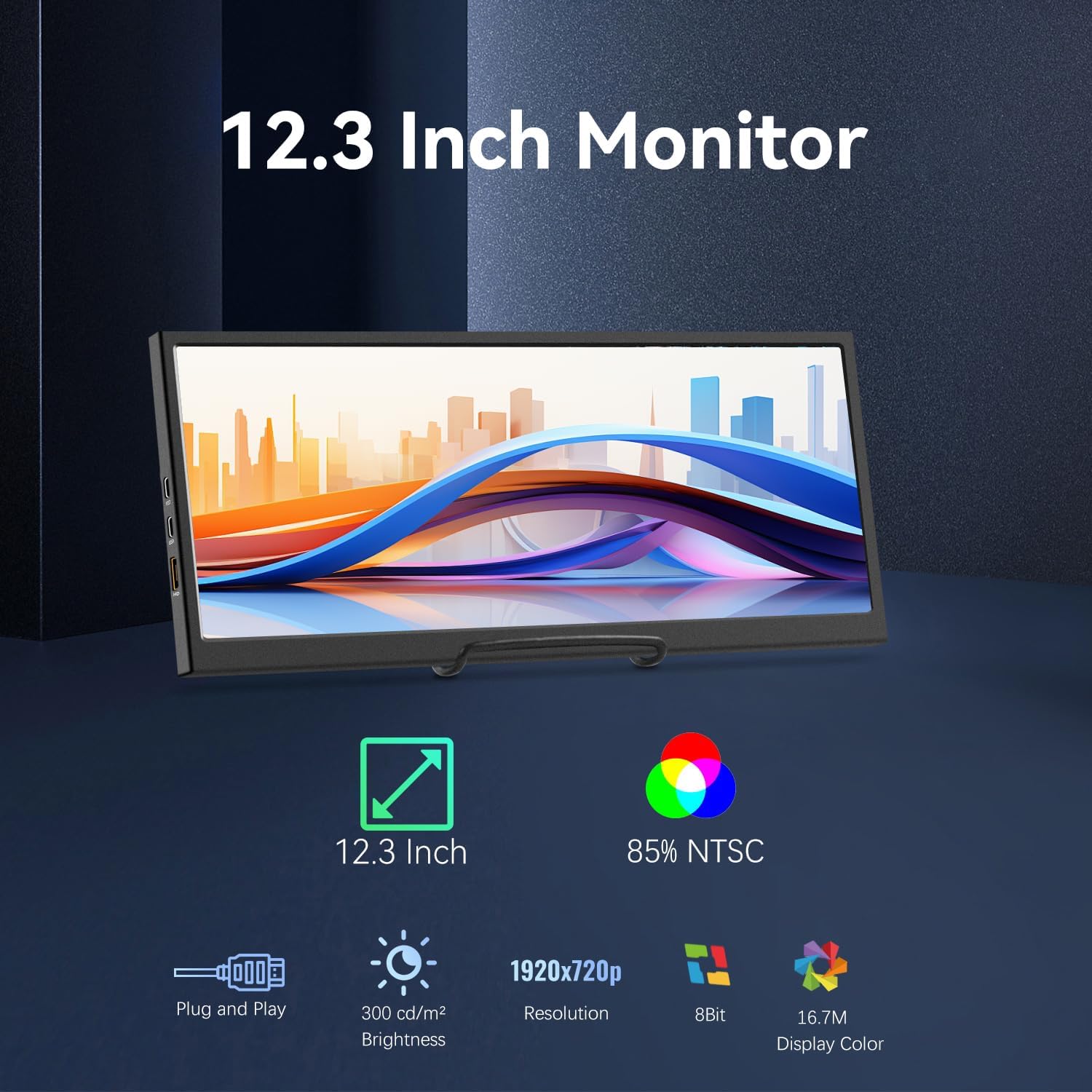
Image: Visual representation of the monitor's key features: 12.3-inch screen, 85% NTSC color gamut, Plug and Play functionality, 300 cd/m² brightness, 1920x720p resolution, 8-bit color, and 16.7M display colors.
| 特徴 | 仕様 |
|---|---|
| モデル番号 | HD-123 |
| 画面サイズ | 12.3インチ |
| パネルタイプ | IPS液晶 |
| 解決 | 1920 x 720 ピクセル |
| 輝度 | 300 cd/m²(ニット) |
| コントラスト比 | 1200:1 |
| View角度 | 178° |
| 色域 | 85% NTSC |
| 色深度 | 8ビット(16.7万色) |
| 接続性 | 2x USB-C (1 full-featured, 1 power-only), 1x HDMI |
| オーディオ | 内蔵スピーカー、3.5mmヘッドフォンジャック |
| 取り付け | 75x75mm VESA Compatible |
| 材料 | 金属 |
| 製品寸法 | 0.59 x 11.8 x 5.1インチ |
| アイテム重量 | 2.14ポンド |
8. 保証情報
Prechen products are covered by a limited warranty against defects in materials and workmanship. The specific warranty period may vary by region and retailer. Please retain your proof of purchase for warranty claims. For detailed warranty terms and conditions, refer to the warranty card included with your product or contact customer support.
9. サポート
If you encounter any issues or have questions regarding your Prechen 12.3-inch Portable Monitor, please contact our customer support team. Provide your product model number (HD-123) and a detailed description of the issue for faster assistance.
- オンラインサポート: Visit the official Prechen webFAQ とサポート リソースのサイト。
- メールサポート: 連絡先メールアドレスについては、製品パッケージまたは保証書を参照してください。