
導入
This manual provides essential information for setting up, operating, maintaining, and troubleshooting your HP 15-fd series laptop. Please read this guide thoroughly to ensure optimal performance and longevity of your device.
The HP 15-fd laptop is equipped with a 13th Gen Intel Core i3-1315U processor, 15.6-inch HD touchscreen display, 8GB DDR4 RAM, and a 512GB SSD, running on Windows 11 Pro. It is designed for productivity and includes various connectivity options and accessories.
1. セットアップ
1.1 開梱と初期検査
すべての部品をパッケージから慎重に取り出してください。梱包リストに記載されているすべての品目が揃っていて、損傷がないことを確認してください。不足または損傷のある品目がある場合は、直ちに販売店にご連絡ください。
1.2電源への接続
- AC アダプターをラップトップの電源コネクタに接続します。
- AC アダプターをアースされた電源コンセントに差し込みます。
- 初めて使用する前に、バッテリーを少なくとも 30 分間、またはバッテリー インジケーターが完全に充電されたことを示すまで充電してください。
1.3 初回電源投入とWindows 11 Proのセットアップ
- キーボード デッキにある電源ボタンを押して、ラップトップの電源をオンにします。
- 画面の指示に従って、Windows 11 Proのセットアッププロセスを完了してください。これには、地域と言語の選択、Wi-Fiネットワークへの接続、ユーザーアカウントの作成が含まれます。
- Ensure you have an active internet connection for Windows updates and software activation.
1.4付属のアクセサリ
Your laptop package includes the following accessories to enhance your experience:
- 5-in-1 ドッキングステーション: Provides additional ports including HDMI video output, USB 3.0, USB Type-C/PD, and RJ45 Ethernet.
- HDMIケーブル: 外部ディスプレイに接続します。
- 128GB Portable SSD: For additional storage and data transfer.
- Lifetime Office: Pre-installed or provided with activation instructions for Microsoft Office suite.

Figure 1: Included accessories, including the 5-in-1 docking station, HDMI cable, 128GB portable SSD, Windows 11 Pro, and Lifetime Office.
2. ノートパソコンの操作
2.1 電源のオン/オフとスリープモード
- 電源オン: 電源ボタンを押します。
- シャットダウン: [スタート] ボタンをクリックし、[電源] > [シャットダウン] をクリックします。
- スリープモード: カバーを閉じるか、[スタート] ボタンをクリックし、[電源] > [スリープ] をクリックします。
2.2タッチスクリーンの使用
Your HP 15-fd laptop features a responsive 15.6-inch multi-touch display. You can interact with the system using various touch gestures:
- タップ: マウスのクリックに相当します。
- ダブルタップ: アプリケーションを開いたり、項目を選択したりします。
- ピンチしてズーム: 2 本の指を使って拡大または縮小します。
- スワイプ: Navigate through content or switch between applications.
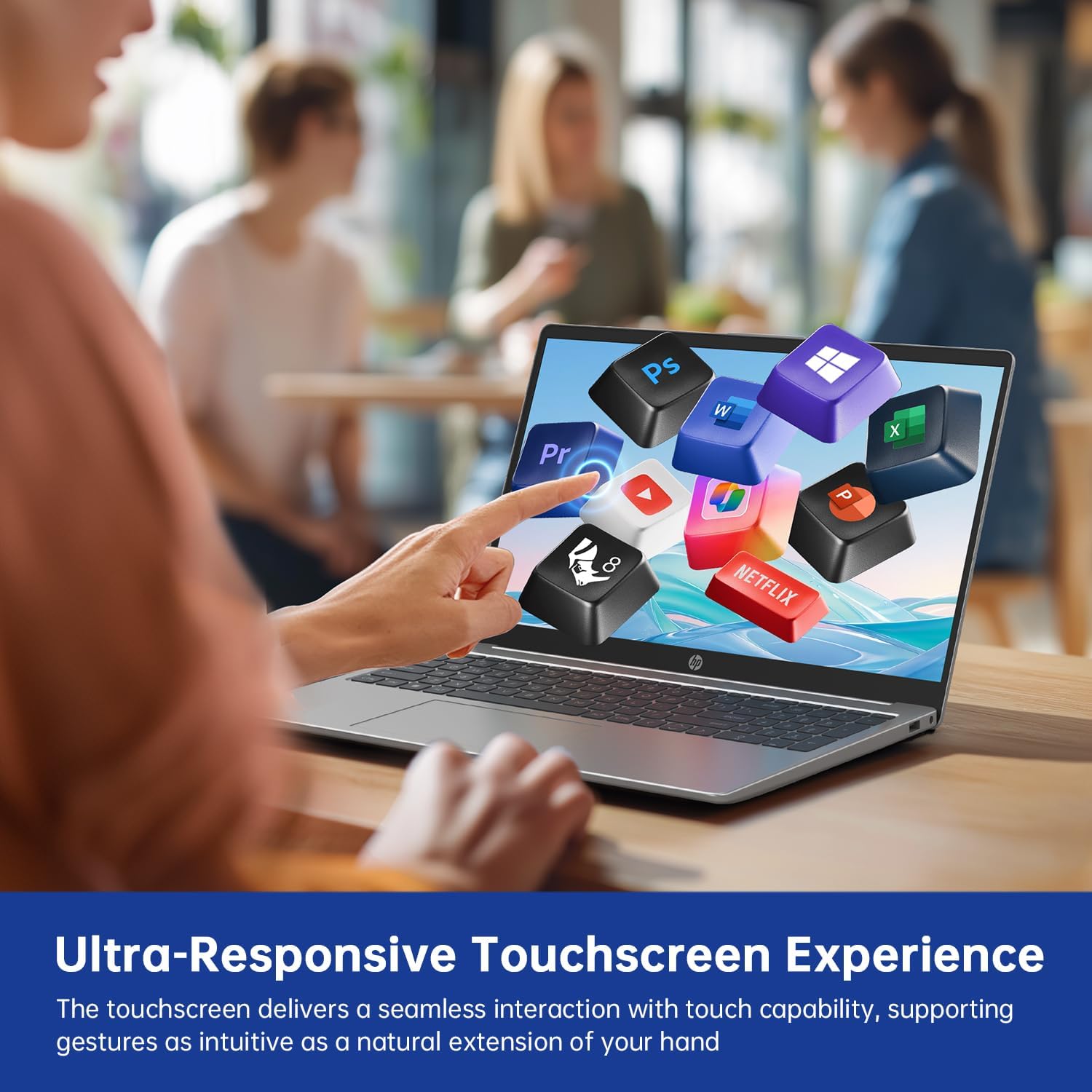
Figure 2: Demonstrating the ultra-responsive touchscreen experience with various application icons.
2.3 Keyboard and Numeric Keypad
The full-size keyboard includes a dedicated numeric keypad for efficient data entry. Function keys (F1-F12) provide quick access to system controls when pressed in combination with the Fn key.
2.4 ポートと接続
ノートパソコンには、外部デバイスを接続するためのさまざまなポートがあります。
- USB-A 3.0 ポート (x2): マウス、キーボード、外付けドライブなどの USB デバイスを接続します。
- USB-C 3.0 ポート (x1): Versatile port for data transfer, charging, or connecting compatible peripherals.
- HDMIポート(x1): 外部モニターやプロジェクターに接続します。
- 3.5mmオーディオジャック(x1): ヘッドフォンまたは外部スピーカー用。
- DC-in Port (x1): AC アダプターを接続してノートパソコンを充電します。
Wireless connectivity includes Wi-Fi 6E for high-speed internet access and ブルートゥース5.0 for connecting wireless accessories.

図3:以上view of multiple available ports on the HP 15-fd laptop.
2.5 Camera Privacy Switch
Your laptop features a 720p HD webcam with a built-in privacy switch. To ensure your privacy, slide the physical switch to cover the camera lens when not in use. Slide it back to uncover the lens when you need to use the camera for video calls or other applications.

Figure 4: The camera privacy switch provides control over webcam access.
2.6 AI Copilot Functionality
The integrated AI Copilot assists in automating tasks, generating insights, and streamlining workflows. It learns from your actions to provide smarter suggestions, enhancing productivity for tasks such as coding, writing, or data analysis.
3. メンテナンス
3.1 ノートパソコンの掃除
- 画面: 柔らかく糸くずの出ない布を軽く拭いてください。amp水またはスクリーンクリーナーで拭き取ってください。液体を画面に直接吹き付けないでください。
- キーボードとシャーシ: 柔らかく乾いた布を使用してください。頑固な汚れには、軽く湿らせた布で拭いてください。amp 液体が開口部に入らないように、中性洗剤溶液を含ませた布を使用できます。
- ポート: 圧縮空気を使用して、ポートからほこりを丁寧に取り除きます。
3.2バッテリーケア
- バッテリーを頻繁に完全に放電することは避けてください。
- 長期間使用しない場合は、ノートパソコンを涼しく乾燥した場所に保管してください。
- ノートパソコンを極端な温度にさらさないでください。
3.3ソフトウェアアップデート
Regularly check for and install updates for Windows 11 Pro and HP drivers to ensure optimal performance, security, and compatibility. You can typically find these updates through Windows Update settings and the HP Support Assistant application.
4。 トラブルシューティング
This section addresses common issues you might encounter with your HP 15-fd laptop.
4.1 電源の問題
- ノートパソコンが起動しない: Ensure the AC adapter is securely connected to both the laptop and a working power outlet. Check if the battery is charged. Try a different power outlet.
- バッテリーが充電されない: Verify the AC adapter is functioning correctly. Check the power cable for damage.
4.2 表示の問題
- Screen is blank or dark: Ensure the laptop is powered on. Adjust screen brightness using function keys. Connect an external monitor via HDMI to check if the issue is with the laptop's display.
- タッチスクリーンが反応しない: ノートパソコンを再起動してください。ディスプレイドライバーが最新であることを確認してください。
4.3 接続の問題
- Wi-Fi が接続されない: Check if Wi-Fi is enabled in Windows settings. Restart your router and laptop. Ensure correct Wi-Fi password is entered.
- Bluetoothデバイスがペアリングされない: Ensure Bluetooth is enabled on both devices. Place devices close to each other. Check device compatibility.
4.4 一般的なパフォーマンスの問題
- パフォーマンスが遅い: Close unnecessary applications. Check for malware. Ensure sufficient free space on the SSD. Update drivers and Windows.
- System freezes or crashes: システムを再起動してください。競合の原因となっている可能性のある最近のソフトウェアのインストールを確認してください。
If you are unable to resolve an issue using these steps, please refer to the Support section for further assistance.
5. 仕様

Figure 5: Key display and physical dimensions of the HP 15-fd laptop.
| 特徴 | 仕様 |
|---|---|
| モデル名 | 15-fd |
| プロセッサ | 第13世代Intel Core i3-1315U(最大4.5GHz) |
| グラフィックス | Intel UHD グラフィックス(統合) |
| 画面 | 15.6インチHD(1366 x 768)タッチスクリーン |
| ラム | 8GB DDR4 |
| ストレージ | 512GB SSD |
| オペレーティング·システム | ウィンドウズ11プロ |
| ワイヤレス接続 | Wi-Fi 6E、Bluetooth 5.0 |
| ポート | 2x USB-A 3.0, 1x USB-C 3.0, 1x HDMI, 1x 3.5mm Audio Jack, 1x DC-in |
| 寸法(長さx幅x高さ) | 14.17 x 9.29 x 0.73インチ |
| 重さ | 約3.52ポンド(1.6kg) |
| 色 | ナチュラルシルバー |
| 特集 | Numeric Keypad, Fingerprint Reader, HD Audio, Camera Privacy Switch |
6. 保証情報
Your HP 15-fd laptop comes with a 12ヶ月保証 ご購入日から1年間有効です。本保証は、通常の使用における製造上の欠陥およびハードウェアの故障を対象としています。保証請求の際は、購入証明書を保管してください。
The warranty does not cover damage caused by misuse, accidents, unauthorized modifications, or external factors. For detailed warranty terms and conditions, please refer to the documentation included with your product or visit the official HP support webサイト。
7. サポート
For technical assistance, troubleshooting beyond this manual, or warranty service, please contact HP Customer Support.
- オンラインサポート: 公式HPサポートにアクセスしてください webドライバー、マニュアル、トラブルシューティング ガイドのサイト。
- 電話サポート: Refer to the contact information provided in your product packaging or on the HP Support webあなたの地域のサイト。
When contacting support, please have your laptop's serial number and model number (15-fd) ready. This information can usually be found on a label on the bottom of your laptop.