
NIMO Nimo N156
NIMO 15.6" FHD Business Laptop User Manual
Model: Nimo N156
導入
This user manual provides comprehensive instructions for setting up, operating, maintaining, and troubleshooting your NIMO 15.6" FHD Business Laptop. Please read this manual carefully before using your device to ensure optimal performance and longevity. Keep this manual for future reference.
箱の中身
パッケージにすべてのアイテムが揃っていることを確認します。
- 1 x Nimo N156 Laptop
- 1 x Type-C 100W PD Fast Charger
- ユーザーマニュアル (本書) x 1
- Windows 11 Home(プリインストール)
- 2 Years Warranty, 90 Days Return information
製品終了view
Familiarize yourself with the key components of your NIMO laptop.

図1: フロント view of the NIMO 15.6 inch FHD Business Laptop, showcasing its full HD IPS display, Intel Core i5 processor, fingerprint reader, Type-C PD charger port, and backlit keyboard.

図2: Close-up of the NIMO laptop's backlit full keyboard, highlighting the integrated webcam shield, fingerprint sensor, and numeric keypad for enhanced productivity and security.

図3: Diagram illustrating the multiple ports on the NIMO laptop, including Micro SD slot, USB 2.0, USB 3.0, Headphone Jack, Kensington lock, Type-C (multifunction), Type-C (PD Charger Only), HDMI, and Charge LED.
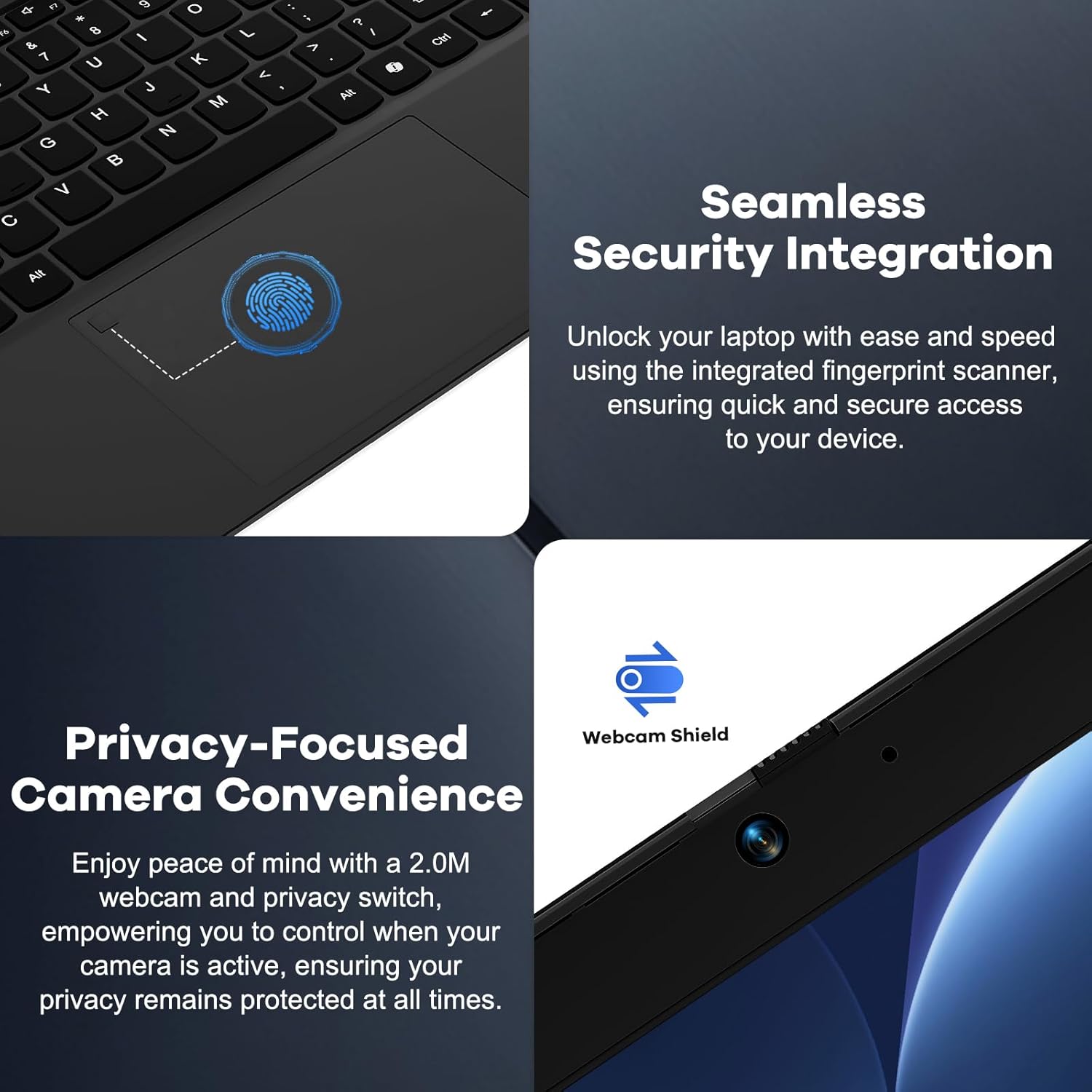
図4: Details on the seamless security integration with the fingerprint sensor for quick login and the privacy-focused camera convenience with a built-in webcam shield.

図5: The compact 100W GaN Type-C PD Fast Charger included with the NIMO laptop, capable of charging to 50% in 15 minutes and compatible with various devices.
設定
1. 初回電源投入
- 開梱: ノートパソコンとすべての付属品をパッケージから慎重に取り出します。
- 接続電源: Plug the 100W GaN Type-C PD Fast Charger into a power outlet and connect the USB-C cable to the laptop's Type-C charging port. The Charge LED will illuminate.
- 最初のブート: Open the laptop lid. The system may power on automatically or you may need to press the power button (located on the top right of the keyboard).
- Windowsセットアップ 画面の指示に従って、Windows 11 Home のセットアッププロセスを完了してください。これには、地域と言語の選択、Wi-Fi ネットワークへの接続、ユーザーアカウントの作成が含まれます。
2. 周辺機器の接続
Your NIMO laptop offers various ports for connecting external devices:
- USB デバイス: USB フラッシュ ドライブ、外付けハード ドライブ、マウス、またはキーボードを USB 2.0 または USB 3.0 ポートに接続します。
- 外部ディスプレイ: HDMI ポートを使用して外部モニターまたはプロジェクターを接続します。
- オーディオ: Plug headphones or external speakers into the 3.5mm Headphone Jack.
- メモリーカード: Insert a Micro SD card into the Micro SD slot for additional storage.
操作手順
1. 基本操作
- 電源オン/オフ: Press the power button to turn the laptop on. To shut down, click the Start button in Windows, then Power > Shut down.
- スリープモード: Close the lid or click the Start button, then Power > Sleep to put the laptop into sleep mode.
- Fingerprint Login: Utilize the integrated fingerprint sensor for quick and secure login to Windows. Register your fingerprints through Windows Settings > Accounts > Sign-in options.
- バックライト付きキーボード: The keyboard features backlighting for low-light conditions. Use the dedicated function key (Fn + F key combination, typically F3 or F4) to toggle or adjust the backlight brightness.
- Webカムプライバシー: The laptop includes a physical webcam shield. Slide the switch next to the webプライバシー保護のため、カメラのレンズを覆ったり露出させたりできます。
2. Windows 11 Features
Your laptop comes with Windows 11 Home pre-installed. Explore its features for enhanced productivity and entertainment:
- スナップレイアウト: Easily organize open windows on your screen.
- ウィジェット: パーソナライズされた情報に一目でアクセスできます。
- マイクロソフトストア: アプリケーションをダウンロードしてインストールします。
- 安全: Windows Defender provides built-in antivirus and firewall protection.
メンテナンス
- クリーニング: Use a soft, lint-free cloth to clean the screen and chassis. For stubborn smudges, slightly damp布に水または画面洗浄液を含ませてください。刺激の強い化学薬品は使用しないでください。
- バッテリーのケア: バッテリーの寿命を延ばすには、バッテリーを頻繁に完全に放電させないでください。可能な限り、バッテリーの充電量を20%~80%に保つことをお勧めします。長期間使用しない場合は、ノートパソコンを涼しく乾燥した場所に保管してください。
- ソフトウェアアップデート: システムの安定性とセキュリティを確保するため、Windowsの更新プログラムとドライバーの更新プログラムを定期的に確認し、インストールしてください。Windowsの設定 > Windows Update に移動してください。
- ストレージ管理: 不要なものを定期的に掃除する fileおよびアプリケーションをアップグレードして、ストレージ領域を解放し、パフォーマンスを向上させます。
トラブルシューティング
| 問題 | 考えられる原因 | 解決 |
|---|---|---|
| ノートパソコンの電源が入りません。 | バッテリー残量が少ないか、電源アダプターに問題があります。 | 充電器が正しく接続され、電源コンセントが機能していることを確認してください。ノートパソコンを少なくとも30分間充電してから、再度電源を入れてください。 |
| ディスプレイが空白またはちらつきます。 | Incorrect display settings or driver issue. | Try connecting an external monitor to check if the issue is with the laptop's display. Update graphics drivers. Restart the laptop. |
| Wi-Fi接続の問題。 | Incorrect network settings or driver issue. | Ensure Wi-Fi is enabled. Restart your router and laptop. Update Wi-Fi drivers. Forget and reconnect to the network. |
| キーボードのバックライトが機能しません。 | Backlight feature is off or driver issue. | Press the Fn + F key combination (e.g., F3 or F4) to toggle the backlight. Check keyboard settings in Windows. |
問題が解決しない場合は、保証とサポートのセクションを参照してください。
仕様
| 特徴 | 詳細 |
|---|---|
| ブランド | NIMO |
| モデル名 | Nimo N156 |
| 画面サイズ | 15.6インチ |
| 画面解像度 | 1920 x 1080ピクセル(FHD IPS) |
| プロセッサ | Intel Core i5-12450H (8 コア、最大 4.4 GHz) |
| ラム | 8 GB DDR4 (Upgradable) |
| ハードドライブ | 256 GB PCIe SSD (Upgradable) |
| グラフィックスコプロセッサ | 統合されたIntelグラフィックス |
| オペレーティング·システム | Windows 11 ホーム |
| ワイヤレスタイプ | 802.11a/b/g/n/ac(WiFi 6) |
| ブルートゥース | BT5.2 |
| ポート | 1x USB 2.0, 3x USB 3.0, Type-C (PD Charger Only), Type-C (Multifunction), HDMI, Headphone Jack, Micro SD Slot |
| 電源アダプター | 100W GaN Type-C PD Fast Charger |
| 平均バッテリー寿命 | 5 Hours (54Wh Smart Battery for up to 9 Hours Standby) |
| アイテム重量 | 3.8ポンド |
| 製品寸法 | 14.07 x 8.98 x 0.76インチ |
| 特集 | Backlit Keyboard, Fingerprint Reader, HD Audio, Memory Card Slot, Numeric Keypad, Webcam Shield |
保証とサポート
NIMO stands behind the quality of its products. Your NIMO laptop comes with the following:
- 2年間保証: A 2-Year Warranty from NIMO Direct Inc. covers manufacturing defects and hardware failures.
- 90日間の手間いらずの返品: 安心してご利用いただけるよう、90 日間の返品ポリシーをご用意しております。
- 24/7 Dedicated Support: For any issues or inquiries, dedicated support is available to provide instant resolution.
For warranty claims or technical assistance, please contact NIMO customer support through the contact information provided on the official NIMO webサイトまたは購入書類をご覧ください。
ビデオ: オーバーview of the NIMO laptop, highlighting its features, performance, and the comprehensive 90-day return policy and 2-year warranty, demonstrating NIMO's commitment to customer satisfaction.
Ask a question about this manual
Ask about setup, troubleshooting, compatibility, parts, safety, or missing instructions. Manuals+ will review the question and use this page’s manual context to help answer it.