
導入
This user manual provides detailed instructions for the TP-Link M8550 5G Mobile Wi-Fi Router. It covers setup, operation, maintenance, and troubleshooting to ensure optimal performance and connectivity. The M8550 offers high-speed 5G and 4G LTE internet access, tri-band Wi-Fi 6E, and a user-friendly touchscreen interface, making it suitable for various mobile and home networking needs.
パッケージ内容
パッケージに次のアイテムが含まれていることを確認してください。
- TP-Link M8550 5G Mobile Wi-Fi Router
- 電源アダプター
- USB-Cケーブル
- 4680mAhバッテリー
- クイックインストールガイド
製品終了view
The TP-Link M8550 is a compact and powerful mobile Wi-Fi router designed for portable internet access. It features a touchscreen display for easy management and various ports for flexible connectivity.
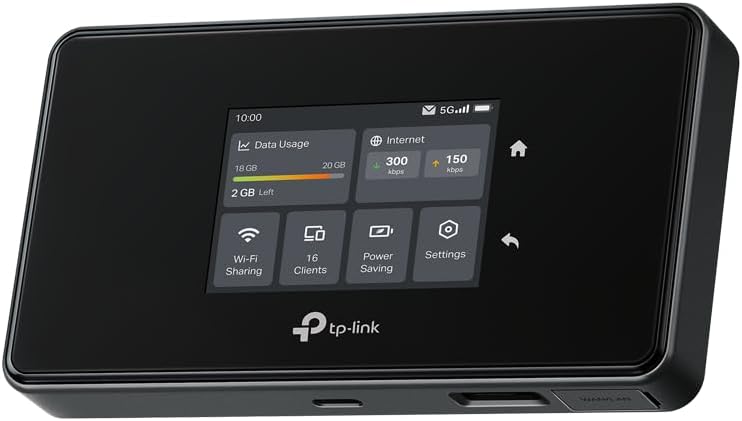
図1: フロント view of the TP-Link M8550 5G Mobile Wi-Fi Router, highlighting its intuitive touchscreen interface.
身体的特徴
- タッチスクリーンディスプレイ: Provides real-time information on signal strength, connection status, data usage, connected devices, and battery level.
- USB-Cポート: デバイスの充電用。
- WAN/LANポート: A versatile Gigabit port that can function as either a WAN input or a LAN output.
- TS-9 アンテナコネクタ: Two ports for connecting external antennas to enhance signal reception.
- Nano-SIMカードスロット: モバイルネットワークSIMカードを挿入します。
- MicroSDカードスロット: Supports up to 2TB for wireless file 共有。

図2: 底 view of the M8550, illustrating the USB-C charging port, external antenna connectors, and the WAN/LAN port.
設定
1. Install SIM Card and Battery
- 裏表紙を開きます: Gently remove the back cover of the M8550.
- Insert Nano-SIM Card: Locate the Nano-SIM card slot. Insert your Nano-SIM card with the gold contacts facing down and the notched corner aligned correctly. Ensure it clicks into place.
- 電池を挿入します: Place the provided 4680 mAh battery into its compartment, ensuring the contacts align with the device's terminals.
- 背面カバーを交換する: バックカバーをしっかりと取り付けてください。
2. デバイスの電源を入れる
Press and hold the power button (usually located on the side or top) for a few seconds until the screen illuminates. The device will boot up and attempt to connect to the mobile network.
3. 初期設定(オプション)
Upon first use, you may be prompted to set a PIN for your SIM card or configure basic Wi-Fi settings via the touchscreen. Follow the on-screen instructions.
操作手順
デバイスをWi-Fiに接続する
The M8550 supports up to 32 devices simultaneously. To connect a device:
- Wi-Fi情報にアクセス: On the M8550's touchscreen, navigate to the Wi-Fi information screen to find the Wi-Fi Name (SSID) and Password.
- デバイスから接続: On your computer, smartphone, or tablet, open the Wi-Fi settings. Select the M8550's Wi-Fi Name (SSID) from the list of available networks.
- パスワードを入力してください: Input the Wi-Fi password displayed on the M8550's screen.
- 接続する: 接続を確認してください。これでデバイスはM8550経由でインターネットに接続されるはずです。
タッチスクリーンインターフェイスの使用

図3: The M8550's touchscreen provides quick access to device information and settings.
The touchscreen allows for easy monitoring and management of the router. You can view data usage, internet speed, connected clients, battery status, and adjust settings directly on the device. Swipe through the screens to access different functions and information panels.
TP-Link Tether App Management
For more comprehensive control, download the TP-Link Tether app on your smartphone. The app allows you to manage your network, monitor connected devices, set parental controls, and configure advanced settings remotely.
- デバイスのアプリ ストアから TP-Link Tether アプリをダウンロードします。
- Connect your smartphone to the M8550's Wi-Fi network.
- Launch the Tether app and follow the on-screen instructions to add and manage your M8550.
高度な機能
Wi-Fi 6E Tri-Band Connectivity
The M8550 supports Wi-Fi 6E, offering three frequency bands: 2.4 GHz, 5 GHz, and 6 GHz. This allows for stable and high-speed connections with reduced interference, even when multiple devices are connected. The device supports simultaneous use of 2.4 GHz/5 GHz or 2.4 GHz/6 GHz.

図4: 以上view of the M8550's key features, including 5G speeds, Wi-Fi 6E, and various connectivity options.
Gigabit WAN/LAN Port
The integrated Gigabit port can be configured as either a WAN (Wide Area Network) input, allowing you to use the M8550 as a traditional router with a wired internet source, or as a LAN (Local Area Network) output to connect a wired device.
外部アンテナサポート
For areas with weak cellular signal, the M8550 includes two TS-9 connectors for external antennas. Connecting compatible external antennas can significantly improve signal strength and stability.
microSDカードスロット
The device features a microSD card slot supporting up to 2TB. This allows for wireless sharing of files such as photos and videos with connected devices.
VPNサポート
The M8550 supports VPN (Virtual Private Network) functionality, including Wireguard, to enhance network security and privacy for all connected devices.

図5: The M8550's VPN feature helps secure your internet connection.
メンテナンス
バッテリーケア
The M8550 is equipped with a 4680 mAh battery, providing up to 14 hours of operation. To maximize battery lifespan:
- 極端な温度を避けてください。
- For prolonged use while connected to AC power, consider removing the battery to prevent excessive heat buildup, as noted by some users.
- Charge the device using the provided power adapter and USB-C cable.
ファームウェアの更新
Regularly check for and install firmware updates to ensure optimal performance, security, and access to new features. Updates can typically be managed through the TP-Link Tether app or the device's web 管理インターフェース。
トラブルシューティング
インターネット接続なし
- Nano-SIM カードが正しく挿入され、データ プランでアクティブ化されていることを確認します。
- Check the signal strength indicator on the touchscreen. If the signal is weak, try moving to a different location or connecting external TS-9 antennas.
- Verify that data roaming is enabled if you are in a different region.
- デバイスを再起動します。
デバイスの過熱
- If the device becomes excessively warm during prolonged use, especially when connected to AC power, consider removing the battery. The device can operate directly from AC power without the battery installed.
- デバイスが換気の良い場所に設置され、覆われていないことを確認してください。
Wi-Fi速度が遅い
- Check the number of connected devices. High numbers of concurrent users can impact performance.
- Ensure your connected devices support Wi-Fi 6E to utilize the faster 6 GHz band.
- Minimize physical obstructions between the router and your devices.
仕様
| ブランド | TPリンク |
| モデル名 | M8550 |
| オペレーティング·システム | TP-Link OS |
| 接続技術 | イーサネット、Wi-Fi |
| 特集 | Wi-Fi 6E Tri-band, WAN/LAN Port, External Antenna Support (TS-9) |
| バッテリー構成 | リチウムイオン |
| バッテリー容量 | 4680mAh |
| 無線通信規格 | 802.11ac、802.11ax、802.11n |
| 周波数帯域クラス | Tri-band (2.4 GHz, 5 GHz, 6 GHz) |
| セキュリティプロトコル | WPA2、WPA3 |
| 最大ダウンロード速度(5G) | 最大3.4ギガビット/秒 |
| Max Upload Speed (5G) | 最大900Mbit / s |
| MicroSDスロット | 最大2TB |
| Max Concurrent Devices | 最大32 |
保証とサポート
保証情報と技術サポートについては、TP-Linkの公式ウェブサイトをご覧ください。 website or contact TP-Link customer service. Details regarding specific warranty periods and support channels are typically provided with your product documentation or available online.


