
導入
This manual provides detailed instructions for the setup, operation, maintenance, and troubleshooting of your Azeyou 12 Inch Android 15 Tablet, model T12. Please read this manual thoroughly to ensure proper use and to maximize your device's performance and longevity.
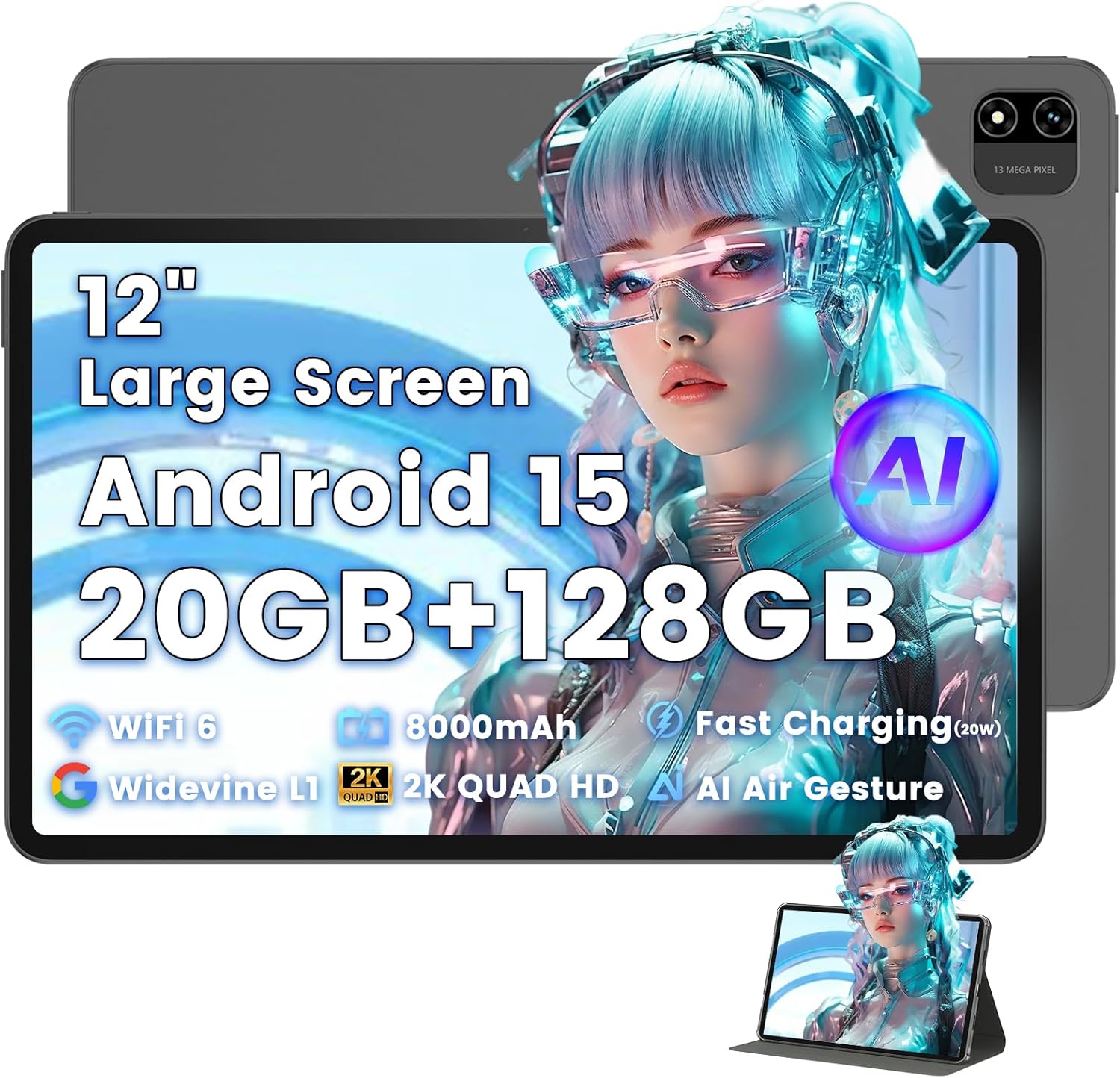
Image: The Azeyou T12 tablet, shown with its protective case, highlighting its large display and sleek design.
箱の中身
パッケージにすべてのアイテムが揃っていることを確認します。
- 1x Azeyou Tablet (T12)
- 充電ケーブル(Type-C)×1
- ユーザーマニュアル x 1
- 1x タブレットケース
設定
1. 初期充電
Before first use, fully charge the tablet. Connect the provided Type-C charging cable to the tablet's charging port and the other end to a compatible 20W Power Delivery (PD) charger. The battery indicator on the screen will show charging status.

Image: An infographic detailing key features of the Azeyou T12 tablet, including its Android 15 operating system, AI octa-core processor, Wi-Fi 6, Bluetooth 5.0, dual cameras, storage capacity, Widevine L1 support, parental control, split-screen function, and 8000mAh battery.
2. 電源のオンとオフ
- 電源を入れるには: Press and hold the Power button located on the side of the tablet until the Azeyou logo appears.
- 電源を切るには: 電源オプションが画面に表示されるまで電源ボタンを長押しし、「電源オフ」を選択します。
- 再起動します: 電源オプションが表示されるまで電源ボタンを押し続け、「再起動」を選択します。
3. 初期セットアップウィザード
初めて電源を入れると、タブレットが初期セットアップのプロセスを案内します。
- 言語の選択: お好みの言語を選択してください。
- Wi-Fi接続: Wi-Fi ネットワークを選択し、パスワードを入力してインターネットに接続します。
- Google アカウント: Googleアカウントでログインするか、新しいアカウントを作成してください。Google Playストアからアプリをダウンロードしたり、データを同期したりするために必要です。
- 日時: 正しい日付と時刻を設定するか、ネットワークで自動的に設定できるようにします。
- 安全: Set up a screen lock (PIN, pattern, password, or face unlock).
4. TFカードの挿入(オプション)
The tablet supports storage expansion up to 1TB via a TF (microSD) card. Locate the TF card slot, gently insert the card until it clicks into place. Ensure the tablet is powered off before inserting or removing the TF card.

Image: A visual representation of the tablet's memory and storage, indicating 20GB RAM (6GB physical + 14GB virtual), 128GB internal storage, and support for up to 1TB TF card expansion, alongside popular application icons.
操作手順
1. 基本的なナビゲーションとジェスチャー
- タップ: 項目を選択するか、アプリを開きます。
- タップ&ホールド: コンテキスト メニューにアクセスしたり、アイコンを移動したりします。
- スワイプ: 画面またはリストをスクロールします。
- ピンチしてズーム: 画像を拡大または縮小し、 web ページ。
2. 表示機能
The Azeyou T12 features an 11.97-inch 2K FHD (2000x1200) display with a 90Hz refresh rate for smooth visuals.
- 明るさ調整: Swipe down from the top of the screen to access the Quick Settings panel and adjust the brightness slider.
- ブルーライトフィルター: The tablet includes a built-in blue light filter that automatically adjusts brightness to reduce eye strain. This can be managed in Display Settings.
- ワイドバインL1: Enjoy high-definition content from streaming services like Netflix and Prime Video due to Widevine L1 certification.

Image: A visual representation of the tablet's display specifications, emphasizing its 12-inch screen, 16:10 aspect ratio, 2000x1200 resolution, and 90Hz refresh rate, with a child watching content on the screen.

Image: An illustration demonstrating the tablet's Widevine L1 certification for HD streaming and its quad-speaker system for rich, immersive audio, surrounded by logos of popular streaming services.
3. パフォーマンスとマルチタスク
The tablet is equipped with an A733 octa-core processor and 20GB RAM (6GB physical + 14GB virtual) for smooth operation.
- 分割画面モード: To use two apps simultaneously, open one app, then swipe up from the bottom of the screen and hold to access recent apps. Tap the app icon at the top of the window and select "Split screen". Choose a second app to open in the other half of the screen.
- アプリ管理: Close background apps from the recent apps menu to optimize performance.
4. AI Smart Features
The A733 octa-core processor includes an AI chip that enables several intelligent functions:
- AI Posture Reminder: The tablet can monitor your sitting posture and provide gentle reminders to encourage better habits, especially useful for online learning or extended use.
- AIジェスチャーコントロール: Navigate the tablet without touching the screen. Use simple hand movements in front of the camera to flip pages, pause videos, or browse content.
- AI画像強化: The AI engine can enhance low-resolution photos and videos in real-time, improving clarity, detail, and overall visual quality.

Image: A collage demonstrating the tablet's AI capabilities, including an AI Posture Reminder for healthy habits, AI Gesture Control for touch-free navigation, and AI Image Enhancement for improved photo and video quality.
5. カメラ
The tablet features a 5MP front camera and a 13MP rear camera with autofocus and flash.
- フロントカメラ: Ideal for video calls, online classes, and selfies.
- リアカメラ: Suitable for capturing photos and videos. Features autofocus and flash for improved image quality.
- 顔認証: フロントカメラを利用して、デバイスに素早く安全にアクセスできます。

Image: A graphic highlighting the tablet's 5MP front camera and 13MP AI rear camera, showcasing features like AI-enhanced photos and Face Unlock for secure access.
6. 接続性
- Wi-Fi 6: Connect to high-speed Wi-Fi networks for stable streaming and low-latency online activities. Access Wi-Fi settings via the Quick Settings panel or the Settings app.
- Bluetooth 5.0: Pair with wireless keyboards, headphones, and other Bluetooth accessories. Enable Bluetooth in Quick Settings or the Settings app.
- タイプCポート: Used for charging, fast data transfer, and audio output with compatible Type-C headphones.

Image: A visual representation of the tablet's connectivity features, including Wi-Fi 6, Bluetooth 5.0, and support for Type-C headsets, illustrating seamless integration with various devices and networks.
7.バッテリー管理
8000mAhのバッテリーで長時間の使用が可能です。バッテリー寿命を最適化するには:
- 画面の明るさを下げます。
- 使用していないときは Wi-Fi と Bluetooth を無効にします。
- 不要なバックグラウンド アプリケーションを閉じます。
- Use power-saving modes available in Battery Settings.
8. ペアレンタルコントロール
The tablet includes a parental control mode to manage screen time, restrict content, and control app access for children. This feature can be configured in the tablet's settings under 'Digital Wellbeing & parental controls'.

Image: A screenshot of the Android 15 interface on the tablet, highlighting features such as HD streaming, parental control, and split-screen functionality, with various app icons visible.
メンテナンス
1. タブレットのクリーニング
- 柔らかく糸くずの出ない布を使用して、タブレットの画面と本体を清掃してください。
- 頑固な汚れには、軽くamp布に水または電子機器用のスクリーンクリーナーを含ませて拭いてください。
- 刺激の強い化学薬品、研磨材、過度の湿気の使用は避けてください。
2. ソフトウェアの更新
最適なパフォーマンス、セキュリティ、新機能へのアクセスを確保するため、ソフトウェアアップデートを定期的に確認し、インストールしてください。 設定 > システム > システムアップデート.
3. ストレージ管理
パフォーマンスを維持するには、タブレットのストレージを定期的に管理してください。
- 不要なアプリを削除し、 files.
- アプリのキャッシュデータを消去する 設定 > アプリと通知 > [アプリ名] > ストレージとキャッシュ.
- クラウドストレージを利用するか、大容量のファイルを転送する files to an external TF card or computer.
トラブルシューティング
If you encounter issues with your Azeyou T12 tablet, refer to the following common solutions:
- タブレットの電源が入らない:
- バッテリーが充電されていることを確認してください。充電器を接続し、数分間待ってから電源を入れてください。
- 電源ボタンを10~15秒間押して強制再起動を実行します。
- パフォーマンスの低下またはフリーズ:
- 不要なバックグラウンド アプリケーションを閉じます。
- Clear app cache and data.
- タブレットを再起動します。
- 利用可能なシステムアップデートを確認します。
- Wi-Fi 接続の問題:
- タブレットで Wi-Fi が有効になっていることを確認します。
- Wi-Fiルーターを再起動します。
- Wi-Fi設定でネットワークを削除して再接続します。
- Apps Crashing or Not Responding:
- アプリを強制終了する(Settings > Apps & notifications > [App Name] > Force stop).
- アプリのキャッシュとデータを消去します。
- アプリをアンインストールして再インストールしてください。
- アプリが最新バージョンに更新されていることを確認してください。
- 画面が応答しない:
- 強制再起動を実行します。
- 画面がきれいでゴミなどがないことを確認してください。
仕様
- モデル名:
- T12タブレット
- オペレーティング·システム:
- アンドロイド15
- プロセッサ:
- A733 Octa-Core Processor (Unisoc)
- ラム:
- 20GB(物理6GB + 仮想14GB)
- 内部ストレージ(ROM):
- 128GB
- 拡張可能なストレージ:
- TFカード経由で最大1TB
- 画面サイズ:
- 11.97インチ
- 画面解像度:
- 2000x1200 フルHD
- リフレッシュレート:
- 90Hz
- グラフィックコプロセッサー:
- Imagination Technologies BXM-4-64 MC1
- リアカメラ:
- オートフォーカスとフラッシュを備えた13MP
- フロントカメラ:
- 5MP
- バッテリー容量:
- 8000mAh
- 充電:
- 20W Power Delivery (PD) Fast Charging via Type-C
- ワイヤレス接続:
- Wi-Fi 6(802.11a/b/g/n/ac)、Bluetooth 5.0
- オーディオ:
- Quad-Speakers, Type-C Audio Output
- 寸法(長さx幅x高さ):
- 11 x 7 x 0.3インチ
- 商品の重量:
- 3.1ポンド
- 色:
- グレー
- 特別な機能:
- AI Posture Reminder, AI Gesture Control, AI Image Enhancement, Widevine L1, Parental Control, Split-Screen Mode, Face Unlock
保証とサポート
保証情報
Azeyou products typically come with a standard manufacturer's warranty. Please refer to the warranty card included in your product packaging or visit the official Azeyou website for specific warranty terms and conditions. The warranty generally covers manufacturing defects but does not cover damage caused by misuse, accidents, or unauthorized modifications.
カスタマーサポート
For technical assistance, troubleshooting beyond this manual, or warranty claims, please contact Azeyou customer support. Contact details can usually be found on the official Azeyou website or on the product packaging. When contacting support, please have your tablet's model number (T12) and purchase information ready.
訪問することができます Azeyou Store on Amazon 詳細な製品情報とサポート リソースについては、こちらをご覧ください。


