
FIREBAT MN56, A6
FIREBAT Mini PC MN56 および A6 シリーズ ユーザーマニュアル
Models: MN56 (Ryzen7 8745HS) & A6 (Ryzen7 6800H)
1. はじめに
This user manual provides detailed instructions for setting up, operating, maintaining, and troubleshooting your FIREBAT Mini PC. This guide covers both the MN56 model (featuring AMD Ryzen 7 8745HS) and the A6 model (featuring AMD Ryzen 7 6800H). Please read this manual thoroughly before using your device to ensure proper operation and longevity.
The FIREBAT Mini PCs are designed for a wide range of applications, from home and office use to education and light gaming, offering powerful performance in a compact form factor.

Figure 1.1: FIREBAT MN56 (white) and A6 (black) Mini PCs. The MN56 model is shown with RGB lighting and a vertical stand, while the A6 model is a compact black cube.
2. 安全情報
To prevent injury, electric shock, fire, and damage to the device, please observe the following safety precautions:
- Use only the power adapter provided with your Mini PC.
- デバイスを水、湿気、または極端な温度にさらさないでください。
- デバイスを直射日光の当たる場所や熱源の近くに置かないでください。
- 適切な換気を確保し、換気口を塞がないようにしてください。
- ご自身でデバイスの分解や修理を試みないでください。すべてのメンテナンスは資格のある専門家にご依頼ください。
- デバイスを強い磁場から遠ざけてください。
- 物理的な損傷を避けるため、デバイスを慎重に取り扱ってください。
3.セットアップガイド
3.1. パッケージ内容
続行する前に、パッケージにすべてのアイテムが含まれていることを確認してください。
- FIREBAT Mini PC (MN56 or A6 model)
- 電源アダプター
- HDMIケーブル
- ユーザーマニュアル(このドキュメント)
- (オプション)VESAマウントブラケットとネジ
3.2. 周辺機器の接続
Follow these steps to connect your Mini PC to a display and other essential peripherals:
- ディスプレイを接続する: Use the provided HDMI cable or a DisplayPort (DP) cable to connect your monitor to the corresponding port on the Mini PC. Both models support triple display output via HDMI, DisplayPort, and USB-C.
- キーボードとマウスを接続します。 Plug your USB keyboard and mouse into any available USB-A ports on the Mini PC.
- ネットワークに接続(オプション): For a wired internet connection, connect an Ethernet cable from your router to the LAN port(s) on the Mini PC. Both models feature 2.5Gbps LAN ports.
- 接続電源: Plug the power adapter into the DC-IN port on the Mini PC, then plug the other end into a power outlet.
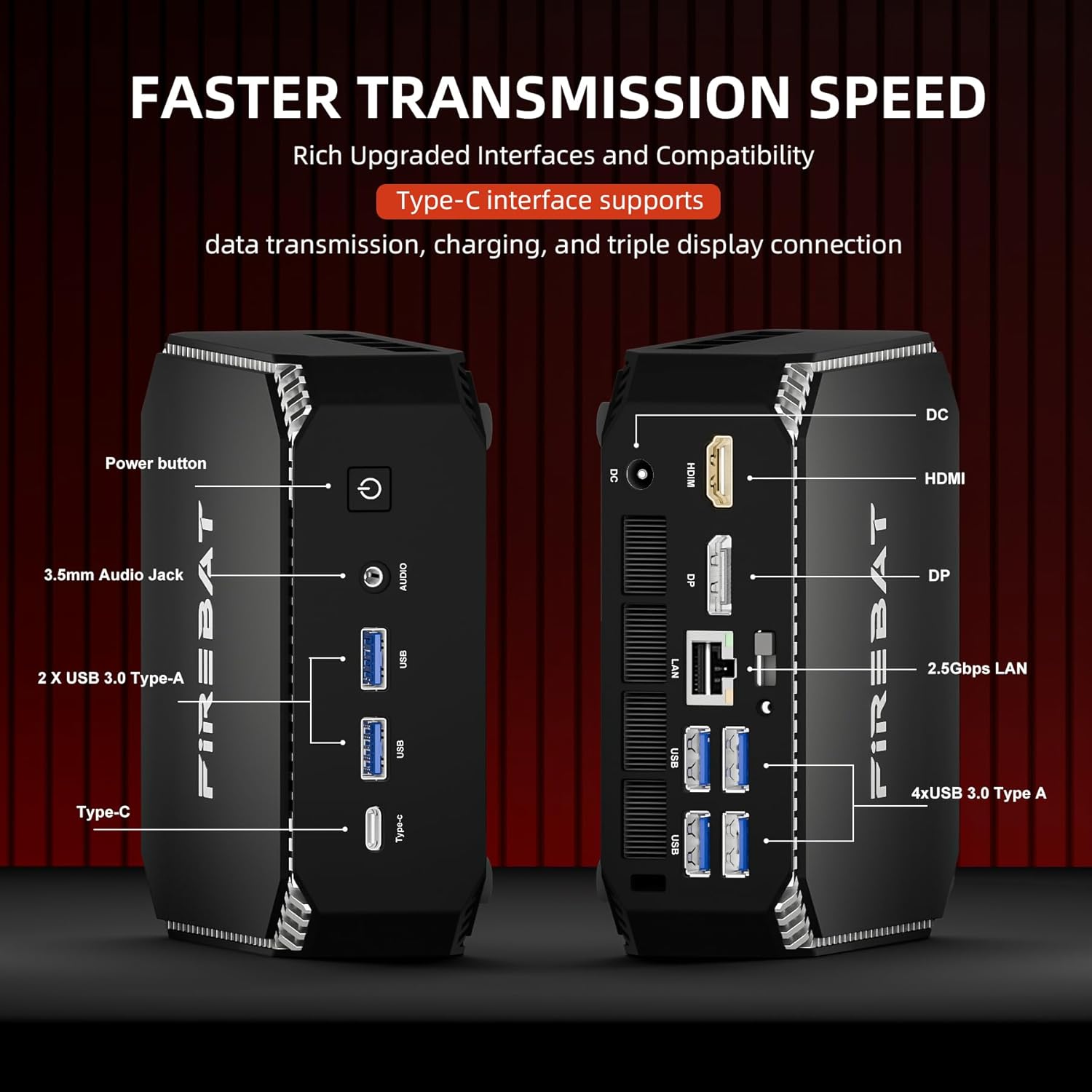
図3.1:以上view of ports on the FIREBAT A6 Mini PC, including Power button, 3.5mm Audio Jack, USB 3.0 Type-A, Type-C, DC-IN, HDMI, DisplayPort, and 2.5Gbps LAN ports.
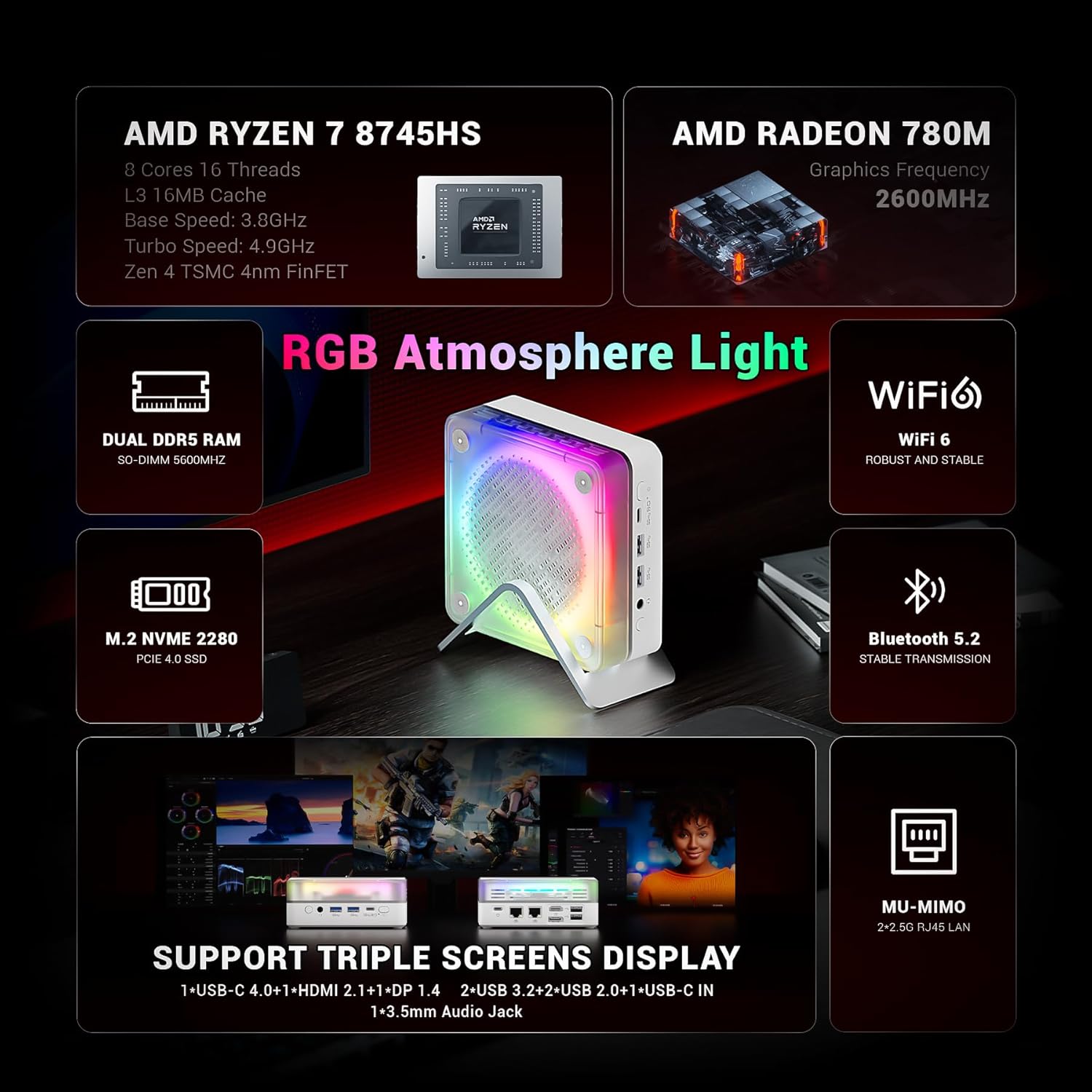
Figure 3.2: The MN56 model also features multiple USB ports, HDMI, DisplayPort, and USB-C for display output, along with dual 2.5Gbps LAN ports.
3.3. 初回電源投入
すべての周辺機器を接続した後:
- Press the Power button located on the Mini PC. The power indicator light will illuminate.
- The Mini PC will boot up. Follow the on-screen instructions to complete the initial Windows setup (if applicable).
4. 操作手順
4.1.電力管理
- 電源オン: 電源ボタンを押します。
- シャットダウン: Windows の [スタート] ボタンをクリックし、[電源] > [シャットダウン] を選択します。
- 再起動: Windows の [スタート] ボタンをクリックし、[電源] > [再起動] を選択します。
- 寝る: Windows の [スタート] ボタンをクリックし、[電源] > [スリープ] を選択します。
4.2. ディスプレイ設定
Both MN56 and A6 models support triple display output, allowing you to connect up to three monitors simultaneously for enhanced productivity.
- Connect your monitors to the HDMI, DisplayPort, and USB-C video output ports.
- In Windows, right-click on the desktop and select "Display settings" to configure your multiple displays (extend, duplicate, or show only on one).
Figure 4.1: The MN56 Mini PC demonstrating support for triple screen display configurations via USB-C, HDMI, and DisplayPort.
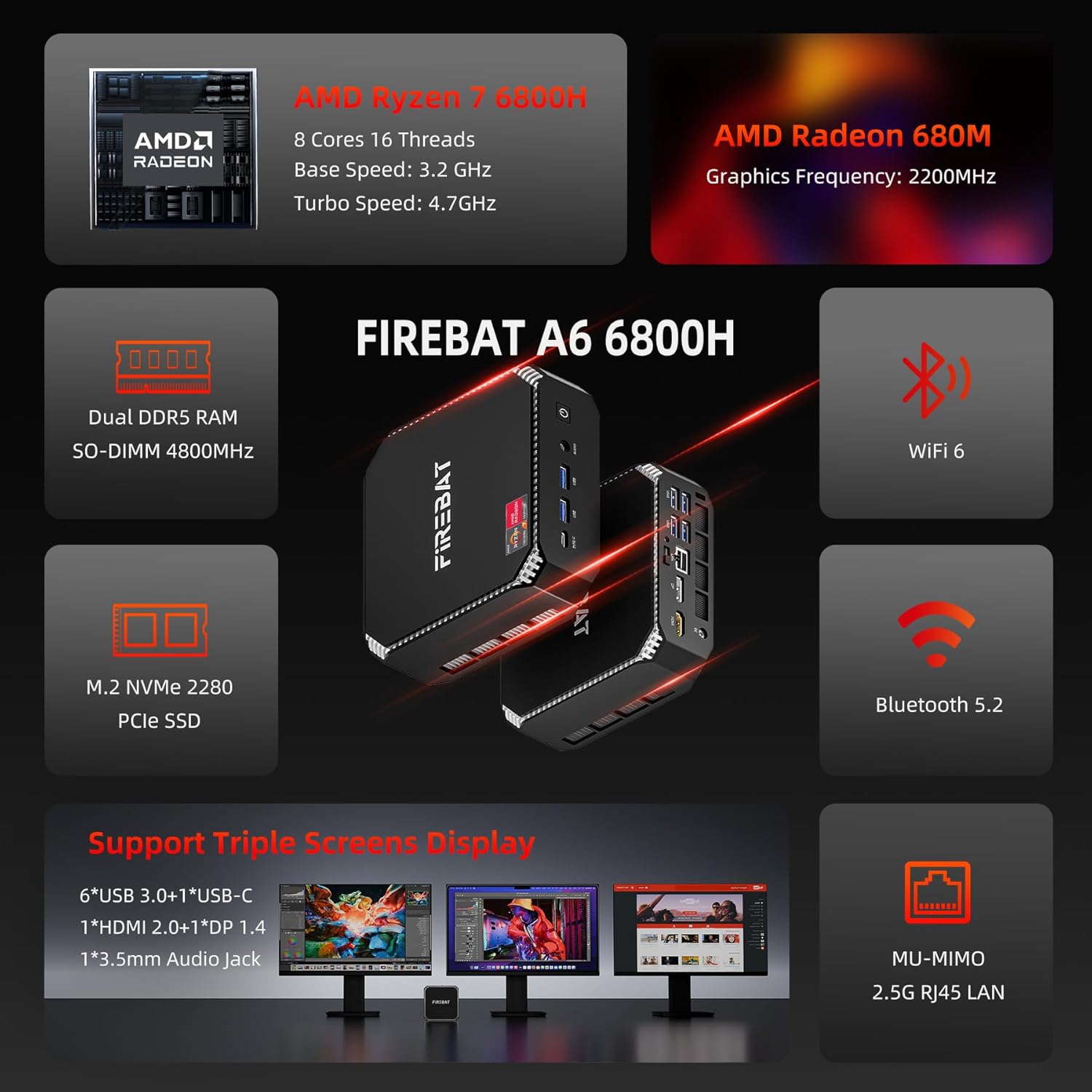
Figure 4.2: The A6 Mini PC also supports triple screen display, offering versatile connectivity options for multiple monitors.
4.3. ネットワークと接続性
- Wi-Fi: Both models support Wi-Fi 6 for robust and stable wireless connections. To connect, click the Wi-Fi icon in the taskbar, select your network, and enter the password.
- ブルートゥース: Integrated Bluetooth 5.2 allows for stable transmission to connect wireless peripherals like keyboards, mice, and headphones. Enable Bluetooth in Windows settings to pair devices.
- 有線LAN: Utilize the dual 2.5Gbps RJ45 LAN ports for high-speed wired network connections.
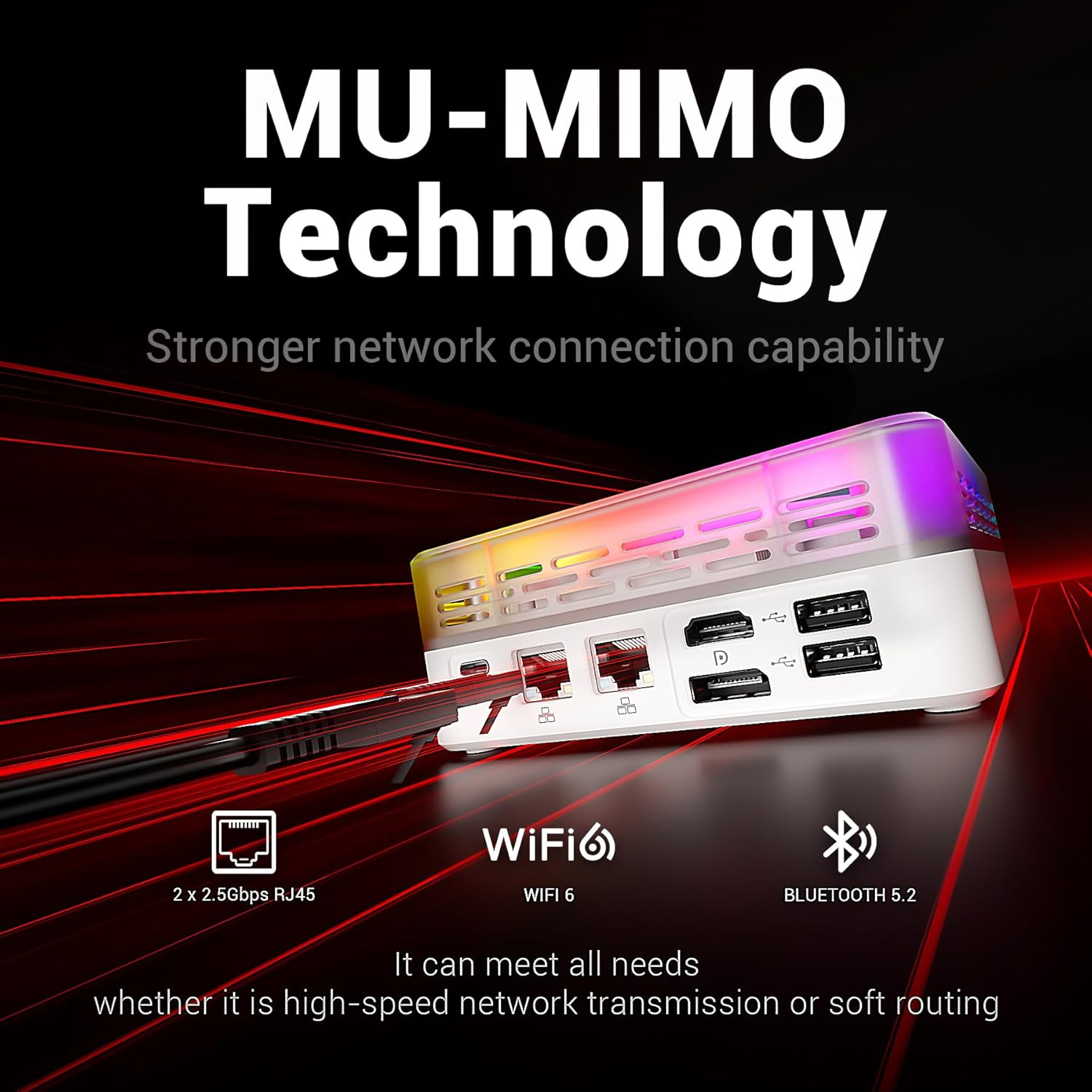
Figure 4.3: The MN56 Mini PC highlights its MU-MIMO Technology, Wi-Fi 6, Bluetooth 5.2, and dual 2.5Gbps RJ45 LAN ports for superior network connectivity.
4.4. ストレージの拡張
Both Mini PC models come with M.2 NVMe 2280 PCIe SSDs for fast storage. If you need to expand storage, consult a qualified technician or refer to the detailed upgrade guide available on the FIREBAT website for compatible M.2 SSDs.
5. 仕様
5.1. FIREBAT MN56 Model (White)
| 特徴 | 詳細 |
|---|---|
| プロセッサ | AMD Ryzen 7 8745HS (8 Cores, 16 Threads, L3 16MB Cache, Base Speed: 3.8GHz, Turbo Speed: 4.9GHz, Zen 4 TSMC 4nm FinFET) |
| グラフィックス | AMD Radeon 780M (Graphics Frequency: 2600MHz, 12 graphics card cores) |
| ラム | 32GB Dual DDR5 RAM (SO-DIMM 5000MHz) |
| ストレージ | 1TB M.2 NVMe 2280 PCIe 4.0 SSD |
| ネットワーク | Wi-Fi 6, Bluetooth 5.2, 2 x 2.5Gbps RJ45 LAN |
| ビデオ出力 | Triple Screens Display (USB-C 4.0+HDMI 2.1+DP 1.4) |
| ポート | USB-C 4.0, HDMI 2.1, DisplayPort 1.4, USB 3.2, USB 2.0, 3.5mm Audio Jack, DC-IN, 2x 2.5Gbps LAN |
| 冷却 | Dual Fans with High-efficiency Thermal Grease (65W stable performance release) |

Figure 5.1: Detailed specifications of the Ryzen 7 8745HS processor in the MN56 model.
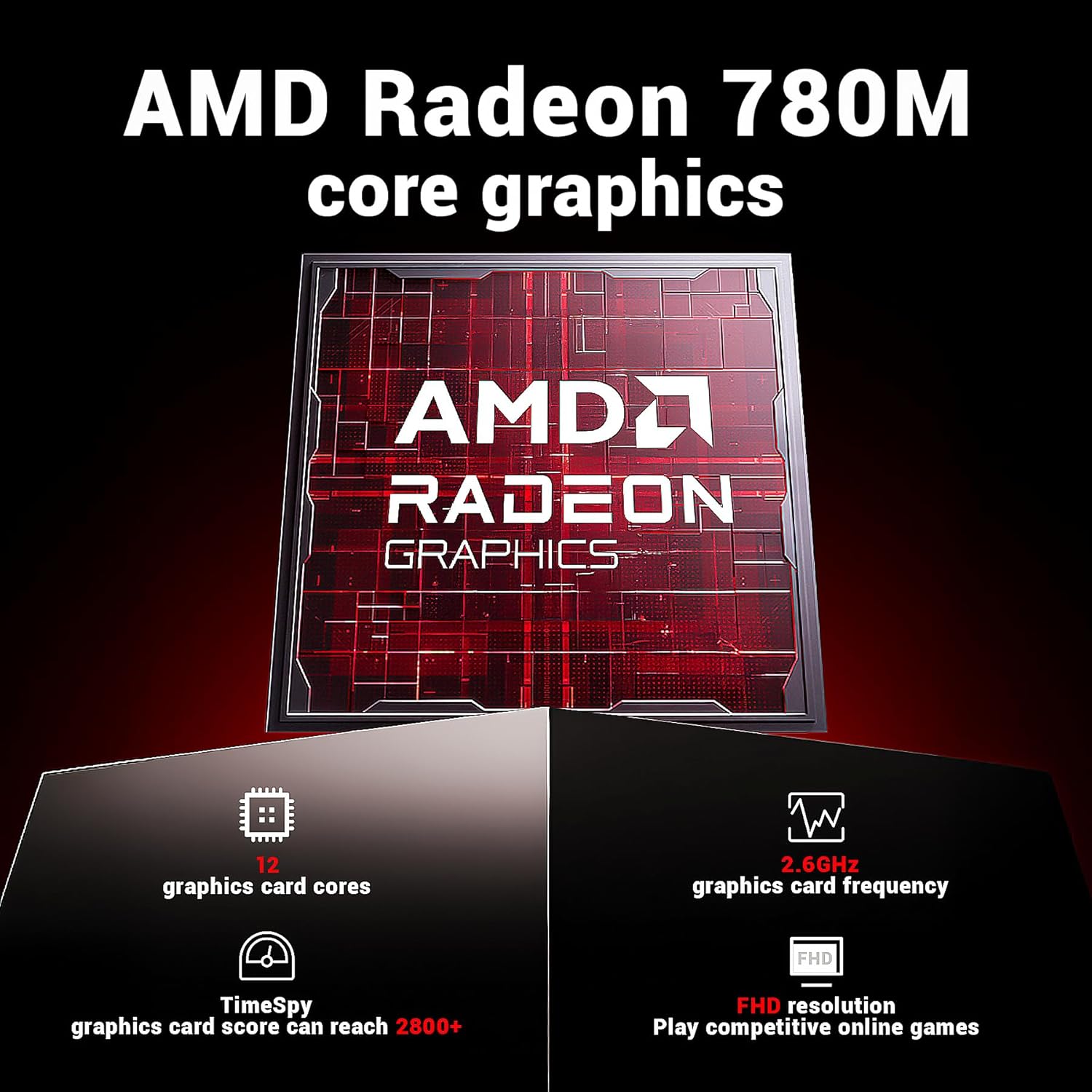
Figure 5.2: Detailed specifications of the AMD Radeon 780M core graphics in the MN56 model.

Figure 5.3: Illustration of the dual fan cooling system in the MN56 Mini PC, designed for efficient heat dissipation.
5.2. FIREBAT A6 Model (Black)
| 特徴 | 詳細 |
|---|---|
| プロセッサ | AMD Ryzen 7 6800H (8 Cores, 16 Threads, Base Speed: 3.2GHz, Turbo Speed: 4.7GHz) |
| グラフィックス | AMD Radeon 680M (Graphics Frequency: 2200MHz) |
| ラム | 16GB Dual DDR5 RAM (SO-DIMM 4800MHz) |
| ストレージ | 512GB M.2 NVMe 2280 PCIe SSD |
| ネットワーク | Wi-Fi 6, Bluetooth 5.2, 2.5G RJ45 LAN |
| ビデオ出力 | Triple Screens Display (6x USB 3.0+1x USB-C, 1x HDMI 2.0+1x DP 1.4) |
| ポート | Power button, 3.5mm Audio Jack, 2x USB 3.0 Type-A, Type-C, DC-IN, HDMI, DisplayPort, 4x USB 3.0 Type-A, 2x 2.5Gbps LAN |
図5.4:以上view of the FIREBAT A6 Mini PC's key specifications, including CPU, GPU, RAM, storage, and connectivity.
6. メンテナンス
定期的なメンテナンスを行うことで、ミニ PC の寿命が長くなり、最適なパフォーマンスが確保されます。
- クリーニング: ミニPCの外装は、柔らかく乾いた布で拭いてください。通気口に溜まった埃には、圧縮空気を使用してください。清掃の前に、必ずデバイスの電源を切り、プラグを抜いてください。
- ソフトウェアアップデート: Regularly check for and install operating system updates (e.g., Windows Updates) and driver updates for your hardware. This improves security, performance, and compatibility.
- 熱管理: Ensure the Mini PC is placed in a well-ventilated area. Do not obstruct the air vents. The dual-fan cooling system is designed to maintain optimal temperatures, but proper airflow is crucial.
- データのバックアップ: データの損失を防ぐために、重要なデータを定期的に外部ドライブまたはクラウド ストレージにバックアップしてください。
7。 トラブルシューティング
このセクションでは、発生する可能性のある一般的な問題を取り上げ、考えられる解決策を示します。
| 問題 | 考えられる原因 | 解決 |
|---|---|---|
| 電源が入らない / デバイスがオンにならない | 電源アダプターが接続されていない、電源コンセントに障害がある、電源ボタンに問題がある。 | 電源アダプタがミニPCと電源コンセントの両方にしっかりと接続されていることを確認してください。別のコンセントでお試しください。 |
| モニターに何も表示されない | Incorrect cable connection, monitor input not selected, display driver issue. | Check HDMI/DP/USB-C cable connections. Ensure monitor is set to the correct input source. Try a different display cable or monitor. |
| Wi-Fi接続の問題 | Wi-Fiパスワードが間違っている、ルーターの問題、ドライバーの問題。 | Verify Wi-Fi password. Restart your router. Check Wi-Fi drivers in Device Manager. |
| パフォーマンスが遅い | Too many applications running, insufficient RAM, overheating, full storage. | 不要なアプリケーションを閉じてください。適切な換気を確保してください。ディスクの空き容量を増やしてください。バックグラウンドプロセスを確認してください。 |
| Peripheral not recognized (USB, Bluetooth) | Driver issue, faulty peripheral, port issue. | Try a different USB port or re-pair Bluetooth device. Update drivers for the peripheral. |
If the problem persists after trying these solutions, please contact FIREBAT customer support.
8. 保証とサポート
FIREBAT is committed to providing high-quality products and excellent customer service.
- 保証情報: For detailed warranty terms and conditions, please refer to the warranty card included with your product or visit the official FIREBAT webサイト。保証の範囲には通常、通常の使用における材料および製造上の欠陥が含まれます。
- テクニカルサポート: If you encounter any issues not covered in this manual or require further assistance, please contact our support team.
連絡先:
When contacting support, please have your product model (MN56 or A6) and purchase information ready to expedite the process.
Ask a question about this manual
Ask about setup, troubleshooting, compatibility, parts, safety, or missing instructions. Manuals+ will review the question and use this page’s manual context to help answer it.