
1.製品オーバーview
The UGREEN HDMI KVM Switch allows you to control up to four computers using a single monitor, keyboard, and mouse. It supports high resolutions up to 8K@60Hz and 4K@240Hz, leveraging HDMI 2.1 technology for superior video quality. Additionally, it features four USB 3.0 ports for sharing peripherals like hard drives, printers, and USB flash drives among the connected computers, enhancing productivity and reducing desktop clutter.

This image illustrates the benefit of using the KVM switch, showing a cluttered desktop with multiple computers and monitors before, and a streamlined setup with a single monitor and shared peripherals after.
主な特徴:
- 4ポートKVM機能: Control four computers with one monitor and a single set of USB 3.0 peripherals.
- 高解像度サポート: Experience stunning visuals with support for 8K@60Hz and 4K@240Hz resolutions.
- HDMI 2.1 認定: Ensures advanced features like 48Gbps bandwidth, Variable Refresh Rate (VRR), Quick Media Switching (QMS), Quick Frame Transport (QFT), and Auto Low Latency Mode (ALLM).
- USB 3.0ポート: Four USB 3.0 ports (3 USB-A + 1 USB-C) provide data transfer speeds up to 5Gbps for connected devices.
- 耐久性の向上: Constructed with a robust aluminum alloy case and nickel-plated connectors for long-lasting performance.
2. パッケージ内容
パッケージにすべてのアイテムが含まれていることを確認してください。
- UGREEN HDMI KVM Switch Unit
- HDMI 2.1 Cable (6.6FT)
- USB A to C Data Cables (4x)
- 電源アダプター
- ユーザーマニュアル(このドキュメント)
3. 製品図とポート
Familiarize yourself with the KVM switch's layout and port functions:

This diagram shows the front panel with a 'CONTROL' button and four USB 3.0 ports (3 USB-A, 1 USB-C). The rear panel includes a power input, HDMI output, and four sets of HDMI input and USB-C data input ports for connecting up to four computers.
ポートの説明:
- HDMI出力: モニターに接続します。
- HDMI Input (PC1-PC4): 各コンピューターのHDMI出力に接続します。
- USB-C Data Input (PC1-PC4): Connects to a USB-A or USB-C port on each computer using the provided USB A to C data cables. This is essential for USB peripheral sharing.
- USB 3.0 Ports (Front Panel): Connect your keyboard, mouse, USB flash drives, printers, or other USB 3.0 devices.
- CONTROL Button: Used to switch between connected computers.
- 電源入力: Connect the included power adapter to ensure stable operation, especially when using high-power USB devices.
4. セットアップ手順
UGREEN HDMI KVM スイッチをセットアップするには、次の手順に従ってください。
- モニターを接続: Connect your monitor to the HDMI Output port on the KVM switch using an HDMI 2.1 cable.
- コンピューターを接続する(ビデオ): For each computer (PC1-PC4), connect its HDMI output to the corresponding HDMI Input port on the KVM switch. Ensure your computer's graphics card and monitor support the desired resolution (e.g., 8K@60Hz or 4K@240Hz).
- Connect Computers (USB Data): For each computer, connect one end of the provided USB A to C data cable to a USB-A or USB-C port on your computer, and the other end (USB-C) to the corresponding USB-C Data Input port on the KVM switch. Note: This connection is mandatory for USB device sharing.
- USB周辺機器を接続する: Connect your keyboard, mouse, and other USB 3.0 devices to the USB 3.0 ports on the front panel of the KVM switch.
- 接続電源: Plug the included power adapter into the KVM switch's power input port and then into a wall outlet. This ensures stable operation, especially when connecting high-power USB devices.

This image highlights critical setup considerations: ensuring your computer has both HDMI and USB-A ports, the necessity of connecting the power supply for stability, graphics card/monitor/cable support for 8K@60Hz, and that hot-key switching is not supported. It also clarifies that this is an HDMI KVM switch, not DisplayPort or USB-C KVM, and supports only one monitor.
Cable Length and Resolution Guidelines:
To ensure optimal performance, especially at higher resolutions, adhere to the recommended cable lengths:

This table provides guidelines for maximum HDMI cable lengths (input and output) for different resolutions and refresh rates, along with the recommended AWG (American Wire Gauge) for the cables.
5. KVMスイッチの操作
Once all connections are made, operating the KVM switch is straightforward:
- コンピューターの切り替え: Press the 'CONTROL' button on the front panel of the KVM switch to cycle through the connected computers (PC1, PC2, PC3, PC4). The active computer's indicator light will illuminate.
- No Hot-Key Switching: This KVM switch does not support switching via keyboard hot-keys. All switching must be done using the physical button on the device.

This image shows the KVM switch in use, demonstrating how a single user can manage multiple computers efficiently from one workstation.
6. Advanced Video and Data Features
高解像度とリフレッシュレート:
The KVM switch supports high-definition video output, providing crisp and clear images:
- Up to 8K (7680 x 4320) at 60Hz
- Up to 4K (3840 x 2160) at 240Hz
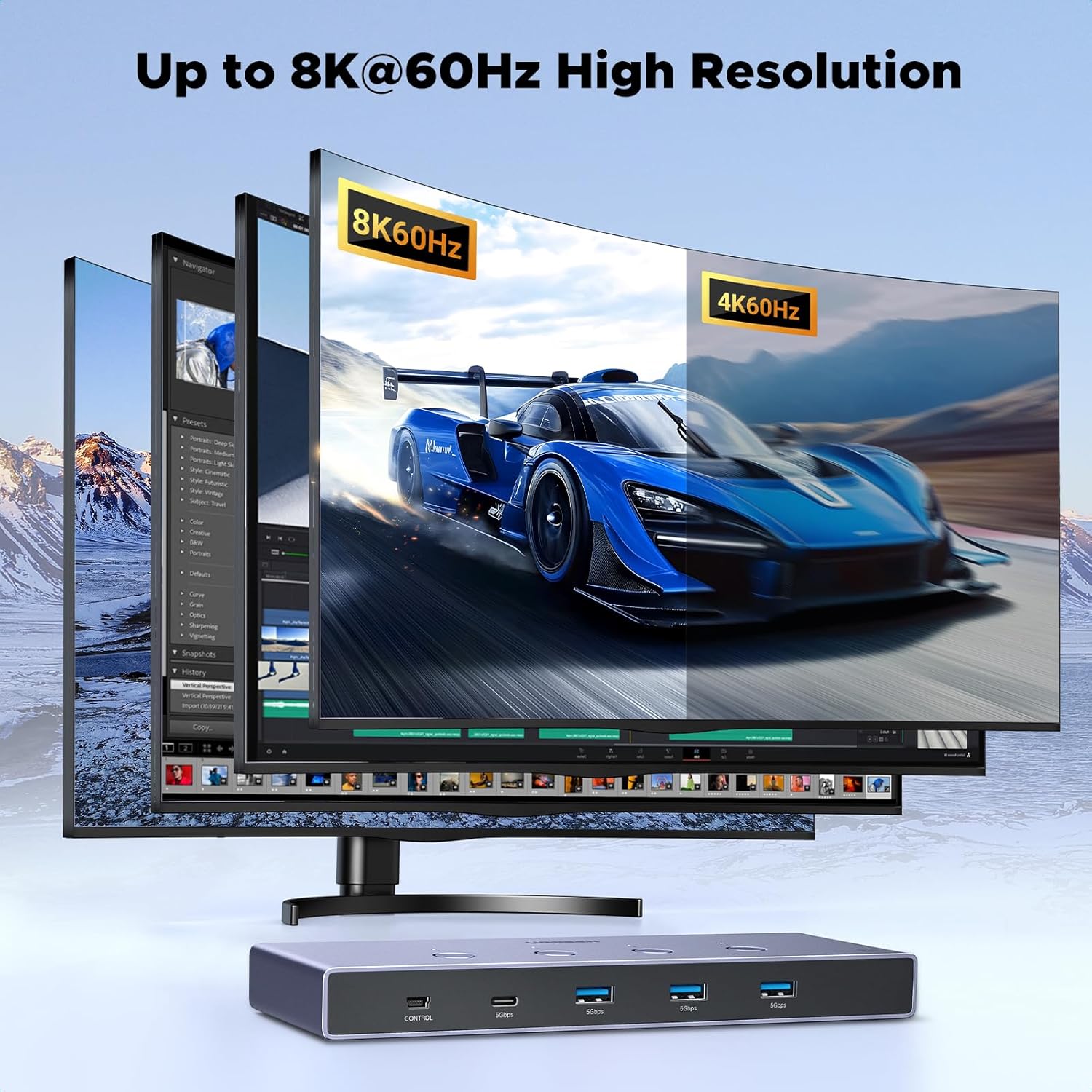
This image visually represents the high-resolution capability of the KVM switch, showcasing an 8K@60Hz display.

This graphic compares the bandwidth of HDMI 2.1 (48Gbps) to HDMI 2.0 (18Gbps), emphasizing the significantly faster data transmission of the newer standard.
USB 3.0 Ultra-fast Data Transfer:
The integrated USB 3.0 ports offer rapid data transfer for your peripherals:
- Data transfer speeds up to 5Gbps, which is 10 times faster than USB 2.0 (480Mbps).
- Ideal for quickly transferring large files from USB flash drives or external hard drives.

This image highlights the speed advantage of USB 3.0, showing 5Gbps transfer rates compared to 480Mbps for USB 2.0.
HDMI 2.1 Gaming Features:
For an optimized gaming experience, the KVM switch supports key HDMI 2.1 features:
- 可変リフレッシュ レート (VRR): 画面のティアリングやスタッタリングを軽減し、よりスムーズなゲームプレイを実現します。
- クイックメディアスイッチング(QMS): Eliminates blank screens when switching between different content.
- クイックフレームトランスポート(QFT): Reduces display latency for more responsive gaming.
- 自動低遅延モード (ALLM): Automatically sets the ideal latency setting for smooth, lag-free viewing and interactivity.
- ダイナミックHDR: Provides more vivid and detailed images with enhanced contrast and color accuracy.

This image illustrates the benefits of HDMI 2.1 features for gamers, including Variable Refresh Rate, Quick Media Switching, Quick Frame Transport, and Auto Low Latency Mode.

This split image demonstrates the visual improvement with Dynamic HDR, showing a more vivid and detailed picture compared to a non-HDR image.
7. メンテナンス
UGREEN HDMI KVM スイッチの寿命を延ばし、最適なパフォーマンスを確保するには、次のメンテナンス ガイドラインに従ってください。
- クリーニング: デバイスの外装を清掃する際は、柔らかく乾いた布をご使用ください。液体クリーナーやエアゾールはデバイスを損傷する可能性があるため、使用しないでください。
- 換気: KVMスイッチは過熱を防ぐため、必ず換気の良い場所に設置してください。通気口を塞がないでください。
- ストレージ: 長期間使用しない場合は、直射日光や極端な温度を避け、涼しく乾燥した場所に保管してください。
- ケーブル管理 ケーブルやポートの損傷を防ぐために、ケーブルを整理し、よじれたり過度に曲がったりしないようにしてください。
8。 トラブルシューティング
KVM スイッチで問題が発生した場合は、次の一般的な問題と解決策を参照してください。
| 問題 | 考えられる原因 | 解決 |
|---|---|---|
| モニターに何も表示されない | Incorrect HDMI cable connection; KVM switch not powered; Monitor input not selected correctly; Graphics card/monitor/cable not supporting resolution. | Ensure all HDMI cables are securely connected. Verify the KVM switch is powered. Check your monitor's input source. Confirm all components (graphics card, monitor, HDMI cables) support the desired resolution and refresh rate. |
| USB devices (keyboard/mouse) not working | USB A to C data cables not connected; KVM switch not powered; Loose USB connections. | Ensure the USB A to C data cable is connected from each computer to the KVM switch. Verify the KVM switch is powered. Reconnect USB peripherals to the KVM switch. |
| コンピュータを切り替えることができません | KVM switch not powered; Faulty button. | Ensure the KVM switch is powered. Press the 'CONTROL' button firmly. Note that hot-key switching is not supported. |
| Intermittent display or flickering | Poor quality HDMI cables; Exceeding recommended cable length; Power instability. | Use high-quality, certified HDMI 2.1 cables. Ensure cable lengths are within recommended limits (refer to Section 4). Verify the power adapter is securely connected and providing stable power. |
| USB 3.0 devices not reaching full speed | USB 2.0 cable used; Computer's USB port is USB 2.0; High-power device without sufficient power. | Ensure you are using USB 3.0 compatible cables and connecting to a USB 3.0 port on your computer. Confirm the KVM switch is powered by the adapter, especially for high-power USB devices. |
9. 仕様
Detailed technical specifications for the UGREEN HDMI KVM Switch:
- ブランド: ユーグリーン
- モデル: B0FB3WHZRY
- 色: 黒
- ハードウェアインターフェイス: HDMI、USB
- 特集: High Speed 8K HDMI, 48Gbps Bandwidth
- 対応デバイス: Gaming Consoles, Laptops, MacBook, MacBook Air, MacBook Pro, Personal Computer, iMac, iPad, iPhone
- 合計 USB ポート: 4(USB-A 3個、USB-C 1個)
- データ転送速度: 5ギガビット/秒(USB 3.0)
- Number of Ports (KVM): 4(コンピュータ用)
- オペレーティング システムの互換性: Linux、macOS、Windows
- 筐体材質: アルミニウム
10. 保証とサポート
UGREEN製品は信頼性と性能を重視して設計されています。保証情報およびテクニカルサポートについては、UGREENの公式ウェブサイトをご覧ください。 webサイトをご覧いただくか、カスタマー サービスに直接お問い合わせください。
- オンラインサポート: 訪問 www.ugreen.com FAQ、ドライバー、サポート リソースについては、こちらをご覧ください。
- 顧客サービス: Contact information can be found on the official webサイトまたは製品パッケージ。