
1. はじめに
This manual provides essential information for the safe and efficient operation of your GooDee AC571 4K Smart Projector. Please read it thoroughly before use and retain it for future reference.
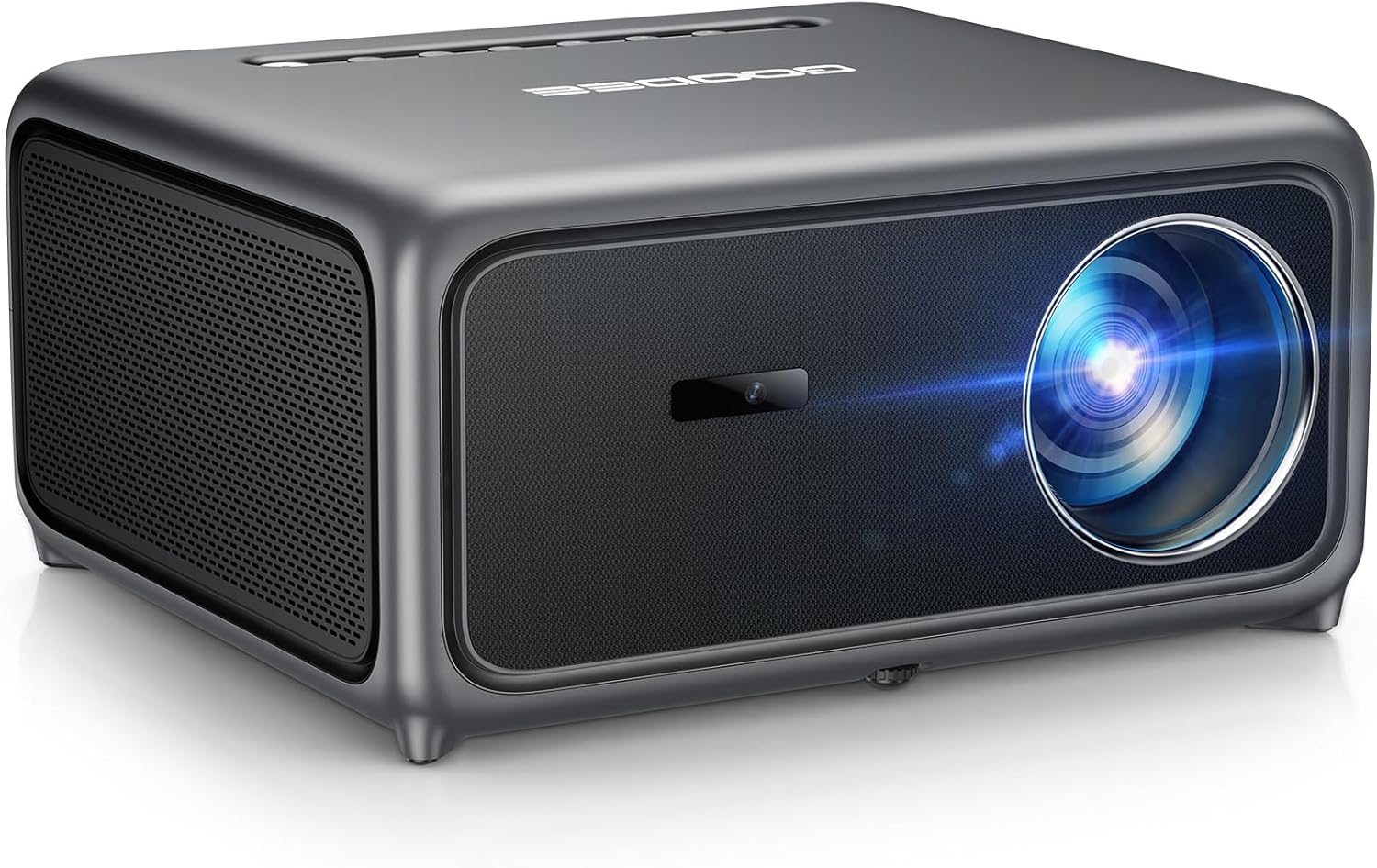
Image 1.1: The GooDee AC571 4K Smart Projector. This image displays the projector's front and side profile, highlighting its lens and speaker grille.
2. 箱の中身
開梱時にすべてのアイテムが揃っていることを確認します。
- GooDee AC571 4K Smart Projector
- 電源コード
- HDMIケーブル
- リモートコントロール
- クリーニングキット
- プロジェクターレンズカバー
- ユーザーマニュアル(このドキュメント)
3.セットアップガイド
3.1 初期配置
Place the projector on a stable, flat surface. Ensure adequate ventilation around the device. For optimal viewまず、プロジェクターを投影面(壁またはスクリーン)の正面に配置します。
3.2電源接続
- 電源コードをプロジェクターの電源入力に接続します。
- 電源コードのもう一方の端を適切な電源コンセントに差し込みます。
3.3 外部機器の接続
The projector supports various input sources. Refer to the port diagram below for connection points.

Image 3.1: Rear panel connections of the GooDee AC571 Projector. This image illustrates the available ports including HDMI, USB, and audio output, with labels indicating their functions.
- HDMI: Connect Blu-ray players, gaming consoles, or laptops using the provided HDMI cable.
- USB: メディアを再生するには USB ドライブを挿入します。
- 3.5mm オーディオ出力: 外部ヘッドフォンまたはスピーカーを接続します。
3.4 Automatic Calibration (ToF Auto Focus & Keystone)
The projector features advanced AI + ToF Smart Sensing for automatic image calibration. Upon power-on or movement, the projector will automatically adjust focus, keystone correction, and screen adaptation for a clear, rectangular image.

Image 3.2: The GooDee AC571 Projector demonstrating 1ms ultra-low latency ToF Smart Sensing and AI Precision for auto-calibration. The image shows the projector automatically adjusting the projected image on a wall, ensuring optimal focus and keystone correction.
This process includes:
- オートフォーカス: 鮮明な画像を保証します。
- 自動キーストーン: 台形歪みを補正します。
- 自動障害物回避: Adjusts the image to avoid objects on the projection surface.
- Automatic Screen Adaptation: Fits the image to the available screen area.
4. 操作手順
4.1 電源オン/オフ
- プロジェクターまたはリモコンの電源ボタンを押して、ユニットの電源をオンまたはオフにします。
4.2 スマートOSの操作
The GooDee AC571 features an intelligent operating system with built-in applications. Use the remote control to navigate the interface.

Image 4.1: The GooDee AC571's Smart OS interface, displaying various streaming app icons like Netflix, Prime Video, and YouTube. This image shows the user-friendly layout for accessing built-in entertainment.
- ホーム画面: Netflix、Prime Video、YouTube などのプリインストールされたアプリにアクセスできます。
- アプリストア: Download additional applications for personalized entertainment.
- 設定: Adjust display, audio, network, and system preferences.
4.3 ワイヤレス接続(WiFi と Bluetooth)
The projector supports WiFi 6 and Bluetooth 5.4 for seamless streaming and audio connections.

Image 4.2: The GooDee AC571 Projector demonstrating seamless streaming and effortless connectivity via WiFi 6 and Bluetooth 5.4. The image shows a smartphone mirroring content to the projector, highlighting its wireless capabilities.
- WiFi接続: へ移動 Settings > Network > WiFi ワイヤレス ネットワークに接続します。
- Bluetooth接続: へ移動 設定 > Bluetooth to pair with Bluetooth headphones or speakers.
- スクリーンミラーリング: Use AirPlay (iOS) or Miracast (Android/Windows) for wireless screen sharing.
4.4 Audio Settings (Dolby Audio & AI SoundBalance)
The projector features Dolby Audio-certified 30W dual speakers and AI SoundBalance technology.

Image 4.3: The GooDee AC571 Projector with Dolby Audio. The image visually represents sound waves emanating from the projector, emphasizing its immersive audio capabilities.
- 音量コントロール: Adjust using the remote control.
- サウンドモード: Access audio settings to select different sound profiles or enable/disable AI SoundBalance.
5. メンテナンス
5.1 レンズクリーニング
Use the provided cleaning kit to gently clean the projector lens. Avoid abrasive materials that could scratch the lens surface.
5.2 防塵
The projector incorporates an advanced dust-shield triple-protection architecture. However, regular cleaning of the exterior with a soft, dry cloth is recommended to prevent dust buildup.

Image 5.1: Illustration of the GooDee AC571 Projector's advanced dust-shield triple-protection architecture. The image shows a transparent overlay highlighting the internal dust protection mechanisms, ensuring longevity and clear projection.
5.3 ストレージ
When not in use, cover the lens with the provided lens cap and store the projector in a cool, dry place away from direct sunlight and extreme temperatures.
6。 トラブルシューティング
一般的な問題とその解決策については、以下の表を参照してください。
| 問題 | 考えられる原因 | 解決 |
|---|---|---|
| 画像が表示されない | 電源が接続されていません。入力ソースが正しくありません。レンズキャップが装着されています。 | 電源接続を確認し、正しい入力ソースを選択し、レンズキャップを外します。 |
| 画像がぼやけている | 焦点が合っていない。プロジェクターが動いた。 | Allow auto-focus to recalibrate; Manually adjust focus if needed via settings |
| 画像が歪んでいる(台形) | Keystone not corrected | Allow auto-keystone to recalibrate; Manually adjust keystone via settings |
| 音が出ない | 音量が低すぎる; 外部オーディオデバイスが接続されていない; ミュートされている | Increase volume; Check external audio connections; Unmute projector |
| WiFi/Bluetoothに接続できない | パスワードが間違っています; デバイスが範囲外です; ネットワークに問題があります | Verify password; Move closer to router/device; Restart router/projector |
7. 仕様
Key technical specifications for the GooDee AC571 4K Smart Projector:
| 特徴 | 仕様 |
|---|---|
| ブランド | グーディー |
| モデル番号 | AC571 |
| ディスプレイ解像度 | 1920 x 1080 (ネイティブ 1080P、4K デコード) |
| 輝度 | 3000 ANSIルーメン |
| コントラスト比 | 20,000:1 |
| 色域 | 98% NTSC |
| 特集 | ToF Auto Focus, Auto Keystone, Auto Obstacle Avoidance, Auto Screen Alignment, MEMC, Dolby Audio, AI SoundBalance Pro, AI Image Tech, Built-in Wi-Fi 6, Bluetooth 5.4, Built-in Speaker, Movin OS with Netflix/Prime Video/YouTube |
| 接続技術 | Bluetooth、HDMI、USB、Wi-Fi |
| 推奨用途 | ビジネス、教育、ゲーム、ホームシアター |
| アイテム重量 | 9.23ポンド |
| パッケージ寸法 | 12 x 10 x 9.25インチ |
8. 保証とサポート
8.1 保証情報
Your GooDee AC571 4K Smart Projector is covered by a manufacturer's warranty. Please refer to the warranty card included in your product packaging for specific terms and conditions, including warranty duration and coverage details.
8.2 カスタマーサポート
For technical assistance, troubleshooting not covered in this manual, or warranty claims, please contact GooDee customer support. Contact information can typically be found on the GooDee official webサイトまたは保証書に記載されています。

Image 8.1: A customer support representative, symbolizing reliable service and professional support available for GooDee products.