
導入
This manual provides essential information for setting up, operating, and maintaining your NIMO 15.6" FHD Laptop Computer (Model NIMO N157). Please read this manual thoroughly before using your device to ensure optimal performance and longevity.
箱の中身
- 1 x NIMO N157 Laptop
- 1 x Type-C 65W PD Fast Charger
- ユーザーマニュアル (本書) x 1
- Windows 11 Home(プリインストール)
- 2 Years Warranty, 90 Days Return information
セットアップガイド
1. 初回電源投入と充電
Before first use, ensure your NIMO laptop is fully charged. Connect the provided Type-C 65W PD Fast Charger to the laptop's Type-C charging port and a power outlet. The charge LED indicator will illuminate. A full charge is recommended for optimal battery calibration.

Image: NIMO laptop connected to its Type-C 65W GaN II PD charger. This charger provides fast charging capabilities.
2. オペレーティング システムのセットアップ (Windows 11 Home)
Upon first power-on, the laptop will guide you through the Windows 11 Home setup process. Follow the on-screen instructions to configure language, region, network settings, and create a user account. An internet connection (Wi-Fi 6 supported) is recommended for the initial setup to download necessary updates.

Image: The NIMO laptop screen showing the Windows 11 desktop interface.
3. 指紋リーダーの設定
For enhanced security and quick login, set up the integrated fingerprint reader. Navigate to Windows Settings > Accounts > Sign-in options and follow the prompts to register your fingerprint. This allows for secure one-touch login.

画像: クローズアップ view of the fingerprint reader on the NIMO laptop, illustrating its use for secure login.
操作手順
1. Keyboard and Backlight
The NIMO laptop features a full-size keyboard with a numeric keypad and a backlit function. To activate or adjust the keyboard backlight, use the dedicated function keys (Fn + Fx, refer to your keyboard layout for specific key). This feature allows for comfortable typing in low-light environments.
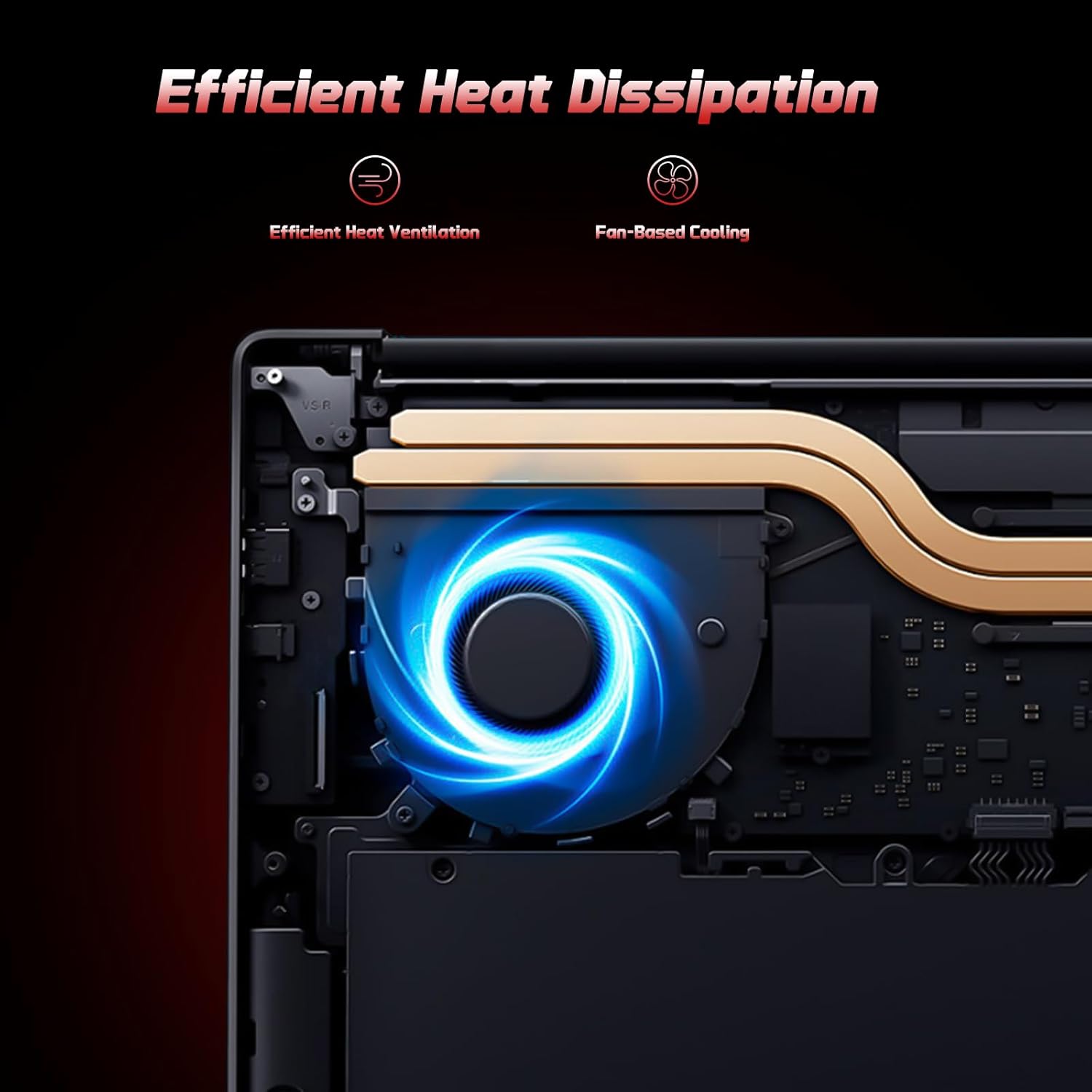
Image: A user typing on the NIMO laptop's backlit keyboard in a dim environment.
2. 周辺機器の接続
The laptop is equipped with multiple ports for various peripherals:
- USB ポート: 外付けドライブ、マウス、キーボードなどの USB デバイスを接続します。
- HDMIポート: 外部モニターまたはテレビに接続して、表示を拡張します。
- タイプCポート: One port supports 65W PD fast charging, and another is a multifunction port for data transfer and display output.
- マイクロSDスロット: 拡張ストレージとして Micro SD カードを挿入します。
- ヘッドフォンジャック: ヘッドホンまたは外部スピーカーを接続します。
- ケンジントンロックスロット: 物理的なセキュリティのため。
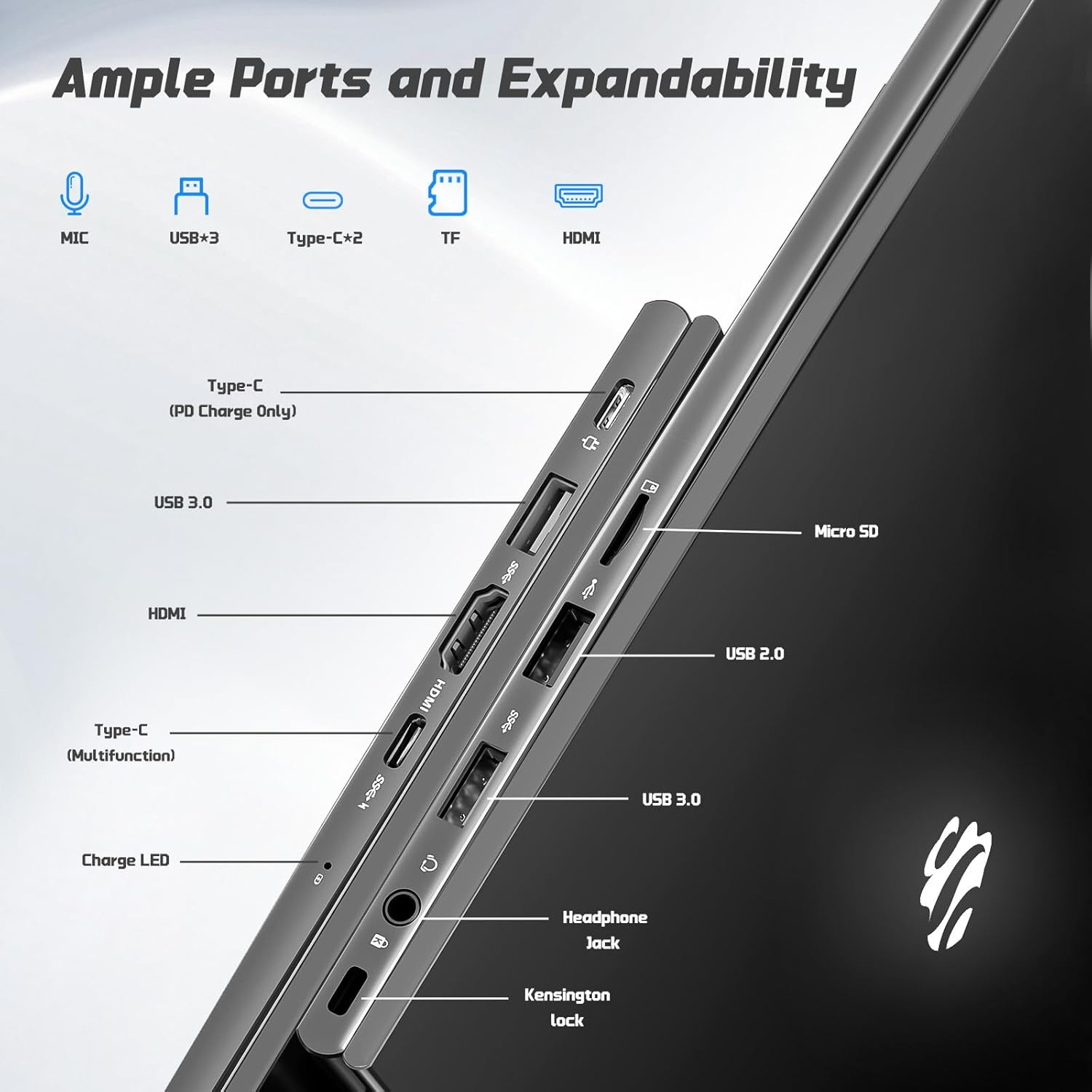
画像: サイド view of the NIMO laptop highlighting the available ports including USB, HDMI, Type-C, Micro SD, and headphone jack.
3. Webカメラとプライバシー
統合された2MP webcam is suitable for video calls and online meetings. For privacy, ensure the camera is covered or disabled when not in use, if a physical privacy shutter is present (refer to product images for confirmation).
Video: This video demonstrates the NIMO laptop's features, including the webcam and various ports. It shows the laptop being used for work, school, and play, highlighting the backlit keyboard and fingerprint unlock feature.
Video: This video showcases the NIMO laptop's versatility for different users, including students and professionals. It highlights the 15.6" FHD display, backlit keyboard, and multiple connectivity options.
Video: A comprehensive introduction to the NIMO 15.6" laptop, detailing its design, performance, and user experience for various tasks.
Video: This video emphasizes the efficiency and convenience of the NIMO laptop, showcasing its features that contribute to productivity and ease of use.
Video: This video highlights the NIMO 15.6" FHD laptop's suitability for students, home use, and work, demonstrating its performance in various daily scenarios.
メンテナンス
1. ノートパソコンの掃除
To clean the screen, use a soft, lint-free cloth specifically designed for electronics. For the keyboard and chassis, a slightly damp cloth with mild cleaning solution can be used. Avoid excessive moisture and abrasive materials. Ensure the laptop is powered off before cleaning.
2. バッテリーのお手入れ
The NIMO laptop features a 53.58 Watt Hours Lithium Polymer battery. To prolong battery life, avoid fully discharging the battery frequently. It is recommended to keep the battery charge between 20% and 80% when possible. Store the laptop in a cool, dry place when not in use for extended periods.
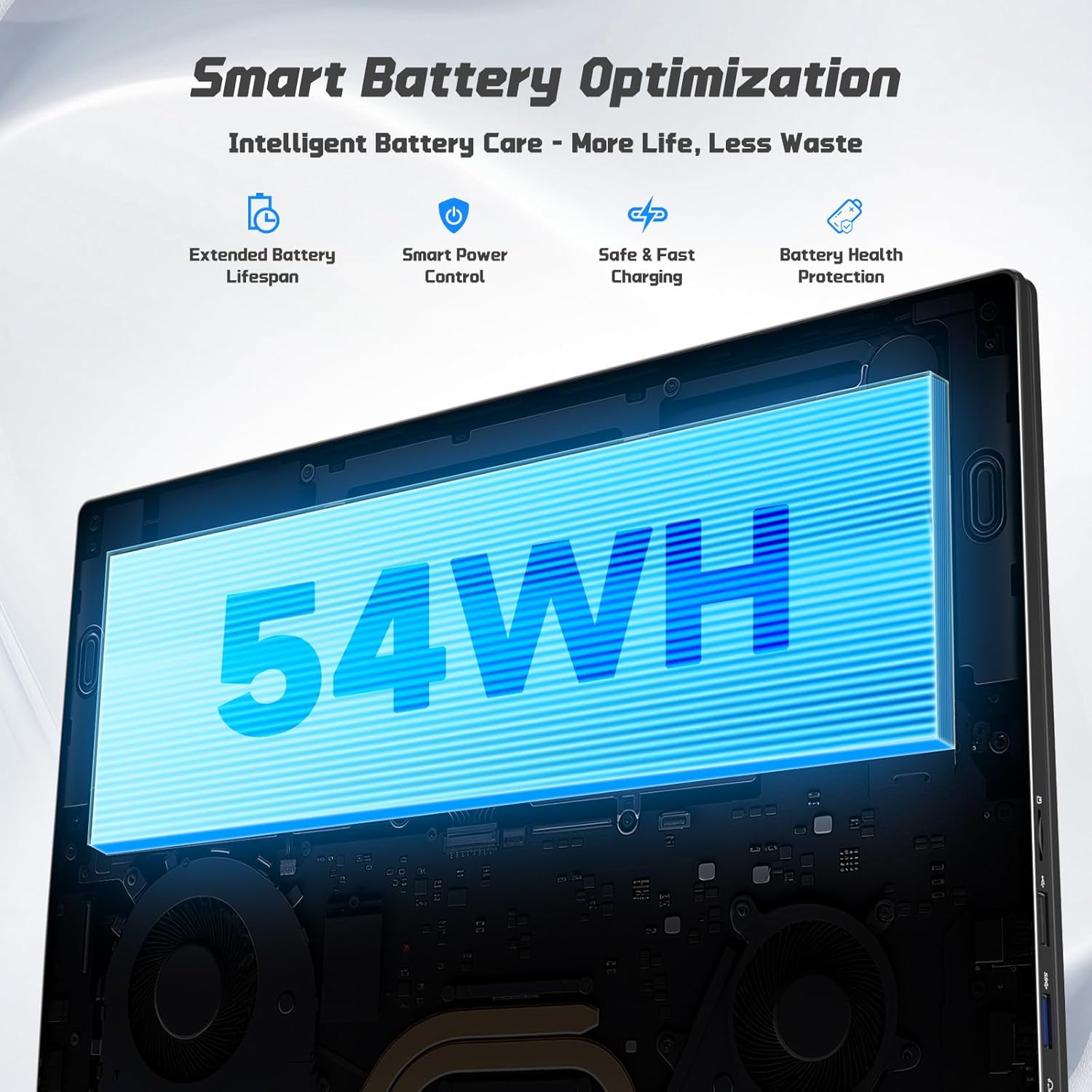
Image: Diagram illustrating the NIMO laptop's smart battery optimization features, including extended lifespan, smart power control, safe and fast charging, and battery health protection.
3. ソフトウェアの更新
システムに最新のセキュリティパッチとパフォーマンス改善が適用されていることを確認するために、Windows Updateを定期的に確認し、インストールしてください。更新プログラムを管理するには、[設定] > [Windows Update] に移動してください。
4. 放熱
The laptop is designed with efficient heat ventilation and fan-based cooling. To prevent overheating, ensure that the ventilation openings are not blocked during use. Avoid placing the laptop on soft surfaces like beds or couches that can obstruct airflow.
画像: 内部 view of the NIMO laptop showing its efficient heat dissipation system with fan-based cooling.
トラブルシューティング
1. ノートパソコンの電源が入らない
- 充電器がノートパソコンと機能している電源コンセントの両方にしっかりと接続されていることを確認します。
- Check the charge LED indicator. If it's not lit, try a different outlet or charger.
- 電源ボタンを 10 ~ 15 秒間押し続け、ハードリセットを実行します。
2. 画面の問題(画面が表示されない、ちらつく)
- Connect an external monitor via the HDMI port to check if the issue is with the laptop's display or graphics output.
- ラップトップを再起動します。
- Ensure display drivers are up to date via Windows Update or NIMO's support webサイト。
3. パフォーマンスの低下
- バックグラウンドで実行されている不要なアプリケーションを閉じます。
- 保留中の Windows 更新プログラムを確認してインストールします。
- Ensure sufficient free space on the 128GB SSD. Consider expanding storage using the Micro SD slot or upgrading the SSD if needed.
- ウイルススキャンを実行します。
4. Wi-FiまたはBluetoothの接続の問題
- Ensure Wi-Fi and Bluetooth are enabled in Windows Settings.
- Wi-Fi の問題の場合は、ルーター/モデムを再起動してください。
- Update network drivers via Windows Update or NIMO's support webサイト。
仕様
| 特徴 | 詳細 |
|---|---|
| ブランド | NIMO |
| モデル名 | NIMO N157G |
| 画面サイズ | 15.6インチ |
| ディスプレイ解像度 | 1920x1080ピクセル(FHD) |
| 表示タイプ | IPS LCD, Anti-glare |
| プロセッサ | Intel Pentium N150 (4-Core, up to 3.6 GHz) |
| ラム | 4 GB DDR4(最大16 GBまで拡張可能) |
| ストレージ | 128 GB SSD (Expandable via Micro SD) |
| オペレーティング·システム | Windows 11 ホーム |
| グラフィックス | 統合されたIntelグラフィックス |
| Webカム | 2MPフロントカメラ |
| 接続性 | Wi-Fi 6、Bluetooth 5.3 |
| ポート | 2x USB 3.0, 1x USB 2.0, 2x Type-C (1x PD Charge Only, 1x Multifunction), 1x HDMI, 1x Micro SD Slot, 1x Headphone Jack, 1x Kensington Lock |
| バッテリー | 53.58 Wh Lithium Polymer (Up to 12.75 hours life) |
| 充電器 | 65W Type-C PD Fast Charger |
| 特集 | バックライトキーボード、指紋リーダー、HDオーディオ、テンキー |
| 寸法 | 長さ14.07インチ x 幅8.98インチ x 厚さ0.76インチ |
| 重さ | 3.75 ポンド |
保証とサポート
Your NIMO laptop comes with a 2年間保証 from NIMO Direct Inc. Additionally, a 90-Day Hassle-Free Return Policy is provided. For any product-related questions, technical assistance, or warranty claims, please contact NIMO customer support.
連絡先:
- メールアドレス: サービス
- オンラインサポート: Refer to the official NIMO webさらなるサポート リソースについては、サイトをご覧ください。
Please have your model number (NIMO N157) and purchase details ready when contacting support.