
1. はじめに
This manual provides comprehensive instructions for the Serounder 6 Key One-Handed Programmable Keypad. This compact mechanical keypad offers versatile functionality with three connection modes: Bluetooth, 2.4G wireless, and USB wired. It is designed for various applications, including gaming, programming, and office tasks, allowing users to customize keys and create macros using the ElfKey software.
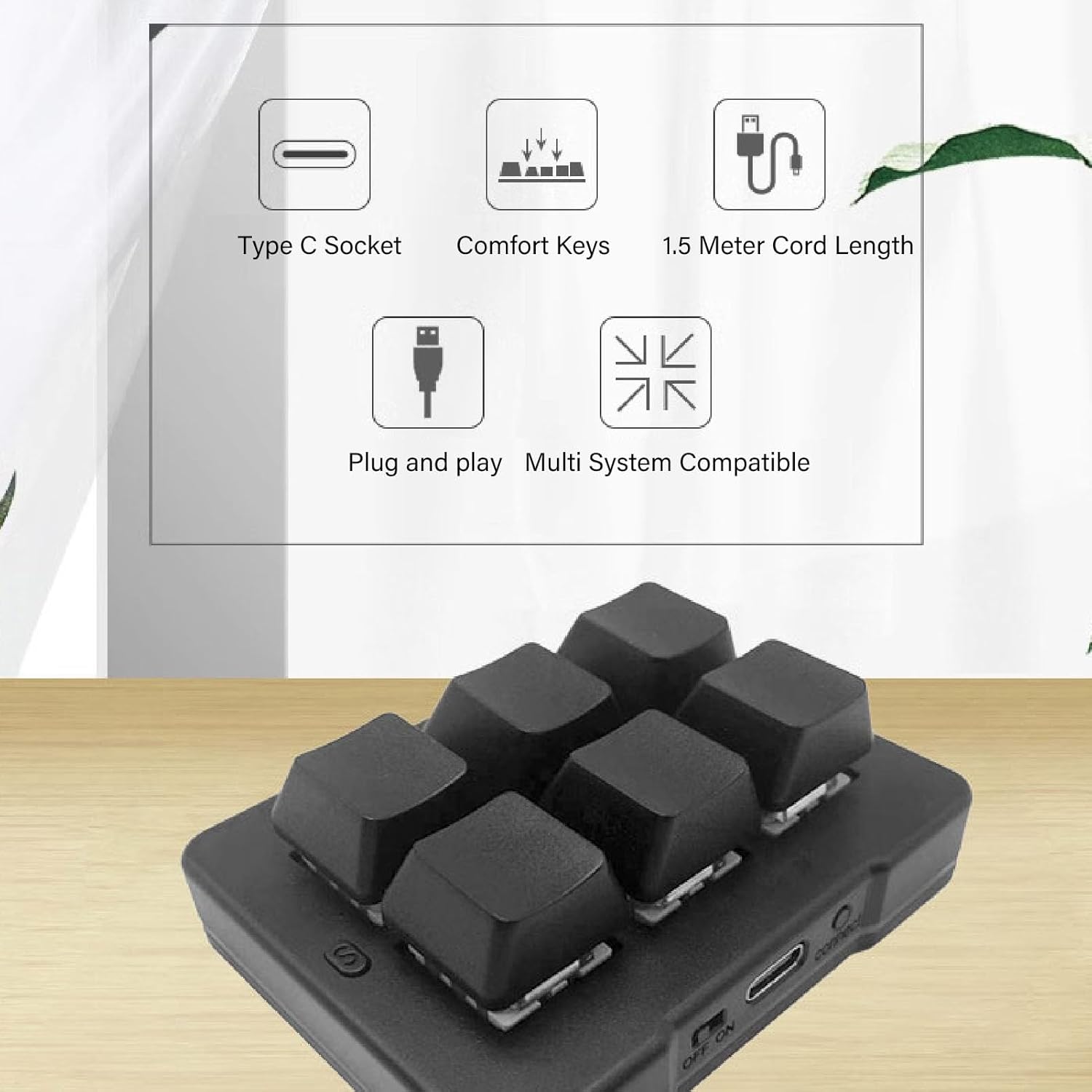
Figure 1: A general view of the Serounder 6 Key One-Handed Programmable Keypad, showcasing its compact design and six mechanical keys.
2. パッケージ内容
パッケージに以下の項目が含まれているか確認してください。
- Serounder 6 Key One-Handed Programmable Keypad
- USB充電ケーブル
- 2.4Gワイヤレスレシーバー
- ユーザーマニュアル(このドキュメント)
3.製品オーバーview
The Serounder 6 Key Keypad features durable blue mechanical switches for tactile feedback. It includes a power switch, a USB Type-C port for charging and wired connection, and a 'connect' button for pairing in wireless modes. The keypad also has indicator LEDs for connection status and key groups.

Figure 2: A comprehensive diagram of the customized 6-key keyboard, labeling its components and explaining their functions.
- オフ/オンスイッチ: Power switch for Bluetooth and 2.4G wireless modes.
- USBポート: Type-C cable connection for charging and wired mode. When connected via USB, the LED flashes during charging.
- 接続モードボタン: Press to cycle between USB, Bluetooth, and 2.4G connection modes.
- 接続モード LED: Indicates the current connection mode (Red for Bluetooth, Green for 2.4G, Blue for USB).
- Button Lights: Indicate the active key group (1 group, 2 groups, 3 groups).
- ショートカットキー Keys whose functions are set via USB connection using the ElfKey software.
- S Key: Used to switch between different key groups. Each group can have a different set of key values.

図3:詳細 view of the keypad's side, featuring the power switch, USB Type-C port, and 'connect' button.
4. セットアップと接続
4.1 キーパッドの充電
Connect the keypad to a USB power source using the provided USB Type-C cable. The LED indicator will flash during charging.
4.2 接続モード
The keypad supports three connection modes: Bluetooth, 2.4G wireless, and USB wired. Use the 'Connect Mode Button' (3) to switch between them.

Figure 4: Visual guide explaining the steps for connecting the keypad via Bluetooth, 2.4G wireless, and USB wired modes.
4.2.1 Bluetooth Pairing Mode
- 電源スイッチ(1)をオンにします。
- Press the 'Connect Mode Button' (3) until the 'Connect Mode LED' (4) turns 赤.
- On your computer or device, search for Bluetooth devices and select the customized keyboard to complete the connection.
4.2.2 2.4Gワイヤレスモード
- 電源スイッチ(1)をオンにします。
- Press the 'Connect Mode Button' (3) until the 'Connect Mode LED' (4) turns 緑.
- Plug the 2.4G wireless receiver into a USB port on your computer. The connection will be established automatically.
4.2.3 USB有線モード
- USB Type-C ケーブルを使用してキーパッドをコンピューターに接続します。
- Press the 'Connect Mode Button' (3) until the 'Connect Mode LED' (4) turns 青.
- The computer will automatically recognize the device. No driver installation is required for basic functionality.

Figure 5: The 6-key keypad connected to a laptop, illustrating its ease of use with plug-and-play functionality and the ElfKey software interface on screen.
5. 操作手順
5.1 Key Customization with ElfKey Software
The Serounder keypad is fully programmable using the intuitive ElfKey software. This software allows you to assign various functions to each of the six keys, create complex macros, and adjust input strings.

Figure 6: Illustration detailing the five primary function types that can be assigned to each key using the ElfKey software.
The ElfKey software supports the following function types:
- マウス機能: Assign mouse clicks, scroll, or movement.
- キーボード機能: Assign single key presses or combinations (e.g., Ctrl+C).
- マクロ定義関数: Record and assign a sequence of keystrokes and mouse actions.
- コンボ機能: Assign predefined key combinations.
- マルチメディア機能: Control media playback (e.g., play/pause, volume up/down).
To customize keys:
- Download and install the ElfKey software from the official Serounder webサイト。
- Connect the keypad to your computer via USB wired mode.
- Launch the ElfKey software.
- Select the key you wish to program and choose the desired function type.
- Configure the function (e.g., record a macro, select a key combination).
- Save your settings to the keypad. The changes will be stored on the keypad's internal memory and will work across all connection modes.
5.2 Switching Key Groups
The keypad supports multiple key groups, allowing you to have different functions assigned to the same physical keys. Use the 'S' key (7) to cycle through these groups. The 'Button Lights' (5) will indicate which group is currently active.

Figure 7: This image emphasizes the keypad's macro programming capabilities and features a close-up of the blue mechanical switch, known for its crisp sound and comfortable feel.

図8: 画像表示asing the keypad's features including Type-C connectivity, blue mechanical switches, 1.5-meter cord length, plug-and-play functionality, and compatibility across laptops, PCs, tablets, and phones.
6. 仕様
| 特徴 | 仕様 |
|---|---|
| ブランド | Serounder |
| モデル番号 | Serounderth6gxzei8k |
| キーの数 | 6 |
| スイッチタイプ | Blue Mechanical Switches (Clicky) |
| 接続技術 | Bluetooth、2.4GHzワイヤレス、USB有線 |
| 対応デバイス | Laptop, PC, Tablet, Phone (MacOS compatible) |
| 製品寸法(長さ x 幅 x 高さ) | 2.95インチ x 2.95インチ x 0.98インチ (75mm x 70mm x 25mm) |
| アイテム重量 | 105グラム |
| 材料 | アクリロニトリルブタジエンスチレン(ABS) |
| 電源 | Battery Powered, USB Powered |
| 含まれるコンポーネント | Charging Cable, 2.4G Receiver |
7。 トラブルシューティング
If you encounter issues with your Serounder 6 Key Keypad, please refer to the following common solutions:
- キーパッドが応答しません:
- Ensure the keypad is charged. Connect it via USB cable to charge.
- Check the power switch (1) is in the 'ON' position for wireless modes.
- Verify the correct connection mode is selected (Bluetooth, 2.4G, or USB) using the 'Connect Mode Button' (3) and observing the 'Connect Mode LED' (4).
- For 2.4G mode, ensure the receiver is securely plugged into a USB port.
- For Bluetooth mode, ensure the keypad is paired correctly in your device's Bluetooth settings.
- Customized functions not working:
- Ensure the keypad was connected via USB when programming with ElfKey software.
- Verify that the settings were saved to the keypad after customization.
- Check if you are in the correct key group using the 'S' key (7).
- 断続的な接続:
- Move the keypad closer to your device or 2.4G receiver to reduce interference.
- 干渉を引き起こす大きな金属物体や他の無線デバイスがないことを確認してください。
- ワイヤレスの問題を排除するために、USB 有線モードで接続してみてください。
8. メンテナンス
To ensure the longevity and optimal performance of your Serounder 6 Key Keypad, follow these maintenance guidelines:
- クリーニング: キーパッドの表面は、柔らかく乾いた布で拭いてください。頑固な汚れには、軽く湿らせた布で拭いてください。amp cloth can be used, but ensure no moisture enters the key switches or ports.
- 液体を避ける: Do not expose the keypad to water or other liquids. Liquid damage is not covered under warranty.
- ストレージ: キーパッドは、直射日光や極端な温度を避け、涼しく乾燥した場所に保管してください。
- 取り扱い: Avoid dropping the keypad or subjecting it to strong impacts, as this can damage internal components or mechanical switches.
9. 保証とサポート
The Serounder 6 Key One-Handed Programmable Keypad comes with a 90日間のメーカー保証 購入日から。この保証は通常の使用における材料および製造上の欠陥をカバーします。
以下のものは保証の対象外となります:
- 事故、乱用、誤用、洪水、火災、地震、またはその他の外部要因によって引き起こされた損傷。
- Damage caused by operating the product outside the permitted or intended uses described by Serounder.
- Damage caused by service (including upgrades and expansions) performed by anyone who is not a representative of Serounder.
For warranty claims or technical support, please contact Serounder customer service through the retailer where the product was purchased or visit the official Serounder web連絡先情報のサイト。