
1。 オーバーview
The Roku Select Series HD TV provides a streamlined entertainment experience. This 32-inch 720p HD television integrates the Roku operating system for easy access to streaming content, live TV, and various applications. It features a voice remote for convenient control and includes technologies like Bluetooth Headphone Mode and Dolby Audio for enhanced sound.
主な特徴
- シームレスストリーミング: Fast Wi-Fi and quick app launches for immediate entertainment access.
- Extensive Content: Access to thousands of streaming apps, free movies, shows, and live TV channels.
- カスタマイズ可能なホーム画面: Organize apps and content for personalized viewing。
- 自動ソフトウェア更新: Ensures access to the latest features and applications.
- スマートホーム統合: Compatible with Roku Voice, Siri, Alexa, and Google Assistant for voice control. Supports Apple AirPlay for content sharing.
- Clear HD Picture: 720p HD resolution with Roku Smart Picture technology for optimized visuals.
- 音声リモコン: Search, play, and control streaming with voice commands.
- 強化されたオーディオ: Designed for clear speech and louder sound with Dolby Audio technology.
- Bluetoothヘッドフォンモード: Private listening with wireless headphones.
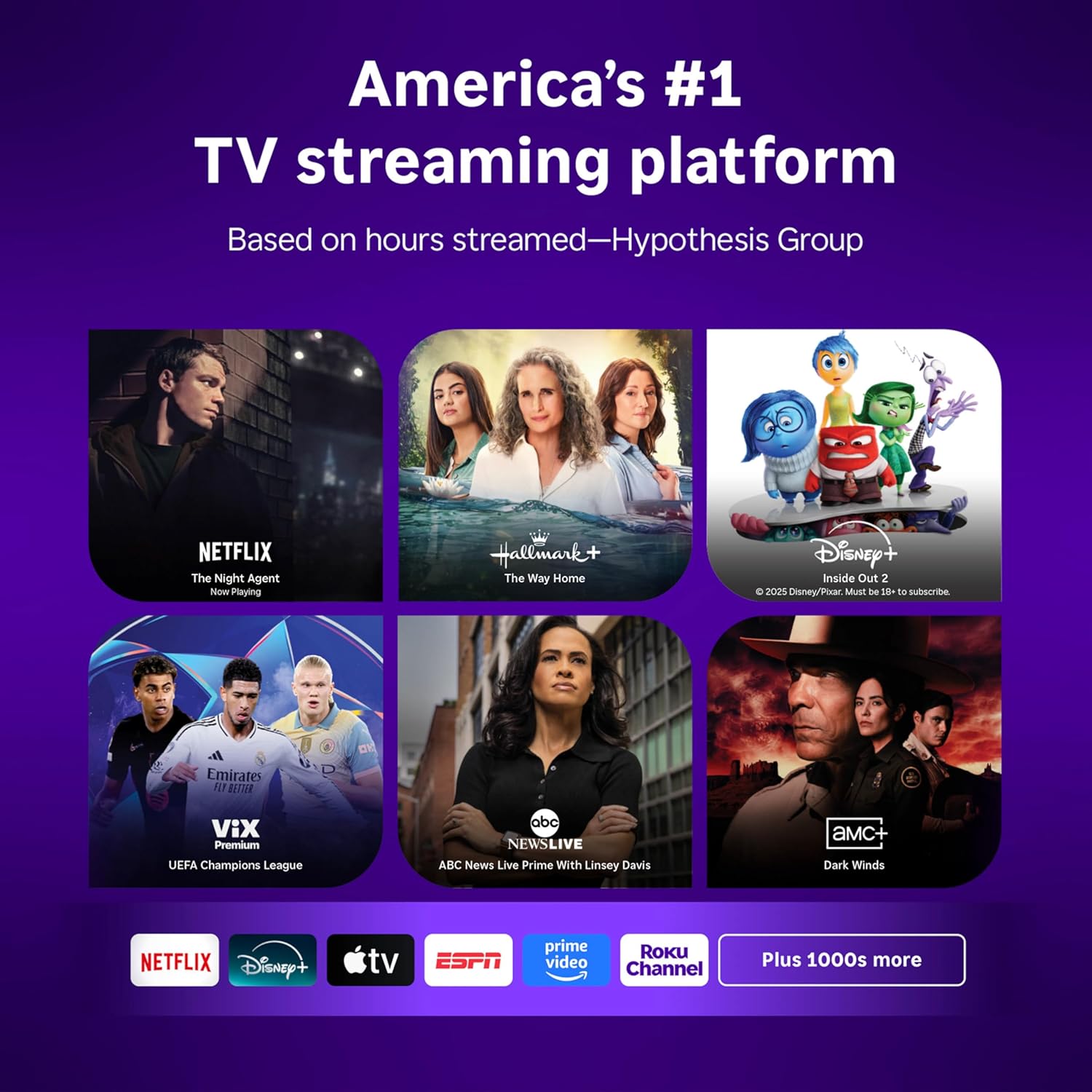
Image: Roku 32-inch Select Series HD Smart TV with included remote control.
2. 箱の中身
セットアップを続行する前に、すべてのコンポーネントが揃っていることを確認してください。
- Roku Select Series 32" HD TV
- スタンドとネジ
- Roku Voice Remote with batteries (2 AAA)
- 電源ケーブル
- ユーザーマニュアル(このドキュメント)

Image: Contents of the Roku Select Series TV packaging.
3. セットアップ
3.1 開梱
テレビとすべての付属品を梱包から慎重に取り出してください。梱包は、今後の輸送や修理の際に必要となるため、保管しておいてください。
3.2 スタンドの取り付け
- 傷がつかないように、テレビ画面を下にして柔らかく清潔な表面に置いてください。
- テレビスタンドをテレビ底面のネジ穴に合わせます。
- 付属のネジを使用してスタンドを固定します。しっかりと締め付けてください。
3.3 周辺機器の接続
デバイスをテレビ背面の適切なポートに接続します。
- HDMI: Connect up to three HDMI devices (e.g., cable box, gaming console, Blu-ray player) to the HDMI ports.
- USB: Use the USB port for media playback or connecting compatible accessories.
- 光(S/PDIF): 外部オーディオシステムに接続します。
- 電力ケーブル: 電源ケーブルをテレビに接続し、次に壁のコンセントに接続します。
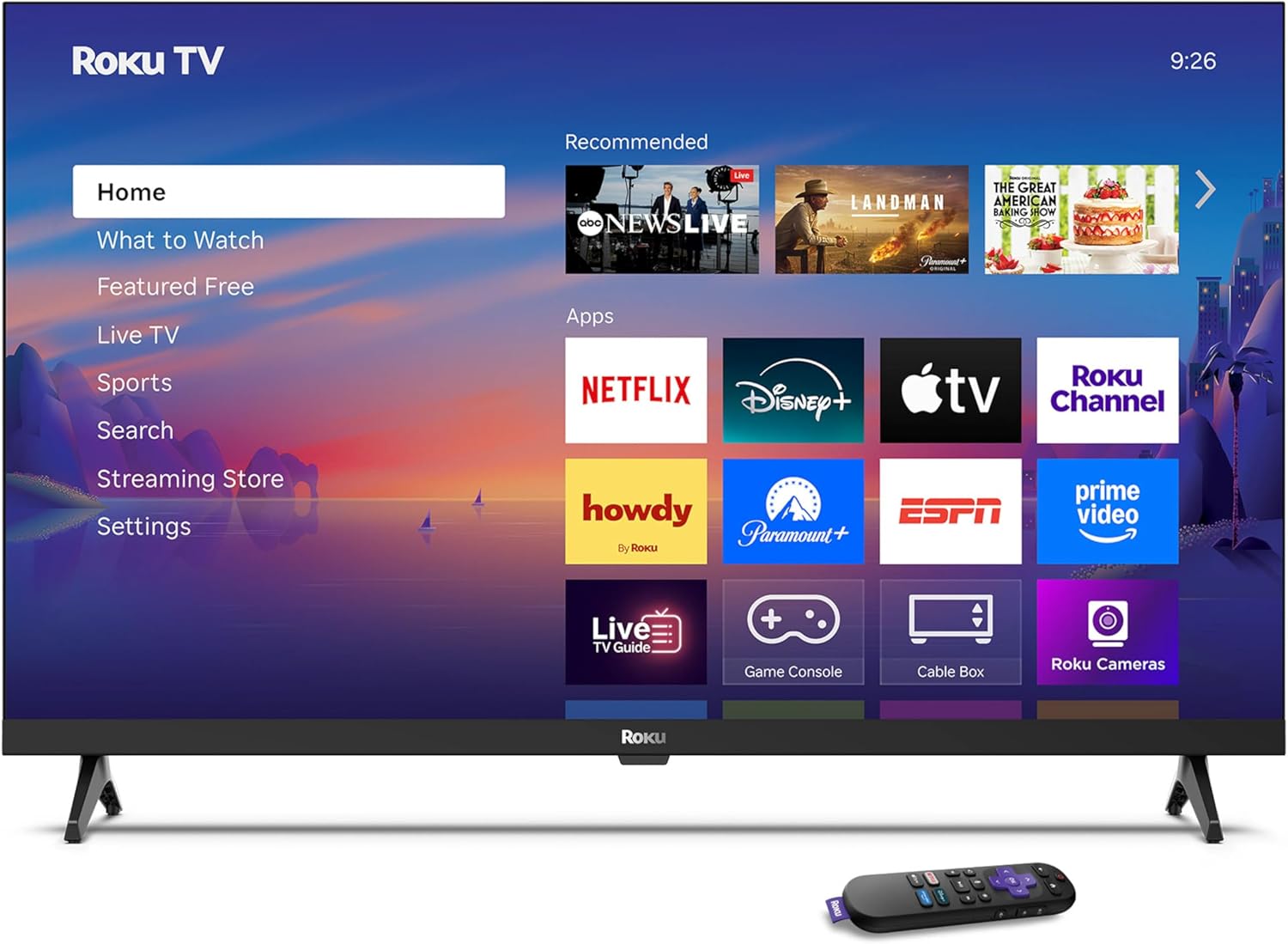
Image: Rear panel connections including HDMI, USB, and optical ports.
3.4 初回電源投入とネットワーク接続
- Plug in the TV and press the power button on the remote or TV.
- 画面上の指示に従って言語を選択し、Wi-Fi ネットワークに接続します。
- Activate your Roku account or create a new one.
ビデオ: オーバーview of the Roku TV operating system, demonstrating its user interface and features. This video is provided by Roku, Inc.
4. 操作手順
4.1 音声リモコンの使用
The Roku Voice Remote allows for intuitive control of your TV and streaming content.
- 音声検索: Press and hold the voice button and speak your command to search for content, launch apps, or control playback.
- ナビゲーション: 方向パッドを使用してメニュー間を移動し、項目を選択します。
- アプリのショートカット: 専用ボタンを使用すると、人気のストリーミング サービスにすばやくアクセスできます。

Image: Features of the Roku Voice Remote, highlighting voice control and shortcut buttons.
4.2 ホーム画面の操作
The Roku Home Screen provides access to all your installed apps, inputs, and settings.
- 家: メインのホーム画面に戻ります。
- 注目すべき点: Discover recommended content.
- ライブテレビ: Access free live television channels.
- ストリーミングストア: Browse and add new streaming channels.
- 設定: Adjust TV and system preferences.

Image: The Roku TV home screen interface.
4.3 Adjusting Picture and Sound Settings
カスタマイズ view設定メニューから、サウンドとリスニング体験をカスタマイズできます。
- 画像モード: Select from predefined modes like Standard, Vivid, Sports, or Movie. Roku Smart Picture automatically optimizes settings.
- サウンドモード: サウンドプロを選択files or enable features like Night Mode for reduced volume fluctuations.
- Bluetoothヘッドフォンモード: Pair your wireless headphones for private audio.

Image: Picture mode settings on the Roku TV.

Image: Bluetooth Headphone Mode in use.

Image: Dolby Audio technology for clear sound.
5. メンテナンス
5.1 画面のクリーニング
テレビ画面を清掃するには、柔らかく乾いた糸くずの出ない布で優しく拭いてください。頑固な汚れには、軽くamp布に水または画面に安全な洗浄液を含ませてください。刺激の強い化学薬品や研磨剤の使用は避けてください。
5.2ソフトウェアアップデート
Roku TVはインターネットに接続すると自動的にソフトウェアアップデートを受信します。これらのアップデートには、新機能、パフォーマンスの向上、バグ修正などが含まれています。最適なパフォーマンスを得るには、テレビがインターネットに接続されていることを確認してください。
6。 トラブルシューティング
If you encounter issues with your Roku TV, refer to the following common solutions:
- 電源なし: 電源ケーブルがテレビとコンセントの両方にしっかりと差し込まれていることを確認してください。別のコンセントで試してみてください。
- 画像/音声なし: Verify that the correct input source is selected. Check all cable connections (HDMI, audio). Restart the TV by unplugging it for 30 seconds and plugging it back in.
- リモコンが機能しない: Replace the AAA batteries in the remote. Ensure there are no obstructions between the remote and the TV. For voice remote issues, re-pair the remote if necessary (refer to Roku support for specific steps).
- ネットワーク接続の問題: Restart your Wi-Fi router and modem. Go to the TV's settings menu, then Network, and try reconnecting to your Wi-Fi network.
- App Not Loading/Crashing: Try restarting the app. If the issue persists, remove the app from the home screen, restart the TV, and then re-add the app from the Streaming Store.
7. 仕様
| 特徴 | 詳細 |
|---|---|
| 画面サイズ | 32インチ |
| ディスプレイ技術 | 導かれた |
| 解決 | 720p |
| リフレッシュレート | 60Hz |
| 特集 | Bluetooth Headphone Mode, Dolby Audio, Voice Remote |
| 接続技術 | Bluetooth wifi |
| 合計HDMIポート | 3 |
| USBポート合計 | 1 |
| オーディオ入力 | HDMI |
| オペレーティング·システム | ロクOS |
| 取り付けタイプ | テーブルマウント、壁掛け |
| VESAマウント規格 | 200×200ミリ |
| 製品寸法(奥行き×幅×高さ) | 奥行き7インチ x 幅28.3インチ x 高さ18.3インチ |
| アイテム重量 | 7.5 ポンド |
| モデル番号 | 32R2D5 |
| 欧州連合 | 829610008974 |
8. 保証情報
8.1 限定保証
Roku warrants the hardware against defects in materials and workmanship under normal use for a period of one (1) year from the date of purchase ("Warranty Period"). If Roku determines that the device’s hardware is defective during the Warranty Period, Roku’s sole obligation, and your exclusive remedy, will be to either repair or replace the unit with either a new or rebuilt device, at its option. This warranty applies if the product is used in accordance with the provided documentation.
8.2 返品ポリシー
You may return a device for any reason:
- Within thirty (30) days from the date of purchase from Roku.
- Within the applicable return period if purchased from an authorized reseller or distributor.
Additional details regarding product returns can be found on the Roku support site.
9. サポート
For further assistance, troubleshooting guides, and frequently asked questions, please visit the official Roku support webサイト: