
1. はじめに
Innoをお選びいただきありがとうございますView 23.8" 2K Dual Portable Monitor. This device is designed to enhance your productivity and viewing experience with its dual QHD screens, foldable design, and versatile connectivity. This manual provides essential information for setting up, operating, and maintaining your monitor.
2. 箱の中身
パッケージにすべてのアイテムが含まれていることを確認してください。
- Multifunctional Type-C Data Cable (x2)
- DisplayPort Cable 1.4
- Ultra High Speed HDMI Cable 2.1
- 65W電源アダプター
3.製品オーバーview および機能
イノView 23.8" 2K Dual Portable Monitor offers a range of features designed for optimal performance and user comfort.

Key features: 2K QHD resolution, 1000:1 contrast ratio, 10-bit color, 0-315° adjustable foldable design, blue light filter, and 100% sRGB color gamut.
高解像度ディスプレイ
Both screens feature 2K QHD (2560 x 1440P) resolution with 100% sRGB wide color gamut and 10-bit color depth, providing precise color reproduction, sharp clarity, and exquisite detail. The IPS panel ensures true colors from a 178° view角度。

Visual comparison of 2K QHD versus 1080P resolution, highlighting superior detail.
調節可能で折りたたみ可能なデザイン
The monitor features a foldable and stackable design with 315° screen adjustment and a 180° stand, allowing for flexible viewing angles and space-saving storage. This design facilitates various work and collaboration scenarios.
アイケアテクノロジー
An integrated blue light filter reduces eye strain during extended use, promoting a more comfortable viewing の経験。
ポートとボタン
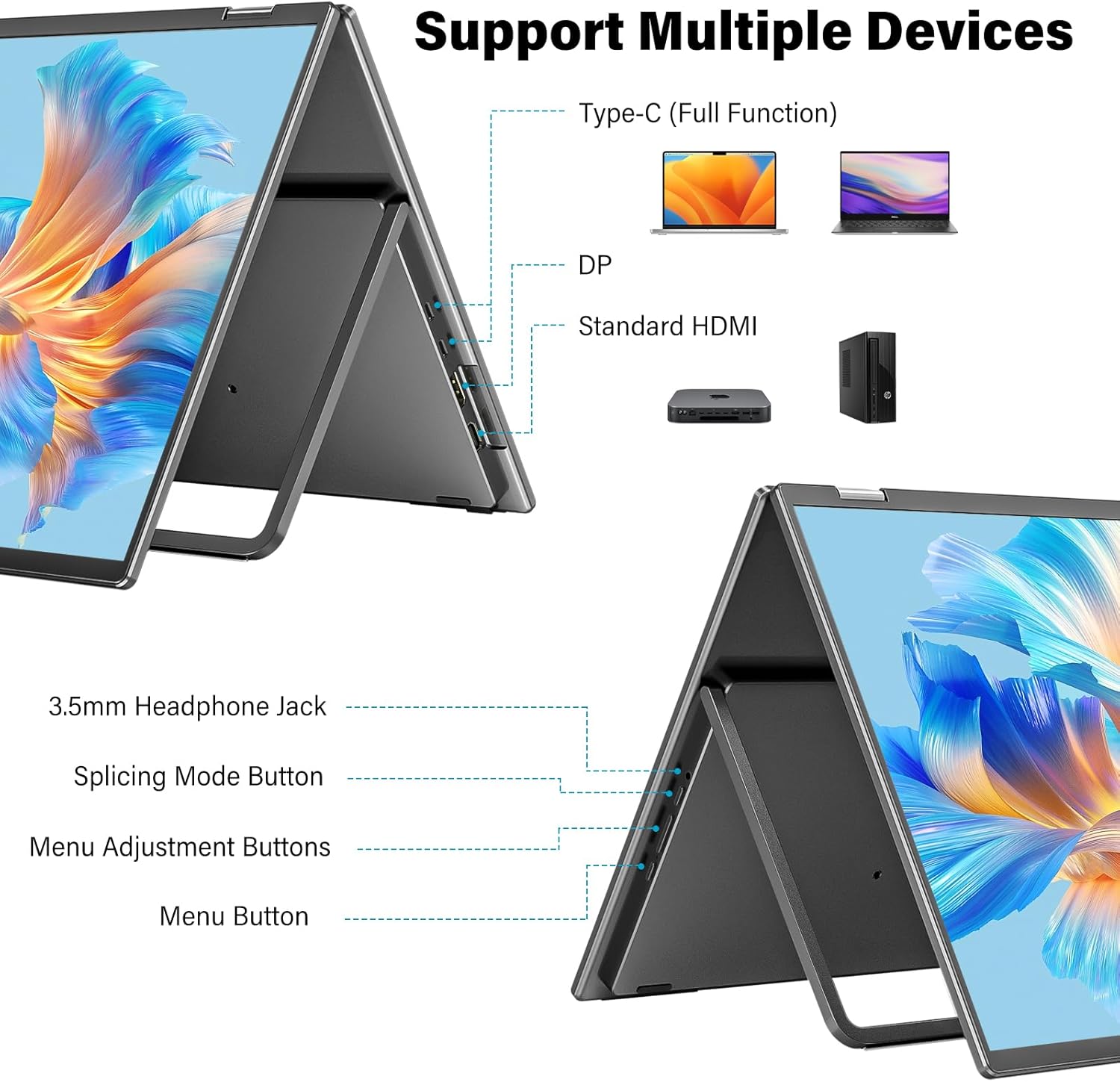
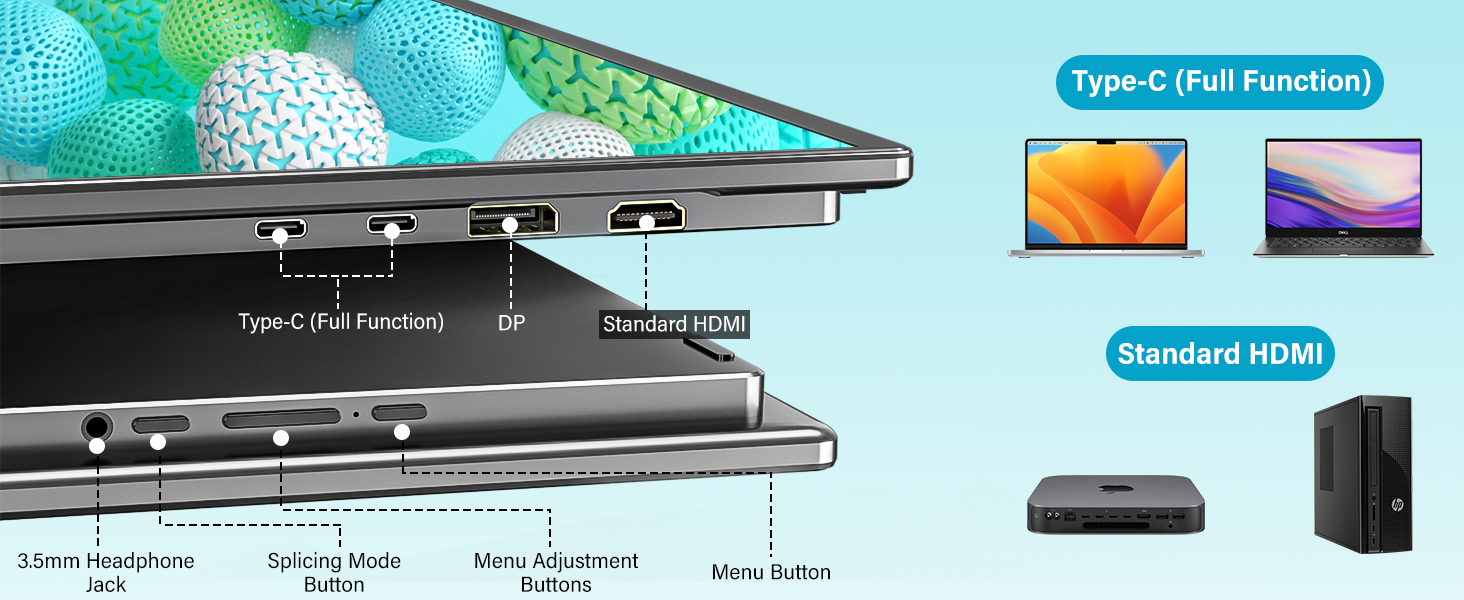
以上view モニターの接続ポートとコントロール ボタン。
- タイプC(フル機能): 電源、ビデオ、およびデータ伝送用。
- DP(ディスプレイポート): ビデオ入力用。
- 標準 HDMI: ビデオ入力用。
- 3.5mmヘッドフォンジャック: オーディオ出力用。
- スプライシングモードボタン: To toggle between display modes.
- メニュー調整ボタン: For navigating and adjusting OSD settings.
- メニューボタン: オンスクリーン ディスプレイ (OSD) メニューにアクセスします。
4. セットアップと接続
This section guides you through connecting your InnoView dual monitor to your devices.
電源接続
- Connect the provided 65W power adapter to a power source.
- Plug the other end of the power cable into one of the monitor's full-feature Type-C ports.
Device Connection (Windows)
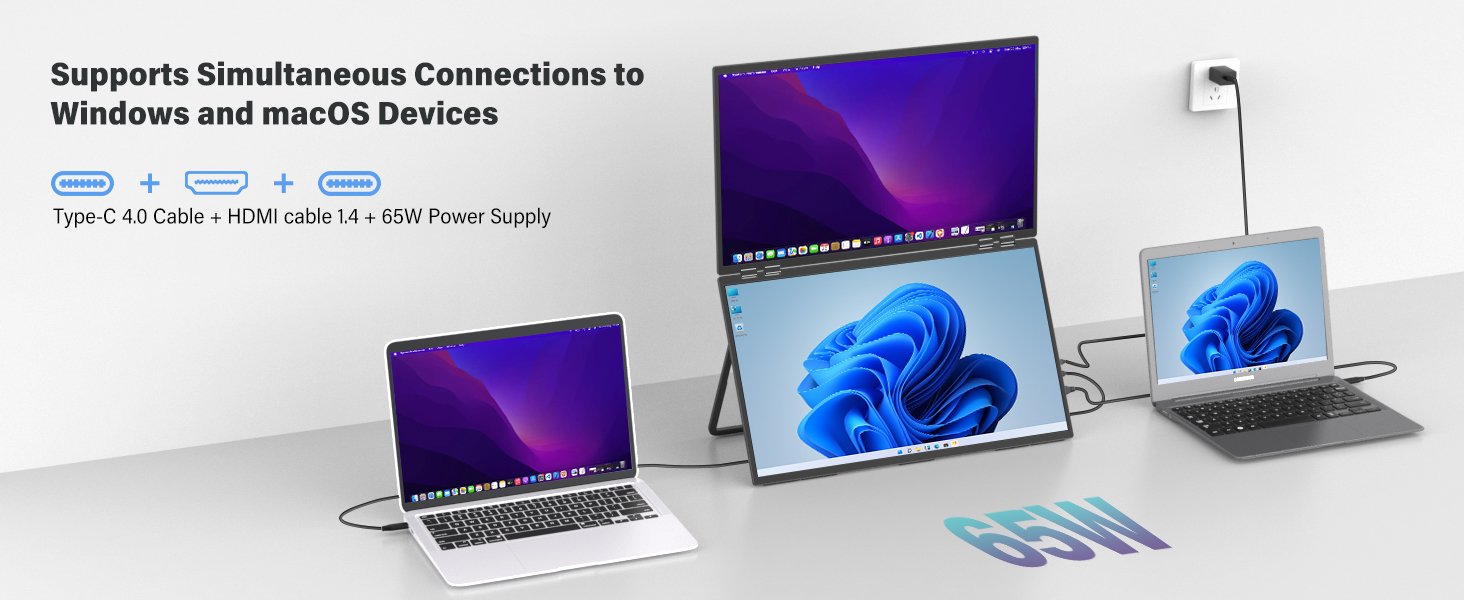
For Windows laptops, you can use a single full-feature Type-C cable for both video and power, or a combination of DP/HDMI and a Type-C power cable.
Windows connection options for the dual monitor.
Device Connection (macOS)
For macOS devices, extended mode typically requires both a full-feature Type-C cable and an HDMI cable for dual video outputs. With a single source, you are limited to Combine or Duplicate modes.

macOS connection options for the dual monitor.
Video Guide: Connecting to MacBook
This video demonstrates how to connect the InnoView 23.8 inch 2K Dual Portable Monitor to a MacBook, including cable connections and display settings configuration.
Identifying Compatible USB-C Ports
Ensure your computer's USB-C port supports video output. Look for symbols next to the port:
Symbols indicating compatible USB-C ports for video output.
If you see a Thunderbolt symbol, your port is compatible. If unsure, consult your computer's manufacturer website or technical specifications.
5。 動作モード
イノView dual monitor supports several display modes to suit your needs:
Visual representation of the different display modes.
- Copy Mode (Mirror): Both the upper and lower screens display the same content.
- Splice Mode (Ultra-Wide): Combines the upper and lower screens into one larger, continuous display.
- Extended Mode (Dual-Screen): The upper and lower screens display different content, extending your desktop.
- フリップモード: The top screen can be flipped 180° for face-to-face collaboration, displaying the same content as the bottom screen.
使用 Splicing Mode Button on the monitor to cycle through these modes.
6.ディスプレイ設定
After connecting, you may need to adjust your computer's display settings to optimize your dual monitor setup.
Windows Display Settings
- デスクトップを右クリックし、「ディスプレイ設定」を選択します。
- Under "Multiple displays," choose your preferred option (e.g., "Extend these displays," "Duplicate these displays").
- Drag and drop the display icons to match your physical monitor arrangement.
- Adjust resolution, orientation, and brightness as needed.
macOS Display Settings
- 「システム設定」(または古いmacOSバージョンでは「システム環境設定」)に移動します。
- Click on "Displays."
- Click "Arrange Displays" to drag and drop the display icons to match your physical setup.
- Select "Extended Display" or "Mirror for Built-in Display" based on your requirement.
- Adjust resolution, refresh rate, and color profile ご希望に応じて。
モニターのOSDメニュー
Use the Menu Adjustment Buttons and Menu Button on the monitor to access and navigate the On-Screen Display (OSD) menu. Here you can fine-tune settings such as brightness, contrast, color temperature, and input source.
7. 使用シナリオ
イノView dual monitor is versatile for various applications:
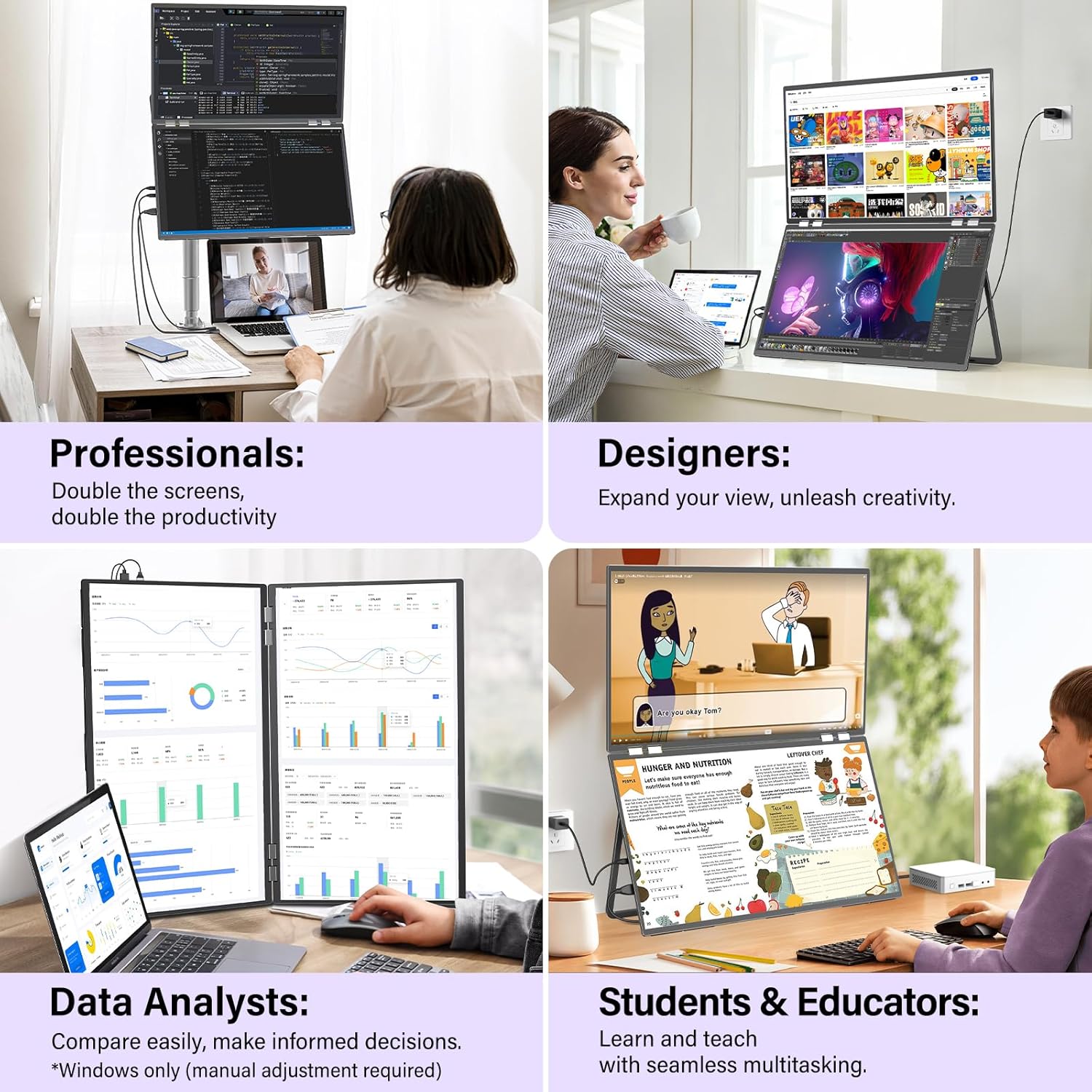
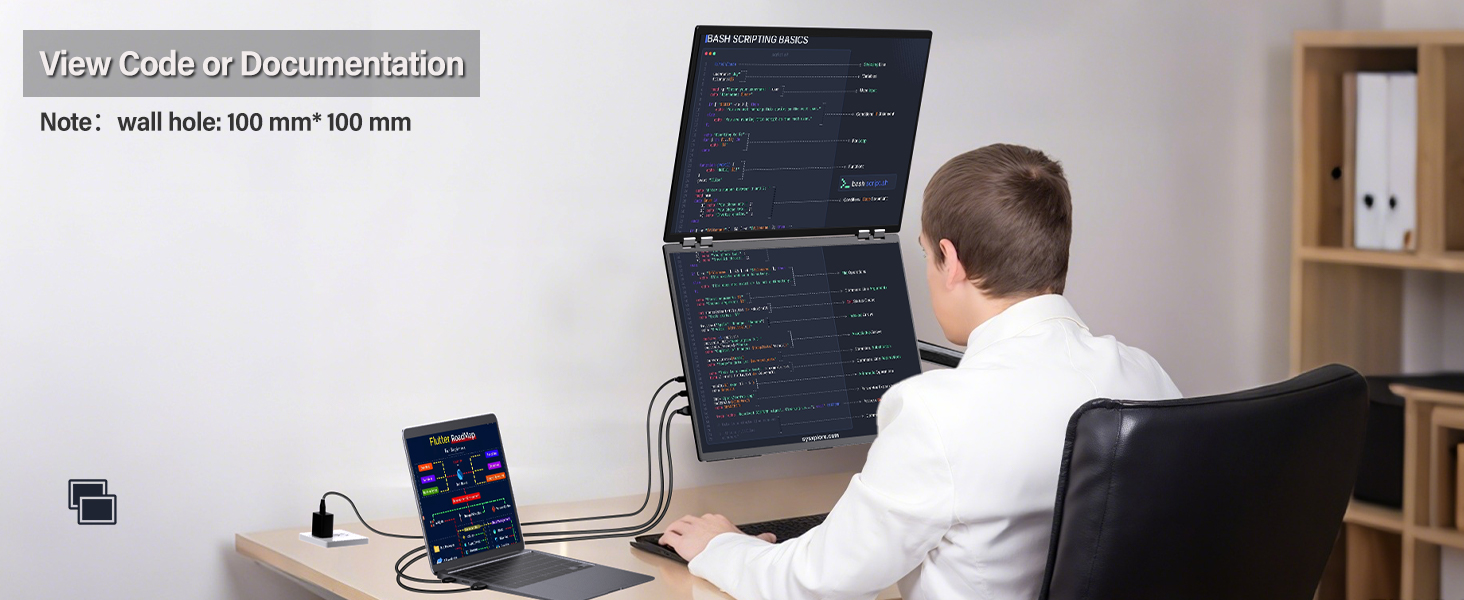
- 専門家: Double your workspace for documents, code, and preview並べて表示します。
- デザイナー: 拡大する view for creative projects, ensuring precise color reproduction.
- Data Analysts: Compare data easily and make informed decisions with extensive screen real estate.
- Students & Educators: Learn and teach with seamless multitasking, viewing videos and documents simultaneously.
The dual monitor enhances productivity for various professional and educational tasks.
Portability Considerations
Note that while the monitor has a foldable design, its 23.8-inch size and power requirements make it more suitable for fixed office or home use rather than frequent travel.
The monitor is designed for fixed placement, not for frequent travel.
8. 仕様
| 特徴 | 仕様 |
|---|---|
| 製品寸法 | 0.65 x 21.33 x 12.71インチ |
| アイテム重量 | 12.82ポンド |
| ASIN | B0F83RGKDV |
| 商品型番 | INVPM609 01B |
| 立ち画面表示サイズ | 23.8インチ |
| アスペクト比 | 16:9 |
| 解決 | 2560 x 1440ピクセル(QHDワイド1440p) |
| 画像の明るさ | 300カンデラ |
| USBポート合計 | 2 (Type-C Full Function) |
| スクリーン表面の説明 | マット |
9。 トラブルシューティング
Innoで問題が発生した場合View dual monitor, refer to these common troubleshooting steps:
信号なし/黒い画面
- 接続を確認してください: Ensure all cables (power, USB-C, HDMI, DP) are securely connected to both the monitor and your device.
- 電源の確認: Confirm the monitor is receiving power from the 65W adapter. The power indicator light should be on.
- 入力ソース: Use the monitor's OSD menu to manually select the correct input source (USB-C, HDMI, or DP).
- Compatible Port: Ensure your computer's USB-C port supports video output (look for the Thunderbolt or DisplayPort Alt Mode symbol).
- デバイスを再起動します。 Restart your laptop/PC and the monitor.
Incorrect Display Mode / Resolution
- ディスプレイ設定を調整します。 Access your computer's display settings (as described in Section 6) to configure Extend, Duplicate, or Combine modes.
- スプライシングモードボタン: Press the Splicing Mode Button on the monitor to cycle through available display modes.
- 解決: In your computer's display settings, ensure the resolution is set to 2560 x 1440 for optimal clarity.
Flickering or Unstable Display
- ケーブル品質: Use the provided high-quality cables. Faulty or low-quality cables can cause display issues.
- 電源: Ensure the monitor is receiving sufficient power from the 65W adapter.
- グラフィック ドライバー: コンピュータのグラフィック ドライバーを最新バージョンに更新します。
10. 保証とサポート
イノView is committed to providing reliable products and excellent customer service.
保証情報


あなたのイノView monitor comes with an 18ヶ月間の完全保証. 弊社では、 30-day no-questions-asked returns そして 60日間返品無料.
Brand Logo Update

イノView has updated its brand logo. During this transition, products with either the old or new logo may be shipped. This does not affect product quality or functionality.
カスタマーサポート
ご質問、技術サポート、保証請求については、Innoまでお問い合わせください。View customer support through the retailer where you purchased the product or visit the official InnoView webサイト。
11. 製品ビデオ終了view
全体像についてはこの短いビデオをご覧くださいview イノのView 23.8" 2K Dual Monitor's features and capabilities.
簡単な説明view ショーasing the InnoView 23.8 inch 2K Dual Monitor's design, display modes, and key features.