導入
This manual provides essential information for setting up, operating, maintaining, and troubleshooting your Thunderobot Zero 18 Pro 5070 Ti Gaming Laptop. Please read this guide thoroughly to ensure optimal performance and longevity of your device.
箱の中身
開梱したら、以下にリストされているすべてのアイテムが揃っていることを確認してください。
- THUNDEROBOT Zero Laptop
- 電源アダプター
- ユーザーマニュアル(このドキュメント)
- 保証書
If any items are missing or damaged, contact your retailer or Thunderobot customer support immediately.
設定
初回電源投入
- Connect the power adapter to the laptop's power input port and then to a wall outlet.
- ノートパソコンの蓋を開けます。
- 電源ボタンを押してラップトップの電源を入れます。
- 画面の指示に従って、Windows 11 Home のセットアップを完了します。
周辺機器の接続
Utilize the available ports to connect external devices such as a mouse, keyboard, external display, or other accessories. Refer to the "Connectivity (Ports)" section for port details.
操作手順
電源オン/オフ
- To power on: Press the power button located on the keyboard deck.
- To shut down: Click the Start button, then Power, and select "Shut down".
- To restart: Click the Start button, then Power, and select "Restart".
- To sleep: Close the laptop lid or click the Start button, then Power, and select "Sleep".
Keyboard and RGB Lighting
The laptop features a full-size keyboard with per-key customizable RGB backlighting and a dedicated numeric keypad.
- Per-Key RGB Backlight: Customize individual key lighting through the AI Intelligent Control Center software.
- ファンクションキー: 使用 Fn key in combination with other keys for various functions (e.g., volume control, screen brightness, keyboard backlight adjustment).
- Performance Mode Switching: Dedicated keys (Fn+Space) allow for quick toggling between performance profiles.
- One-Click Cooling: A dedicated key (often near the numeric keypad) can activate maximum cooling. Ensure cooling mode is exited before using the first three keys to switch modes.
表示機能
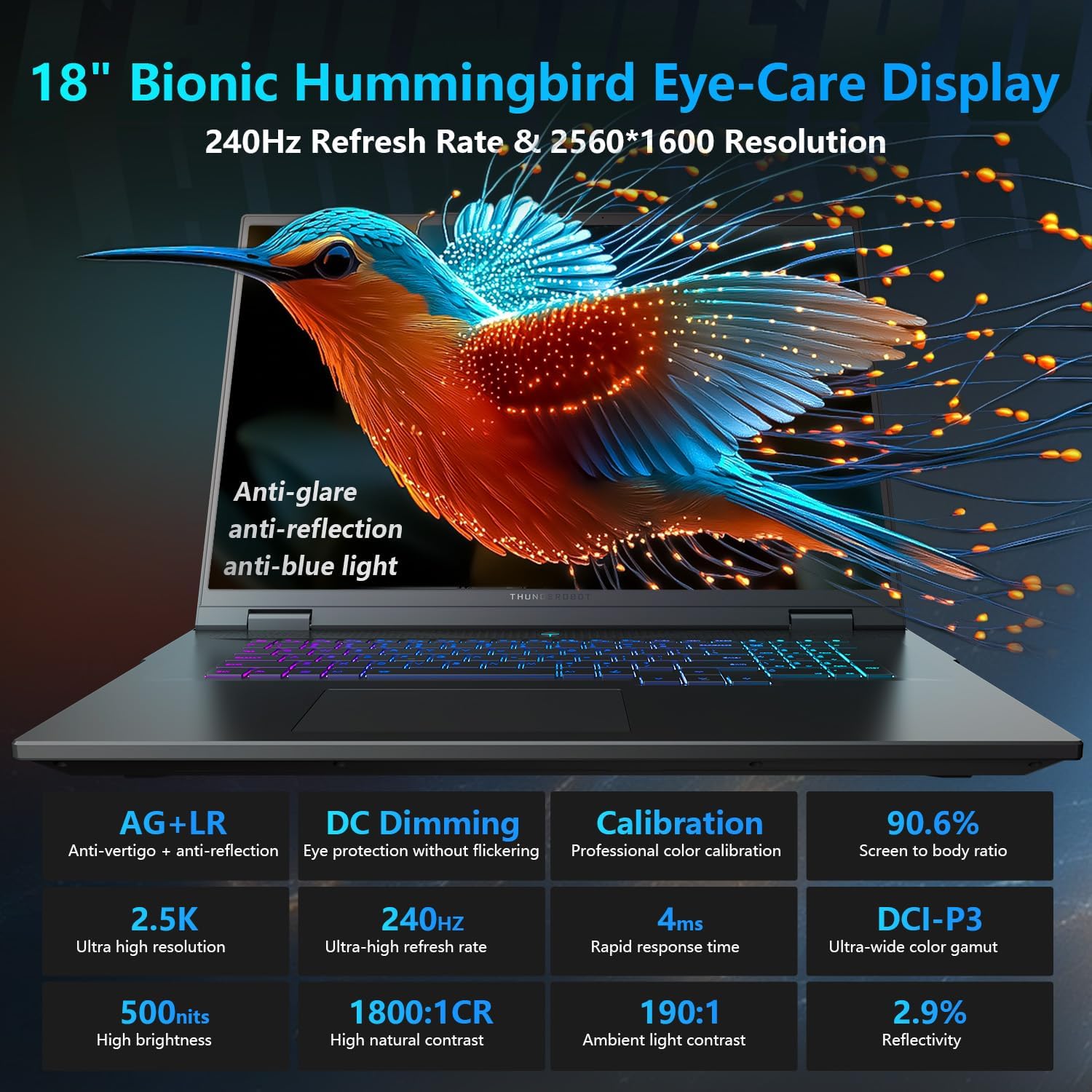
The 18-inch QHD+ (2560x1600) Bionic Hummingbird Eye-Care display offers a 240Hz refresh rate and 4ms response time for clear and fluid visuals. It includes anti-glare, anti-reflection, and anti-blue light technologies for eye comfort.

Connectivity (Ports)
The laptop is equipped with various ports for extensive connectivity:
- 3 x Superspeed USB Type-A ports
- 2 x Superspeed USB Type-C ports (including Thunderbolt 5 support)
- 1 x HDMI port (HDMI 2.1)
- 1 x RJ-45 Ethernet port
- 1 x Audio Port (3.5mm)
- UHS-II SD カードリーダー
- Wi-Fi 6E for high-speed wireless internet
- Bluetooth for wireless peripheral connections

冷却システム
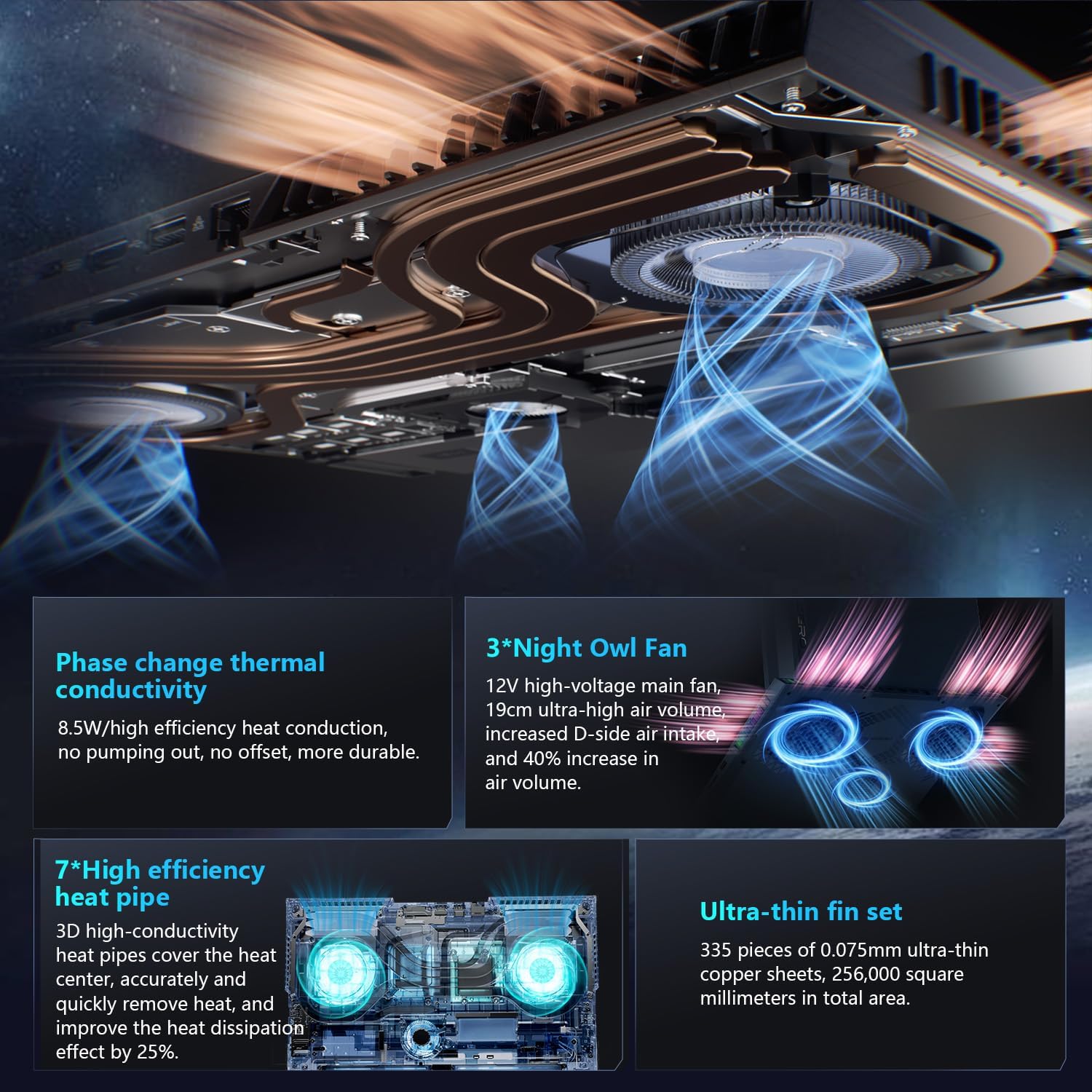
The advanced cooling system features 3 Night Owl fans, 7 high-efficiency heat pipes, and 338 ultra-thin copper fins to ensure optimal thermal management during intensive use, allowing for 270W super performance release.
AI Intelligent Control Center
The AI Intelligent Control Center software allows for comprehensive system management, including performance tuning, intelligent light adjustment, and personalized customization. This includes monitoring CPU/GPU temperatures and fan speeds.
- パフォーマンスチューニング: Adjust power settings for quiet, balanced, or turbo modes.
- Intelligent Light Adjustment: Customize keyboard, strip, and logo RGB lighting effects.
- システム監視: View real-time CPU and GPU status.
Note: System mode switching in Control Center requires the device to be connected to a power source.
メンテナンス
ノートパソコンの掃除
- 画面: 柔らかく糸くずの出ない布を軽く拭いてください。amp水またはスクリーンクリーナーで拭いてください。刺激の強い化学薬品は使用しないでください。
- キーボードとシャーシ: 表面を拭く際は柔らかい布を使用してください。隙間のほこりには圧縮空気を使用してください。
- 通気口: パフォーマンスに影響を及ぼす可能性のあるほこりの蓄積を防ぐために、定期的に圧縮空気で冷却通気口を清掃してください。
バッテリーケア
- バッテリーを頻繁に完全に放電することは避けてください。
- 長期間使用しない場合は、ノートパソコンを涼しく乾燥した場所に保管してください。
- バッテリーの状態を最適に保つには、極端な温度を避けてください。
ソフトウェアアップデート
Regularly check for and install operating system updates (Windows Update) and driver updates (via Thunderobot's official website or the AI Intelligent Control Center) to ensure system stability and performance.
トラブルシューティング
| 問題 | 考えられる原因 | 解決 |
|---|---|---|
| ノートパソコンの電源が入りません。 | 電源なし、バッテリー切れ、またはハードウェアの問題。 |
|
| 画面が空白または黒になります。 | Display settings, external monitor connected, or hardware issue. |
|
| 使用中に過熱する。 | Blocked vents, high performance settings, or dust buildup. |
|
| Wi-Fi接続の問題。 | Wi-Fi disabled, driver issues, or router problems. |
|
For further assistance, please contact Thunderobot customer support.
仕様
| 特徴 | 詳細 |
|---|---|
| モデル名 | Zero 18 Pro |
| プロセッサ | Intel Core Ultra 9 275HX (24 Cores, 24 Threads, up to 5.40GHz) |
| グラフィックス | NVIDIA GeForce RTX 5070 Ti (8 GB GDDR6 Dedicated) |
| ラム | 32 GB DDR5 (4800 MHz) |
| ストレージ | 2 TB PCIe M.2 SSD |
| 画面 | 18-inch QHD+ (2560x1600) 240Hz Bionic Hummingbird Eye-Care Display |
| オペレーティング·システム | Windows 11 ホーム |
| 接続性 | Wi-Fi 6E, Bluetooth, 3x USB-A, 2x USB-C (Thunderbolt 5), HDMI 2.1, RJ-45, Audio Port |
| キーボード | Per-Key RGB Backlit, Numeric Keypad |
| 寸法(長さx幅x高さ) | 16.04 x 11.78 x 1.41インチ |
| アイテム重量 | 15ポンド |
| 電源 | AC&バッテリー |
保証とサポート
Every Thunderobot laptop includes a 12ヶ月保証, offering expert support, thorough diagnostics, and genuine parts if a repair is needed. Additionally, a 90日間の保証 is provided on all warranty replacement parts, ensuring hassle-free repairs. Your complete satisfaction is our commitment.
For technical support, warranty claims, or service inquiries, please visit the official Thunderobot website or contact their customer service department. Keep your purchase receipt and serial number handy for faster service.