
1. はじめに
This user manual provides detailed instructions for the KTC M27P6 27-inch MiniLED Gaming Monitor. Please read this manual thoroughly before operating the device to ensure proper usage and optimal performance. Keep this manual for future reference.
The KTC M27P6 is a high-performance gaming monitor featuring a 27-inch MiniLED panel with 1152 local dimming zones, offering exceptional contrast and brightness up to HDR1400. It supports dual display modes: 4K resolution at 160Hz and Full HD resolution at 320Hz, providing versatility for various gaming and professional needs. Key features include a 1ms GtG response time, Adaptive Sync technology, and comprehensive connectivity options including USB-C with 65W power delivery and KVM functionality.

画像: 上view of KTC M27P6 monitor's key features including MiniLED, 1152 local dimming zones, dual mode 4K@160Hz/FHD@320Hz, USB-C, KVM, HDR1400, 145% sRGB, Fast IPS, and Adaptive-Sync.
2. 安全情報
- モニターが落ちないように、必ず安定した平らな面に置いてください。
- 感電や火災を防ぐため、モニターを雨や湿気にさらさないでください。
- モニターを直射日光、熱源、極端な温度から遠ざけてください。
- モニター周囲の換気が適切であることを確認してください。通気口を塞がないでください。
- 製造元が提供または推奨する電源アダプタとケーブルのみを使用してください。
- モニターを長期間使用しない場合は、電源コードをコンセントから抜いてください。
- モニターをご自身で修理しようとしないでください。すべての修理は資格のあるサービス担当者にご依頼ください。
- 鋭利な物体で画面に触れないようにしてください。
3. パッケージ内容
Verify that all components are present in your package. If any items are missing or damaged, contact your retailer.
- KTC M27P6 27-inch MiniLED Gaming Monitor
- モニタースタンド(ベースとアーム)
- 電源アダプター
- 電源ケーブル
- HDMIケーブル
- DisplayPortケーブル
- USB-Cケーブル
- USB-B to USB-A Cable (for KVM/USB Hub)
- ユーザーマニュアル(このドキュメント)
- 保証書
4. 監視終了view
4.1フロント View
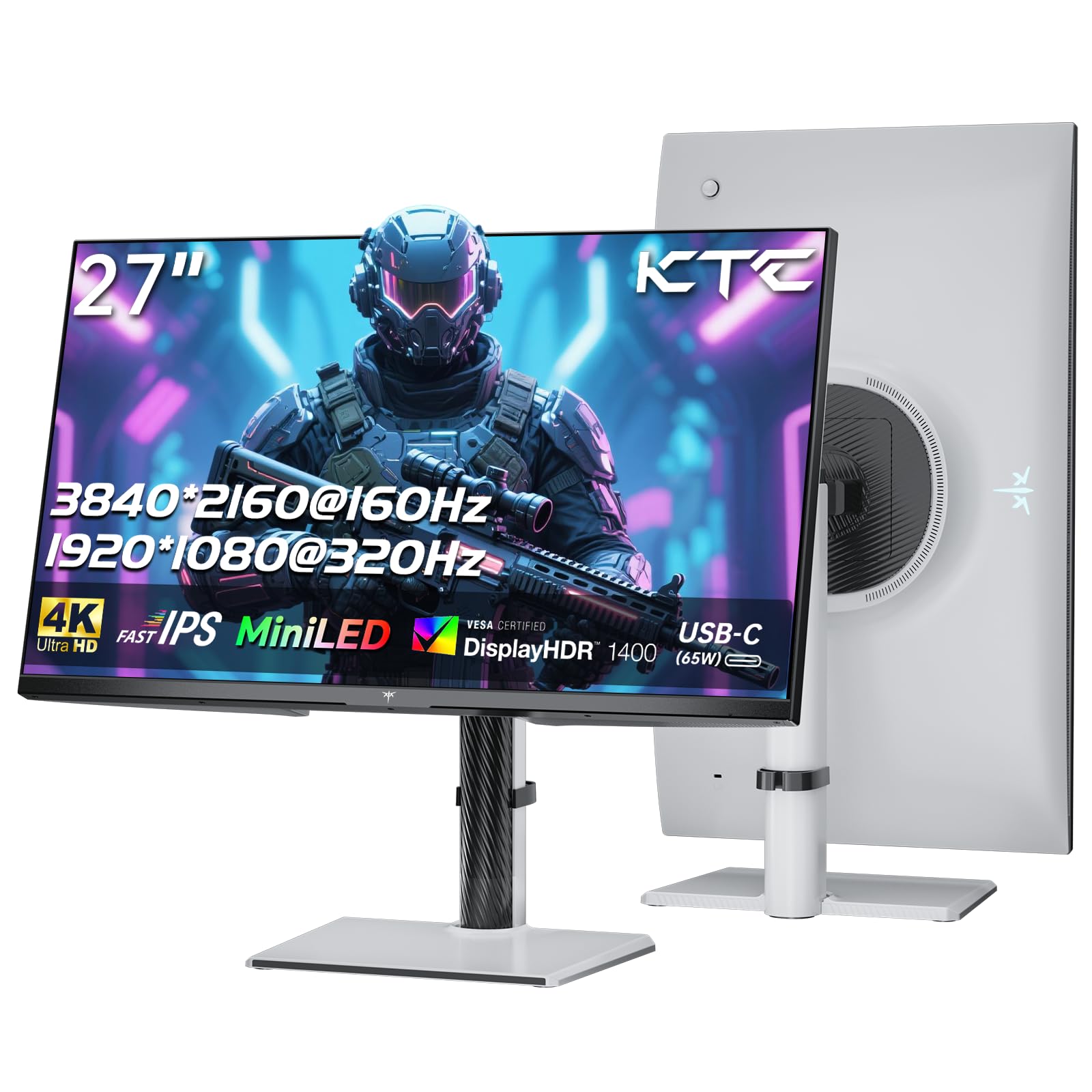
画像: 正面 view of the KTC M27P6 27-inch MiniLED Gaming Monitor.
The front of the monitor features the 27-inch MiniLED display panel. The KTC logo is typically located at the bottom center bezel.
4.2 リア View およびポート

画像: 背面 view of the KTC M27P6 monitor, highlighting the various input/output ports and the adjustable stand.
The rear of the monitor houses the input/output ports and the stand attachment point. The ports include:
- 電源入力: 電源アダプタを接続します。
- HDMI 2.1 ポート (x2): For connecting to devices supporting HDMI 2.1 (4K@160Hz / FHD@320Hz).
- DisplayPort 1.4 ポート (x2): For connecting to devices supporting DisplayPort 1.4 (4K@160Hz / FHD@320Hz).
- USB-Cポート(x1): Full-function port supporting video input (4K@160Hz / FHD@320Hz) and 65W Power Delivery.
- USB-B Upstream Port (x1): For connecting the monitor's USB hub to your computer, enabling the downstream USB-A ports and KVM functionality.
- USB-A 3.0 Downstream Ports (x3): キーボード、マウス、USB ドライブなどの周辺機器を接続します。
- 3.5mm オーディオ出力: ヘッドホンや外部スピーカーを接続します。
ビデオ: オーバーview of the KTC M27P6 monitor's features and design, including its connectivity options and adjustable stand.
5. セットアップ
5.1 スタンドの組み立て
- モニターとスタンドのコンポーネントをパッケージから慎重に取り出します。
- Attach the stand arm to the monitor panel by aligning the mounting points and securing with screws (if applicable).
- Attach the stand base to the stand arm, ensuring it is firmly connected.
- 組み立てたモニターを安定した平らな面に置きます。
The monitor also supports VESA mounting (100x100mm) for use with compatible wall mounts or monitor arms. Ensure the VESA mount is rated for the monitor's weight.

Image: Diagram illustrating the multi-angle adjustment capabilities of the KTC M27P6 monitor stand, including height, tilt, swivel, and pivot.
5.2接続ケーブル
- 電源接続: 電源アダプタをモニターの電源入力に接続し、電源ケーブルを電源コンセントに差し込みます。
- ビデオ接続:
- For PC/Gaming Console: Connect one end of the HDMI or DisplayPort cable to your device's output and the other end to the corresponding port on the monitor.
- For USB-C Compatible Devices: Connect the USB-C cable from your device to the monitor's USB-C port for video, data, and power delivery.
- USB Hub/KVM Connection: To use the monitor's USB-A ports and KVM functionality, connect the USB-B to USB-A cable from the monitor's USB-B upstream port to a USB-A port on your computer.
- オーディオ接続: If using external headphones or speakers, connect them to the 3.5mm audio out port on the monitor.
6. 操作手順
6.1 電源オン/オフ
電源ボタン(通常はモニターの背面または底面にあります)を押すと、モニターの電源をオンまたはオフにできます。モニターの電源がオンになると、電源インジケーターライトが点灯します。
6.2 OSDメニューナビゲーション
The On-Screen Display (OSD) menu allows you to adjust various monitor settings. Use the joystick or buttons (refer to your monitor's physical layout) to navigate the OSD menu:
- Press Joystick/Button: Enter OSD menu or confirm selection.
- ジョイスティックを上下に動かす: メニュー オプションをナビゲートします。
- ジョイスティックを左/右に動かす: 値を調整するか、サブメニューに移動します。
- 終了ボタン: 現在のメニューまたは OSD を終了します。
6.3 Dual Mode Switching (4K@160Hz / FHD@320Hz)
The KTC M27P6 supports seamless switching between two display modes: 4K (3840x2160) at 160Hz and Full HD (1920x1080) at 320Hz. This allows you to optimize performance based on your content (e.g., high-resolution graphics for AAA games or ultra-high refresh rate for competitive FPS games).
To switch modes, access the OSD menu and navigate to the "Display" or "Gaming" settings. Select the desired resolution and refresh rate. Your connected device must also support these resolutions and refresh rates for optimal performance.

Image: Illustration of the KTC M27P6 monitor's seamless dual mode switching capability, showing a 4K@160Hz gaming scene and a FHD@320Hz gaming scene.
6.4 アダプティブ同期
The monitor supports Adaptive Sync (AMD FreeSync and NVIDIA G-Sync compatible) to eliminate screen tearing and stuttering, providing a smoother gaming experience. Ensure Adaptive Sync is enabled in the monitor's OSD settings and in your graphics card control panel.

Image: Visual representation of Adaptive Sync technology, showing how it prevents screen tearing by synchronizing the monitor's refresh rate with the GPU's frame rate.
6.5 KVMの機能
The integrated KVM (Keyboard, Video, Mouse) switch allows you to control multiple computers or devices connected to the monitor using a single keyboard and mouse. To use KVM:
- Connect your primary computer to the monitor via DisplayPort/HDMI and the USB-B upstream cable.
- Connect your secondary device (e.g., laptop via USB-C) to the monitor.
- Connect your keyboard and mouse to the USB-A downstream ports on the monitor.
- Switch between connected devices using the KVM hotkey or OSD menu option.
6.6 Color Settings and HDR1400
The monitor features a MiniLED panel with 1152 local dimming zones and VESA DisplayHDR 1400 certification, providing high contrast and vibrant colors. You can adjust color settings (brightness, contrast, color temperature, gamma) through the OSD menu. For HDR content, ensure HDR is enabled in your operating system and the monitor's OSD. The monitor supports 10-bit color depth and a wide color gamut (145% sRGB / 99% DCI-P3).

Image: Visual comparison demonstrating the enhanced dynamic range and detail provided by HDR1400 on the KTC M27P6 monitor.
7. メンテナンス
- 画面の掃除: 柔らかく糸くずの出ない布で画面を優しく拭いてください。頑固な汚れには、ampen the cloth with a small amount of screen cleaner (non-ammonia based). Do not spray cleaner directly onto the screen.
- Cのクリーニングasing: モニターの表面を拭くときは、柔らかく乾いた布を使用してください。asing. 研磨剤入りの洗剤や溶剤の使用は避けてください。
- 換気: Ensure the ventilation openings on the monitor are clear of dust and debris to prevent overheating.
8。 トラブルシューティング
| 問題 | 考えられる原因 | 解決 |
|---|---|---|
| 画面に画像がありません | 電源ケーブルが外れています。ビデオ ケーブルが外れています。入力ソースが正しくありません。 | 電源ケーブルとビデオケーブルの接続を確認してください。OSDメニューから正しい入力ソースを選択してください。 |
| 画像がぼやけたり歪んだりする | 解像度が正しくありません。ビデオ ケーブルに障害があります。 | Set the display resolution to the native 3840x2160 or 1920x1080. Try a different video cable. |
| ゲーム中の画面のティアリングやスタッター | Adaptive Sync が有効になっていません。グラフィック カード ドライバーの問題です。 | Enable Adaptive Sync in monitor OSD and graphics card settings. Update graphics drivers. |
| USBポートが機能しない | USB-B upstream cable not connected; Driver issues. | Ensure the USB-B upstream cable is connected from the monitor to your computer. Check computer's USB drivers. |
| オーディオ出力から音が出ない | Incorrect audio output selected; Volume too low. | Check audio output settings on your computer. Adjust monitor and device volume. |
9. 仕様
| 特徴 | 詳細 |
|---|---|
| ブランド | KTC |
| モデル名 | M27P6 |
| 画面サイズ | 27 Pollici (27 inches) |
| パネルタイプ | MiniLED, Fast IPS |
| 解像度(ネイティブ) | 3840 x 2160 (4K UHD) |
| Max Refresh Rate (4K) | 160Hz |
| Max Refresh Rate (FHD) | 320Hz |
| 応答時間 | 1ms GtG |
| ローカル調光ゾーン | 1152つのゾーン |
| HDR認証 | VESA ディスプレイHDR 1400 |
| 輝度 | 1400 cd/m²(ピーク) |
| コントラスト比 | 1,000,000:1(動的) |
| 色域 | 145% sRGB、99% DCI-P3 |
| 色深度 | 10ビット |
| アダプティブ同期 | AMD FreeSync、NVIDIA G-Sync対応 |
| View角度 | 178度 |
| 接続性 | 2x HDMI 2.1, 2x DisplayPort 1.4, 1x USB-C (65W PD), 1x USB-B Upstream, 3x USB-A 3.0 Downstream, 1x 3.5mm Audio Out |
| KVM サポート | はい |
| スタンド調整 | 高さ、傾斜、回転、ピボット |
| VESAマウント | 100×100ミリ |
| 寸法(DxWxH) | 幅21.1cm x 奥行61.7cm x 高さ54.7cm |
10. 保証とサポート
KTC products are covered by a limited warranty. Please refer to the warranty card included in your package for specific terms and conditions. For technical support, troubleshooting assistance, or warranty claims, please contact KTC customer service or visit the official KTC webサイト。
You can find more information and contact details on the KTC official store page: KTCストア.