
1. はじめに
This manual provides essential information for setting up, operating, and maintaining your ASUS AiO V470 Series All-in-One PC. Please read this guide thoroughly before using your device to ensure proper function and longevity.

Image: ASUS V470 AiO PC showcasing its minimalist design and thoughtful functionality.
2. 箱の中身
パッケージ内のすべてのアイテムが揃っていることを確認します。
- ASUS AiO V470 All-in-One PC
- ワイヤレスキーボード
- ワイヤレスマウス
- 電源アダプター
- ドキュメント(クイックスタートガイド、保証書)
3. セットアップ
3.1開梱と配置
- Carefully remove the All-in-One PC and accessories from the packaging.
- PC を、周囲に十分な換気がある安定した平らな面に設置してください。
- Ensure the area is free from direct sunlight, heat sources, and excessive dust.
3.2 周辺機器の接続
- 電源接続: Connect the power adapter to the DC-in port on the back of the PC, then plug the power cord into a wall outlet.
- ワイヤレスキーボードとマウス: Insert batteries into the wireless keyboard and mouse. The devices are pre-paired; if not, follow the instructions provided with the peripherals for pairing.
- 外部デバイス: Connect any external devices such as printers, external hard drives, or additional monitors to the appropriate ports.
4. コンポーネントとポート
Familiarize yourself with the various ports and components of your ASUS AiO V470 PC.

画像: 詳細 view of the I/O ports for connectivity.
4.1 Side I/O Ports
- ケンジントンロックスロット: 互換性のあるロックを使用してデバイスを保護します。
- 3.5mmコンボオーディオジャック: ヘッドホンやマイク付きヘッドセットを接続します。
- USB 2.0 タイプA ポート: USB 2.0 対応デバイスを接続します。
4.2 背面I/Oポート
- DC入力ポート: 電源アダプタを接続します。
- RJ45 ギガビット イーサネット ポート: 有線ネットワーク接続用。
- HDMI In 1.4 Port: For connecting external video sources to use the AiO as a monitor.
- HDMI Out 1.4 Port: 外部ディスプレイを接続します。
- USB 3.2 Gen 1 Type-C ポート: 高速データ転送と互換性のある Type-C デバイスの接続に使用します。
- 3x USB 3.2 Gen 1 Type-A ポート: 高速USB 3.2対応機器の接続用。
5. 操作手順
5.1 電源のオン/オフ
- 電源オン: Press the power button located on the bottom right side of the display.
- 電源を切る: In Windows, click Start > Power > Shut down. Alternatively, press and hold the power button for 4 seconds to force a shutdown (use only when necessary).
5.2 表示機能
Your ASUS AiO V470 features a high-quality display designed for clarity and comfort.
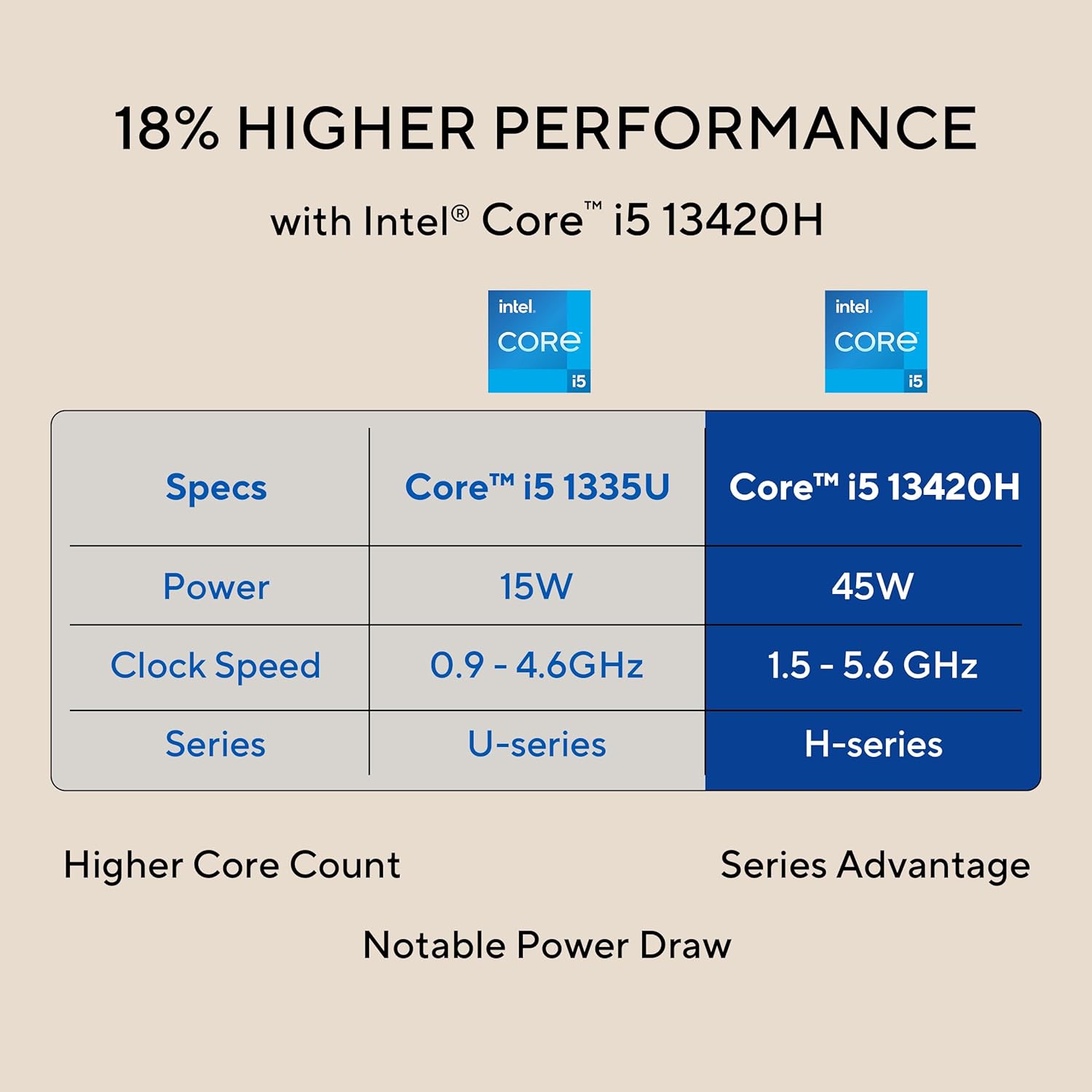
Image: The 27-inch FHD NanoEdge display with TÜV Rheinland-certified eye care.
- 27.0-inch FHD (1920 x 1080) Display: Provides clear and vibrant visuals.
- アンチグレア: 反射を抑えて快適な viewing。
- 100Hzリフレッシュレート: Offers smoother motion for an enhanced visual experience.
- TÜV Rheinland-certified Eye Care: Designed to reduce blue light emissions and flicker for eye comfort during extended use.
5.3 カメラとオーディオ機能
The integrated camera and audio system enhance your communication and multimedia experience.

Image: Retractable camera for privacy and security features.
- Retractable 1080p HD Camera: Push to hide the camera for instant privacy.
- AIノイズキャンセリング: Reduces background noise during video calls and recordings for clearer audio.
- 5W x 2 Speakers with Dolby Atmos: Delivers immersive and high-quality sound.

Image: Advanced and immersive sound experience with integrated speakers.
5.4 接続性
Your AiO PC offers robust connectivity options.
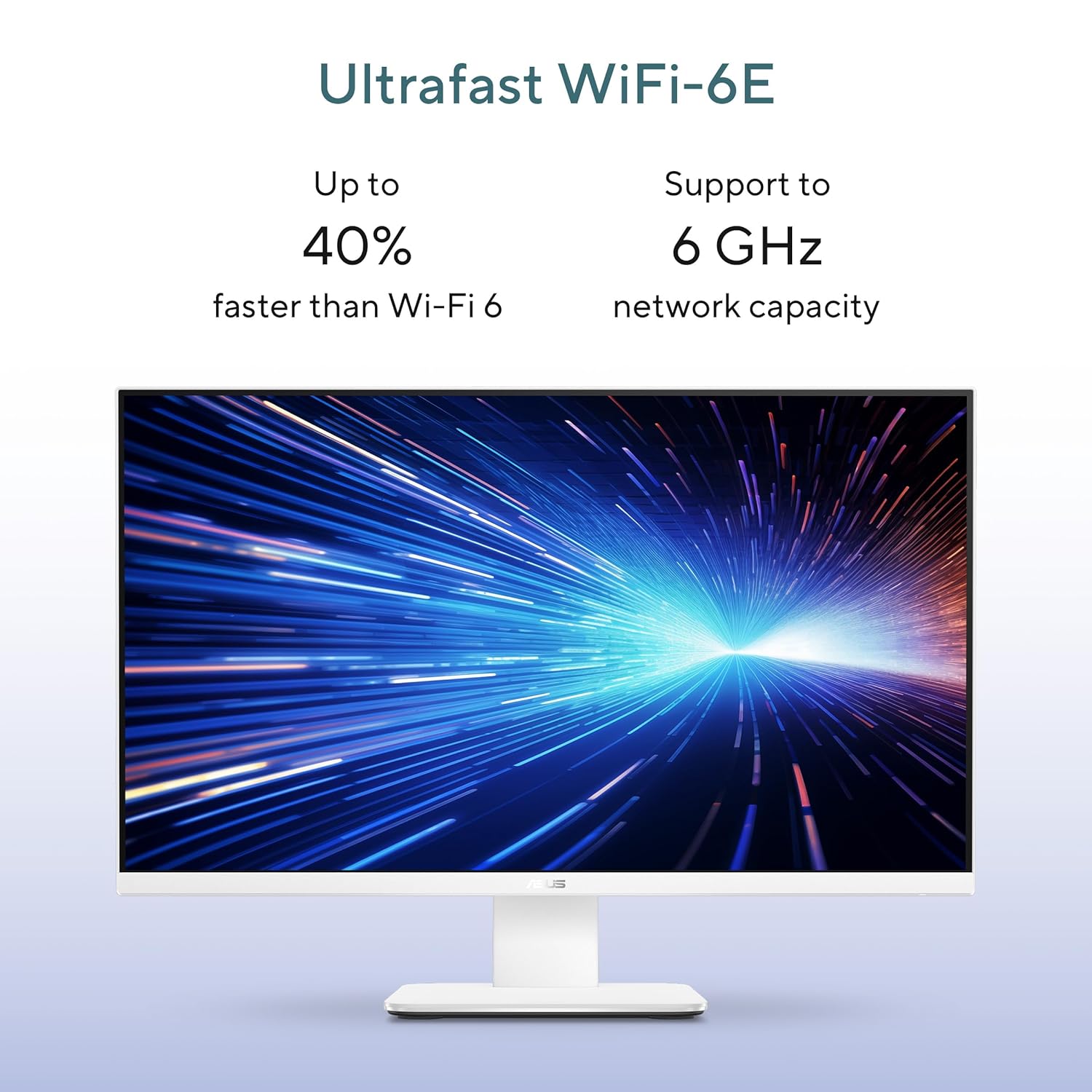
Image: Ultrafast Wi-Fi 6E for high-speed wireless connectivity.
- Wi-Fi 7: 高速ワイヤレスインターネットアクセス用。
- ギガビットイーサネット: 安定した高速な有線ネットワーク接続を実現します。
- ブルートゥース: For connecting wireless peripherals like headphones and speakers.
6. メンテナンス
Proper maintenance ensures the longevity and optimal performance of your ASUS AiO V470 PC.
- ディスプレイの掃除: 電子機器用に特別に設計された、柔らかく糸くずの出ない布を使用してください。Damp布に水かスクリーンクリーナーを少し含ませ、優しく拭いてください。刺激の強い化学薬品は使用しないでください。
- シャーシのクリーニング: Use a soft, dry cloth to wipe down the exterior. For stubborn marks, a slightly damp 布で拭いた後、乾いた布で拭いてください。
- 換気: Ensure that the ventilation openings are not blocked to prevent overheating. Regularly check for dust accumulation and gently clean with compressed air if necessary.
- ソフトウェアアップデート: セキュリティとパフォーマンスを確保するために、オペレーティング システムとドライバーを最新の状態に保ってください。
- データのバックアップ: 重要なデータを定期的に外付けドライブまたはクラウド ストレージにバックアップします。
7。 トラブルシューティング
このセクションでは、発生する可能性のある一般的な問題について説明します。
7.1 電源なし
- 電源アダプタが PC と壁のコンセントにしっかりと接続されていることを確認します。
- 別のデバイスを接続して、壁のコンセントが機能していることを確認します。
- 電源アダプターに目に見える損傷がないか確認してください。
7.2 表示の問題
- 画面が空白の場合は、PC の電源がオンになっており、スリープ モードになっていないことを確認してください。
- If using an external video source via HDMI In, ensure the correct input is selected (refer to your PC's on-screen display settings).
- Adjust brightness settings in Windows.
7.3 周辺機器が応答しない
- For wireless keyboard/mouse, check battery levels and ensure they are within range.
- For wired devices, ensure they are properly connected to the correct USB ports.
- 周辺機器を別の USB ポートに接続してみてください。
8. 仕様
Detailed technical specifications for your ASUS AiO V470 PC.

Image: Key performance specifications including processor, memory, and storage.
| 特徴 | 仕様 |
|---|---|
| プロセッサ | Intel Core i5-13420H (2.1 GHz, up to 4.6 GHz, 8 cores, 12 threads, 12MB Cache) |
| オペレーティング·システム | Windows 11 ホーム |
| 画面 | 27.0-inch FHD (1920 x 1080), 16:9, 300nits, 100Hz, Anti-glare, TÜV Rheinland-certified Eye Care |
| グラフィックス | 統合型 Intel UHD グラフィックス |
| メモリ | 16GB DDR5 メモリ |
| ストレージ | 1TB M.2 NVMe PCIe 4.0 SSD |
| カメラ | Retractable 1080p HD Camera |
| オーディオ | 5W x 2 Speakers, AI Noise Cancellation, Dolby Atmos |
| ワイヤレス接続 | Wi-Fi 7、Bluetooth |
| 有線接続 | RJ45ギガビットイーサネット |
| I/O ポート | 1x USB 2.0 Type-A, 3x USB 3.2 Gen 1 Type-A, 1x USB 3.2 Gen 1 Type-C, 1x HDMI In 1.4, 1x HDMI Out 1.4, 1x 3.5mm Combo Audio Jack, 1x DC-in, 1x Kensington Lock Slot |
| 寸法(幅×奥行き×高さ) | 61.3 x 1.7 x 44.7 cm |
| 重さ | 9キログラム |
| 付属周辺機器 | Wireless Keyboard, Wireless Mouse |
9. 保証とサポート
Your ASUS AiO V470 PC comes with comprehensive warranty and support services.

Image: ASUS 4A Guarantee and support contact details.
9.1 保証情報
This genuine ASUS AiO PC includes a 1-year Global Warranty そして Onsite Domestic Warranty from ASUS. The warranty covers manufacturing defects and does not cover physical damage. To activate your warranty, please register your product on the official ASUS webサイト。
9.2 カスタマーサポート
For product-related queries or immediate assistance, please contact ASUS support:
- フリーダイヤル番号: 1800-2090365 (Monday - Saturday, 09:00 AM - 06:00 PM)
- メールアドレス: rc_india@asus.com
- Service Center Information: ASUSサポートにアクセスしてください website for an extensive network of over 180 service centers across India: https://www.asus.com/in/support/Service-Center/India


