
導入
This manual provides comprehensive instructions for the setup, operation, maintenance, and troubleshooting of your KOORUI GN10 27-inch QHD 240Hz Mini-LED Gaming Monitor. Please read this manual thoroughly before using the product to ensure proper functionality and to prevent damage.
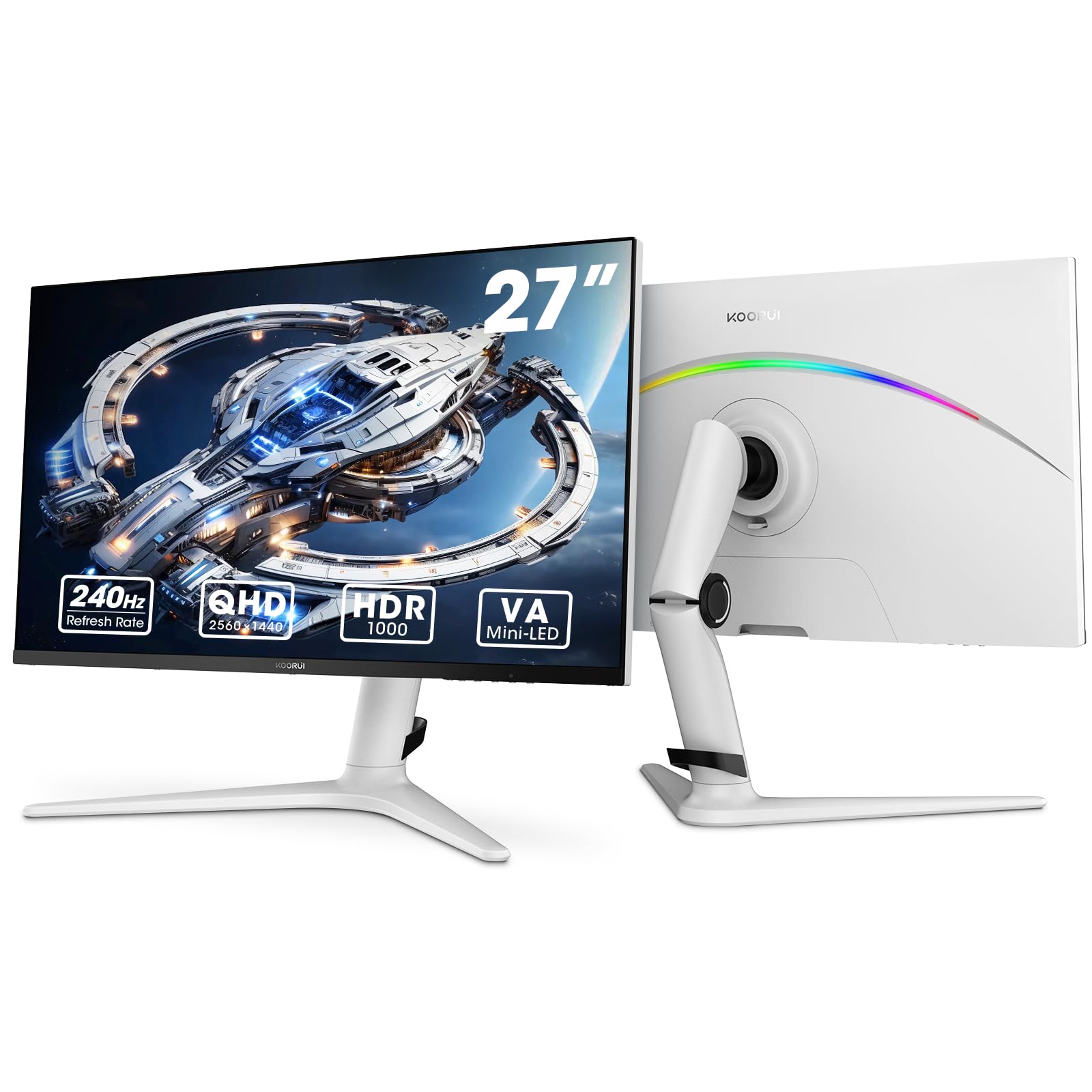
Figure 1: KOORUI GN10 27-inch QHD 240Hz Mini-LED Gaming Monitor.
1. セットアップ
1.1 開梱とパッケージの内容
すべての部品をパッケージから慎重に取り出してください。以下のすべての部品が揃っていることを確認してください。
- KOORUI GN10 Monitor
- モニタースタンド(ベースとアーム)
- 電源ケーブル
- HDMIケーブル(2本)
- ディスプレイポート(DP)ケーブル
- ユーザーマニュアル(このドキュメント)
1.2 スタンドの組み立て
モニタースタンドを組み立てるには、次の手順に従います。
- Attach the stand arm to the monitor panel. Ensure it clicks securely into place or is fastened with screws if provided.
- Connect the stand base to the stand arm. Tighten any screws to secure the base.
- 組み立てたモニターを安定した平らな面に置きます。

Figure 2: Monitor stand showing height, tilt, swivel, and pivot adjustments.
The ergonomic stand allows for height, tilt, swivel, and pivot adjustments to optimize your view角度。

図 3: 配置計画のためのモニターの寸法。
1.3 デバイスへの接続
The monitor supports multiple input sources. Connect your computer or gaming console using the provided cables.
- ディスプレイポート (DP): For optimal performance, especially at 240Hz refresh rate and QHD resolution, use the DisplayPort cable.
- HDMI: Two HDMI 2.0 ports are available for connecting other devices such as gaming consoles (PS5, Xbox, Switch) or additional computers.
- オーディオ出力: 外部スピーカーまたはヘッドフォンを 3.5 mm オーディオ出力ジャックに接続します。

図4:背面 view of the monitor showing available ports (Audio Out, DP 1.4, HDMI 2.0 x2) and VESA mount points.
1.4初期電源オン
- 電源ケーブルをモニターに接続し、次に電源コンセントに接続します。
- Press the power button, usually located on the back or bottom of the monitor, to turn it on.
- The monitor will automatically detect the input source. If not, use the OSD menu to select the correct input.
2. 操作手順
2.1 オンスクリーンディスプレイ(OSD)メニュー
The OSD menu allows you to adjust various monitor settings. Access the OSD menu using the joystick or buttons typically located on the back or bottom of the monitor.
一般的な OSD メニュー オプションは次のとおりです。
- 画像設定: 明るさ、コントラスト、シャープネス、ガンマ。
- 色の設定: Color Temperature, Hue, Saturation, Color Space (sRGB, DCI-P3).
- 入力選択: DisplayPort と HDMI 入力を手動で切り替えます。
- オーディオ: オーディオ出力の音量コントロール。
- ゲームの特徴: Adaptive Sync, Response Time (Overdrive), Game Modes.
- OSD設定: 言語、OSD タイムアウト、透明性。
2.2 表示設定
The KOORUI GN10 monitor offers advanced display features for an enhanced visual experience.
- 解決: The native resolution is QHD (2560 x 1440). Ensure your connected device is set to this resolution for optimal clarity.
- リフレッシュレート: Supports up to 240Hz. Configure your graphics card settings to utilize this high refresh rate for smoother motion.
- 応答時間: Features a 1ms (GtG) response time, reducing motion blur and ghosting in fast-paced content.
- HDR1000: High Dynamic Range 1000 provides superior contrast and color depth. Enable HDR in your operating system and monitor settings for compatible content.

Figure 5: Visual comparison illustrating the enhanced contrast and detail with HDR 1000 enabled.

Figure 6: Comparison of QHD (2560x1440) and FHD (1920x1080) resolutions, highlighting increased detail with QHD.
2.3 ゲーム機能
このモニターには、ゲーム体験を向上させるために設計された機能が搭載されています。
- Adaptive Sync (G-Sync Compatible): Synchronizes the monitor's refresh rate with your GPU's frame rate to eliminate screen tearing and stuttering. Ensure this feature is enabled in both the monitor OSD and your graphics card control panel.
- Game Display Modes: Access specific on-screen overlays via the OSD menu, such as:
- クロスヘア: 画面上に十字線を表示して、照準精度を向上させます。
- タイマー: Displays a countdown timer.
- FPSカウンター: Shows your current frames per second.
- RTS Counter: A specific counter for Real-Time Strategy games.

Figure 7: Illustration of various exclusive game display modes and Adaptive Sync functionality.

Figure 8: Visual representation of smooth gaming experience with 240Hz refresh rate and 1ms response time.
2.4 RGB照明
The monitor features a crescent RGB light strip on the back. This lighting can be customized through the OSD menu to match your preference or gaming setup.

図9:背面 view of the monitor highlighting the customizable RGB light strip.
3. メンテナンス
3.1 モニターの掃除
モニターの外観とパフォーマンスを維持するには、次のクリーニングガイドラインに従ってください。
- 清掃する前に必ずモニターの電源をオフにし、電源ケーブルを抜いてください。
- 柔らかく糸くずの出ない布で軽く拭き取ってください。amp水または非研磨性のスクリーンクリーナーで拭いてください。
- クリーナーを画面に直接スプレーしないでください。まず布にクリーナーを塗布してください。
- アルコール、アンモニア、研磨剤入りの洗剤は画面の表面を傷つける恐れがあるので使用しないでください。
- 画面を軽く拭いてほこりや汚れを取り除きます。
- モニターを清掃するasin柔らかく乾いた布で拭いてください。
3.2一般的なケア
- モニターやそのケーブルの上に重い物を置かないでください。
- モニターを直射日光、高温、極度の寒さにさらさないでください。
- Keep the monitor away from liquids and high humidity environments.
- 過熱を防ぐために、モニターの周囲に十分な換気を確保してください。
4。 トラブルシューティング
モニターに問題が発生した場合は、次の一般的な問題と解決策を参照してください。
| 問題 | 考えられる原因 | 解決 |
|---|---|---|
| 画面に画像がありません |
|
|
| ちらつきや歪んだ画像 |
|
|
| オーディオ出力から音が出ない |
|
|
| アダプティブシンクが機能しない |
|
|
これらの解決策を試しても問題が解決しない場合は、カスタマー サポートにお問い合わせください。
5. 仕様
| 特徴 | 詳細 |
|---|---|
| ブランド | クールイ |
| モデル番号 | GN10 |
| 画面サイズ | 27インチ |
| 解決 | QHDワイド1440p(2560×1440) |
| アスペクト比 | 16:9 |
| スクリーン表面 | マット |
| コントラスト比 | 20,000,000:1 |
| リフレッシュレート | 240Hz |
| ディスプレイ技術 | ミニLED |
| View角度 | 178度 |
| 輝度 | 350カンデラ |
| 色域 | 100% sRGB、95% DCI-P3 |
| 応答時間 | 1ミリ秒(GtG) |
| HDMIポート | 2(HDMI 2.0) |
| ディスプレイポート | 1(DP1.4) |
| オーディオ出力 | はい |
| アダプティブ同期 | G-Sync対応 |
| 追加機能 | Flicker-Free, Frameless, Height Adjustable, Tilt Adjustable, Swivel Adjustable, Rotatable |
| 色 | ホワイト/グレー |
| 取り付けタイプ | Desk Mount, VESA 75x75mm compatible |
6. 保証とサポート
6.1 保証情報
The KOORUI GN10 monitor comes with a 3年間の限定保証. The display screen is backed for 1 year, and other accessories for 3 years. A 12-month replacement service is also provided for eligible issues.
この保証は、通常の使用における製造上の欠陥および故障を対象としています。誤用、事故、不正な改造、または外的要因による損傷は保証の対象外となります。
6.2 カスタマーサポート
For technical assistance, warranty claims, or inquiries regarding missing accessories, please contact KOORUI customer support. Have your product model (GN10) and purchase information ready when contacting support.
Contact information can typically be found on the KOORUI official webサイトまたは小売店のサポート チャネルを通じて入手できます。
7. 製品ビデオデモンストレーション
ビデオ1: 公式製品ビデオショーasing the KOORUI GN10 Gaming Monitor's features and design.