
1. はじめに
This manual provides detailed instructions for the setup, operation, and maintenance of your Transformers GK01 Wireless Mechanical Keyboard. The GK01 is a versatile keyboard featuring tri-mode connectivity (Bluetooth 5.0, 2.4GHz wireless, and USB-C wired), a 101-key layout, RGB backlighting, and hot-swappable switches for a customizable typing experience.

Figure 1.1: Transformers GK01 Wireless Mechanical Keyboard.
2. パッケージ内容
以下にリストされているすべてのアイテムがパッケージに含まれていることを確認してください。
- Transformers GK01 Wireless Mechanical Keyboard
- USB-C - USB-A ケーブル
- 2.4GHzワイヤレスUSBドングル
- 2-in-1 キーキャップとスイッチプラー
- ユーザーマニュアル(このドキュメント)
- 予備スイッチ(2個)
- キーボードカバー
3. セットアップと接続
3.1. トライモード接続オーバーview
The GK01 keyboard supports three connection modes: USB-C wired, 2.4GHz wireless, and Bluetooth 5.0. You can connect to up to five devices simultaneously and switch between them seamlessly.

Figure 3.1: Tri-Mode Connection Capabilities.
3.2. USB-C有線接続
- キーボード上の USB-C ポートを見つけます。
- 付属の USB-C ケーブルの一方の端をキーボードに接続します。
- USB-C ケーブルのもう一方の端をコンピューターの使用可能な USB-A ポートに接続します。
- キーボードは自動的に認識され、使用できるようになります。
3.3. 2.4GHzワイヤレス接続
- Locate the 2.4GHz wireless USB dongle.
- ドングルをコンピューターの使用可能な USB-A ポートに差し込みます。
- On the keyboard, ensure the mode switch (usually on the side or back) is set to 2.4GHz mode.
- キーボードは自動的に接続されます。接続されない場合は、 Fn + R ペアリングを開始します。

Figure 3.2: USB-C Port and 2.4GHz Dongle Location.
3.4. Bluetooth 5.0接続
キーボードは最大 3 台の Bluetooth デバイス (BT1、BT2、BT3) への接続をサポートします。
- On the keyboard, set the mode switch to Bluetooth mode.
- 特定のBluetoothチャンネルのペアリングモードに入るには、長押しします Fn + Q (BT1の場合) Fn + W (BT2の場合)、または Fn + E (for BT3) for 3-5 seconds until the indicator light flashes rapidly.
- On your device (PC, tablet, smartphone), open Bluetooth settings and search for new devices.
- Select "Transformers GK01" from the list of available devices.
- 接続されると、キーボードのインジケーター ライトの点滅が停止します。
- ペアリングされたBluetoothデバイスを切り替えるには、 Fn + Q, Fn + W、 または Fn + E.
4. 基本操作
4.1. Keyboard Layout and Anti-Ghosting
The GK01 features a 101-key layout, providing a full set of keys including a numeric keypad. All keys are equipped with anti-ghosting technology, ensuring that every keystroke is registered accurately, even when multiple keys are pressed simultaneously.
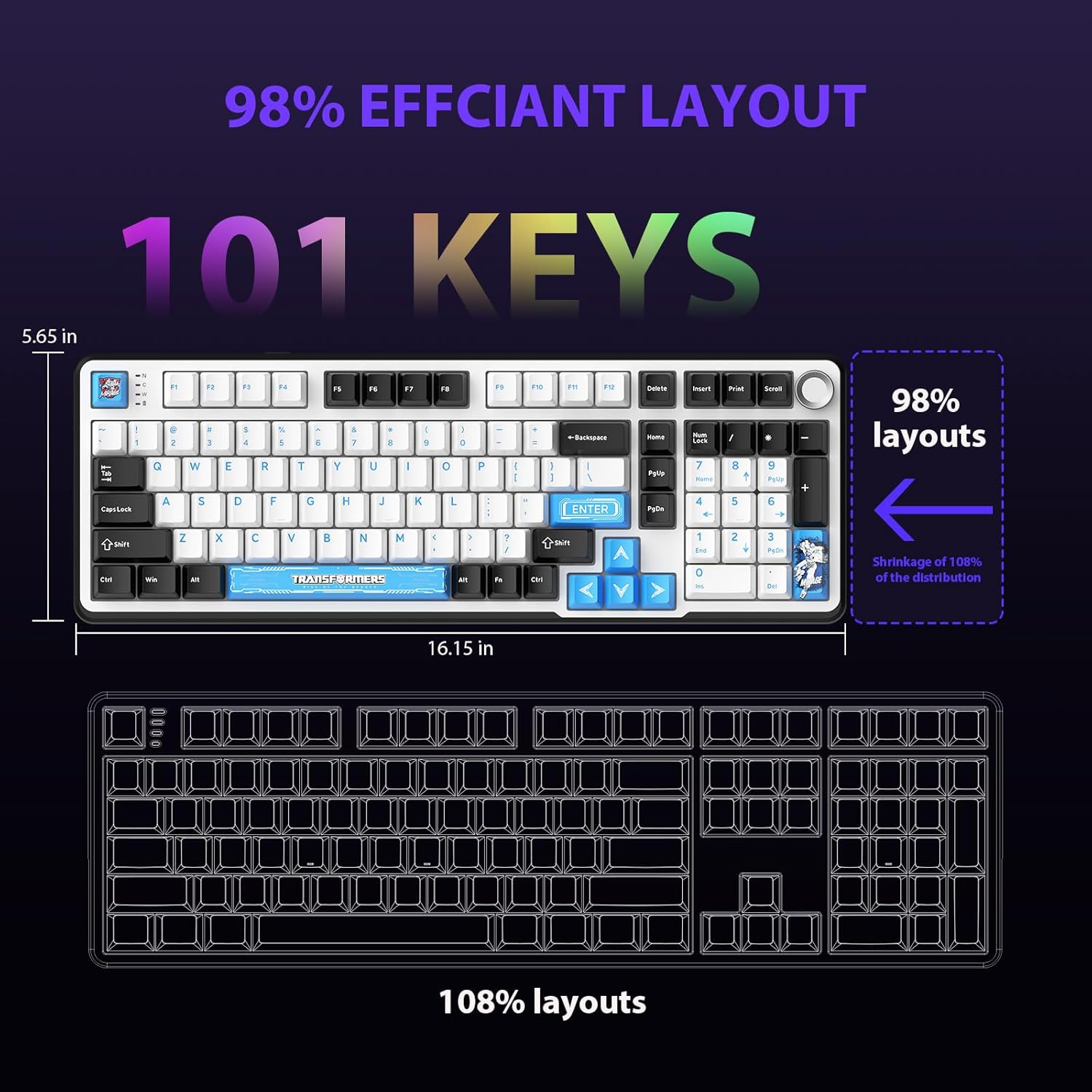
Figure 4.1: 101-Key Layout.
4.2. マルチメディアコントロールノブ
The dedicated knob located on the top right of the keyboard provides convenient multimedia control:
- 時計回りに回転: 音量を上げます。
- 反時計回りに回転: 音量を下げます。
- 押す: オーディオをミュート/ミュート解除します。
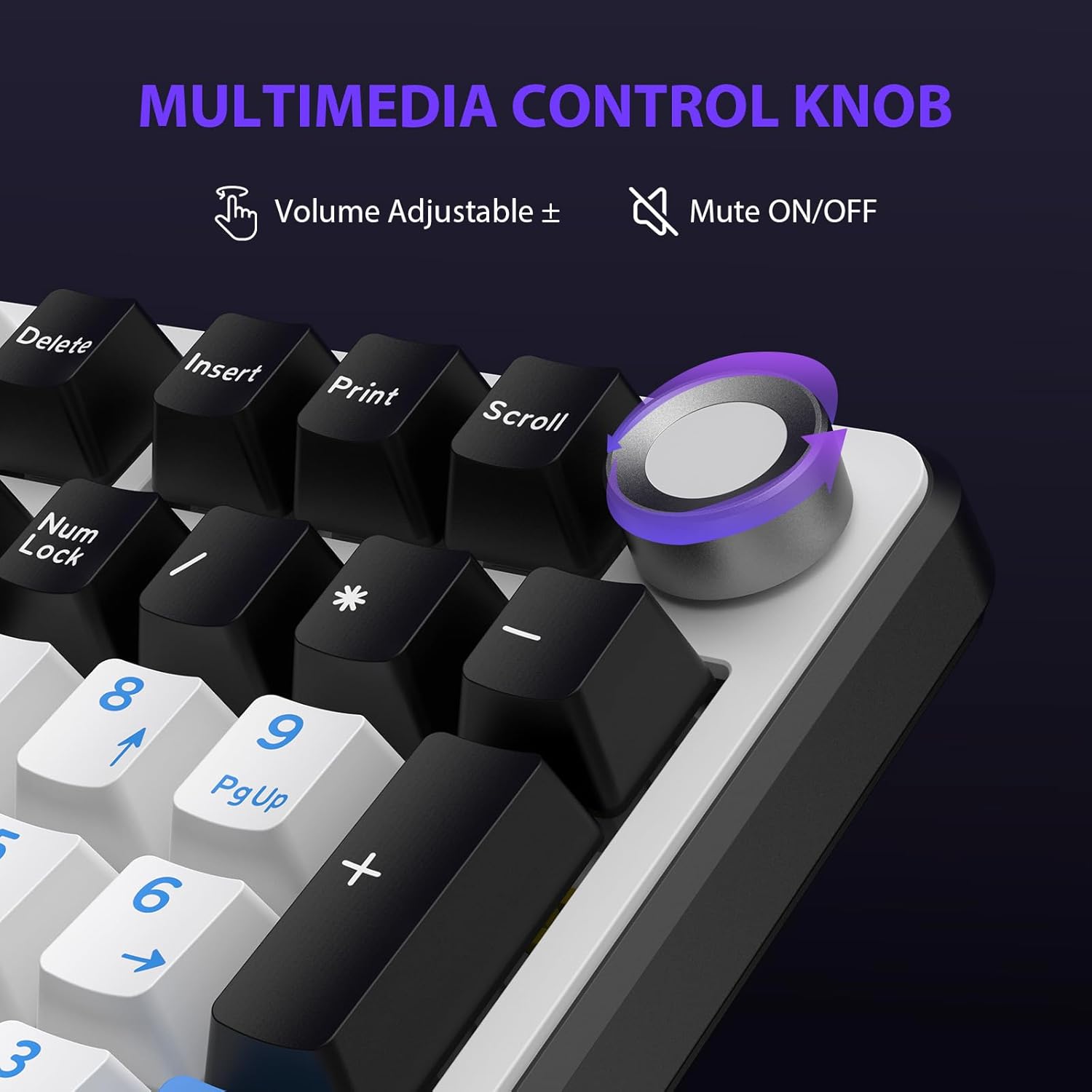
Figure 4.2: Multimedia Control Knob.
4.3. RGBバックライト制御
The GK01 keyboard features 16.8 million color RGB backlighting with various effects.
- ファンクション+ [Right Arrow]: Adjust 5 brightness levels.
- ファンクション+ [Left Arrow]: Adjust 5 speed levels for dynamic effects.
- ファンクション+ [入れる]: 20 種類のバックライト モードを切り替えます。
- ファンクション+ [入力]: Switch color order within certain modes.
- ファンクション+ [X]: Turn off light / activate power-saving mode.
- ファンクション+ [バックスペース]: Switch color order within certain modes.

Figure 4.3: RGB Backlight Controls.
5. 高度な機能
5.1. ホットスワップ可能なスイッチ
The GK01 keyboard is equipped with pre-lubricated Cybertron linear switches and supports solder-free hot-swapping. This allows you to easily replace switches with compatible 3-pin or 5-pin mechanical switches without soldering.
スイッチを交換するには:
- Using the provided 2-in-1 keycap and switch puller, gently remove the keycap from the desired switch.
- スイッチ プーラーをスイッチに挿入し、スイッチの上部と下部のクリップをしっかりとつかんでいることを確認します。
- スイッチをゆっくりとまっすぐ上に引いて PCB から取り外します。
- 新しいスイッチのピンをPCBの穴に合わせます。ピンが曲がらないように、まっすぐになっていることを確認してください。
- 新しいスイッチをカチッと音がするまでしっかりと押し込みます。
- キーキャップを再度取り付けます。

Figure 5.1: Hot-Swappable Switch Replacement.
5.2. プログラム可能なソフトウェア
The GK01 supports custom software for advanced customization, including key remapping, macro creation, and detailed RGB lighting effects.
- The software is compatible only with the Windows operating system.
- The keyboard must be connected via USB-C wired mode to use the software.
- For driver download, please visit the official Transformers Keyboard website or refer to the link provided in the product packaging.
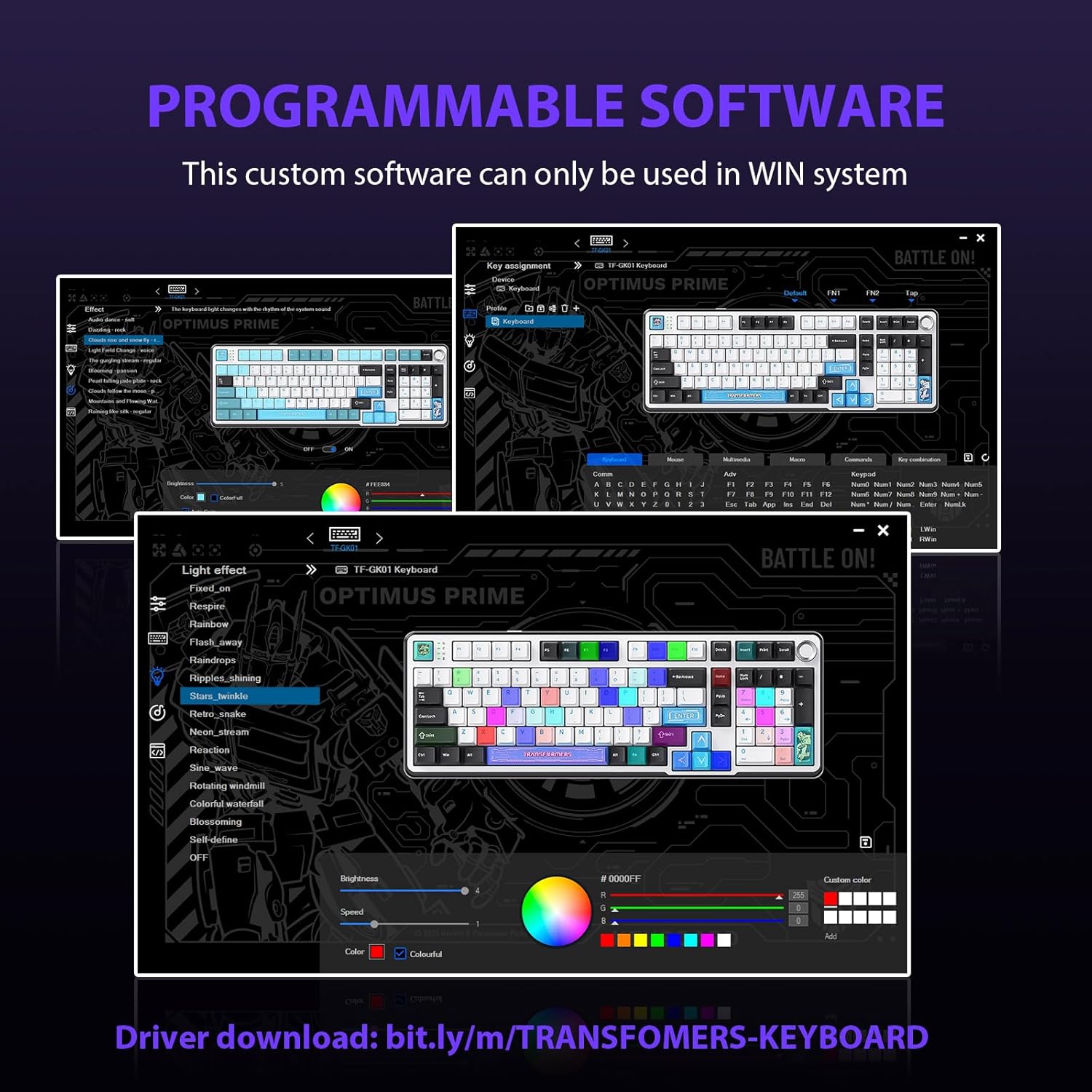
Figure 5.2: Programmable Software Interface.
5.3. ガスケットマウント構造
The keyboard features a five-layer sound-absorbing and shock-absorbing gasket mounted structure. This design effectively reduces hollow noise and provides a softer, more consistent typing feel by isolating the plate from the case.
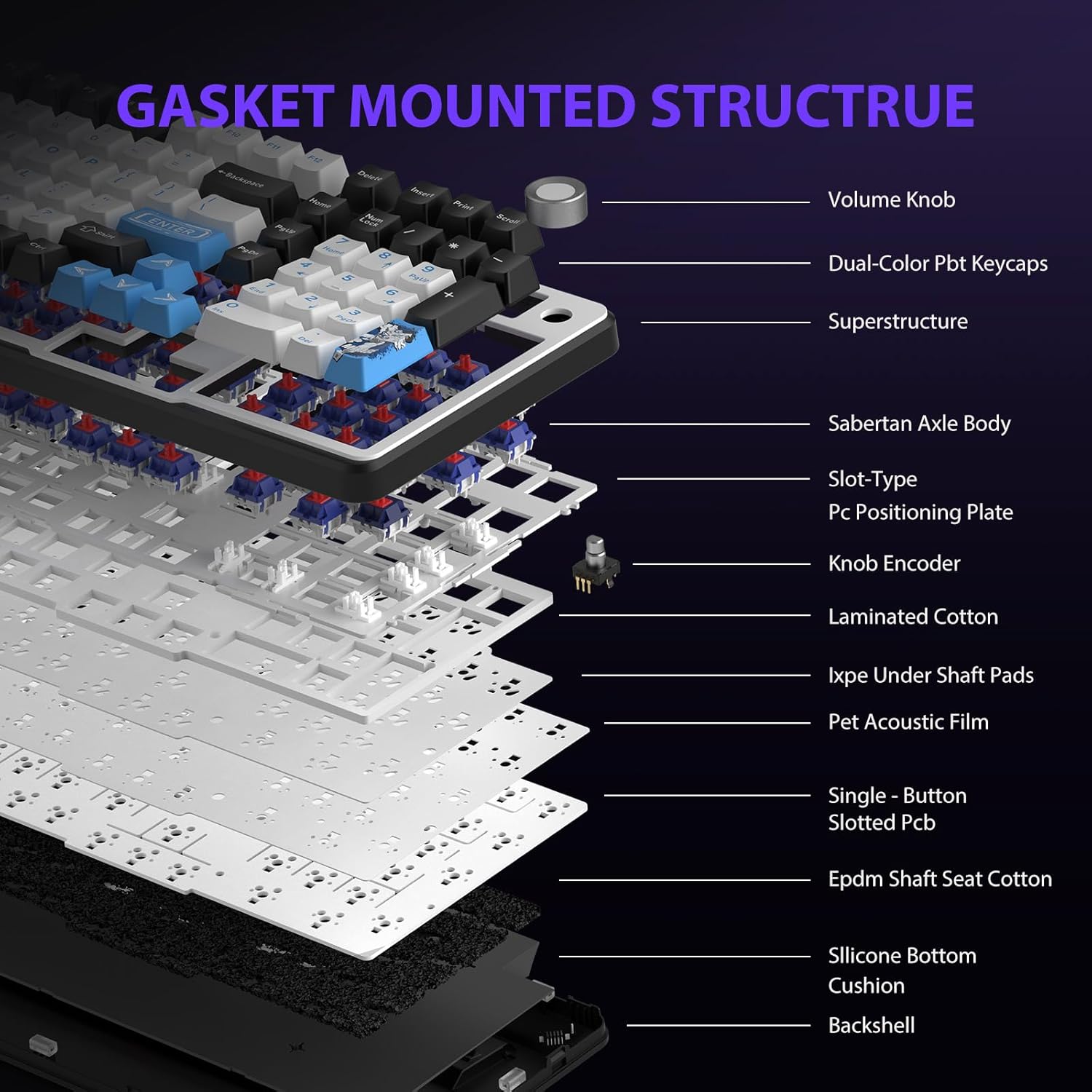
Figure 5.3: Gasket Mounted Structure Components.
6.バッテリー管理
The GK01 keyboard is equipped with a 4000mAh rechargeable battery.
- 充電: Connect the keyboard to a USB power source using the provided USB-C cable. The indicator light will show charging status.
- バッテリー寿命: A fully charged battery provides extended usage time. Actual battery life may vary based on usage patterns and RGB lighting intensity.
- 節電: The keyboard will enter a power-saving sleep mode after a period of inactivity to conserve battery. Press any key to wake it up.
7. メンテナンス
7.1. キーボードのクリーニング
- 清掃する前に、キーボードをすべての電源から外してください。
- 柔らかく糸くずの出ない布で軽く拭き取ってください。ampキーキャップとシャーシを水または中性洗浄液で拭いてください。
- キーキャップ間のほこりやゴミを取り除くには、圧縮空気または小さなブラシを使用します。
- 強力な化学薬品や研磨材の使用は避けてください。
7.2. キーキャップとスイッチのお手入れ
- The PBT keycaps are designed for durability and fade resistance.
- Refer to Section 5.1 for instructions on safely removing and replacing keycaps and switches.
- Ensure the keyboard feet are clean and free of debris for stable placement.

Figure 7.1: Adjustable Keyboard Feet.
8。 トラブルシューティング
| 問題 | 考えられる原因 | 解決 |
|---|---|---|
| ワイヤレスモードではキーボードが応答しません。 | バッテリー残量が少ない、選択したモードが間違っている、ドングルが接続されていない、Bluetooth がペアリングされていない。 | Charge the keyboard. Ensure the mode switch is set correctly (2.4GHz or BT). Re-insert the 2.4GHz dongle. Re-pair Bluetooth connection. Try wired mode to confirm keyboard functionality. |
| キーが登録されない、または二重入力される。 | Loose switch, software issue, debris under keycap. | Ensure switches are fully seated. Clean under keycaps. If using programmable software, ensure it's updated or try resetting keyboard settings. |
| RGB バックライトが機能しない、または点灯しません。 | バックライトがオフになっています。ソフトウェアの競合が発生しています。 | プレス Fn + X to toggle backlight. Check programmable software settings. |
| Bluetooth経由で接続できません。 | キーボードがペアリングモードになっていない、デバイスの Bluetooth がオフになっている、干渉が発生している。 | Ensure keyboard is in Bluetooth pairing mode (Fn + Q/W/E long press). Ensure device Bluetooth is on and discoverable. Move closer to the device. |
9. 仕様
| 特徴 | 詳細 |
|---|---|
| モデル番号 | TF-GK01 |
| 接続性 | Bluetooth 5.0、2.4GHzワイヤレス、USB-C有線 |
| キーボードタイプ | 機械 |
| レイアウト | 101鍵(フルサイズ) |
| スイッチ | Pre-lubed Cybertron Linear Switches, Hot-Swappable (3-pin/5-pin compatible) |
| キーキャップ | Heat-sublimated PBT |
| バックライト | RGB (16.8 Million Colors, 20 modes, music rhythm effects via driver) |
| バッテリー容量 | 4000mAh |
| 製品寸法 | 16.15 x 5.65 x 1.63 インチ (41.02 x 14.35 x 4.14 cm) |
| アイテム重量 | 2.24ポンド(1.02kg) |
| 対応デバイス | ノートパソコン、PC、スマートフォン、タブレット |
| 特集 | Anti-Ghosting (all keys), Multimedia Control Knob, Programmable Keys (via software), Rechargeable |
10. 保証とサポート
For information regarding warranty coverage, technical support, or service inquiries, please refer to the warranty card included with your product or visit the official Transformers Keyboard webサイト。
メーカー: トランスフォーマー