
Baseus Spacemate RD1 11-in-1(WIN)
Baseus Laptop Docking Station User Manual
Model: Spacemate RD1 11-in-1 (WIN)
製品終了view
The Baseus 11-in-1 Triple 4K Display HDMI/DP Docking Station is designed to expand your laptop's connectivity and enhance productivity. It offers a comprehensive set of ports for various peripherals, multiple display outputs, fast data transfer, and power delivery.

Image: Baseus 11-in-1 Docking Station with included 100W GaN power adapter.
主な特徴:
- High-Spec 11-in-1 Expansion: Includes 2 HDMI ports, 2 DisplayPorts, 1 USB-C and 2 USB-A 10Gbps data ports, an additional USB-A 2.0 port, 100W USB-C PD input, Gigabit Ethernet, and a 3.5mm AUX jack.
- Efficient Triple Display for Windows: Supports up to 3 monitors in 4K resolution via HDMI and DisplayPort. Note: macOS supports only one extended display by default.
- 100W PD急速充電: Provides up to 85W power output to your laptop via the 100W PD port, with a high-quality 100W GaN power adapter included.
- 超高速10Gbpsデータ転送: Equipped with USB 3.2 Gen 2 ports (1 USB-C and 2 USB-A) for rapid data transfer speeds.
- Innovative Upright Design with Screen-Lock: Sleek aluminum finish, vertical stand with magnetic base, and an 80cm cable. Features a built-in LED screen for port status and a screen-lock button for privacy.
セットアップガイド
パッケージ内容:
- Baseus 11-in-1 Docking Station
- 100W GaN 電源アダプター
- USB-C to USB-C Cable (80cm)
- ユーザーマニュアル(このドキュメント)
初期接続:
- 接続電源: Plug the included 100W GaN power adapter into a wall outlet, then connect its USB-C cable to the 100W PD input port on the docking station. The LED screen on the docking station will illuminate.
- ラップトップに接続: Use the provided USB-C to USB-C cable to connect your laptop's USB-C port (which supports video output and power delivery) to the designated USB-C input port on the docking station.
- ドライバーをインストールします (必要な場合)。 For optimal performance, especially with multi-display setups on Windows, ensure your laptop's graphics drivers are up to date. In most cases, the docking station is plug-and-play.

画像: 詳細 view of the 11-in-1 expansion ports on the Baseus docking station.
操作手順
Connecting External Displays:
The docking station supports multiple display configurations. Connect your monitors to the available HDMI and DisplayPort outputs.
- Windows システム: Supports triple display output (HDMI1+HDMI2+DP, or DP1+DP2+HDMI) for extended desktop functionality. You can extend your desktop across up to three external monitors at 4K resolution.
- macOS システム: Due to macOS limitations, only one extended display is supported. Other connected monitors will mirror the content of the extended display.

画像: Example of a triple display setup for Windows users, showcasing efficient multitasking.

Image: Comparison of triple display capabilities on Windows (extended) versus macOS (mirrored).
Data Transfer and Peripherals:
- USBデータポート: Utilize the USB 3.2 Gen 2 (1 USB-C, 2 USB-A) and USB-A 2.0 ports for connecting external hard drives, USB drives, keyboards, mice, and other peripherals. The 10Gbps ports enable fast data transfer.
- ギガビットイーサネット: Connect an Ethernet cable to the Gigabit Ethernet port for a stable and high-speed wired network connection.
- オーディオジャック: Use the 3.5mm AUX jack to connect headphones, speakers, or microphones.
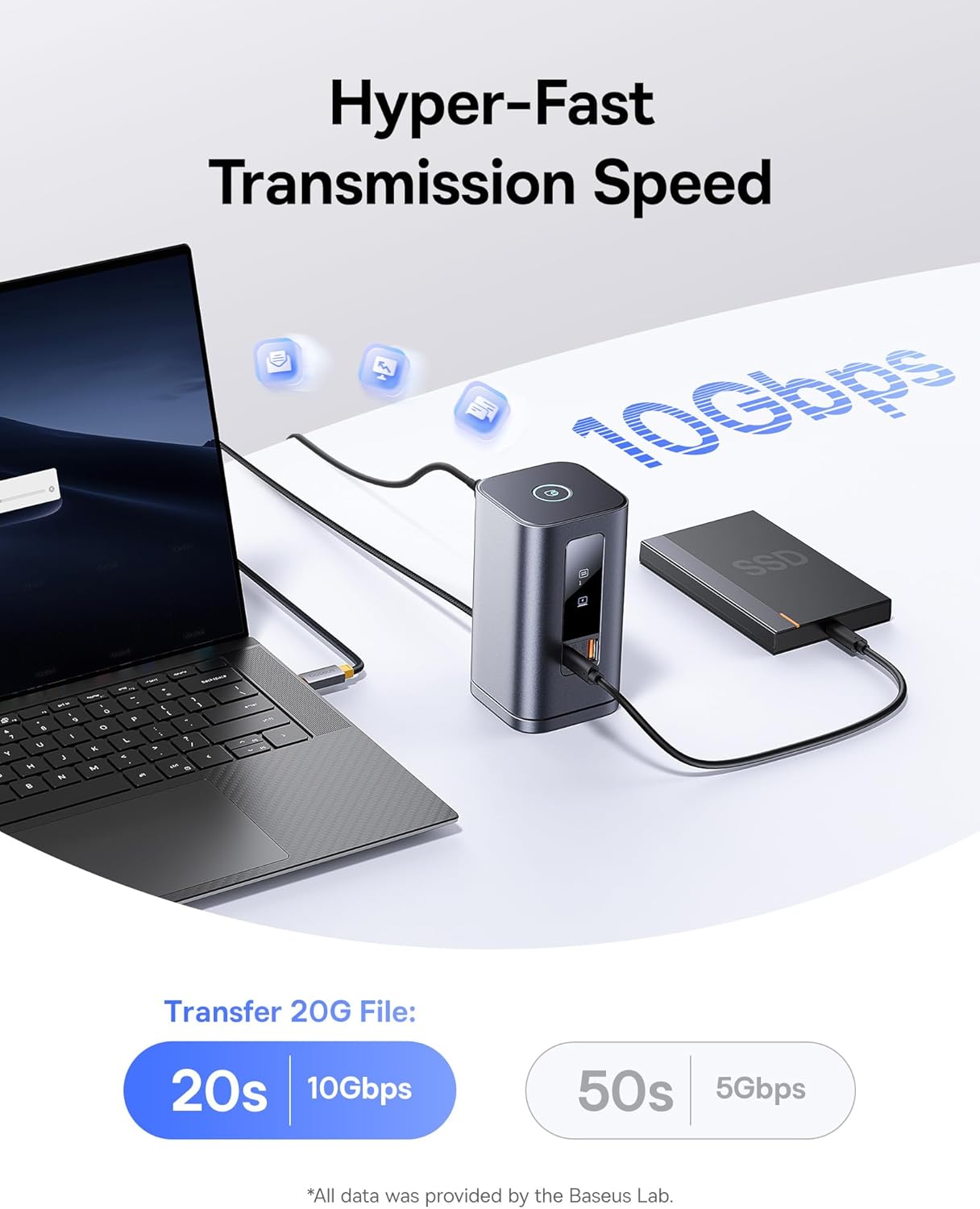
Image: Demonstrates the hyper-fast 10Gbps data transmission speed for large file 転送。
電力供給:
The 100W PD input port not only powers the docking station but also provides up to 85W pass-through charging to your connected laptop, ensuring your device remains charged during use.

Image: Illustrates the fast charging capability for laptops via the 100W Power Delivery port.
画面ロック機能:
The docking station features a convenient screen-lock button on top. Press it once for Windows systems or twice for macOS to instantly lock your screen, protecting your privacy.
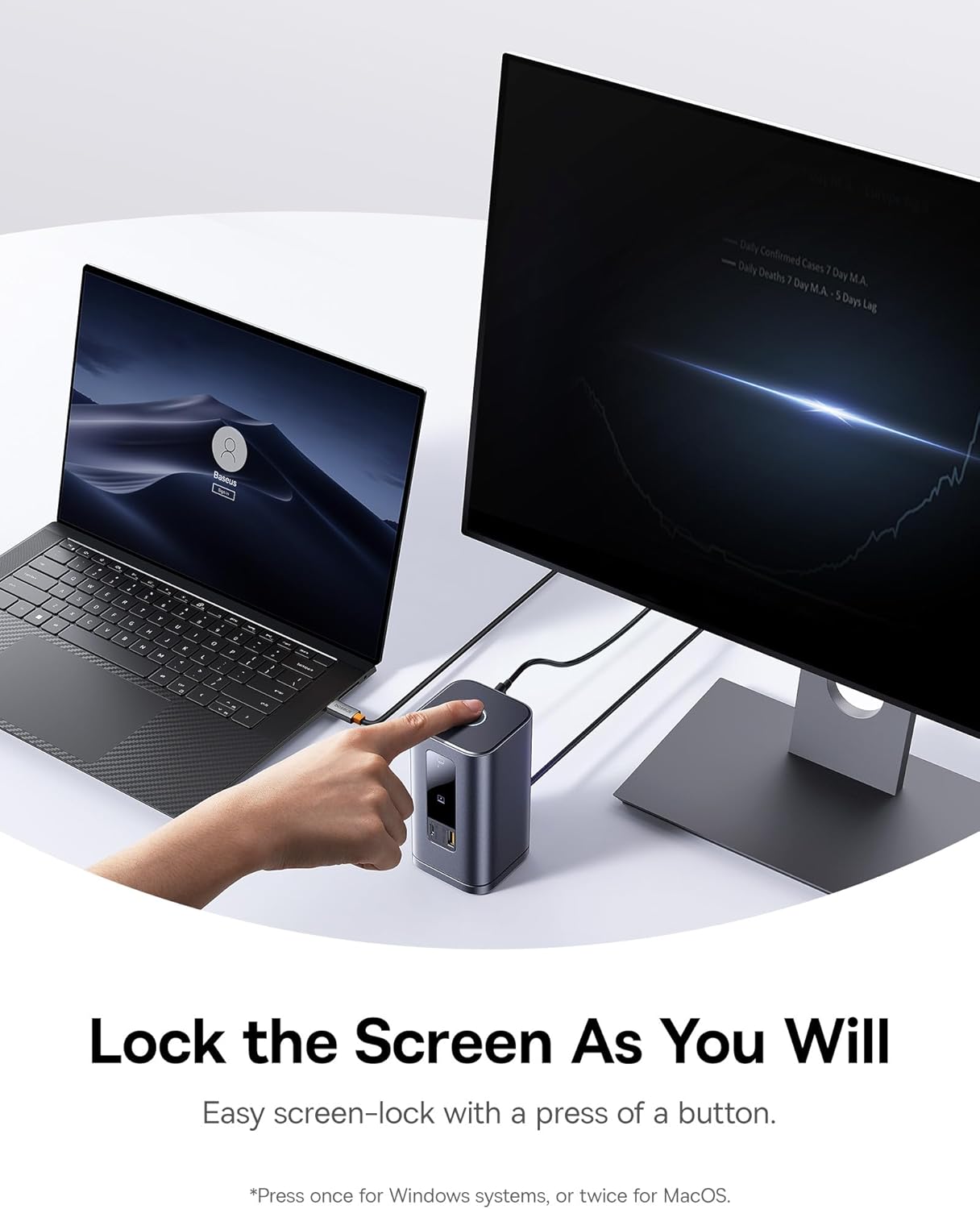
Image: Demonstrates the screen-lock button for quick privacy protection.
LEDデジタルディスプレイ:
The built-in LED screen provides real-time status of connected ports, indicating which ports are actively in use.

Image: Close-up of the smart digital display showing the operation info of each port.
メンテナンス
- クリーニング: Use a soft, dry cloth to wipe the surface of the docking station. Avoid using liquid cleaners or aerosols.
- ストレージ: ドッキング ステーションは、直射日光や極端な温度を避け、涼しく乾燥した場所に保管してください。
- 取り外し可能なベース: The gel pad on the detachable base can be cleaned with water and reused if it loses its stickiness. Ensure it is dry before reattaching.
トラブルシューティング
- HDMI 画面投影の問題: モニター/テレビで適切なHDMI信号ソース(例:HDMI 1または2)を選択してください。具体的な手順については、モニターのマニュアルを参照してください。
- Reminder About Heating: 動作中の発熱は正常です。ドッキングステーションの内蔵チップと複数のインターフェースから熱が発生しますが、金属シェルが効果的に放熱することで過熱を防ぎ、安定性を維持します。
- Mac のマルチスクリーンの制限: Mac computers do not support Multi-Stream Transport (MST) due to the Apple OS system's lack of multi-screen display functionality. Only one extended display is supported; others will mirror.
- 複数のハードドライブでのデータ転送の問題: ドッキング ステーションが完全にロードされている場合、または複数の高出力ハード ドライブに接続されている場合は、電源の問題を回避するために 100W PD 充電器を接続します。
- インジケーターライトを消す方法: 上部のボタンを長押しすると、フロントのインジケーター ライトが消灯します。
- サードパーティ製充電器を使用した場合の DELL コンピュータの電源警告: 一部のDELL PDプロトコルは独自のものであり、低容量の原因となっている。tage charging reminders with third-party chargers. This does not affect normal charging.
仕様
| 特徴 | 詳細 |
|---|---|
| ブランド | ベースス |
| モデル番号 | Spacemate RD1 11-in-1 (WIN) |
| 製品寸法 | 6.61 x 2.76 x 9.53インチ |
| アイテム重量 | 2.23ポンド |
| 色 | グレー |
| ポート数 | 11 |
| ハードウェアインターフェイス | Ethernet, HDMI, MicroSD, USB 2.0, USB 3.1 Type A, USB 3.1 Type C |
| 合計HDMIポート | 2 |
| USBポート合計 | 4 (1 USB-C 10Gbps, 2 USB-A 10Gbps, 1 USB-A 480Mbps) |
| 電力供給 | 100W PD Input (up to 85W output to laptop) |
| 対応デバイス | Windows/Dell/HP/Lenovo/Asus/Acer/Mac laptops, iPhone 15 Series, Samsung Galaxy S/Note series, ASUS ROG Ally / Steam Deck. (Note: macOS supports only one extended display) |
| 欧州連合 | 810196181885 |
保証とサポート
保証情報と技術サポートについては、Baseusの公式ウェブサイトをご覧ください。 web公式サイトをご覧いただくか、カスタマーサービスに直接お問い合わせください。保証請求のために購入時のレシートを保管してください。
オンラインリソース:
- Baseus公式 Webサイト: www.baseus.com
- 製品サポートページ: (公式 web特定の製品のサポートページについては、サイトをご覧ください。
Ask a question about this manual
Ask about setup, troubleshooting, compatibility, parts, safety, or missing instructions. Manuals+ will review the question and use this page’s manual context to help answer it.