
導入
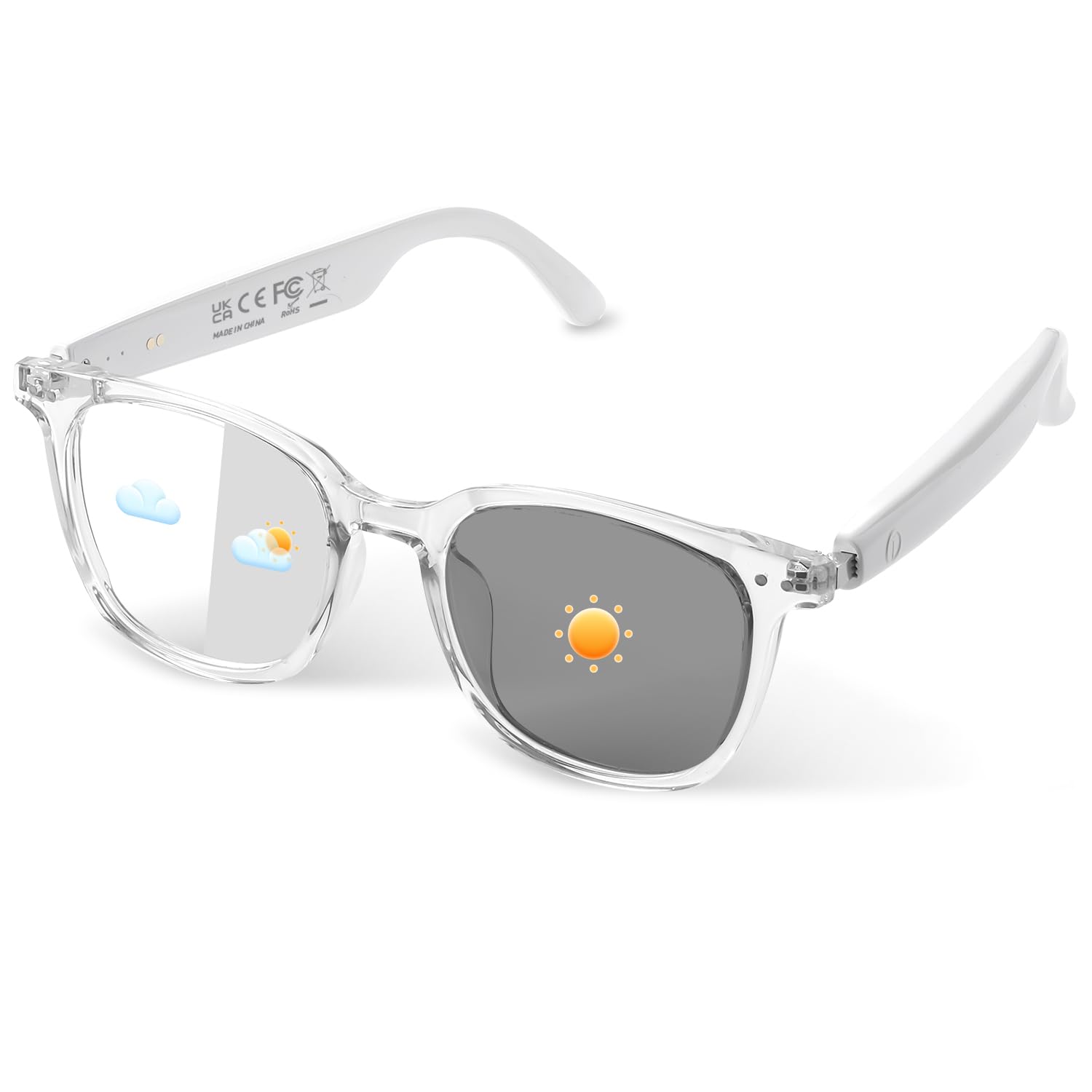
This manual provides detailed instructions for the setup, operation, maintenance, and troubleshooting of your padom GS07 Normal Version Smart Glasses. These smart glasses feature open-ear Bluetooth audio, photochromic lenses that adapt to light conditions, anti-blue light filtering, touch controls, and voice assistant compatibility.
パッケージ内容
パッケージを開封したら、以下のアイテムがすべて含まれていることを確認してください。
- Audio Bluetooth Glasses (padom GS07 Normal Version Smart Glasses)
- 磁気充電ケーブル
- ユーザーマニュアル
- クイックスタートガイド
- メガネケース
- クリーニングクロス
- Eyeglasses Storage Bag

設定
1. メガネの充電
Before first use, fully charge your smart glasses. Use the provided magnetic charging cable. The glasses feature an efficient charging design, allowing a full charge in approximately 1 hour, providing 4-6 hours of call or music playback.

- 安全な磁気アライメント: Ensures proper connection without exposed ports.
- Charge Status LED Indicator: Provides visual feedback on charging status.
- IPX5 Sweat-Resistant: Charging contacts are designed to resist sweat.
2.Bluetoothペアリング
The padom GS07 Smart Glasses use Bluetooth 5.4 for universal compatibility with iOS and Android devices. Once paired, the smart audio glasses will auto-reconnect when powered on.
- スマート グラスが充電され、電源がオンになっていることを確認してください。
- スマートフォンまたはその他のデバイスで Bluetooth を有効にします。
- 検索する available Bluetooth devices and select "GS07 Smart Glasses" (or similar name) from the list.
- デバイスでペアリングを確認します。

操作手順
基本操作
The smart glasses feature touch-sensitive areas on the temples for various functions. Perform all actions in the designated touch area on the temples.

| アクション | 関数 |
|---|---|
| Press and hold left or right simultaneously for 3 seconds | 電源オン |
| どちらかの側を5秒間押し続けます | 電源オフ |
| Press and hold for 1.5 seconds Left +, Right - | 音量調整 |
| Press and hold for 3 seconds on either touch area | 通話を拒否 |
| Touch left or right 2 times | Play or Pause Music / Answer or Reject a Call |
| Left touch 3 times | 音声アシスタントを有効にする |
| Touch right 3 times | Remote Control Shooting (requires pre-opened photo mode on phone) |
音声アシスタント
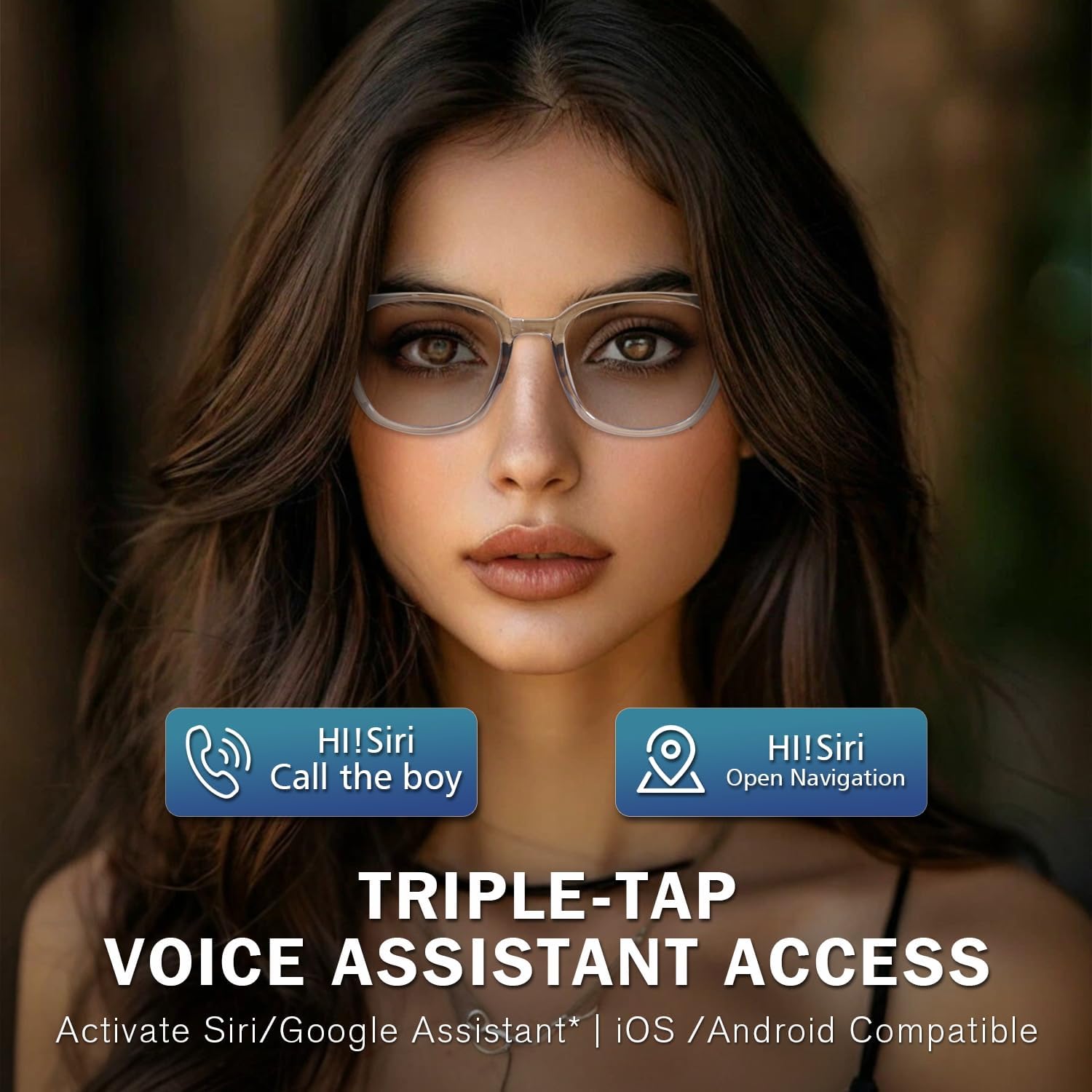
Triple-tap the left temple to activate your smartphone's voice assistant (Siri, Google Assistant, etc.). This allows for hands-free control of music, calls, and navigation.

調光レンズ
The lenses automatically change color from clear indoors to shaded outdoors, providing UV protection and glare reduction. They also filter blue light from screens when clear.

Open-Ear Audio
Experience 3D stereo sound with AAC audio decoding technology, allowing you to hear music and calls while remaining aware of your surroundings. The glasses also feature clear voice calling technology with AI-enhanced noise reduction.


リモート撮影
Tap the right temple three times to remotely trigger your phone's camera. Ensure your phone's camera app is open beforehand.

メンテナンス
耐水性
The padom GS07 Smart Glasses are IP65 water resistant, protecting against sweat, rain, and dust. This makes them suitable for workouts or light rain conditions. Avoid submerging the glasses in water.

清掃と保管
- 付属のクリーニングクロスを使用して、レンズとフレームを優しく拭いてください。
- 強力な化学薬品や研磨材の使用は避けてください。
- When not in use, store the glasses in the provided glasses case or storage bag to protect them from scratches and damage.
トラブルシューティング
よくある問題と解決策
- 電源なし:
- メガネが完全に充電されていることを確認してください。
- Press and hold both temples simultaneously for 3 seconds to power on.
- Bluetoothペアリング失敗:
- デバイスで Bluetooth が有効になっており、メガネがペアリング モードになっていることを確認します。
- メガネをデバイスに近づけます。
- Turn off and on both the glasses and your device, then try pairing again.
- 必要に応じて、デバイス上の以前の Bluetooth 接続をクリアします。
- 音が出ない、または音量が小さい:
- Check the volume level on both the glasses (long press left/right temple) and your connected device.
- メガネが Bluetooth 経由で正しく接続されていることを確認します。
- Verify that the audio output on your device is set to the smart glasses.
- Lenses Not Changing Color:
- Photochromic lenses react to UV light. Ensure you are in an environment with sufficient UV exposure (e.g., direct sunlight).
- The transition speed can vary based on temperature and UV intensity.
- Remote Photography Not Working:
- Ensure your phone's camera application is open before attempting to trigger the shutter.
- Bluetooth 接続がアクティブであることを確認します。
仕様
Key technical specifications for the padom GS07 Normal Version Smart Glasses:
| 特徴 | 詳細 |
|---|---|
| モデル名 | UF-15 smart glasses (GS07 Normal Version) |
| 商品型番 | 2025 |
| ブランド | padom |
| 接続技術 | ブルートゥース5.4 |
| 特集 | Music Player, Notifications, Alarm Clock, Photochromic Lenses, Anti-Blue Light, Touch Control, Voice Assistant, Open-Ear Speaker, Remote Photography |
| オペレーティング·システム | 独自OS |
| アイテム重量 | 27グラム(0.952オンス) |
| 電池のタイプ | 2 リチウムポリマー電池 (付属) |
| バッテリー寿命(音楽/通話) | 4~6時間 |
| 充電時間 | 約1時間 |
| 耐水性評価 | IP65 |
| レンズタイプ | Photochromic, Anti-Blue Light |
| 寸法(約) | 6.73 x 2.36 x 2.24インチ(パッケージ) |

公式製品ビデオ
Video 1: GS07 Smart Glasses Overview. This video provides a visual demonstration of the padom GS07 Smart Glasses, showcasing their design and features, including the photochromic lenses and various color options.
保証とサポート
For warranty information and customer support, please refer to the documentation included in your product packaging or visit the official padom webサイトでご確認ください。保証請求に備えて購入証明書を保管してください。
If you encounter any issues not covered in this manual, please contact padom customer service for assistance.