
YUHANUS YH-F695-P9-280
YUHANUS Face Recognition Access Control System User Manual
Model: YH-F695-P9-280
1. はじめに
This manual provides comprehensive instructions for the installation, operation, and maintenance of your YUHANUS Face Recognition Access Control System. This advanced security solution offers multiple secure entry methods, including face recognition, palm vein scanning, IC card, and PIN code, making it ideal for various applications from homes to businesses. Please read this manual thoroughly before installation and operation to ensure proper functionality and safety.
2.製品コンポーネント
The YUHANUS Face Recognition Access Control System (600lbs Lock Kit) includes the following main components:

図2.1:以上view システムコンポーネント
- Access Control Unit: The main unit featuring a 5-inch HD screen, dual wide-angle cameras, and multiple input methods.
- 600lb Magnetic Lock: A heavy-duty electromagnetic lock designed for secure door closure.
- 電源ユニット: Provides stable power to the entire access control system.
- Infrared Exit Button: A touch-free sensor for exiting the secured area.
- 外部ドアベル: For visitor notification.
- ICカード: For card-based access.
- Connecting Cables and Mounting Hardware: インストールに必須です。

アクセス制御ユニット

磁気ロック

電源ユニット

Infrared Exit Button

External Doorbell
3. セットアップとインストール
3.1 インストール前のチェックリスト
- セクション 2 に記載されているすべてのコンポーネントが存在することを確認します。
- Verify the power source meets the system requirements (AC110V-240V).
- Gather necessary tools: drill, screwdriver, wire strippers, measuring tape, pencil.
- Choose appropriate mounting locations for the access control unit, magnetic lock, power supply, and exit button. Consider door type and traffic flow.
3.2 コンポーネントの取り付け
- Access Control Unit: Mount the unit at an appropriate height for face and palm recognition (typically 4-5 feet from the ground). Ensure it is securely fastened to a wall or door frame.
- Magnetic Lock: Install the magnetic lock on the door frame and the armature plate on the door itself. Ensure proper alignment for secure locking. Refer to the magnetic lock dimensions for precise placement.

Figure 3.1: Magnetic Lock Dimensions

Figure 3.2: Magnetic Lock Installation Example
- 電源ユニット: Mount the power supply unit in a secure, dry location, preferably near a power outlet and the access control unit.

Figure 3.3: Power Supply Unit Terminals
- Infrared Exit Button: Install the exit button on the inside of the door, at a convenient height for hands-free operation.
- 外部ドアベル: Mount the doorbell unit outside the door, near the access control unit.
3.3 配線図と接続
Carefully follow the wiring diagram below to connect all components. Incorrect wiring can damage the system or pose a safety risk. If you are unsure, consult a qualified electrician.
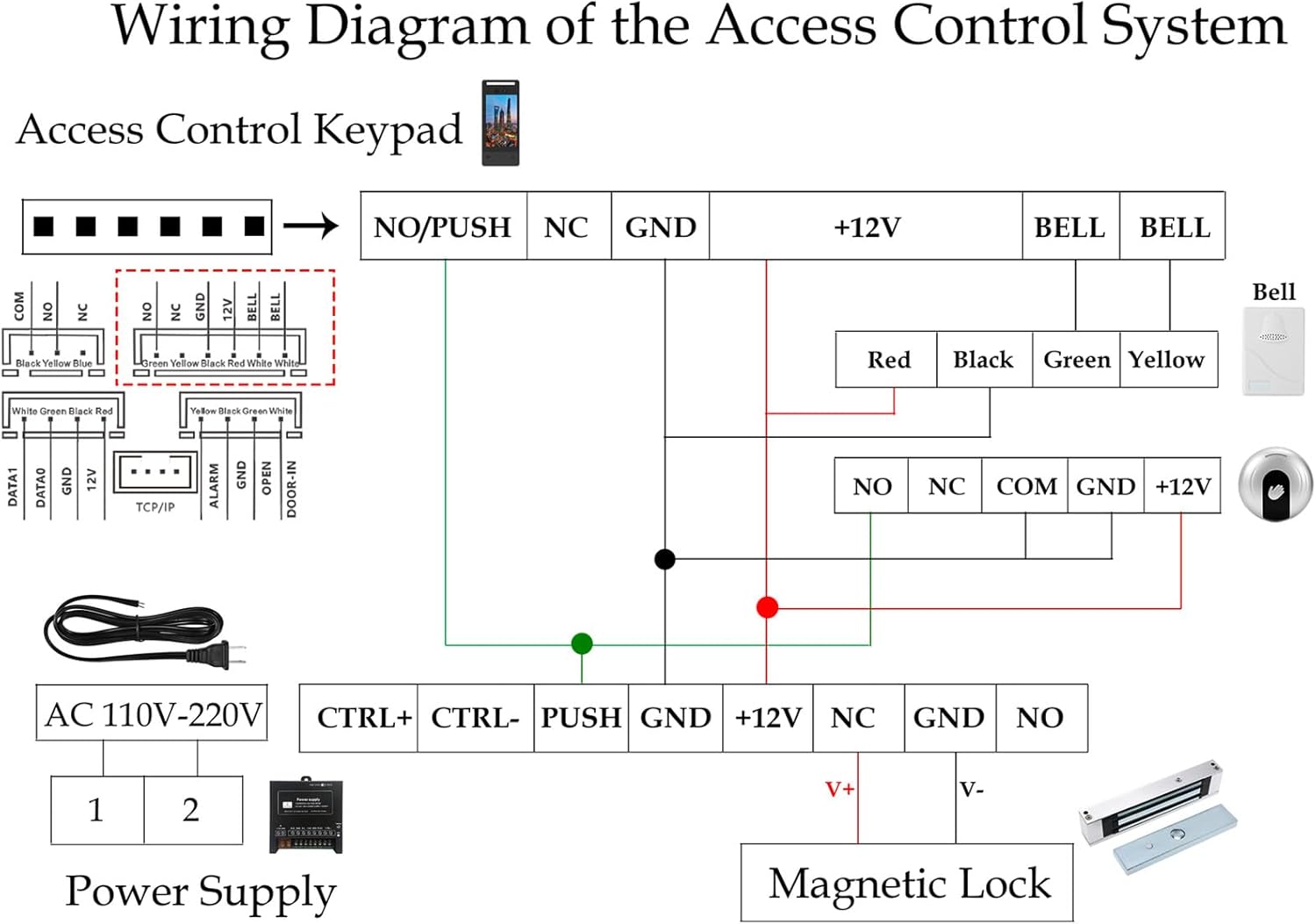
図3.4: システム配線図
主要な接続:
- Connect the Access Control Unit to the Power Supply Unit (typically +12V and GND).
- Connect the Magnetic Lock to the Power Supply Unit (NO/NC and GND terminals, depending on desired lock state).
- Connect the Infrared Exit Button to the PUSH and GND terminals on the Power Supply Unit.
- Connect the External Doorbell to the BELL terminals on the Access Control Unit or Power Supply Unit as indicated.
- Ensure AC power (110V-240V) is connected to the Power Supply Unit.
Warning: Ensure power is disconnected before performing any wiring to prevent electric shock.

Figure 3.5: Typical System Layout (Outdoor/Indoor)
4. 操作手順
The YUHANUS Access Control System supports multiple secure entry methods. The 5-inch HD screen provides an intuitive interface for configuration and daily operation.

Figure 4.1: Supported Access Methods
4.1ユーザー管理
Access the system menu (usually by pressing a designated button or entering an administrator PIN) to manage users. The system supports up to 5,000 users and 1 million log entries.
- ユーザーの追加: Select "Add User" from the menu. You will be prompted to register a face, palm vein, assign an IC card, or set a PIN for the new user.
- ユーザーの削除: Select "Delete User" and choose the user to remove.
- Viewing Logs: Access "Log Records" to view entry and exit events.
4.2 Entry Methods
- 顔認識: Stand directly in front of the unit, aligning your face with the on-screen guide. The system will automatically recognize and grant access if registered.
- Palm Vein Scanning: Place your palm over the designated sensor area. Ensure your palm is flat and within the scanning range.
- ICカード: Tap your registered IC card against the card reader area on the unit.
- PINコード: Enter your assigned PIN code using the on-screen keypad and confirm.
4.3 Exiting the Secured Area
To exit, simply wave your hand in front of the Infrared Exit Button. The door will unlock momentarily.
5. メンテナンス
- クリーニング: Regularly wipe the screen and camera lenses with a soft, dry, lint-free cloth. Do not use abrasive cleaners or solvents.
- Magnetic Lock: Ensure the magnetic lock and armature plate are free from debris and corrosion. Periodically check mounting screws for tightness.
- ソフトウェアアップデート: メーカーの website or contact support for any available firmware updates to ensure optimal performance and security.
- 電源: Ensure the power supply unit is well-ventilated and free from obstructions.
6。 トラブルシューティング
| 問題 | 考えられる原因 | 解決 |
|---|---|---|
| システムの電源が入りません。 | No power to the power supply; faulty wiring; power supply issue. | Check power outlet and cable connections. Verify power supply output voltage. Recheck wiring diagram. |
| Door not unlocking. | Incorrect access method; user not registered; magnetic lock issue; wiring problem. | Ensure correct face/palm/card/PIN is used. Verify user registration. Check magnetic lock for obstructions. Inspect wiring. |
| Face/Palm recognition failure. | Poor lighting; incorrect distance/angle; dirty lens; user data corrupted. | Ensure adequate lighting. Maintain proper distance and angle. Clean camera/sensor lens. Re-register user if necessary. |
| Infrared Exit Button not working. | Sensor obstructed; wiring issue; faulty button. | Clear any obstructions. Check wiring to the power supply. Test the button for functionality. |
7. 仕様
- モデル: YH-F695-P9-280
- Dimensions (Access Control Unit): 約11.81×8.27×5.12インチ
- 重さ: 約4ポンド(キット全体)
- 材料: Stainless Steel (Magnetic Lock components)
- 電源入力: AC110V-240V (Power Supply Unit)
- 出力: DC12V (Power Supply Unit)
- ユーザー容量: 最大5,000ユーザー
- Log Capacity: Up to 1 million log entries
- 画面: 5-inch HD ISP Display
- カメラ: Dual Wide-Angle Cameras (1 Million Pixels)
- ロックタイプ: 600lb Electromagnetic Lock
- Entry Methods: Face Recognition, Palm Vein, IC Card, PIN Code
8. 保証とサポート
For warranty information and technical support, please refer to the warranty card included with your product or visit the official YUHANUS webサイトをご覧ください。また、購入プラットフォームを通じて販売者に直接連絡してサポートを受けることもできます。
When contacting support, please have your product model number (YH-F695-P9-280) and purchase details ready.
Ask a question about this manual
Ask about setup, troubleshooting, compatibility, parts, safety, or missing instructions. Manuals+ will review the question and use this page’s manual context to help answer it.