
導入
This manual provides detailed instructions for the ZORNHER ZH870 Wireless Gaming Mechanical Keyboard. Please read this guide thoroughly to ensure proper setup, operation, and maintenance of your device. The ZH870 features an 80% layout, IMD PC keycaps, creamy linear switches, hot-swappable design, RGB backlighting, and triple connectivity options.
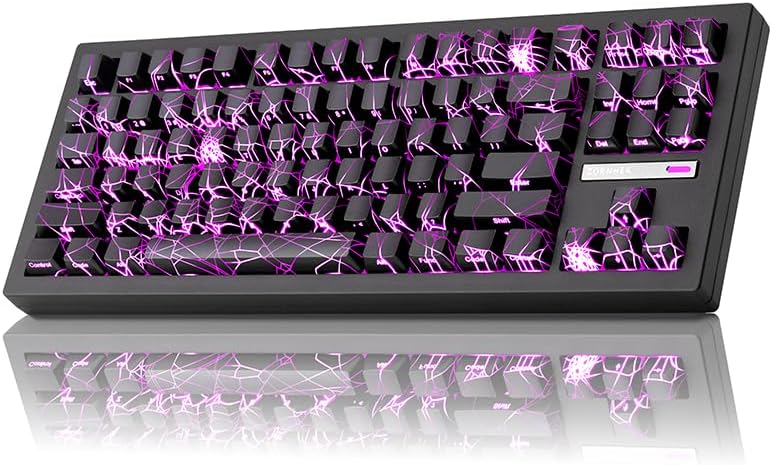
Image: ZORNHER ZH870 Wireless Gaming Mechanical Keyboard with its distinctive spider web pattern and purple RGB backlighting.
パッケージ内容
Verify that all items are present in your ZORNHER ZH870 package:
- 1 x Fully Assembled Mechanical Keyboard Body
- 交換用スイッチ3個
- キーキャッププーラー x 1
- 1 x 2.4GHz Receiver (USB Dongle)
- 1 x USB-C Cable (1.8m nylon)
- 1xダストカバー
- 取扱説明書 x 1

Image: A visual representation of the ZORNHER ZH870 package contents, including the keyboard, USB-C cable, 2.4GHz receiver, replacement switches, keycap puller, and instruction manual.
設定
初期充電
Before first use, it is recommended to fully charge the keyboard. Connect the provided USB-C cable to the keyboard's USB-C port and the other end to a powered USB port (e.g., computer, wall adapter). The keyboard features a 4000mAh battery.
接続オプション
The ZORNHER ZH870 supports three connection modes: 2.4GHz wireless, Bluetooth 5.0, and USB-C wired. You can connect up to 5 devices simultaneously.

Image: An illustration detailing the keyboard's triple connection capabilities, including 2.4GHz wireless, Bluetooth 5.0, and USB-C wired, along with examples of compatible devices such as Switch, Xbox, PlayStation, PC, Laptop, Tablet, and Phone.
2.4GHzワイヤレス接続
- パッケージ内の 2.4GHz USB レシーバーを見つけます。
- レシーバーをコンピューターの使用可能な USB ポートに接続します。
- On the keyboard, switch the mode selector to 2.4GHz. The keyboard should automatically connect.
Bluetooth 5.0接続
- キーボードで、モードセレクターを Bluetooth に切り替えます。
- Press and hold the Fn key + a designated Bluetooth channel key (e.g., Fn + 1, Fn + 2, Fn + 3) for 3-5 seconds until the indicator light flashes, indicating pairing mode.
- On your device (PC, Mac, tablet, phone), go to Bluetooth settings and select "ZORNHER ZH870" to pair.
- ペアリングされると、インジケーター ライトが点灯します。
USB-C有線接続
- 付属の USB-C ケーブルをキーボードの USB-C ポートに接続します。
- USB-C ケーブルのもう一方の端をコンピューターの使用可能な USB ポートに接続します。
- キーボードは自動的に有線モードに切り替わり、充電を開始します。
操作手順
モード間の切り替え
Use the physical switch located on the keyboard to select between 2.4GHz, Bluetooth, and Wired (USB-C) modes.
RGB照明コントロール
The ZH870 features 22 preset RGB lighting effects, including side-glow and south-facing LEDs. Use the following key combinations to control the lighting:
- Fn + Shift: バックライトの色を変更する
- Fn + Code: Change Backlight Effect (Cycle through 22 modes)
- Fn + バックスペース: ライトのオン/オフ
- Fn + ↑: 明るさを上げる
- Fn + ↓: 明るさを下げる
- Fn + ←: Speed Up Light Change Rate
- Fn + →: Speed Down Light Change Rate

Image: A visual guide illustrating the function key combinations for adjusting RGB backlight color, effects, brightness, and speed on the ZORNHER ZH870 keyboard.
ビデオ: 短いデモショーasing various RGB lighting effects and color changes on the ZORNHER ZH870 mechanical keyboard.
カスタマイズとソフトウェア
The ZORNHER ZH870 is fully customizable with driver support. You can remap keys, set macros, and personalize lighting modes to fit your gaming or workflow style. Refer to the official ZORNHER website for driver downloads and detailed software instructions.

Image: A screenshot of the ZORNHER software interface, demonstrating options for RGB lighting effects, macro recording, and profile customization for the ZH870 keyboard.
メンテナンス
クリーニング
To clean your keyboard, disconnect it from power. Use a soft, dry cloth to wipe the keycaps and chassis. For deeper cleaning, use the provided keycap puller to remove keycaps and a soft brush or compressed air to remove dust and debris from beneath them.
スイッチの交換(ホットスワップ可能)
The ZH870 features a hot-swappable PCB, compatible with both 3-pin and 5-pin mechanical switches. No soldering is required for switch replacement.
- Using a switch puller (not included, but often comes with replacement switches), carefully grip the switch and pull it straight up to remove it.
- 新しいスイッチのピンを PCB の穴に合わせます。
- 新しいスイッチをカチッと音がするまでゆっくりと押し込みます。ピンが曲がっていないことを確認してください。
- Test the new switch to confirm functionality.

画像: 詳細な view of the ZORNHER ZH870's hot-swappable PCB, showing the switch sockets and a switch puller tool, highlighting compatibility with 3-pin and 5-pin switches.
トラブルシューティング
- キーボードが応答しない: Ensure the keyboard is charged. Check the connection mode (2.4GHz, Bluetooth, or USB-C) and ensure it matches your device's connection. For wireless modes, verify the receiver is properly plugged in or Bluetooth is paired. Try restarting the keyboard or your device.
- RGB ライトが機能しない: Ensure the lights are not turned off (Fn + Backspace). Check brightness levels (Fn + ↑/↓). If using software, verify settings.
- 接続の問題: For 2.4GHz, try a different USB port for the receiver. For Bluetooth, unpair and re-pair the device. Ensure no other wireless devices are causing interference. For wired, try a different USB-C cable or port.
- キーが登録されない: If a specific key is not working, it might be a faulty switch. Utilize the hot-swappable feature to replace the switch with one of the provided spares.
- バッテリーの消耗が早い: Reduce RGB brightness or turn off lighting when not needed. Ensure the keyboard is fully charged. If the issue persists, contact support.
仕様
| 特徴 | 詳細 |
|---|---|
| モデル | ZH870 |
| レイアウト | 80% (88 Keys Compact) |
| キーキャップ | IMD PC Keycaps with Shine-Through Legends |
| スイッチ | Creamy Linear Switches (Factory-Lubed, Hot-Swappable 3-pin/5-pin) |
| 取り付けスタイル | ガスケットマウント |
| 接続性 | 2.4GHz Wireless, Bluetooth 5.0, USB-C Wired (Supports up to 5 devices) |
| バッテリー容量 | 4000mAhリチウムイオン |
| バックライト | RGB (22 Modes, South-Facing & Side Lighting) |
| 対応デバイス | Laptop, Mac, PC, Tablet |
| オペレーティング システムのサポート | WindowsとmacOS |
| 製品寸法 | 長さ16.65インチ x 幅7.99インチ x 高さ2.75インチ |
| アイテム重量 | 3.8ポンド |
保証とサポート
The ZORNHER ZH870 Wireless Gaming Mechanical Keyboard comes with a 2年間保証 from the date of purchase, covering manufacturing defects. For warranty claims, technical assistance, or any product-related inquiries, please contact ZORNHER customer support through the official webサイトまたは販売店のサポート チャネルをご覧ください。
保証を有効にするために購入証明書を保管してください。