1. はじめに
This manual provides detailed instructions for the installation, operation, and maintenance of the Generic MT7925 WiFi 7 Network Card. This M.2 NGFF wireless adapter offers WiFi 7 (802.11be) connectivity with tri-band support (2.4GHz, 5GHz, 6GHz) and Bluetooth 5.3 capabilities, designed for Windows 10 and Windows 11 systems.
2. 安全情報
- 内部コンポーネントの取り付けまたは取り外しを行う前に、必ずコンピューターの電源を切ってください。
- 金色のコネクタや敏感なコンポーネントに触れないように、ネットワーク カードの端を持って扱ってください。
- 静電放電 (ESD) による損傷を防ぐために、適切な静電気防止対策 (静電気防止リスト ストラップなど) を講じてください。
- デバイスを湿気や極端な温度から遠ざけてください。
3. パッケージ内容
パッケージにすべてのアイテムが揃っていることを確認します。
- 1 x MT7925 WiFi Card
4. セットアップとインストール
4.1 インストール前のチェックリスト
- Ensure your computer has an available M.2 NGFF slot (Key E).
- Confirm your operating system is Windows 10 or Windows 11 (64-bit).
- Download the latest drivers for the MT7925 from the manufacturer's or chipset provider's website onto a USB drive or accessible location before installation.
4.2物理的な設置
The MT7925 network card is designed for M.2 NGFF Key E slots found in both desktop motherboards and laptops.

画像: 前面と背面 view of the MT7925 WiFi 7 network card, highlighting the Key E connector for installation.
- コンピュータの電源をオフにし、すべてのケーブルを外します。
- Open your computer case (for desktop) or access the M.2 slot compartment (for laptop). Refer to your computer's manual for specific instructions.
- Locate an available M.2 NGFF slot (Key E).
- Carefully insert the MT7925 card into the M.2 slot at a slight angle.
- Gently press down the card and secure it with the screw provided with your motherboard or laptop.
- Connect the antenna cables (if applicable) to the corresponding 'Main' and 'Aux' connectors on the card.
- Close your computer case or compartment.
- すべてのケーブルを再接続し、コンピューターの電源を入れます。
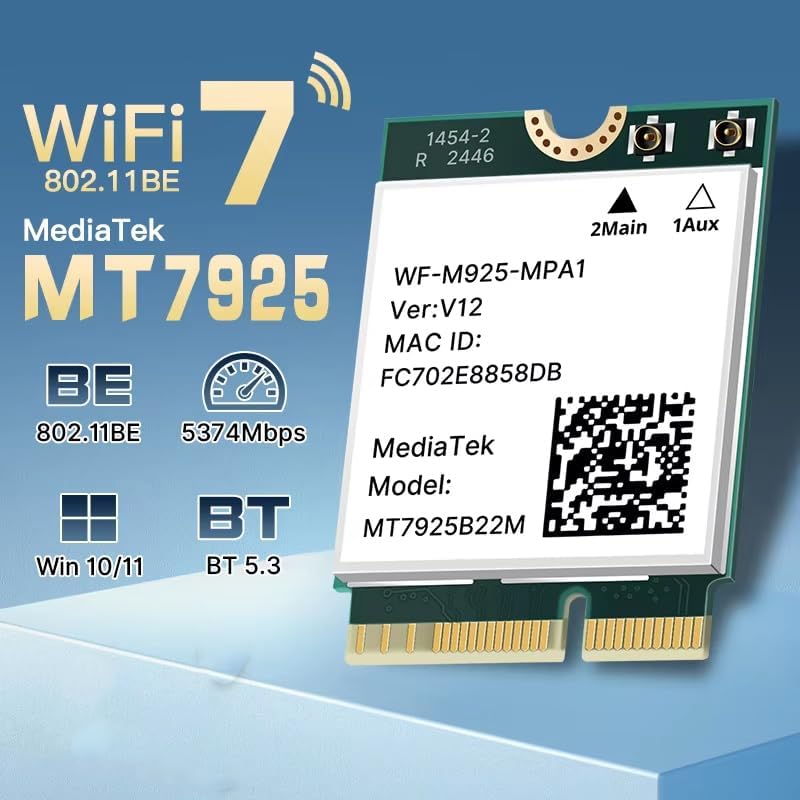
Image: Illustration of M.2 slot availability for both desktop and laptop installations. The image indicates 'Available' and 'Unavailable' slots for clarity.
4.3 ドライバのインストール
- After booting into Windows, open Device Manager.
- Look for an unknown device or a network adapter with a yellow exclamation mark under 'Network adapters' or 'Other devices'.
- Right-click on the device and select 'Update driver'.
- Choose 'Browse my computer for drivers' and navigate to the folder where you saved the downloaded drivers.
- 画面上の指示に従ってドライバーのインストールを完了します。
- プロンプトが表示されたらコンピューターを再起動します。
5. 操作手順
5.1 Wi-Fiへの接続
Once drivers are installed, the MT7925 card will enable Wi-Fi functionality. You can connect to available networks:
- Windows タスクバーの Wi-Fi アイコンをクリックします。
- リストから希望のネットワークを選択します。
- 必要に応じてネットワークパスワードを入力し、「接続」をクリックします。
- The MT7925 supports tri-band operation (2.4GHz, 5GHz, 6GHz) for optimal performance.

Image: Visual representation of the MT7925's data rates across different frequency bands: 6GHz (2400Mbps), 5GHz (2400Mbps), and 2.4GHz (574Mbps).
5.2Bluetoothペアリング
The MT7925 also provides Bluetooth 5.3 connectivity.
- Windows 設定 > デバイス > Bluetooth とその他のデバイスに移動します。
- Bluetoothが「オン」になっていることを確認してください。
- 「Bluetooth またはその他のデバイスを追加する」をクリックし、「Bluetooth」を選択します。
- Bluetoothデバイスをペアリングモードにします。
- リストからデバイスを選択し、画面上の指示に従ってペアリングを完了します。

Image: An illustration demonstrating the compatibility of the upgraded Bluetooth 5.3 with various devices, including printers, keyboards, gamepads, mice, headsets, speakers, cell phones, and tablets.
5.3 オペレーティングシステムの互換性
The MT7925 network card is compatible with 64-bit versions of Windows 10 and Windows 11.

Image: Logos for Windows 10 and Windows 11, confirming support for 64-bit versions of these operating systems.
6. メンテナンス
- ドライバーの更新: Regularly check for updated drivers on the manufacturer's or chipset provider's web最適なパフォーマンスとセキュリティを確保するためにサイトを更新します。
- 物理検査: Periodically inspect the card and antenna connections (if external) for any signs of damage or loose connections.
- クリーニング: If necessary, gently clean the card with compressed air to remove dust buildup. Ensure the computer is powered off and unplugged before cleaning.
7。 トラブルシューティング
7.1 Wi-FiまたはBluetooth接続なし
- デバイス マネージャーを確認します。 Verify that the MT7925 card is recognized and has no error symbols. Reinstall drivers if necessary.
- 物理接続: カードが M.2 スロットにしっかりと固定され、アンテナ ケーブルが正しく接続されていることを確認します。
- BIOS/UEFI設定: Some motherboards may require enabling the M.2 slot or Wi-Fi/Bluetooth functionality in the BIOS/UEFI settings.
7.2 Wi-Fi速度が遅い
- ドライバーの更新: 最新のドライバーがインストールされていることを確認してください。
- ルーターの配置: Move closer to your Wi-Fi router or ensure there are no significant obstructions.
- 周波数帯域: Connect to the 5GHz or 6GHz band for higher speeds, if available and supported by your router.
- 干渉: 他の電子機器が干渉を引き起こす可能性があります。ルーターのWi-Fiチャンネルを変更してみてください。
7.3 Bluetoothデバイスがペアリングされない
- Bluetoothオン: Confirm Bluetooth is enabled in Windows settings.
- デバイスペアリングモード: Bluetooth デバイスがペアリング モードになっていることを確認します。
- 距離: Keep the Bluetooth device close to your computer during pairing.
- 干渉: Minimize other wireless devices nearby during pairing.
8. 仕様
| モデル | MT7925 |
| ワイヤレス標準 | WiFi 7(802.11be) |
| データ転送速度 | 最大 5400Mbps (6GHz で 2400Mbps、5GHz で 2400Mbps、2.4GHz で 574Mbps) |
| 周波数帯域 | 2.4GHz、5GHz、6GHz(トライバンド) |
| Bluetoothバージョン | ブルートゥース5.3 |
| インタフェース | M.2 NGFF (Key E) |
| 互換性のあるオペレーティングシステム | Windows 10 (64 ビット)、Windows 11 (64 ビット) |
| ワイヤレスプロトコル | 802.11n, 802.11ax (WiFi 6), 802.11a/g, 802.11ac, 802.11be (WiFi 7) |
| ハードウェアインターフェイス | 802.11 ac / b / g / n |
| アイテム重量 | 0.48オンス(13.61g) |
9. 保証とサポート
This product is sold under the 'Generic' brand. For specific warranty terms and conditions, please refer to the seller or retailer from whom you purchased this product. Keep your proof of purchase for any warranty claims.
For technical support, driver updates, or further assistance, please visit the website of the chipset manufacturer (MediaTek) or contact your product vendor.


