

1. はじめに
This manual provides comprehensive instructions for setting up, operating, and maintaining your EPOMAKER X Aula F65 PRO Wireless Mechanical Gaming Keyboard. Designed for peak performance and personalized perfection, the F65 PRO features hot-swappable pre-lubed switches, a sound-dampened Gasket structure, programmable keys, RGB lighting, and versatile tri-mode connectivity.
2. 箱の中身
Upon unboxing your EPOMAKER X Aula F65 PRO keyboard, please ensure all the following items are present:
- EPOMAKER X Aula F65 PRO ワイヤレスメカニカルゲーミングキーボード
- 2-in-1 キーキャップ&スイッチプーラー
- USBケーブル(タイプAからタイプC)
- 2.4GHzワイヤレスレシーバー
- 3つの追加スイッチ
- ユーザーマニュアル(このドキュメント)
Video: EPOMAKER X Aula F65 PRO Unboxing & Showing & Typing Video. This video demonstrates the unboxing process and shows the contents of the package, including the keyboard and accessories.
Video: F65 PRO Wireless Mechanical Gaming Keyboard Unboxing Video. This video provides a quick overview of the unboxing experience for the F65 PRO keyboard.
3. セットアップ
3.1 接続モード
The F65 PRO keyboard supports three connectivity modes: Bluetooth (BT), 2.4GHz Wireless, and USB-C Wired.
- Bluetooth (BT) モード: Ideal for connecting to multiple devices (up to 3) such as smartphones, tablets, and laptops. Switch the mode selector on the keyboard to 'BT'. Follow your device's Bluetooth pairing instructions.
- 2.4GHzワイヤレスモード: Provides a stable and low-latency connection for gaming. Insert the 2.4GHz USB receiver into your computer's USB port. Switch the mode selector on the keyboard to '2.4G'.
- USB-C有線モード: For a direct, zero-latency connection and charging. Connect the provided USB-C cable to the keyboard and your computer. Switch the mode selector on the keyboard to 'Wired'.

Image: Tri-Mode Connectivity. This image illustrates the various connectivity options available for the F65 PRO keyboard, highlighting its compatibility with multiple device types.
3.2 物理的なセットアップ
Place the keyboard on a stable, flat surface. The keyboard features silicone stage-feet for stability and an ergonomic typing angle.

Image: Ergonomic Typing Angle. This image highlights the comfortable typing angle and stable feet of the F65 PRO keyboard.
4. 操作手順
4.1 RGBバックライト制御
The F65 PRO features dynamic RGB backlighting with various effects and customization options.
- バックライトのオン/オフ: プレス FN + バックスペース.
- バックライト効果の切り替え: プレス FN + \ |.
- バックライトの色を切り替える: プレス FN +入力.
- バックライトの明るさを調整します: プレス FN +↓ (減少) または FN +↑ (増加)。
- Adjust Backlight Effect Speed: プレス FN +← (減少) または FN +→ (増加)。
- Toggle Light Strip Effect: プレス FN + R_シフト.
- Adjust Light Strip Brightness: プレス FN + . > (減少) または FN + / ? (増加)。
- Toggle Light Strip Color: プレス FN + / ? (while holding FN).
Video: EPOMAKER X Aula F65 PRO RGB Setting. This video demonstrates how to adjust the RGB lighting settings on the keyboard.
Video: EPOMAKER X Aula F65 PRO Lighting Effect Check. This video showcases various lighting effects and how to cycle through them.
4.2 多機能ノブ
The rotary knob on the F65 PRO provides intuitive control over volume and backlight settings.
- プレス: オーディオをミュート/ミュート解除します。
- 回転: Adjust system volume (clockwise to increase, counter-clockwise to decrease).
- Toggle Knob Function: プレス FN + ノブ to switch the knob's default function to the Home key. Press again to revert to volume control.
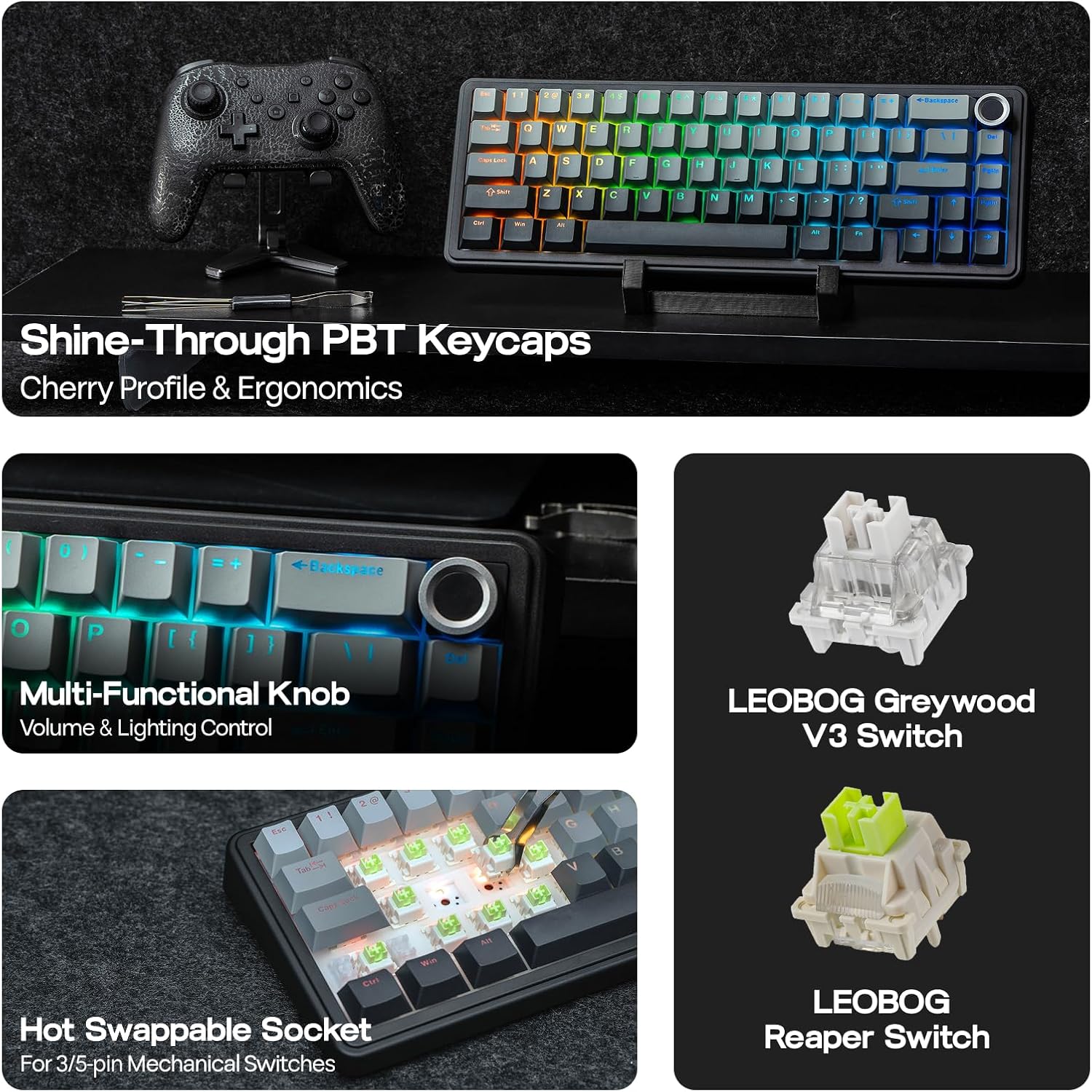
Image: Multi-Functional Knob. This image highlights the rotary knob and its functions for volume and lighting.
4.3 Game Mode and Office Mode
The keyboard can switch between Game Mode and Office Mode for optimized performance.
- ゲームモードに入る: Press the knob for 3 seconds. The L_Win and Caps keys will flash blue.
- Enter Office Mode: Press the knob for 3 seconds again while in Game Mode. The L_Win and Caps keys will flash green.
4.4 ソフトウェアのカスタマイズ
Customize your keyboard's settings, key assignments, macros, and lighting effects using the dedicated software.
- システム設定: Adjust general keyboard parameters.
- Key Remap: 個々のキーに機能を再割り当てします。
- Macro Record: 複雑なマクロ シーケンスを作成して割り当てます。
- 照明設定: RGB 照明効果と色を微調整します。
- 音楽のリズム: Synchronize lighting with audio output.
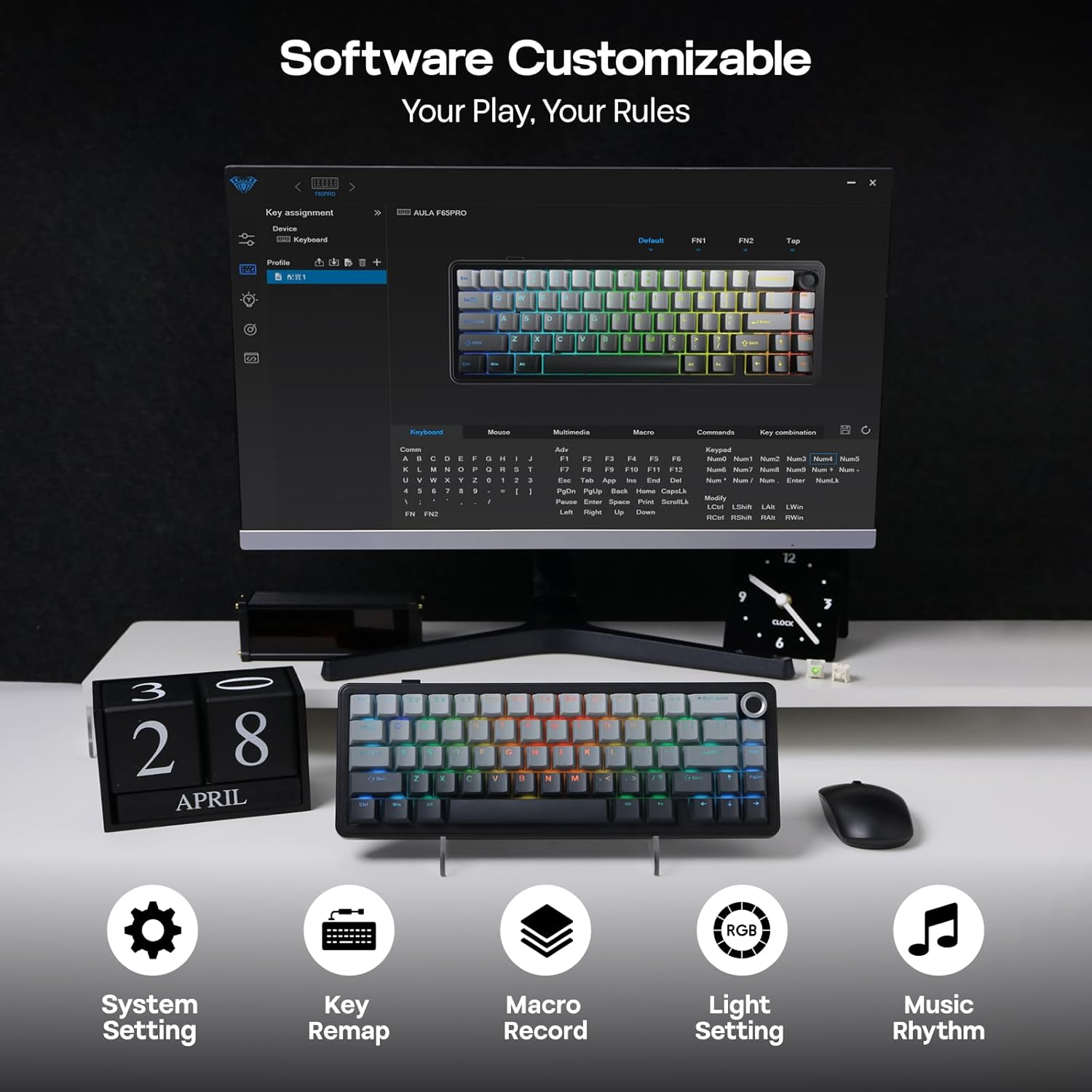
Image: Software Customizable. This image shows the keyboard's software interface for advanced customization.
5. 機能終了view
The EPOMAKER X Aula F65 PRO is engineered with several advanced features for an enhanced user experience:
- ホットスワップ可能なスイッチ: Easily change 3-pin or 5-pin mechanical switches without soldering, allowing for personalized typing feel.
- Creamy Gasket-Mount Structure: Features a 5-layer sound-dampening system for a satisfyingly muted thud and responsive feel with each keystroke.
- 光沢PBTキーキャップ: Premium PBT keycaps with topographic lines and shine-through legends for durability and vibrant RGB illumination.
- 4000mAhバッテリー: Offers extended wireless usage, with approximately 20 hours with RGB backlight on and 200 hours with RGB backlight off.
- 低遅延パフォーマンス: Achieves 1-3ms response time in USB-C wired and 2.4GHz wireless modes, and 8ms in BT 125Hz mode.
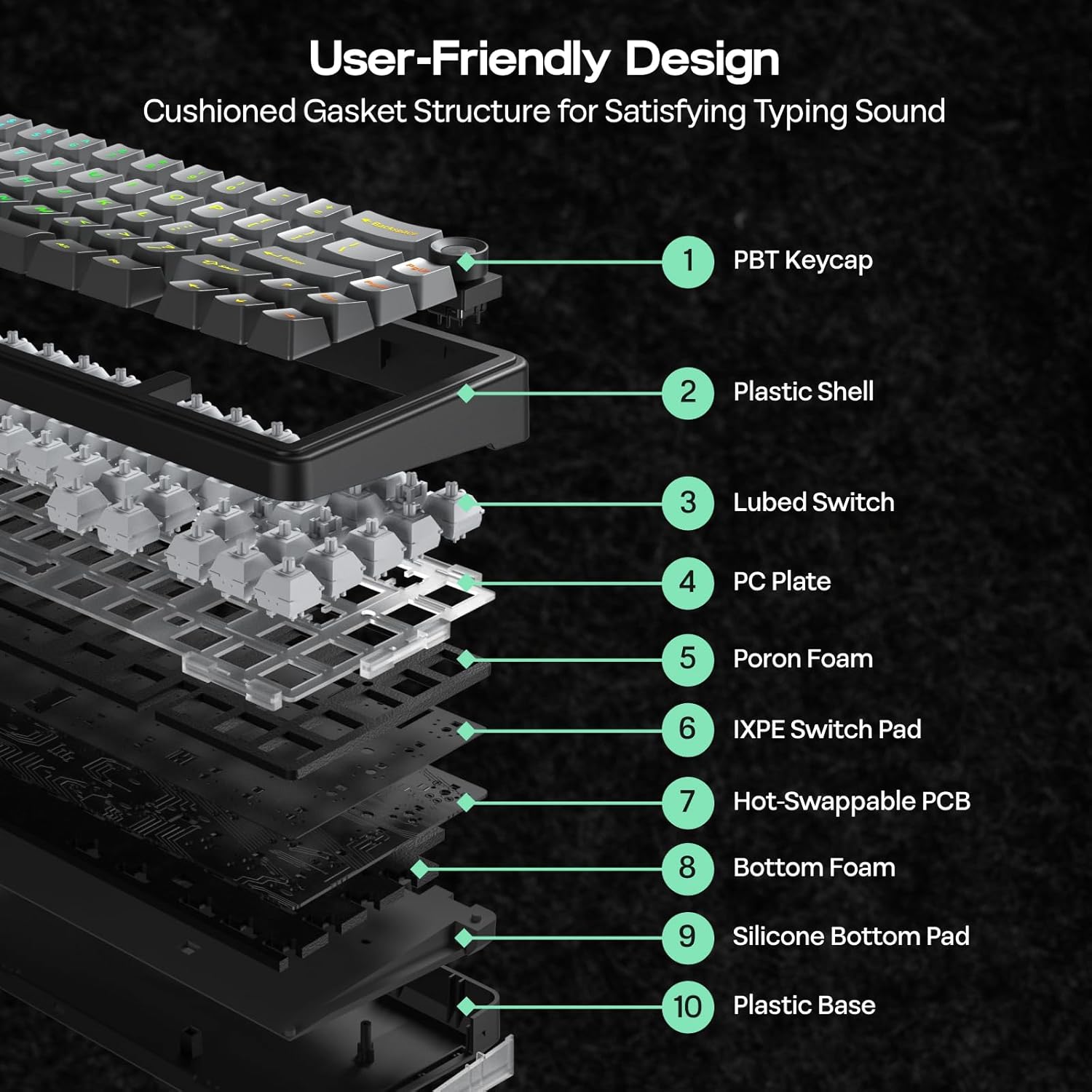
Image: User-Friendly Design (Cushioned Gasket Structure). This diagram illustrates the 5-layer sound-dampening gasket structure of the keyboard.
Image: Hot Swappable Socket. This image demonstrates the hot-swappable nature of the keyboard's switches.
Video: F65 PRO Wireless Mechanical Gaming Keyboard - Typing Sound. This video demonstrates the typing sound profile of the F65 PRO keyboard.
Video: EPOMAKER X Aula F65 PRO Typing ASMR. This video provides an ASMR-style demonstration of the keyboard's typing sound.
Video: EPOMAKER X Aula F65 PRO Typing Video. This video demonstrates the typing experience on the F65 PRO keyboard.
6. 仕様
| 特徴 | 詳細 |
|---|---|
| ブランド | エポマーカー |
| モデル番号 | F65プロ |
| 接続技術 | 2.4Ghz Wireless, BT, USB A to C Cable |
| キーボードの説明 | 機械 |
| 特集 | 5-Layer Padding, Backlit, Gasket Structure, Hot-Swappable, Knob |
| 色 | グラデーショングレー |
| キーボードバックライト | RGB |
| 製品寸法(長さ x 幅 x 高さ) | 長さ4.4インチ x 幅12.8インチ x 高さ1.2インチ |
| 材料 | プラスチック |
| 電源 | 電池駆動 |
| スイッチタイプ | Linear (Graywood V3 Switch) |
| キーボードレイアウト | QWERTY |
| キーの数 | 66 |
| 対応デバイス | ゲーム機、ノートパソコン、PC、スマートフォン、タブレット |
| 最低限必要なOS | Android 14.0, Windows 11 |
7. メンテナンス
To ensure the longevity and optimal performance of your EPOMAKER X Aula F65 PRO keyboard, follow these maintenance guidelines:
- 定期清掃: Use a soft, dry cloth to wipe down the keycaps and chassis. For deeper cleaning, use a can of compressed air to remove dust and debris from between the keys.
- キーキャップとスイッチの取り外し: Use the provided 2-in-1 keycap-and-switch puller for safe removal of keycaps and switches. Avoid using excessive force to prevent damage.
- 液体への暴露を避ける: Keep liquids away from the keyboard to prevent internal damage. In case of spills, immediately disconnect the keyboard and allow it to dry completely before reconnecting.
- バッテリーのケア: バッテリー寿命を最大限に延ばすには、キーボードを頻繁に完全に放電しないでください。付属のUSB-Cケーブルを使用して定期的に充電してください。
8。 トラブルシューティング
If you encounter any issues with your EPOMAKER X Aula F65 PRO keyboard, please refer to the following common troubleshooting steps:
- キーボードが応答しない:
- キーボードが充電されていることを確認してください。
- Check the connectivity mode switch (BT, 2.4G, Wired) matches your connection method.
- For 2.4GHz, ensure the USB receiver is properly inserted and recognized by your device.
- For Bluetooth, ensure the keyboard is paired correctly and within range. Try re-pairing if necessary.
- For wired mode, ensure the USB-C cable is securely connected to both the keyboard and your device.
- RGBバックライトが機能しない:
- プレス FN + バックスペース バックライトのオン/オフを切り替えます。
- 明るさを調整する FN + ↑/↓.
- キーボードが低電力状態になっていないことを確認してください。
- キーが登録されない:
- キーキャップの下に物理的な障害物がないか確認します。
- If a specific switch is faulty, use the provided switch puller to replace it with one of the extra switches.
- 接続の問題(遅延/切断):
- Ensure the keyboard is close to the receiver/device for wireless connections.
- 他の無線デバイスからの干渉を避けてください。
- Update keyboard firmware if available through the customization software.
9. 保証とサポート
The EPOMAKER X Aula F65 PRO Wireless Mechanical Gaming Keyboard comes with a 1年間保証 購入日より。
For technical support, warranty claims, or further assistance, please visit the official EPOMAKER store or contact their customer service directly. You can find more information and support resources at the AmazonのEPOMAKERストア.