
導入
This manual provides detailed instructions for the ZIOCOM USB-C Bluetooth Adapter (Model DG11). This device is designed to transmit audio wirelessly from your PS5, PC, Mac, or Nintendo Switch to Bluetooth-enabled headphones or earbuds, offering a seamless and low-latency audio experience. Please read this manual thoroughly before using the product to ensure proper setup and operation.

Image: ZIOCOM USB-C Bluetooth Adapter (Model DG11).
パッケージ内容
パッケージにすべてのアイテムが含まれていることを確認します。
- 1 x ZIOCOM USB-C Bluetooth Adapter (Model DG11)
- 取扱説明書(本書)1部
製品終了view および機能
The ZIOCOM USB-C Bluetooth Adapter is a compact and efficient device designed for wireless audio transmission. Key features include:
- ブルートゥース 5.3 テクノロジー: Ensures stable connectivity and strong anti-interference capabilities, reducing audio dropouts.
- aptX Low Latency & aptX-Adaptive: Provides perfectly synchronized audio and visual experiences, ideal for gaming and media consumption, when paired with compatible headphones.
- プラグアンドプレイ: 互換性のあるほとんどのデバイスではドライバーは必要ありません。
- 幅広い互換性: Works with PS5, Mac, laptops, and PCs via USB-C port.
- コンパクトなデザイン: Small and lightweight for easy portability and minimal obstruction of other ports.
- 長距離: Offers a transmission distance of up to 33 feet (10 meters) in open spaces.

Image: The ZIOCOM USB-C Bluetooth Adapter features a mini design, measuring approximately 1.248 inches (31.7mm) in length, 0.630 inches (16mm) in width, and 0.236 inches (6mm) in thickness, making it easy to carry.

Image: The adapter connected to a PS5, highlighting Bluetooth 5.3, 33ft range, music & calls, aptX Low Latency, aptX HD, and Plug & Play features.

Image: Diagram illustrating the adapter's long-range capability of up to 10 meters (33 feet) within a home environment.
互換性
The ZIOCOM USB-C Bluetooth Adapter is compatible with a variety of devices for audio transmission:
- 対応デバイス: PS5, Nintendo Switch, Laptops, PCs, Mac.
- 互換性のあるオーディオデバイス: Bluetooth Headphones, Bluetooth Speakers, AirPods.
重要な注意:
- This adapter is for AUDIO devices only; it does not support data transmission.
- 互換性がありません: PS4, TVs, keyboards, mice, or car systems.
- We do not recommend using it with Sony headphones. It is incompatible with the LDAC protocol used by Sony headphones. Even if a connection is established, it will automatically match the SBC protocol, which may affect the audio quality and overall user experience.

Image: A visual guide showing compatible devices (Laptop, PS5, Nintendo Switch, PC, Bluetooth Headphones, Bluetooth Speaker, AirPods) and incompatible devices (Keyboard, Mouse, TV, Car).
セットアップ手順
Follow these steps to connect your Bluetooth headphones to your device using the ZIOCOM USB-C Bluetooth Adapter:
- プラグイン: Insert the ZIOCOM USB-C Bluetooth Adapter into an available USB-C port on your PS5, PC, Mac, or Nintendo Switch. The adapter's indicator light will begin to flash.
- ヘッドフォンでペアリングモードに入る: Put your Bluetooth headphones or earbuds into pairing mode. Refer to your headphone's manual for specific instructions on how to do this. For AirPods, open the case and press and hold the button on the back until the indicator light flashes white.
- アダプタでペアリングを開始する: Double-click the button on the ZIOCOM adapter. The adapter's indicator light will flash rapidly, indicating it is searching for devices.
- 接続する: Once your headphones are in pairing mode and the adapter is searching, they should automatically connect. The adapter's indicator light will turn solid, indicating a successful connection.
- Adjust Audio Settings (PS5 Example): PS5で、 設定 > 音。 下 オーディオ出力, select the DG11 as the Output Device. If your headphones have a microphone, also select DG11 as the Input Device under マイクロフォン.

Image: Step-by-step visual guide on connecting a Bluetooth headset to a PS5 using the ZIOCOM USB-C adapter, including plugging in, turning off other Bluetooth devices, activating pairing mode on AirPods, pairing the dongle, and adjusting PS5 sound settings.
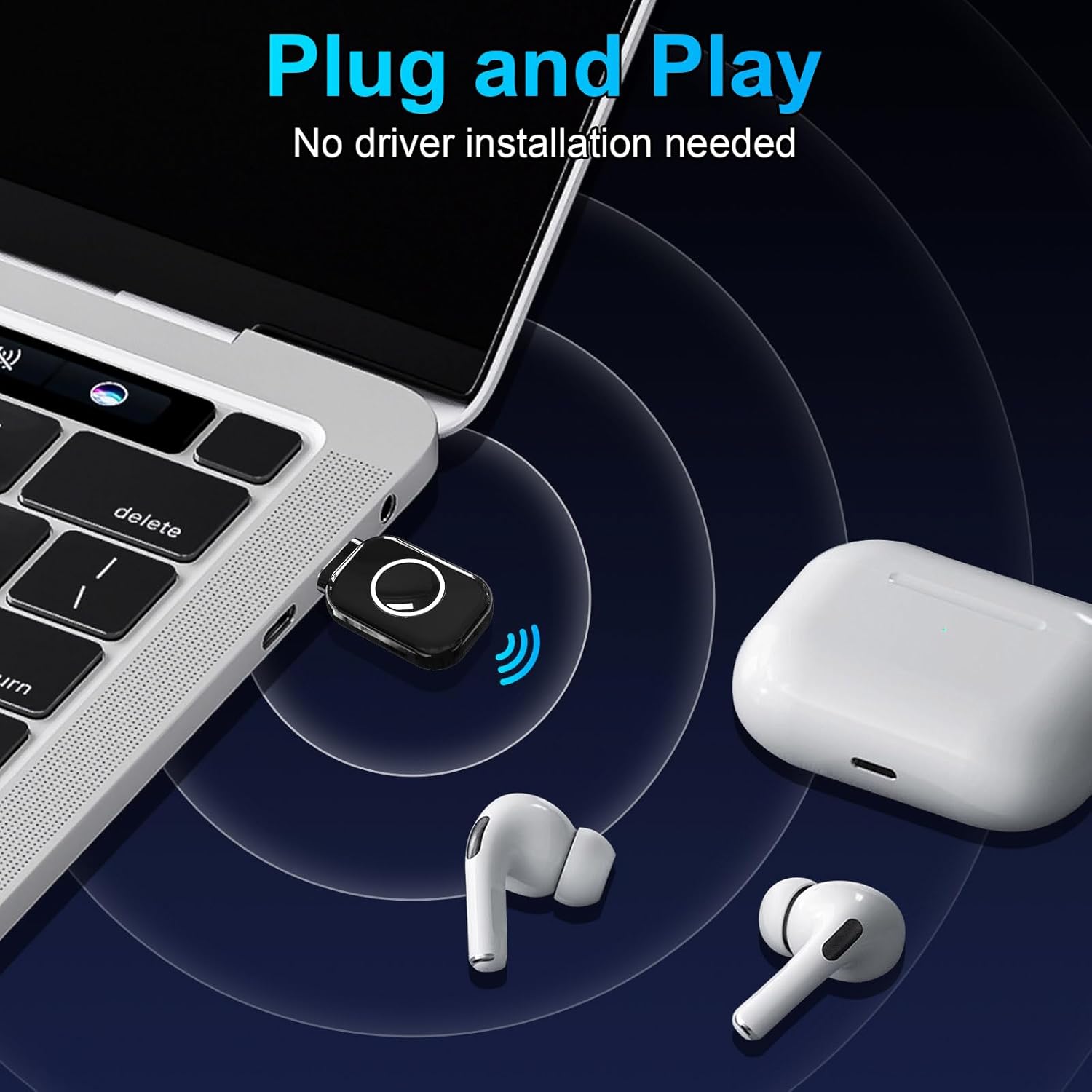
Image: The ZIOCOM USB-C Bluetooth Adapter plugged into a laptop, demonstrating its plug-and-play functionality with no driver installation needed, connecting to AirPods.
操作手順
Once successfully paired, the ZIOCOM USB-C Bluetooth Adapter will automatically connect to your headphones when both devices are powered on and within range. Enjoy your wireless audio experience for gaming, music, or calls.
- 自動再接続: After the initial pairing, the adapter will automatically recognize and connect to your previously paired headphones when they are turned on and within range.
- 音量コントロール: Adjust volume directly on your connected headphones or through the audio settings of your connected device (PS5, PC, Mac, Nintendo Switch).
- スイッチングデバイス: To pair with a new device, ensure the adapter is in pairing mode (double-click the button) and your new headphones are also in pairing mode.
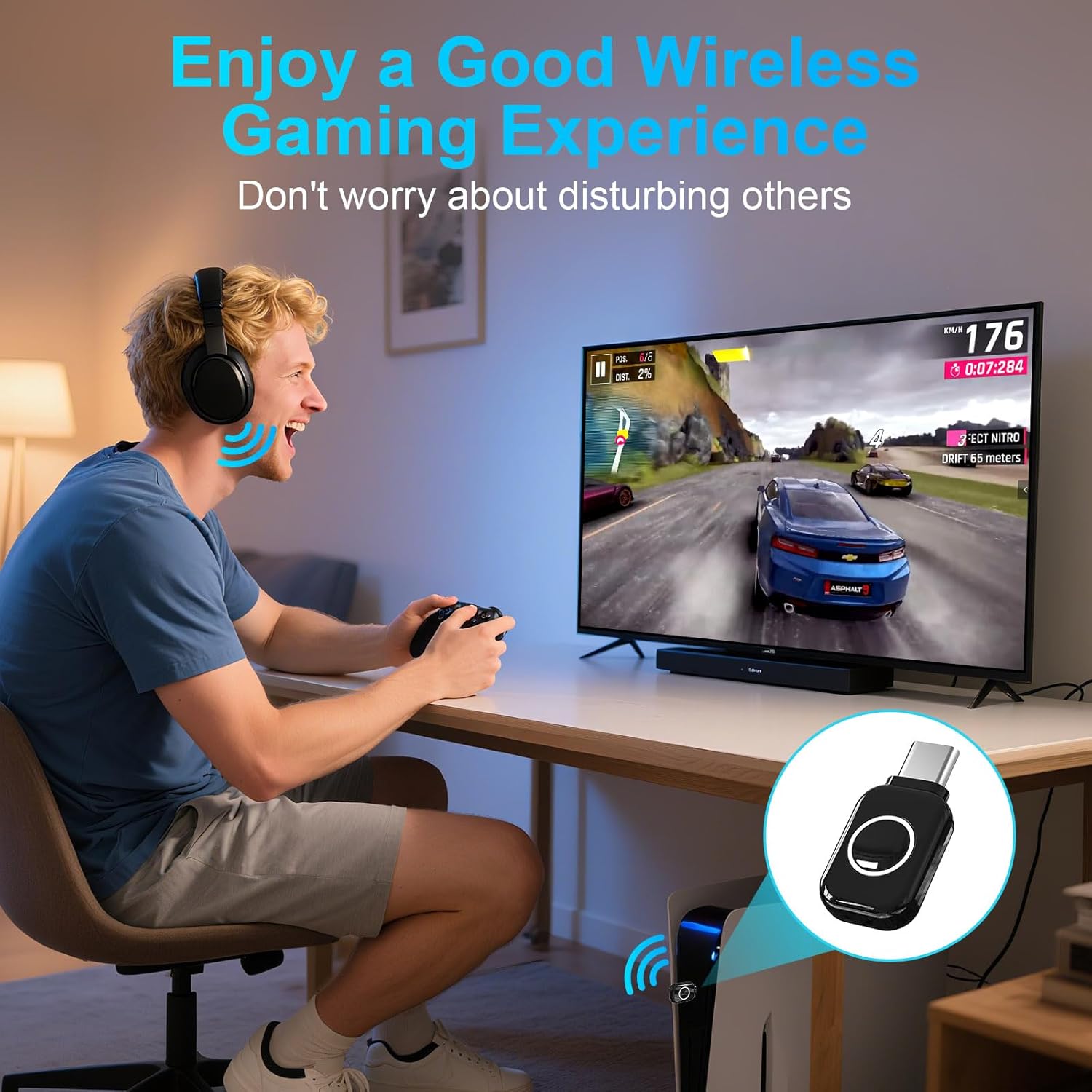
Image: A person enjoying a wireless gaming experience on a PS5 with headphones connected via the ZIOCOM USB-C Bluetooth Adapter, emphasizing undisturbed play.
お手入れとメンテナンス
To ensure the longevity and optimal performance of your ZIOCOM USB-C Bluetooth Adapter, follow these guidelines:
- Keep the adapter dry. Moisture can damage internal circuits.
- 極端な温度を避けてください。高温は電子機器の寿命を縮める可能性があります。
- デバイスを落としたり、ノックしたり、振ったりしないでください。 乱暴な取り扱いは内部回路基板を破壊する可能性があります。
- Clean the adapter with a soft, dry cloth. Do not use harsh chemicals or detergents.
- 使用していないときは、アダプタを清潔でほこりのない環境に保管してください。
トラブルシューティング
If you encounter issues with your ZIOCOM USB-C Bluetooth Adapter, refer to the following common solutions:
- 音声なし / 音質が悪い:
- アダプタが USB-C ポートにしっかりと差し込まれていることを確認します。
- Verify your headphones are fully charged and in pairing mode.
- Check the audio output settings on your device (e.g., PS5 Sound Settings) to ensure DG11 is selected.
- If using Sony headphones, be aware that the LDAC protocol is not supported, which may result in lower audio quality (SBC protocol will be used).
- Ensure your headphones support aptX-LL or aptX-Adaptive for optimal low-latency performance.
- ペアリングできません:
- Make sure the adapter is in pairing mode (rapidly flashing light after double-clicking the button).
- Ensure your headphones are in pairing mode and close to the adapter.
- Turn off Bluetooth on any other nearby devices (e.g., smartphones) to prevent interference.
- Confirm your device (e.g., PS5, PC) is compatible with the adapter (refer to the Compatibility section).
- Intermittent Connection / Short Range:
- Reduce the distance between the adapter and your headphones.
- Remove any obstacles (walls, large electronic devices) that might be blocking the signal.
- Wi-Fi やその他の無線干渉が強いエリアを避けてください。
仕様
| 特徴 | 詳細 |
|---|---|
| ブランド | ジオコム |
| モデル番号 | DG11 |
| Bluetoothバージョン | 5.3 |
| オーディオコーデック | APTX Low Latency, aptX-Adaptive (and others like SBC) |
| コネクタタイプ | USBタイプC |
| 対応デバイス | Headphones, Earbuds (for PS5, MAC, Laptop, PC, Nintendo Switch) |
| 伝送距離 | オープンスペースでは最大33フィート(10メートル) |
| 色 | 黒 |
| アイテム重量 | 2.5グラム |

Image: Diagram illustrating the Bluetooth 5.3 chipset, highlighting its faster and more stable connection capabilities.
保証情報
The ZIOCOM USB-C Bluetooth Adapter (Model DG11) comes with a 1年間保証 ご購入日から1年間有効です。本保証は、通常の使用における製造上の欠陥および故障を対象としています。保証請求の際は、購入証明書を保管してください。誤用、事故、不正改造、または自然災害による損傷は保証の対象外となります。
カスタマーサポート
If you require further assistance or have questions not covered in this manual, please contact ZIOCOM customer support. Refer to the product packaging or the official ZIOCOM web最新の連絡先情報については、サイトをご覧ください。
For online support and FAQs, visit the ZIOCOM store on Amazon: ZIOCOM Store