

Image: The COLORROOM K10 Android 14 Tablet, showcasing its design and included protective case.
導入
This manual provides essential instructions for setting up, operating, maintaining, and troubleshooting your COLORROOM K10 Android 14 Tablet. Please read this guide thoroughly to ensure proper use and to maximize your tablet's performance and longevity. The K10 features an 11-inch IPS display, an octa-core processor, 12GB RAM, 128GB internal storage expandable up to 1TB, an 8000mAh battery with 18W PD fast charging, dual-band WiFi6, Bluetooth 5.0, GPS, and FM Radio.
箱の中身
開梱したら、以下にリストされているすべてのアイテムが揃っていることを確認してください。
- COLORROOM Android 14 Tablet
- USBケーブル
- 電源アダプター
- Shock-proof Case
設定
1. タブレットの充電
Before first use, fully charge the tablet. Connect the provided USB cable to the tablet's charging port and the power adapter, then plug the adapter into a wall outlet. The tablet supports 18W PD fast charging. A full charge typically takes several hours.
2.電源のオン/オフ
- 電源を入れるには: COLORROOM ロゴが表示されるまで電源ボタンを押し続けます。
- 電源を切るには: 電源ボタンを長押しし、オプションから「電源を切る」を選択します。
- 再起動します: 電源ボタンを長押しし、オプションから「再起動」を選択します。
3. 初期セットアップウィザード
Follow the on-screen instructions to complete the initial setup, which includes selecting your language, connecting to a Wi-Fi network, and signing in with your Google account.
4.Wi-Fiへの接続
- へ移動 設定 > ネットワークとインターネット > Wi-Fi.
- Wi-Fiの切り替え On.
- リストから希望のネットワークを選択します。
- パスワードを求められた場合は入力し、タップします 接続する. The tablet supports dual-band WiFi (2.4/5GHz) for stable connections.
5. ストレージの拡張
The tablet supports up to 1TB expandable storage via a microSD card (not included). Locate the microSD card slot, insert the card gently until it clicks into place, and follow any on-screen prompts to format it if necessary.
6. 保護ケースの取り付け
Carefully align the tablet with the provided shock-proof case and gently press it into place, ensuring all ports and buttons are accessible and the tablet is securely fitted.
操作手順
1. 基本的なナビゲーション
- 触る: アイコンをタップしてアプリを開いたり、項目を選択したりします。
- スワイプ: 画面上で指をドラッグして、画面をスクロールしたり、画面間を移動したりします。
- ピンチ: 2本の指を使って画像を拡大または縮小し、 web ページ。
- ホームボタン: ホーム画面に戻ります。
- 戻るボタン: 前の画面に戻ります。
- 最近使ったアプリボタン: 最近開いたアプリケーションを表示します。
2. マルチタスク
The tablet's octa-core processor and 12GB RAM allow for efficient multitasking. You can run multiple applications simultaneously. Use the recent apps button to switch between open applications or use split-screen mode for two apps side-by-side.
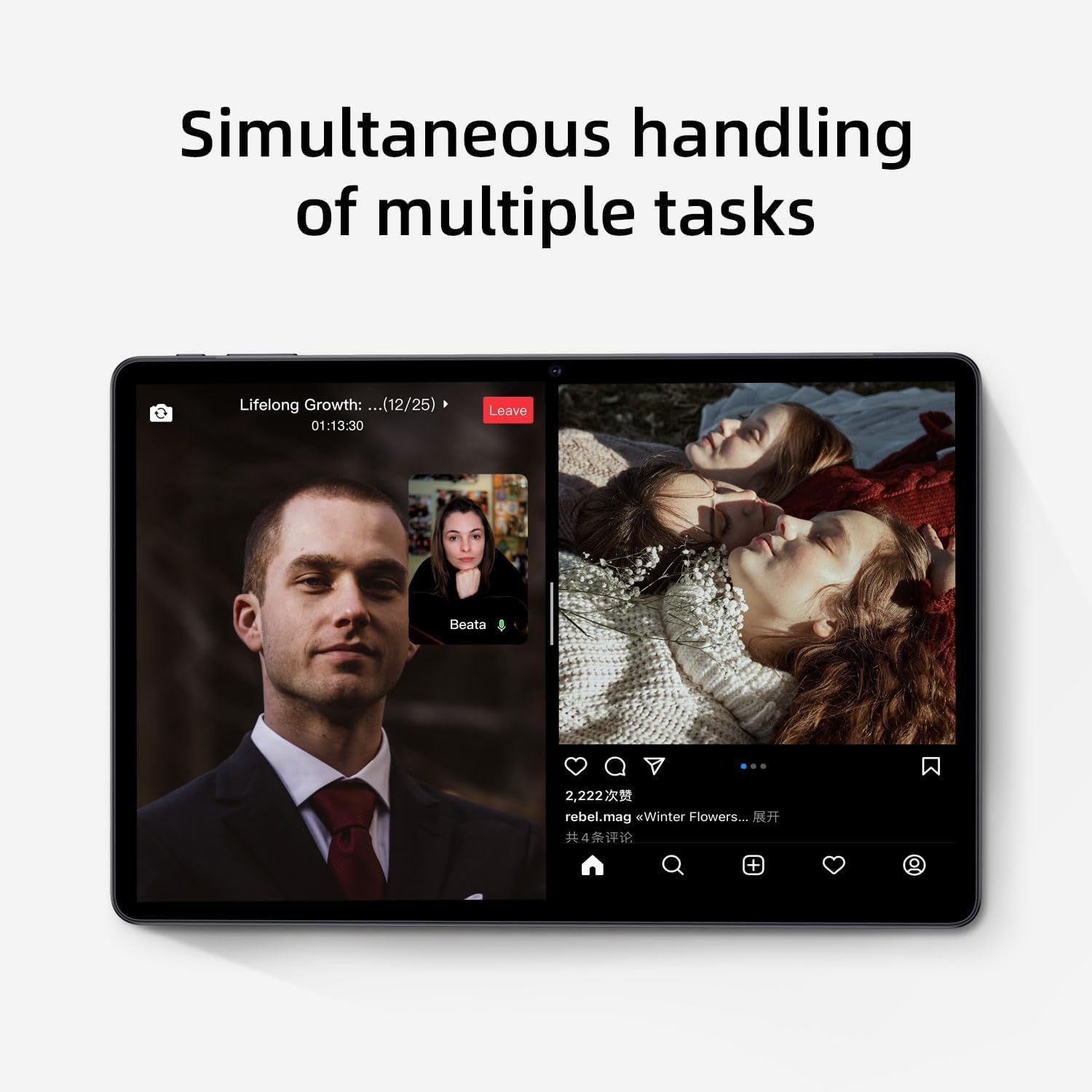
Image: The tablet screen showing two applications running simultaneously in split-screen mode, illustrating its multitasking feature.
3. メディアの再生
The 11-inch IPS display with 1920x1200 resolution provides clear and vibrant visuals for streaming videos, viewing photos, and playing games. Use pre-installed media players or download your preferred apps from the Google Play Store.
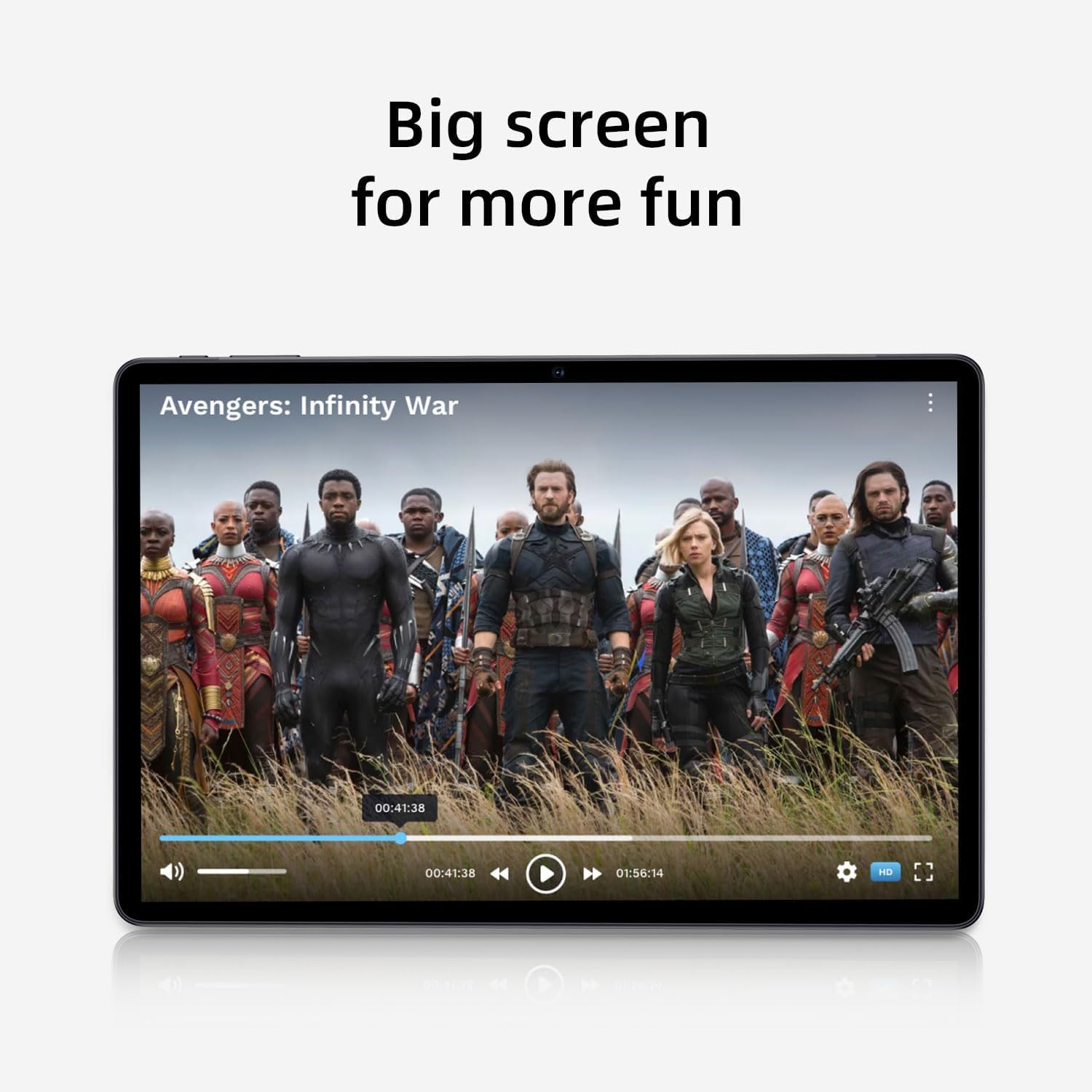
Image: The tablet screen showing a video playing, highlighting the display quality for entertainment.
4. GPSの使用
The tablet includes built-in GPS functionality. To use navigation apps, ensure location services are enabled in 設定 > 位置. Download a navigation app from the Google Play Store for turn-by-turn directions.
5. FMラジオの使用
To use the FM Radio, connect wired headphones (not included) to the tablet's audio jack. The headphones act as an antenna. Open the pre-installed FM Radio app and scan for available stations.
6. Bluetooth接続
To pair Bluetooth devices (e.g., headphones, speakers):
- へ移動 設定 > 接続されたデバイス > 接続設定 > ブルートゥース.
- Bluetoothを切り替える On.
- Bluetooth デバイスがペアリング モードになっていることを確認します。
- 利用可能なデバイスのリストからデバイスを選択し、画面上の指示に従ってペアリングを完了します。
7. カメラの使用
Open the Camera app from the home screen or app drawer. Tap the shutter button to take photos or switch to video mode to record videos. Adjust settings like flash, timer, and camera mode within the app interface.
メンテナンス
1. タブレットのクリーニング
柔らかく糸くずの出ない布を使用して、タブレットの画面と本体を拭いてください。頑固な汚れには、軽く拭いてください。amp布に水または画面洗浄液を含ませて拭いてください。刺激の強い化学薬品や研磨剤は使用しないでください。
2. バッテリーのお手入れ
- 極端な温度はバッテリー寿命を縮める可能性があるため、避けてください。
- バッテリーを頻繁に完全に消耗させないでください。
- 最適な充電のために付属の充電器を使用してください。
- The 8000mAh battery provides extended usage; however, proper care ensures long-term performance.

Image: A visual representation of the tablet's 8000mAh battery capacity, emphasizing its long-lasting power.
3. ソフトウェアの更新
定期的にシステムアップデートをチェックして、タブレットに最新の機能とセキュリティパッチが適用されていることを確認してください。 設定 > システム > システムアップデート.
4. ストレージ管理
定期的に再view インストールしたアプリと file使用していないアプリをアンインストールし、不要なものを削除する files to free up the 128GB internal storage. Utilize the 1TB expandable storage for large media files.
トラブルシューティング
タブレットの電源が入らない
- タブレットが十分に充電されていることを確認してください。電源アダプタに接続し、数分間待ってから電源を入れてください。
- 強制的に再起動するには、電源ボタンを 10 ~ 15 秒以上押し続けます。
Wi-Fi接続の問題
- Wi-Fiルーターとタブレットを再起動します。
- Wi-Fi設定でネットワークを削除して再接続します。
- Wi-Fi 信号の範囲内にいることを確認してください。
パフォーマンスが遅い
- バックグラウンドで実行されている未使用のアプリケーションを閉じます。
- 頻繁に使用するアプリのキャッシュデータをクリアします。
- 利用可能なシステム アップデートを確認してインストールします。
- Consider performing a factory reset as a last resort (back up your data first). Go to 設定 > システム > オプションをリセット > すべてのデータを消去(工場出荷時設定にリセット).
タッチスクリーンが反応しない
- タブレットを再起動します。
- 画面がきれいで、ゴミや湿気がないことを確認してください。
仕様

Image: The tablet shown with its physical dimensions, including screen size and overall device measurements.
| モデル名 | K10 |
| オペレーティング·システム | アンドロイド14 |
| プロセッサ | Octa-core (Unisoc) |
| ラム | 12GB |
| 内部ストレージ | 128GB |
| 拡張可能なストレージ | 最大1TB(microSD) |
| 画面サイズ | 11インチ |
| 画面解像度 | 1920x1200 IPS |
| バッテリー容量 | 8000mAh |
| 充電 | 18W PD急速充電 |
| Wi-Fi | Dual-band (2.4/5GHz) 802.11ac |
| ブルートゥース | ブルートゥース5.0 |
| GPS | はい |
| FMラジオ | はい |
| アイテム重量 | 2.33ポンド |
| 製品寸法 | 10.1 x 3.5 x 0.35インチ |
保証情報
This COLORROOM K10 Tablet is covered by a standard manufacturer's warranty. The specific terms and duration of the warranty may vary by region. Please retain your proof of purchase for warranty claims. For detailed warranty information, including coverage and how to make a claim, please refer to the warranty card included with your product or visit the official COLORROOM webサイト。
サポート
For further assistance, technical support, or to inquire about service, please visit the COLORROOM official support webメーカーのウェブサイトをご覧いただくか、カスタマーサービス部門にお問い合わせください。連絡先は通常、メーカーのウェブサイトに記載されています。 web現場または梱包材に記載されています。