
導入
This manual provides comprehensive instructions for the XBG B15 Tri-Mode Wireless Mouse. It covers setup, operation, maintenance, and troubleshooting to ensure optimal performance and user experience. Please read this manual thoroughly before using the device.

画像: トップダウン view of the XBG B15 Tri-Mode Wireless Mouse, showcasing its ergonomic design and central DPI button.
パッケージ内容
パッケージにすべてのアイテムが揃っていることを確認します。
- 1 x XBG B15 Tri-Mode Wireless Mouse
- USB充電ケーブル x 1
- ユーザーマニュアル (本書) x 1
製品終了view
Familiarize yourself with the components of your XBG B15 Wireless Mouse.

Image: Diagram illustrating the various parts of the XBG B15 mouse, including the left button, right button, scroll wheel, forward button, backward button, DPI button, ON/OFF switch, mode switch, and USB receiver.
The mouse features an ergonomic design that conforms to the natural curvature of the human palm, providing a comfortable grip for extended use. Its soft, durable, skin-like surface resists fingerprints.

画像: クローズアップ view of the XBG B15 mouse highlighting its ergonomic shape and textured grip for comfortable handling.
The mouse is compatible with various desktop surfaces, including resin, wood, fabric, paper, and metal.
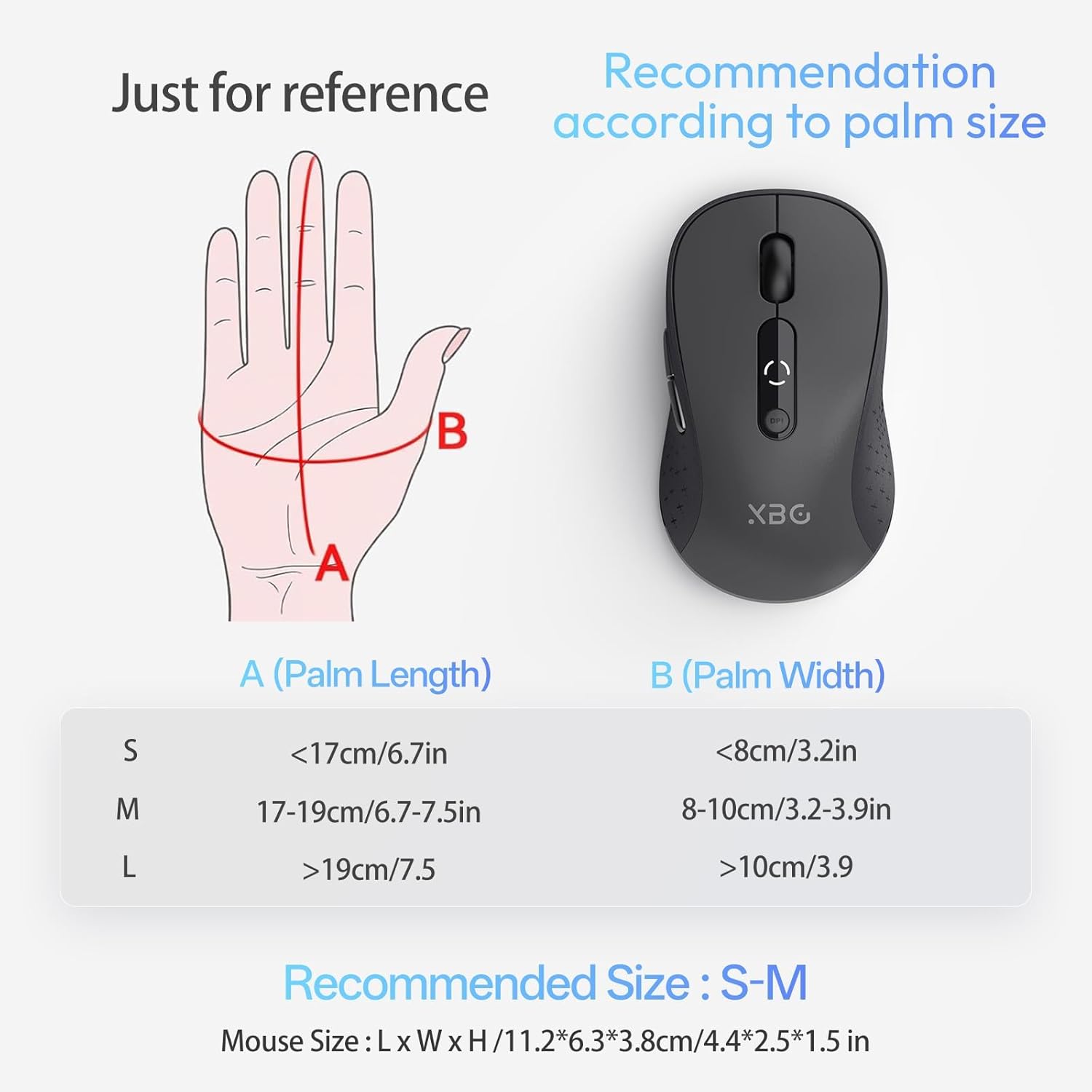
Image: The XBG B15 mouse shown on different surface types (resin, wood, fabric, paper, metal) to demonstrate its versatility.
設定
The XBG B15 mouse offers three connection modes: 2.4GHz Wireless, Bluetooth 5.0, and Bluetooth 4.0. You can switch between these modes using the 'Mode Switch' button located on the underside of the mouse.

Image: Illustration showing the XBG B15 mouse connecting to a desktop PC via 2.4G wireless and to a laptop and tablet via Bluetooth (BT1 and BT2), indicating its tri-mode capability.
A mode switch indicator light on the bottom of the mouse will show the current connection mode:
- 赤信号: 2.4Gワイヤレスモード
- 青色光: Bluetooth 1 (BT1) Mode
- 緑色のライト: Bluetooth 2 (BT2) Mode

Image: Close-up of the underside of the XBG B15 mouse, showing the mode switch and the corresponding indicator lights (Red for 2.4G, Blue for BT1, Green for BT2).
2.4GHzワイヤレス接続
- 底面のオン/オフスイッチを使用してマウスの電源をオンにします。
- Switch the mode to 2.4G (Red Light).
- USBレシーバーをコンピューターの使用可能なUSBポートに挿入します。
- コンピュータはマウスを自動的に検出してインストールします。
Bluetooth接続(BT1/BT2)
- 底面のオン/オフスイッチを使用してマウスの電源をオンにします。
- Switch the mode to either BT1 (Blue Light) or BT2 (Green Light).
- Press and hold the 'Mode Switch' button for 3-5 seconds until the indicator light starts flashing rapidly. This indicates the mouse is in pairing mode.
- デバイス(ラップトップ、タブレット、PC)で、Bluetooth 設定に移動します。
- 検索する new devices and select "XBG B15" from the list.
- ペアリングされると、インジケーター ライトの点滅が停止し、数秒間点灯した後消灯します。
- To connect to a second Bluetooth device, switch to the other Bluetooth mode (BT2 if you used BT1, or vice versa) and repeat steps 3-6.
操作手順
DPI調整
The mouse features 5 adjustable DPI levels (800/1000/1200/1600/2400) to suit various tasks such as office work, graphic design, or gaming. Press the DPI button located below the scroll wheel to cycle through the DPI settings. The current DPI level will be displayed on the mouse's built-in indicator.
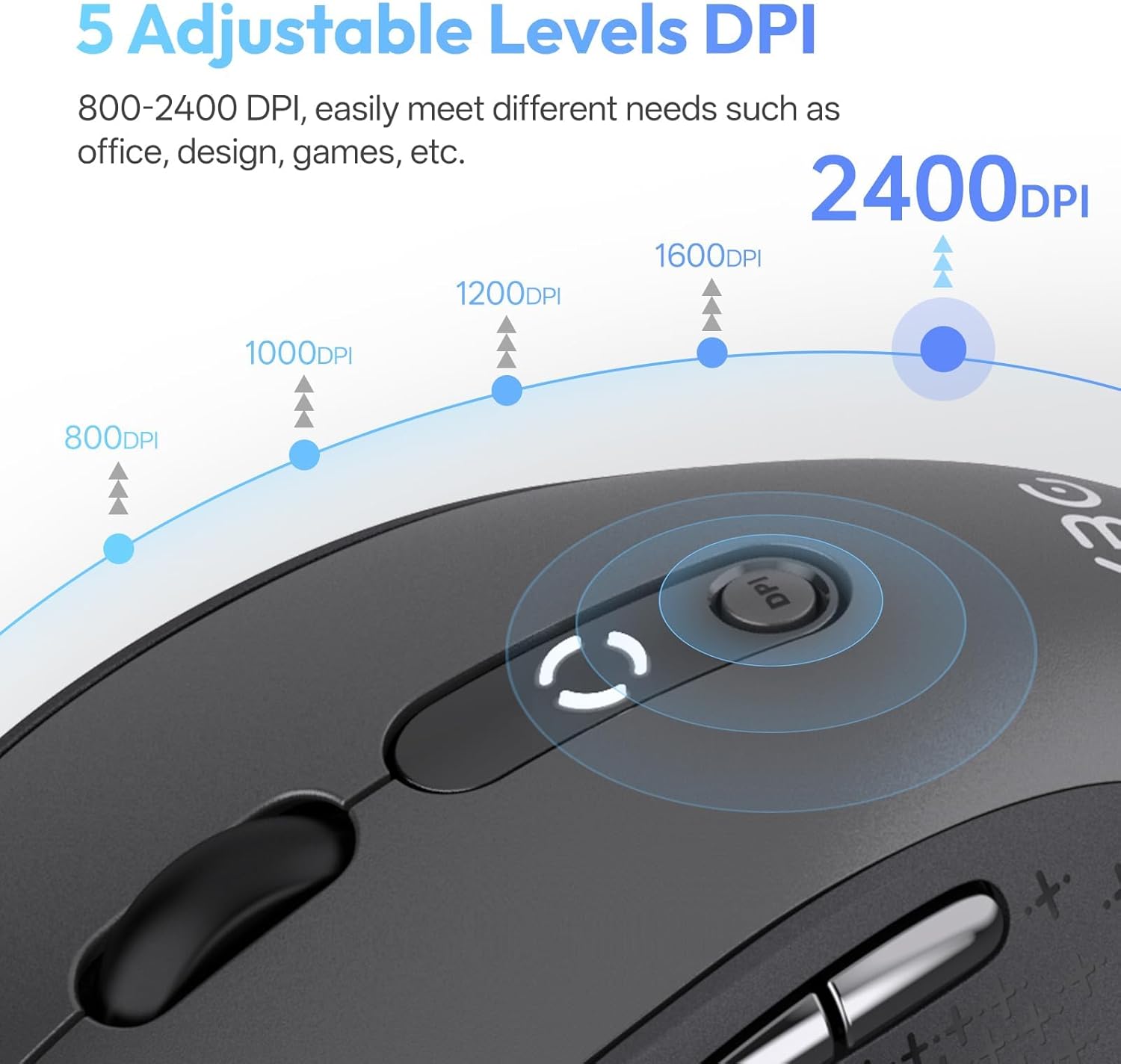
Image: Diagram illustrating the 5 adjustable DPI levels (800, 1000, 1200, 1600, 2400) and how to change them using the DPI button on the XBG B15 mouse.
サイレントクリック機能
The XBG B15 mouse is designed with silent buttons, providing a tactile click feel without producing audible noise. This feature is beneficial in quiet environments such as libraries, offices, or during late-night use.

Image: A person using the XBG B15 mouse silently in an office environment, with a baby sleeping in the background, demonstrating the noiseless click feature.
自動スリープモード
To conserve battery life, the mouse will automatically enter sleep mode after 5 minutes of inactivity. To wake the mouse, simply move it or click any button.
メンテナンス
マウスの充電
The XBG B15 mouse is equipped with a built-in 500 mAh rechargeable battery and a Type-C charging port. Connect the provided USB charging cable to the mouse's Type-C port and to a USB power source (e.g., computer USB port, wall adapter). A full charge takes approximately 2 hours and can provide months of use.

Image: The XBG B15 mouse connected to a charging cable via its Type-C port, illustrating the recharging process and highlighting its 500mAh battery capacity.
バッテリーインジケーター
The mouse features a 3-level battery indicator to monitor the remaining power:
- 3つのライトが点灯: バッテリー100%-75%
- 2つのライトが点灯: バッテリー75%-50%
- ライト1個点灯: バッテリー残量50%未満

Image: Close-up of the XBG B15 mouse's display, showing the 3-level battery indicator and its corresponding battery percentage 範囲。
クリーニング
マウスを掃除するには、柔らかくて乾いた布で表面を優しく拭いてください。amp 布で拭いてください。仕上げにダメージを与える可能性があるため、刺激の強い化学薬品や研磨剤の使用は避けてください。
トラブルシューティング
- マウスが反応しない:
- マウスがオンになっていることを確認します。
- バッテリー残量を確認し、必要に応じて充電してください。
- 2.4G接続の場合、USBレシーバーがコンピューターにしっかりと接続されていることを確認してください。別のUSBポートをお試しください。
- For Bluetooth connection, ensure the mouse is in the correct Bluetooth mode (BT1 or BT2) and is paired with your device. Re-pair if necessary.
- コンピュータまたはデバイスを再起動してみてください。
- 断続的な接続:
- マウスを受信機または Bluetooth 対応デバイスに近づけます。
- ワイヤレス信号に干渉する可能性があるため、金属の表面でマウスを使用しないでください。
- 近くに他の強力な無線干渉源がないことを確認してください。
- DPI設定が変更されない:
- 専用の DPI ボタンを押していることを確認してください。
- Check if the mouse is fully charged.
仕様
| 特徴 | 詳細 |
|---|---|
| モデル | B15-ブラック |
| 接続技術 | Bluetooth 5.0/4.0, 2.4GHz Wireless (USB) |
| DPI レベル | 800、1000、1200、1600、2400(調整可能) |
| 電池のタイプ | 充電式リチウムポリマー |
| バッテリー容量 | 500mAh |
| 充電ポート | タイプC |
| 製品寸法 | 4.4 x 2.5 x 0.04インチ |
| アイテム重量 | 2.65オンス |
| 特集 | Ergonomic Design, Portable, Silent Click, 3-Level Battery Indicator, Automatic Sleep |
| 互換性 | Windows、Mac、Linux、Android |
保証とサポート
The XBG B15 Tri-Mode Wireless Mouse comes with a manufacturer's warranty. For specific warranty details, please refer to the documentation included with your purchase or contact XBG customer support. If you encounter any issues not covered in this manual, please reach out to our support team for assistance.
さらに詳しいサポートについては、 XBG Store on Amazon.