
1. はじめに
This manual provides detailed instructions for the ZORNHER ZH980 Wireless Mechanical Keyboard. The ZH980 is a 95% layout mechanical keyboard designed for various uses, featuring multiple connectivity options, customizable RGB lighting, and hot-swappable switches.
主な機能は次のとおりです。
- Dipped PBT keycaps with clear, side-printed legends.
- 95% layout with number pad, F-row, and navigation keys.
- Linear creamy switches for tactile feedback.
- 22 preset RGB lighting modes with south-facing LEDs and edge glow.
- Hot-swappable PCB supporting 3-pin and 5-pin mechanical switches.
- Triple-mode connection: Bluetooth 5.0, 2.4GHz wireless, and USB-C.
- 6000mAh battery for extended wireless use.
- Ergonomic design with dual-angle kickstand.

Image 1.1: ZORNHER ZH980 Wireless Mechanical Keyboard overview.
2. パッケージ内容
パッケージにすべてのアイテムが揃っていることを確認します。
- 1 x Fully Assembled Mechanical Keyboard Body
- 取扱説明書 x 1
- キーキャッププーラー x 1
- 交換用スイッチ3個
- 2.4GHz受信機×1
- 1 x Type-C USB Cable (1.8m nylon)

Image 2.1: Package contents for the ZORNHER ZH980.
3. はじめに(セットアップ)
3.1 キーボードの充電
Before first use, it is recommended to fully charge the keyboard. Connect the included USB-C cable to the keyboard's Type-C port and the other end to a USB power source (e.g., computer, wall adapter). The keyboard features a 6000mAh battery.
3.2 接続モード
The ZORNHER ZH980 supports three connection modes: 2.4GHz wireless, Bluetooth 5.0, and wired USB-C. You can seamlessly switch between up to 5 devices.

Image 3.1: Triple-mode connection options.
3.2.1 2.4GHzワイヤレス接続
- 通常、キーボードの収納部に格納されている 2.4GHz USB レシーバーを見つけます。
- レシーバーをコンピューターまたはデバイスの使用可能な USB ポートに接続します。
- Ensure the keyboard's mode switch (usually on the back or side) is set to 2.4GHz wireless mode.
- キーボードは自動的に接続されるはずです。
3.2.2 Bluetooth 5.0接続
- キーボードのモードスイッチを Bluetooth モードに設定します。
- デバイス(コンピューター、タブレット、スマートフォン)で Bluetooth を有効にし、新しいデバイスを検索します。
- The keyboard should appear as "ZORNHER ZH980" or similar. Select it to pair.
- プロンプトが表示されたら、画面に表示されるペアリング コードを入力します。
- キーボードには最大5つのBluetooth Proを保存できますfiles. Refer to the keyboard's specific key combinations (e.g., Fn + 1/2/3/4/5) to switch between paired devices.
3.2.3 USB-C有線接続
- USB-C ケーブルをキーボードの Type-C ポートに接続します。
- ケーブルのもう一方の端をコンピュータの利用可能な USB ポートに接続します。
- キーボードは有線デバイスとして機能し、同時に充電されます。
3.3 人間工学的調整
The keyboard is designed with a dual-angle kickstand on the underside, allowing you to adjust the typing angle for improved comfort and reduced strain during extended use.

Image 3.2: Dual-angle kickstand and robust construction.
4. 基本操作
4.1 キーボードレイアウト
The ZH980 features a 95% layout, which includes a full number pad, F-row keys, arrow keys, and essential navigation keys, providing comprehensive functionality in a compact form factor.
4.2 ファンクションキーの組み合わせ(Fn)
The Fn key (Function key) is used in combination with other keys to access secondary functions, such as media controls, volume adjustment, and lighting effects. Specific combinations are detailed in the RGB Lighting Control section.
5. RGB照明制御
The ZORNHER ZH980 features vibrant RGB lighting with 22 preset modes, south-facing LEDs, and edge glow. The lighting can be customized for brightness, speed, and direction.

Image 5.1: RGB lighting controls using Fn key combinations.
5.1 Basic Lighting Adjustments
- Fn + バックスペース: Cycle through 22 preset RGB lighting modes.
- Fn + 上矢印: Increase Main Backlight Brightness.
- Fn + 下矢印: Decrease Main Backlight Brightness.
- Fn + 左矢印: Decrease Main Backlight Speed.
- Fn + 右矢印: Increase Main Backlight Speed.
- Fn + Page Up: Switch Dynamic Light Direction.
- Fn + Page Down: スイッチLamp 効果。
- Fn + Esc: Restore to Factory Settings (also used for troubleshooting).
- Fn + Win: Window Lock (disables Windows key).

Image 5.2: RGB lighting on vs. off.
6. カスタマイズ
6.1 ホットスワップ可能なスイッチ
The ZH980 features a hot-swappable PCB, allowing you to change mechanical switches without soldering. It supports both 3-pin and 5-pin switches, offering compatibility with a wide range of switch types (approximately 98% of switches on the market).

Image 6.1: Hot-swappable PCB for switch replacement.
スイッチの交換:
- 付属のキーキャップ プーラーを使用して、必要なキーキャップを慎重に取り外します。
- 付属のスイッチ プーラーを使用して、スイッチを PCB から慎重に取り外します。
- 新しいスイッチのピンをPCBの穴に合わせます。ピンが曲がらないように、まっすぐになっていることを確認してください。
- 新しいスイッチをカチッと音がするまでしっかりと押し込みます。
- キーキャップを交換します。
6.2 ソフトウェアのカスタマイズ
Utilize the dedicated driver software to unlock full customization options. This software allows you to:
- キーをさまざまな機能に再マップします。
- 複雑なコマンドのマクロを作成して割り当てます。
- Tailor RGB lighting effects beyond the preset modes, including custom colors and dynamic patterns.
- カスタムプロの設定fileさまざまなアプリケーションやゲーム用。
The software is compatible with Windows and Mac operating systems. Please visit the official ZORNHER webソフトウェアのダウンロードとインストールの手順については、こちらのサイトをご覧ください。

Image 6.2: ZORNHER customization software interface.
7. メンテナンス
7.1 キーボードのクリーニング
最適なパフォーマンスと外観を維持するには:
- 清掃する前に、キーボードをすべての電源から外してください。
- 柔らかく糸くずの出ない布で軽く拭き取ってください。ampキーキャップとキーボードの表面を水または中性洗浄液で拭いてください。
- より徹底したクリーニングを行うには、キーキャップ プーラーを使用してキーキャップを取り外し、圧縮空気または小さなブラシで下側をクリーニングします。
- キーキャップや仕上げを損傷する可能性のある、強力な化学薬品や研磨材の使用は避けてください。
7.2 キーキャップとスイッチのお手入れ
The PBT Dipped keycaps are designed for durability and resistance to shine and wear. When replacing keycaps or switches, handle them carefully to avoid damage to the switch stems or keycap mounts.
8。 トラブルシューティング
If you encounter issues with your ZORNHER ZH980 keyboard, refer to the following common problems and solutions:
| 問題 | 考えられる解決策 |
|---|---|
| キーボードが反応しない(有線) | USB-Cケーブルがキーボードとコンピュータの両方にしっかりと接続されていることを確認してください。別のUSBポートまたはケーブルをお試しください。 |
| 2.4GHzワイヤレス接続の問題 | Ensure the 2.4GHz receiver is properly plugged in and the keyboard is in 2.4GHz mode. Move the keyboard closer to the receiver to reduce interference. |
| Bluetooth接続の問題 | Ensure the keyboard is in Bluetooth mode and discoverable. On your device, remove any previous pairings and attempt to re-pair. Check if your device's Bluetooth is enabled. |
| RGB照明が機能しない、または動かない | プレス Fn + バックスペース to cycle through lighting modes. Adjust brightness with Fn + 上/下矢印. If issues persist, perform a factory reset (Fn+Esc キー). |
| キーが認識されない、または二重入力される | Ensure switches are fully seated. If a specific switch is faulty, replace it using the hot-swap feature. Perform a factory reset (Fn+Esc キー). |
| Keyboard randomly types garbled characters | This may indicate a software issue or interference. Try performing a factory reset (Fn+Esc キー). Ensure the keyboard firmware is up to date via the ZORNHER software. |
| Battery not charging or low battery life | Ensure the USB-C cable is working and connected to a reliable power source. Reduce RGB brightness or turn off lighting to conserve battery. |
If these solutions do not resolve the issue, please contact ZORNHER customer support for further assistance.
9. 仕様
| 特徴 | 詳細 |
|---|---|
| モデル | ZH980 |
| レイアウト | 95% (with number pad) |
| キーキャップ | Dipped PBT, Side-Printed Legends |
| スイッチ | Sakura Linear Switches (Creamy Sounding) |
| ホットスワップ可能 | Yes, supports 3-pin and 5-pin mechanical switches |
| 接続性 | Bluetooth 5.0、2.4GHzワイヤレス、USB-C有線 |
| バッテリー容量 | 6000mAhリチウムイオン |
| RGBバックライト | 22 Preset Modes, 16 Million Colors (via software), South-facing LEDs, Edge Glow |
| 対応デバイス | ノートパソコン、Mac、PC、スマートフォン、タブレット |
| 製品寸法 | 14.96 x 7.99 x 2.75 インチ (38 x 20.3 x 7 cm) |
| アイテム重量 | 4.27ポンド(1.94kg) |
| メーカー | ゾルンハー |
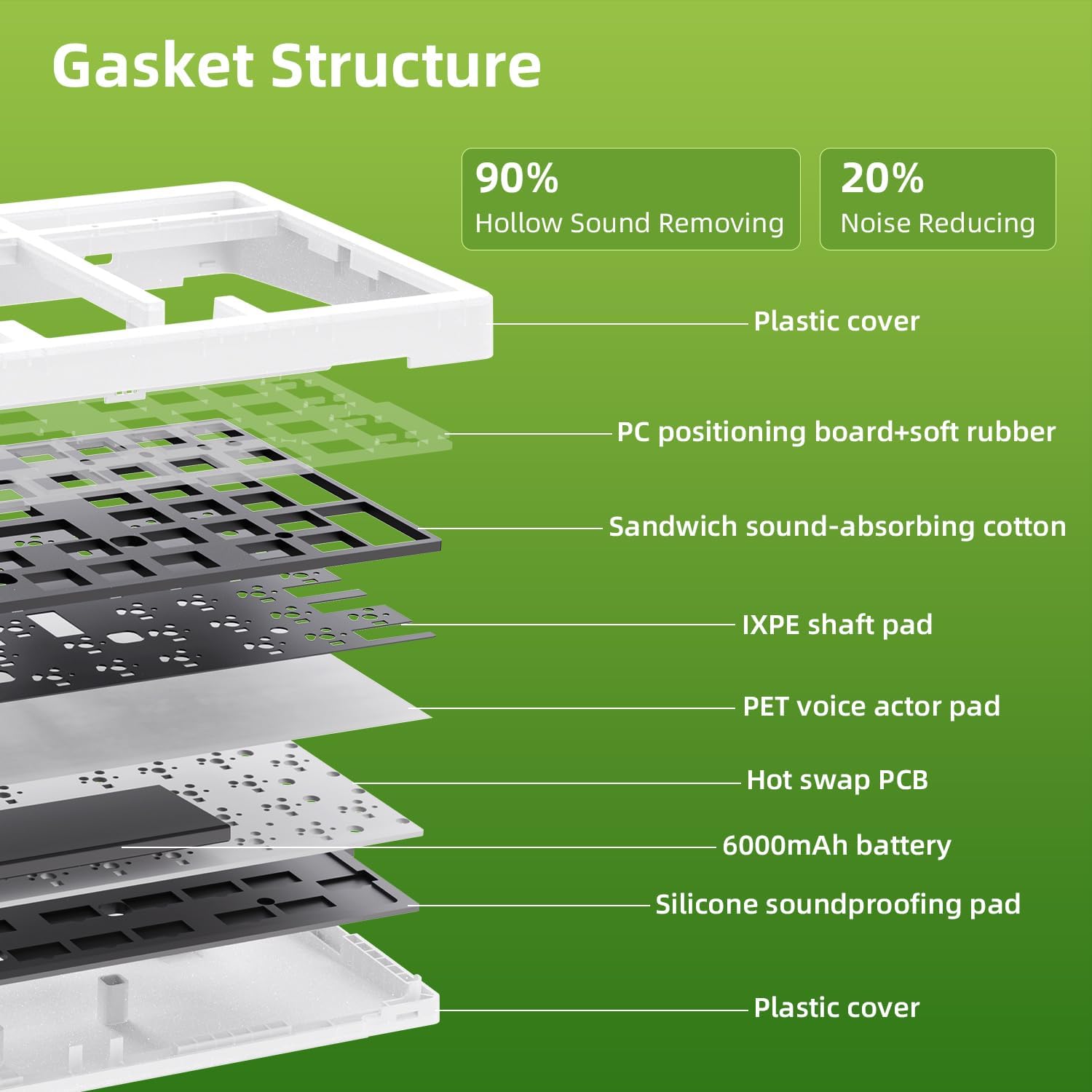
Image 9.1: Internal Gasket Structure diagram.
10. 保証とサポート
10.1 保証情報
The ZORNHER ZH980 Wireless Mechanical Keyboard is covered by a 2年間保証 ご購入日から1年間有効です。本保証は、製造上の欠陥および通常の使用に起因する問題を対象としています。誤用、事故、不正な改造、または不適切なメンテナンスによる損傷は保証の対象外となります。
保証請求のために購入証明書を保管してください。
10.2 カスタマーサポート
For technical assistance, warranty claims, or any other inquiries regarding your ZORNHER ZH980 keyboard, please contact ZORNHER customer support through the following channels:
- 正式 Webサイト: Visit the ZORNHER official webサポート リソース、FAQ、お問い合わせフォームのサイト。
- メールサポート: Refer to your product packaging or the ZORNHER webカスタマー サポートのメール アドレスについては、サイトをご覧ください。
- オンラインストアサポート: If purchased from an online retailer, you may also contact their customer service for initial support or to facilitate warranty claims.
When contacting support, please provide your product model (ZH980), purchase date, and a detailed description of the issue.