
FREEZE2TRIM Skyhawk Drone, Ulti Charger Boltz Pro
FREEZE2TRIM Skyhawk Drone & Ulti Charger Boltz Pro Instruction Manual
Model: Skyhawk Drone, Ulti Charger Boltz Pro
Brand: FREEZE2TRIM
導入
This manual provides comprehensive instructions for the safe and efficient operation of your FREEZE2TRIM Skyhawk Drone and Ulti Charger Boltz Pro. Please read this manual thoroughly before first use and retain it for future reference.
The Skyhawk Drone is a versatile quadcopter designed for capturing high-definition aerial footage with user-friendly controls. The Ulti Charger Boltz Pro is a multi-port fast charger designed to efficiently power your devices, including the drone's batteries.

設定
1. 開梱と初期検査
Carefully remove all components from the packaging. Verify that all items listed in the packing list are present and undamaged. The package typically includes the Skyhawk Drone, remote controller, Ulti Charger Boltz Pro, multiple batteries, spare propellers, and a travel carry case.

2. Charging the Drone Batteries
The Skyhawk Drone batteries should be fully charged before first use. Use the provided Ulti Charger Boltz Pro for efficient charging. This charger features Quick Charge 3.0 technology and multiple ports for simultaneous charging.
- Connect the Ulti Charger Boltz Pro to a power outlet.
- Insert the drone batteries into the charger's USB ports.
- Monitor the charging indicators on the batteries or charger.
- Disconnect batteries once fully charged.

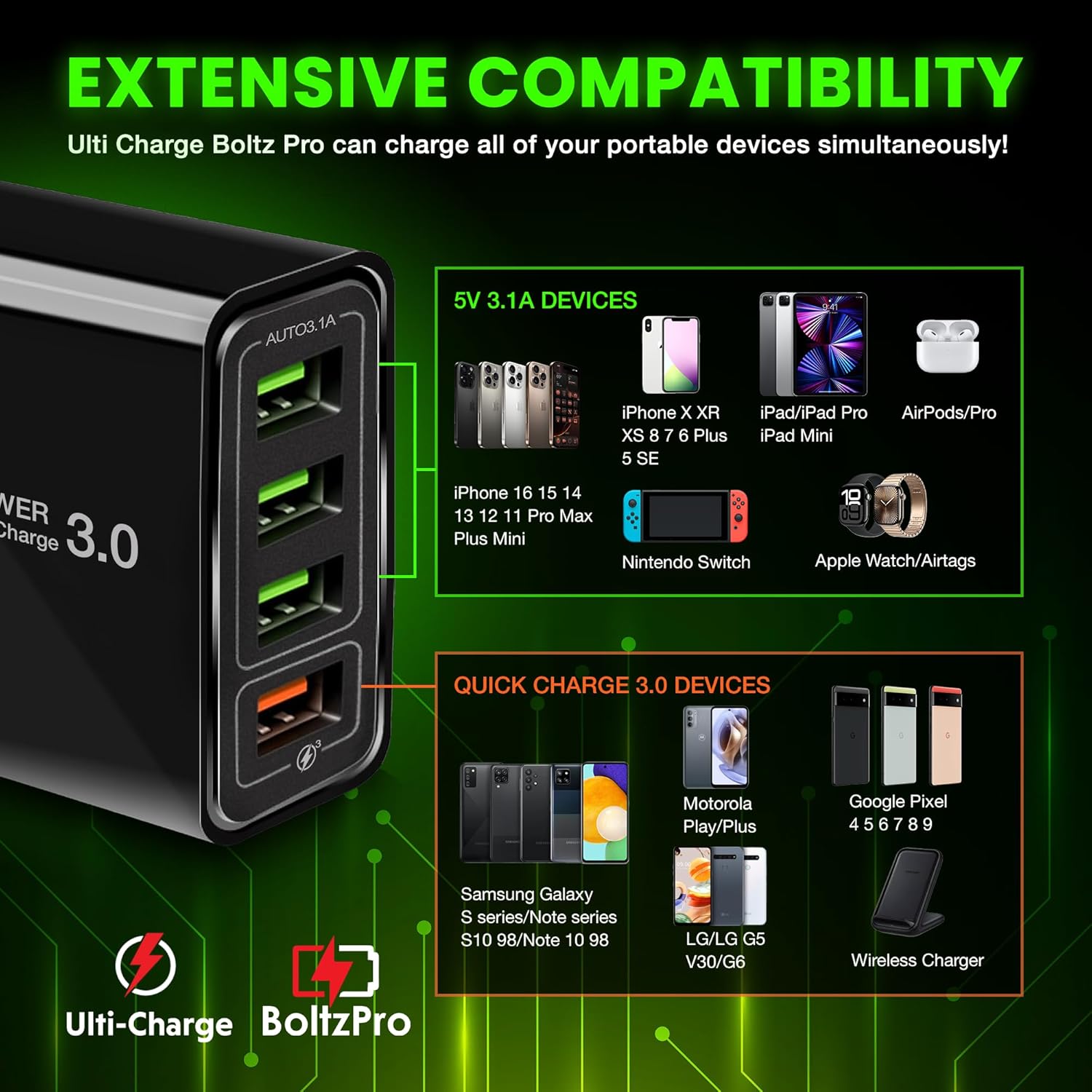
3. Remote Controller and App Connection
The remote controller is designed for intuitive operation. It features a pull-out smartphone holder to display the drone's camera feed via a dedicated app.
- Download the official Skyhawk Drone app from your device's app store.
- Insert your smartphone into the remote controller's holder.
- ドローンとリモートコントローラーの電源を入れます。
- Follow the in-app instructions to connect your smartphone to the drone's Wi-Fi network and establish a connection with the remote controller.

Operating the Skyhawk Drone
1. 基本的な飛行制御
The Skyhawk Drone offers effortless control for both beginners and experienced pilots.
- ワンボタン離陸/着陸: Press the designated button on the remote for automatic ascent or descent.
- ヘッドレスモード: パイロットに対するドローンの向きを調整する必要がなくなるため、飛行が簡単になります。
- 速度オプション: Choose from three speed settings to match your flying skill and environmental conditions, with a maximum speed of up to 25 mph.
- 高度維持: In GPS mode, the drone maintains a stable altitude for steady flight and photography.
2. Camera Operation and Features
The drone is equipped with a high-definition camera for capturing stunning aerial visuals.
- 高解像度カメラ: Features a 120° wide-angle lens, capable of capturing 360° pictures and videos at 60 frames per second.
- 調整可能なカメラ: The camera angle can be adjusted during flight via the remote controller.
- ライブフィード: View the camera's live feed directly on your smartphone through the connected app.
3. スマートフライトモード
Enhance your flying experience with intelligent flight modes:
- フォローミーモード: The drone automatically tracks and follows a designated subject.
- 軌道飛行: The drone circles a point of interest, capturing panoramic footage.
- ウェイポイント飛行: Program a flight path with multiple waypoints for automated navigation.
- One-Click Return Home: Automatically brings the drone back to its take-off point, especially useful in low power or lost signal situations.
メンテナンス
1. 保管と携帯性
The Skyhawk Drone is designed for portability with foldable propellers and a lightweight body.
- Fold the drone's arms inward for compact storage.
- Secure the propellers with the provided strap if available.
- Store the drone and its accessories in the included travel carry case to protect them during transport.
- The remote controller's joysticks are detachable for easier storage.

2. プロペラのケア
Inspect propellers regularly for any damage (cracks, bends, chips). Replace damaged propellers immediately using the spare parts provided to ensure safe and stable flight.
トラブルシューティング
- ドローンがリモコン/アプリに接続されない: Ensure the drone is powered on and your smartphone is connected to the drone's Wi-Fi. For GPS-dependent features, ensure you are outdoors with a clear view 衛星捕捉のための天空の。
- 不安定な飛行: Check for damaged propellers and replace if necessary. Ensure batteries are fully charged. Perform a compass calibration if the drone drifts or flies erratically.
- カメラの品質が悪い: Ensure the camera lens is clean and free from obstructions. Verify that the app settings are configured for the desired resolution (e.g., 4K).
- 飛行時間が短い: Ensure batteries are fully charged before each flight. Extreme temperatures or aggressive flying can reduce battery life.
仕様
- ブランド: フリーズ2トリム
- Drone Model: Skyhawk Drone
- 充電器モデル: Ulti Charger Boltz Pro
- カメラ: 120° wide-angle lens, 360° pictures and videos, 60 frames per second (HD/4K resolution as per product description)
- 最高速度: Up to 25 mph (as per product description)
- Charger Ports: 4-Port QC 3.0 USB Charger Block
- 充電器出力: 40 Watt (QC3.0 + Three 3.1A ports)
- 接続性: 2.4GHz Remote Control, App-controlled via smartphone
- 特別な機能: Foldable design, One-button take-off/landing, Headless mode, Follow Me mode, Orbit Flight, Waypoint Flight, One-Click Return Home, Altitude Hold (GPS Mode)
保証とサポート
Specific warranty details are not provided in the product information. Please refer to the product packaging or contact FREEZE2TRIM customer support for warranty information and technical assistance.
さらにサポートが必要な場合は、次のサイトを参照してください。 FREEZE2TRIM Store on Amazon.
Ask a question about this manual
Ask about setup, troubleshooting, compatibility, parts, safety, or missing instructions. Manuals+ will review the question and use this page’s manual context to help answer it.