
1. はじめに
The ASUS AirVision M1 Smart AR Glasses are a wearable display device designed to provide an expansive and immersive visual experience. This device integrates a 100-inch virtual Micro-OLED display with 1100 nits brightness and 95% DCI-P3 color gamut, offering clear and vibrant visuals for both productivity and entertainment. The glasses feature multi-screen capabilities, built-in speakers, and a noise-canceling microphone, connecting via USB-C to a variety of compatible devices.
主な機能は次のとおりです。
- Up to a 100-inch virtual display with 1,100 nits brightness and 95% DCI-P3 color gamut.
- Multi-screen functionality for enhanced productivity.
- Seamless integration with devices supporting USB-C with DisplayPort Alt-Mode or Thunderbolt 4.
- Built-in speakers and a noise-canceling microphone.
- Lightweight design (87g) with high transparency for situational awareness.
- カスタマイズ可能 viewing experience via the AirVision App, including screen distance and pupil distance adjustments.

Figure 1.1: ASUS AirVision M1 Smart AR Glasses.

図1.2:以上view of ASUS AirVision M1 display capabilities, including 100-inch display, 1100 nits brightness, and optimization for Windows devices.
2. 箱の中身
パッケージにすべてのアイテムが揃っていることを確認します。
- ASUS AirVision M1 Glasses
- キャリングケース
- USB-Cケーブル
- 保証書
- クイックスタートガイド(QSG)
- User manual (Web)
- クリーニングクロス
- Prescription lens module (optional, included)
- ライトシールド
- Nose pads (2 pairs)

Figure 2.1: All components included in the ASUS AirVision M1 package.

USB-Cケーブル

キャリングケース

ノーズパッド

ライトシールド

Prescription Lens Module
3. セットアップ
3.1 Fitting the Glasses
- Choose the Correct Nose Pads: Select the nose pads that provide the most comfortable and stable fit on your nose. Gently attach them to the glasses.
- Install Prescription Lens Module (if applicable): If you require corrective lenses, attach the prescription lens module to the designated area on the glasses.
- クリアに調整 View: Once worn, ensure the glasses are positioned to achieve a clear and focused image. Minor adjustments to the nose pads or the glasses' position on your face may be necessary.
3.2 Attaching the Light Shield
For enhanced immersion or to reduce external light interference, attach the magnetic light shield to the front of the glasses. The shield will snap into place magnetically.
3.3 Initial Connection and Software Installation
- デバイスに接続します: Use the provided USB-C cable to connect the ASUS AirVision M1 glasses to a compatible device (e.g., laptop, ROG Ally, smartphone, tablet). Ensure your device supports USB-C with DisplayPort Alt-Mode or Thunderbolt 4.
- Install AirVision App: For full functionality, including multi-screen setups and advanced display adjustments, install the ASUS AirVision App on your Windows-based device. The app can typically be found on the official ASUS support website for the AirVision M1.
- First-Time Setup in App: Follow the on-screen instructions within the AirVision App to calibrate screen distance and pupil distance for optimal view快適さを。
4. メガネの操作
4.1 Connecting to Compatible Devices
The AirVision M1 glasses connect via a single USB-C cable. This connection provides both power and video signal. Ensure your host device has a USB-C port that supports DisplayPort Alt-Mode or Thunderbolt 4 for video output.
- PC/ラップトップ: Connect directly to a compatible USB-C port.
- ROG Ally/Steam Deck: Connect directly for an enhanced portable gaming experience.
- スマートフォン/タブレット: Compatible with select Android and iOS devices (iPhone 15/16) that support USB-C video output.
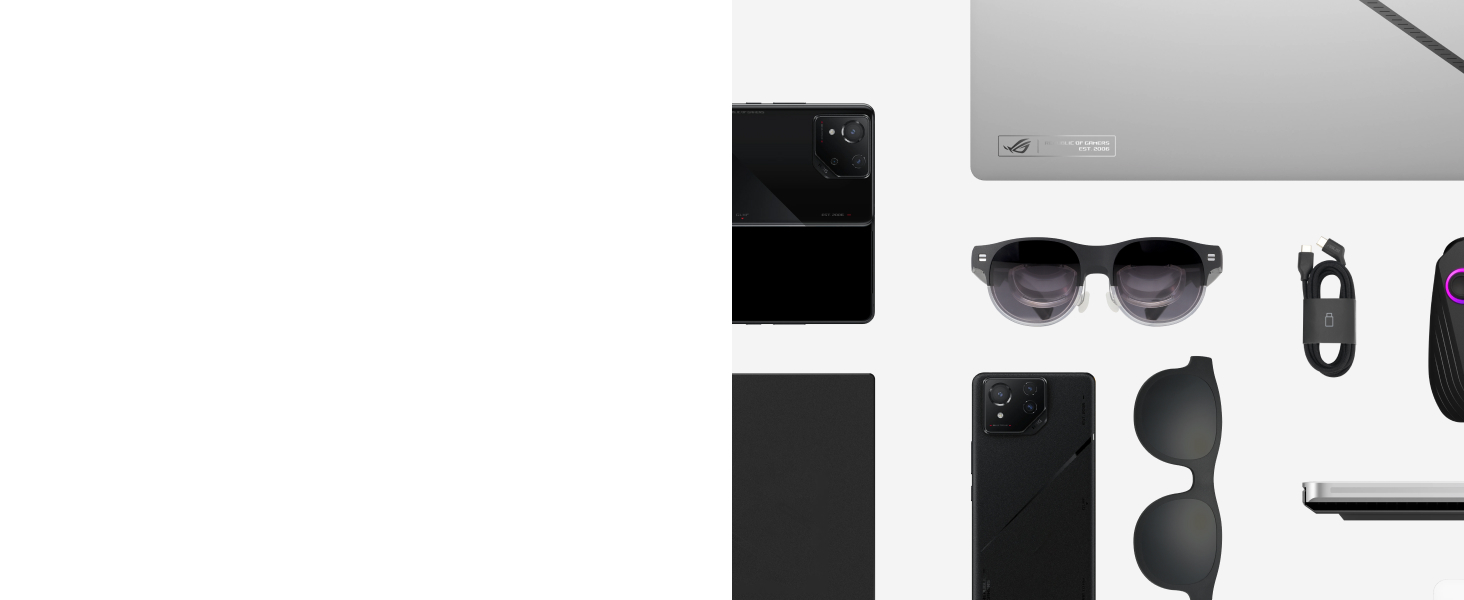
Figure 4.1: The ASUS AirVision M1 offers seamless compatibility with a range of Type-C Alt mode devices.
4.2 Using the AirVision App (Windows Only)
The AirVision App provides advanced customization and multi-screen management for Windows devices.
- Multi-screen Setup: Arrange multiple virtual screens for enhanced productivity. You can position and resize screens as needed.
- Screen Distance Adjustment: Fine-tune the perceived distance of the virtual screen for optimal comfort.
- Pupil Distance Customization: Adjust the display to match your individual pupil distance for a clearer image.
- Viewingモード: Switch between various modes tailored for different usage scenarios, such as:
- 動作モード: Optimized for multi-tasking with several virtual displays.
- ゲームモード: Provides an immersive, wide-screen experience for gaming.
- Infinity Mode: Offers a vast, expansive virtual environment.

Figure 4.2: AirVision App interface showing options for multiscreen setup, screen distance, pupil distance, and different viewingモード。
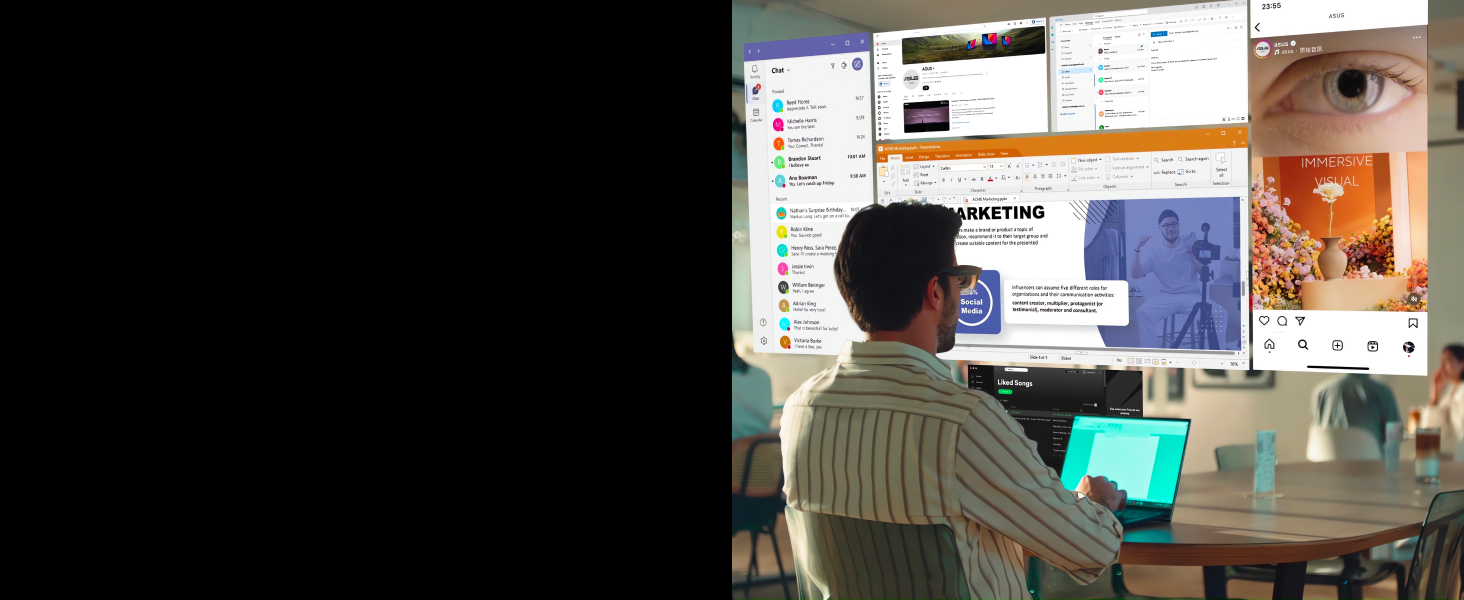
図4.3:例ample of a multi-screen work environment using the AirVision M1 glasses.
4.3 ジェスチャーコントロール
The glasses feature intuitive gesture controls for quick adjustments (requires AirVision App for full functionality):
- Center Virtual Screen: One-finger tap on the temple to re-center the display.
- スイッチ Viewingモード: One-finger double tap to cycle through available viewingモード。
- 明るさ調整: One-finger swipe on the temple to adjust display brightness.

Figure 4.4: Visual guide to gesture controls for screen centering, mode switching, and brightness adjustment.
4.4 オーディオ機能
The AirVision M1 glasses include built-in speakers for audio output and a noise-canceling microphone for communication. These are designed for convenience during use, whether for calls, gaming, or media consumption.

Figure 4.5: The glasses feature built-in speakers and a noise-canceling microphone for integrated audio.

Figure 4.6: The AirVision M1 provides an immersive experience for gaming and private media viewing。
5. メンテナンス
5.1 クリーニング
- レンズ: Use the provided cleaning cloth or a soft, lint-free microfiber cloth specifically designed for optics. Gently wipe the lenses to remove dust and smudges. Do not use abrasive materials, paper towels, or harsh chemical cleaners, as these can scratch or damage the lens coatings.
- フレーム: フレームを柔らかくて乾いた布で拭いてくださいamp cloth. Avoid getting moisture into any openings or ports.
- USB-Cポート: Ensure the USB-C port is free of dust and debris. Use a dry, soft brush if necessary.
5.2 ストレージ
- When not in use, store the glasses in the provided carrying case to protect them from dust, scratches, and impacts.
- ガラスは、直射日光や極端な温度を避け、涼しく乾燥した場所に保管してください。
6。 トラブルシューティング
If you encounter issues with your ASUS AirVision M1 glasses, refer to the following common troubleshooting steps:
- No Display or Blurry Image:
- USB-C ケーブルがメガネとホスト デバイスの両方にしっかりと接続されていることを確認します。
- Verify that your host device's USB-C port supports DisplayPort Alt-Mode or Thunderbolt 4.
- Adjust the glasses' position on your face and try different nose pads for a better fit.
- Use the AirVision App to adjust the pupil distance (IPD) and screen distance settings for optimal clarity. Individual eye differences can significantly impact perceived image quality.
- 付属のクリーニングクロスでレンズを拭いてください。
- 音声が出ない、または音質が悪い:
- Check your host device's audio output settings to ensure the AirVision M1 is selected as the output device.
- Adjust the volume on both the host device and using the gesture controls on the glasses.
- Ensure the USB-C connection is stable.
- AirVision App Not Functioning Correctly:
- Ensure you have the latest version of the AirVision App installed from the official ASUS webサイト。
- Restart the AirVision App and reconnect the glasses.
- オペレーティング システムが最新であることを確認してください。
- Glasses Not Recognized by Device:
- Try connecting the glasses to a different USB-C port or a different compatible device to isolate the issue.
- デバイスのドライバーが最新であることを確認してください。
7. 仕様
| 特徴 | 詳細 |
|---|---|
| モデル番号 | M1 |
| ブランド | エイスース |
| ディスプレイ解像度 | 1920 x 1080 (フルHD) |
| 表示タイプ | マイクロOLED |
| 輝度 | 1100ニット |
| 色域 | 95% DCI-P3 |
| 接続技術 | USB-C cable (DisplayPort Alt-Mode / Thunderbolt 4 compatible) |
| 特集 | Built-In Speaker, Micro OLED, Portable, Noise-Canceling Mic, Ambient Light Sensor |
| 推奨用途 | ビジネス、ゲーム、個人 |
| アイテム重量 | 3.2オンス(約90.7g) |
| パッケージ寸法 | 8.86 x 5.47 x 4.33インチ |
8. 保証とサポート
8.1 保証情報
The ASUS AirVision M1 Smart AR Glasses come with a manufacturer's warranty. Please refer to the warranty card included in your product package for specific terms, conditions, and duration of coverage. Keep your proof of purchase for warranty claims.
8.2 テクニカルサポート
For technical assistance, product updates, or further information, please visit the official ASUS support webサイトをご覧ください。ドライバー、FAQ、カスタマーサービスの連絡先情報も掲載されています。
ASUS サポート Webサイト: www.asus.com/サポート/


