
導入
This manual provides essential instructions for the proper setup, operation, and maintenance of your INIU 16ft Premium VR Link Cable with Charging. This cable is designed to connect your compatible VR headset to a PC for VR gaming while simultaneously providing power to the headset, ensuring extended gameplay sessions.
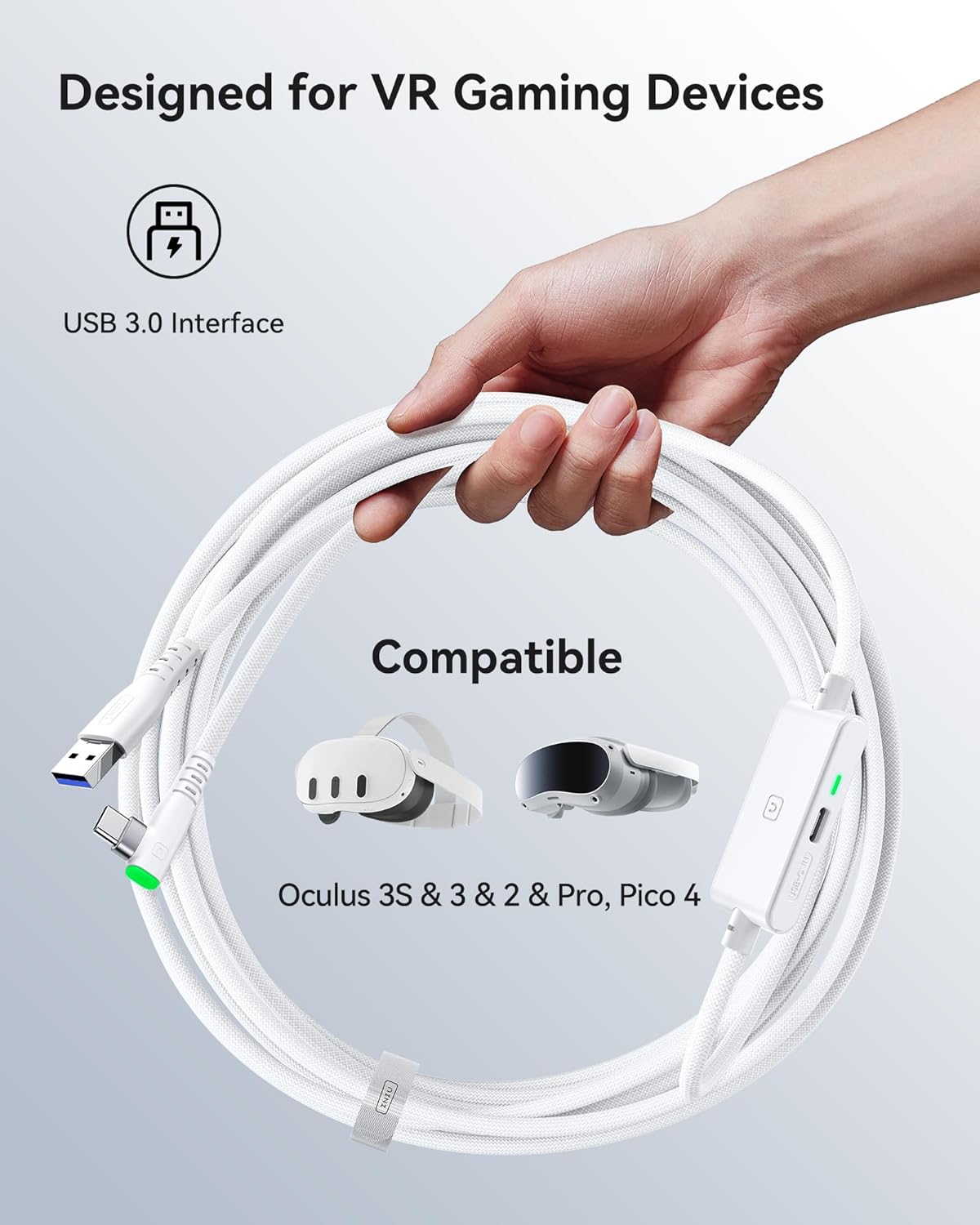
画像: The INIU VR Link Cable, highlighting its USB 3.0 interface and compatibility with various VR gaming devices including Oculus Quest 3S, 3, 2, Pro, and Pico 4.
セットアップ手順
- Connect to VR Headset: Insert the 90-degree USB-C connector of the link cable firmly into the USB-C port on your VR headset (e.g., Meta Quest 3, Oculus Quest 2, Pico 4). Ensure a secure connection.
- PCに接続: Plug the standard USB-A connector of the link cable into an available USB 3.0 port on your computer.
- Connect Power Adapter (for Charging): For simultaneous charging, connect a USB-C to USB-C cable from a PD/QC fast adapter (not included) to the dedicated USB-C charging port on the link cable's central hub. This port is specifically for power delivery to the VR headset.
- 電源オン: Once all connections are made, power on your VR headset and PC. Follow your VR platform's instructions (e.g., Oculus Link, SteamVR) to establish the VR connection.
重要な注意: This is a VR link cable designed for VR headsets. しないでください use the separate USB-C charging port to charge phones, tablets, laptops, or other non-VR devices, as it is optimized for VR headset power delivery.

画像: A visual representation of the INIU VR Link Cable in use, demonstrating simultaneous connection to a VR headset, a PC, and a power adapter for charging. The image emphasizes the separate USB-C charging port.
操作手順
- Simultaneous Charging and Data Link: The cable allows for high-speed data transfer (USB 3.0) for PC VR gaming while simultaneously charging your VR headset. This ensures uninterrupted gameplay.
- SmartProtect2.0 Technology: The built-in SmartProtect2.0 chip intelligently manages power delivery and data synchronization. It controls the current to maintain the VR headset's battery within a safe range, typically around 78%, to prevent overcharging and prolong battery life.
- Extended Range of Motion: 16フィート(5m)のケーブル長により、 ample freedom of movement during VR sessions, reducing restrictions and enhancing immersion.
- 安全な接続: The 90-degree USB-C connector is designed to hook firmly into your VR glasses, minimizing accidental disconnections. A flexible joint and an included sticky buckle further secure the cable, preventing strain and ensuring a stable link during active gameplay.
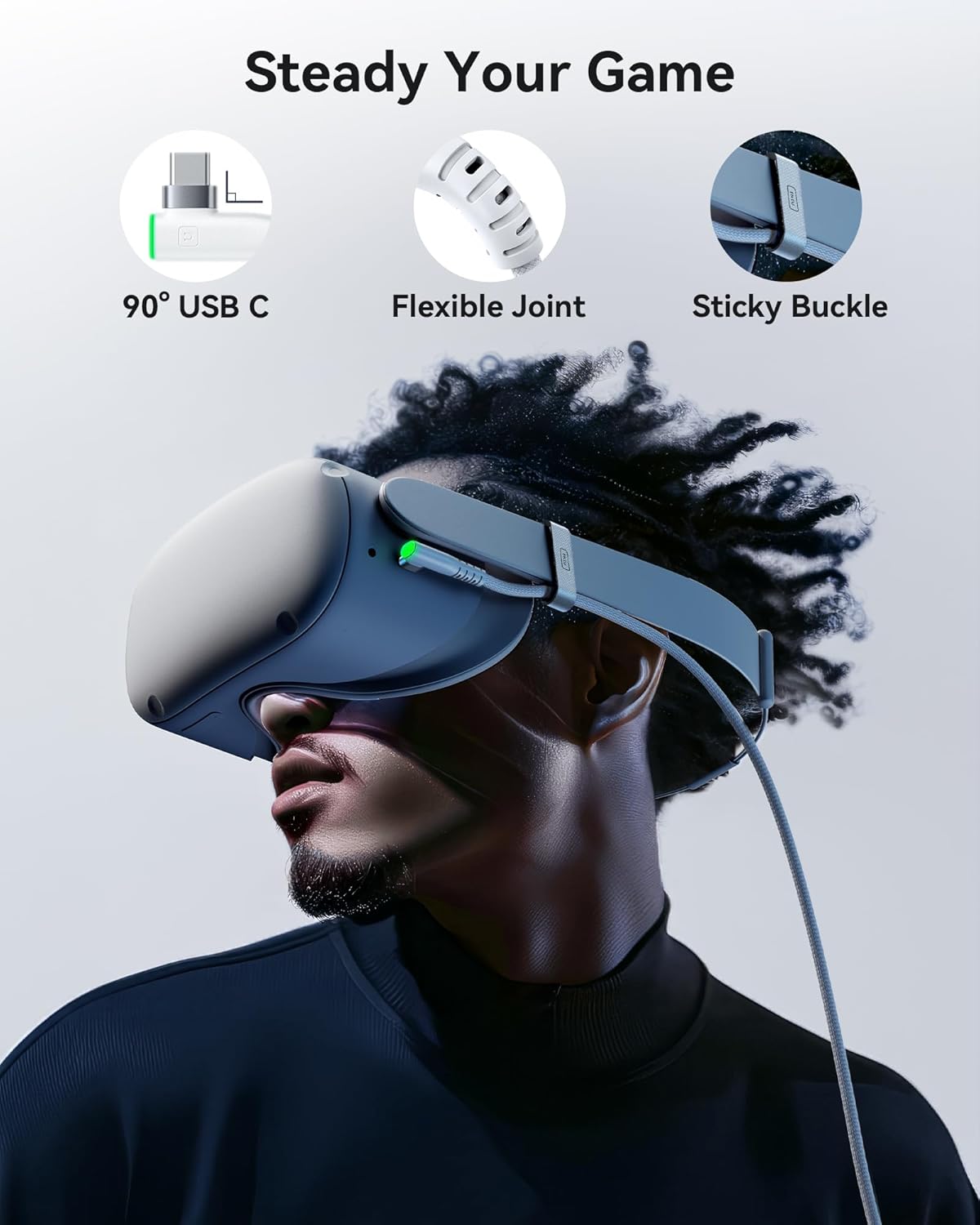
画像: Details of the INIU VR Link Cable's design features, including the 90-degree USB-C connector for a snug fit, a flexible joint for durability, and a sticky buckle to secure the cable to the headset strap.

画像: An illustration of a user enjoying VR gameplay with the 16ft INIU VR Link Cable, highlighting the extended length and the anti-wear FLYWEAVE coat that allows for free movement.
メンテナンス
- クリーニング: ケーブルとコネクタを乾いた柔らかい布で優しく拭き、ほこりやゴミを取り除きます。コネクタに直接液体クリーナーを使用しないでください。
- ストレージ: When not in use, coil the cable loosely. Avoid tight coiling or sharp bends, which can damage the internal wires and the FLYWEAVE coat. Store in a cool, dry place.
- 取り扱い: ケーブルを抜き差しするときは、ケーブル自体を引っ張るのではなく、必ずコネクタ ハウジングをつかんでください。
- 検査: ケーブルに摩耗、ほつれ、コネクタの損傷がないか定期的に点検してください。損傷が見られる場合は使用を中止してください。
トラブルシューティング
- Issue: VR headset is not connecting to PC or connection is unstable.
- 解決:
- Ensure both the 90-degree USB-C connector and the USB-A connector are fully inserted into their respective ports.
- Verify that the PC's USB port is a USB 3.0 port (often blue inside).
- Check if the sticky buckle is properly securing the cable to the headset to prevent movement.
- Try connecting the USB-A end to a different USB 3.0 port on your PC.
- Restart your VR headset and PC.
- Issue: VR headset is not charging or charging slowly while connected.
- 解決:
- Ensure a PD/QC fast adapter is connected to the separate USB-C charging port on the cable's hub. Standard USB chargers may not provide sufficient power.
- Verify that the USB-C to USB-C cable used for charging is functional and properly connected.
- Confirm that the power adapter is plugged into a working wall outlet.
- Remember that the SmartProtect2.0 chip maintains battery around 78% for safety; it will not charge to 100% during use.
- Issue: Data transfer speed seems slow.
- 解決:
- While the cable is 16ft long, cable length can slightly affect transfer speed. Ensure your PC's USB 3.0 port is functioning optimally.
- Close any unnecessary background applications on your PC that might be consuming bandwidth or processing power.
仕様
| ブランド | イヌ |
| モデル | 16ft Premium VR Link Cable with Charging |
| コネクタタイプ | USB Type C (90-degree for headset), USB Type A (for PC), USB Type C (for charging) |
| ケーブルタイプ | USBタイプC |
| ケーブル長さ | 16フィート(5メートル) |
| 対応デバイス | Meta Quest 3s, Quest 3, Oculus Quest 2, Quest 1, Quest Pro; Pico 4, Pico 4 Pro, Pico 4 Enterprise; PC VR, Steam VR |
| 特集 | Braided (FLYWEAVE), Data Transfer (USB 3.0), Fast Charging (3A PD/QC compatible), High Speed, SmartProtect2.0 Chip, 90-degree USB-C, Flexible Joint, Sticky Buckle |
保証情報
The INIU 16ft Premium VR Link Cable with Charging is covered by INIU's industry-leading 3-year iNiu Care warranty. This warranty covers manufacturing defects and ensures product reliability. Please retain your proof of purchase for warranty claims.
カスタマーサポート
For technical assistance, troubleshooting guidance, or to inquire about warranty services, please contact INIU customer support. Details for reaching our support team can typically be found on the official INIU webサイトまたは製品パッケージに記載されている連絡先情報を通じてお問い合わせください。