
1. はじめに
The Serounder Portable Travel Router is designed to provide high-speed wireless internet access in various travel environments, including hotels, cruises, RVs, and airplanes. Featuring Wi-Fi 6 technology and dual-band capabilities, it supports up to 120 devices simultaneously, ensuring a stable and fast network experience. Its compact design makes it an ideal companion for travelers.
2. パッケージ内容
パッケージにすべてのアイテムが揃っていることを確認します。
- 1 x Serounder Portable Travel Router
- タイプC電源ケーブル x 1
- 電源アダプター (US プラグ) x 1
- ユーザーマニュアル (本書) x 1
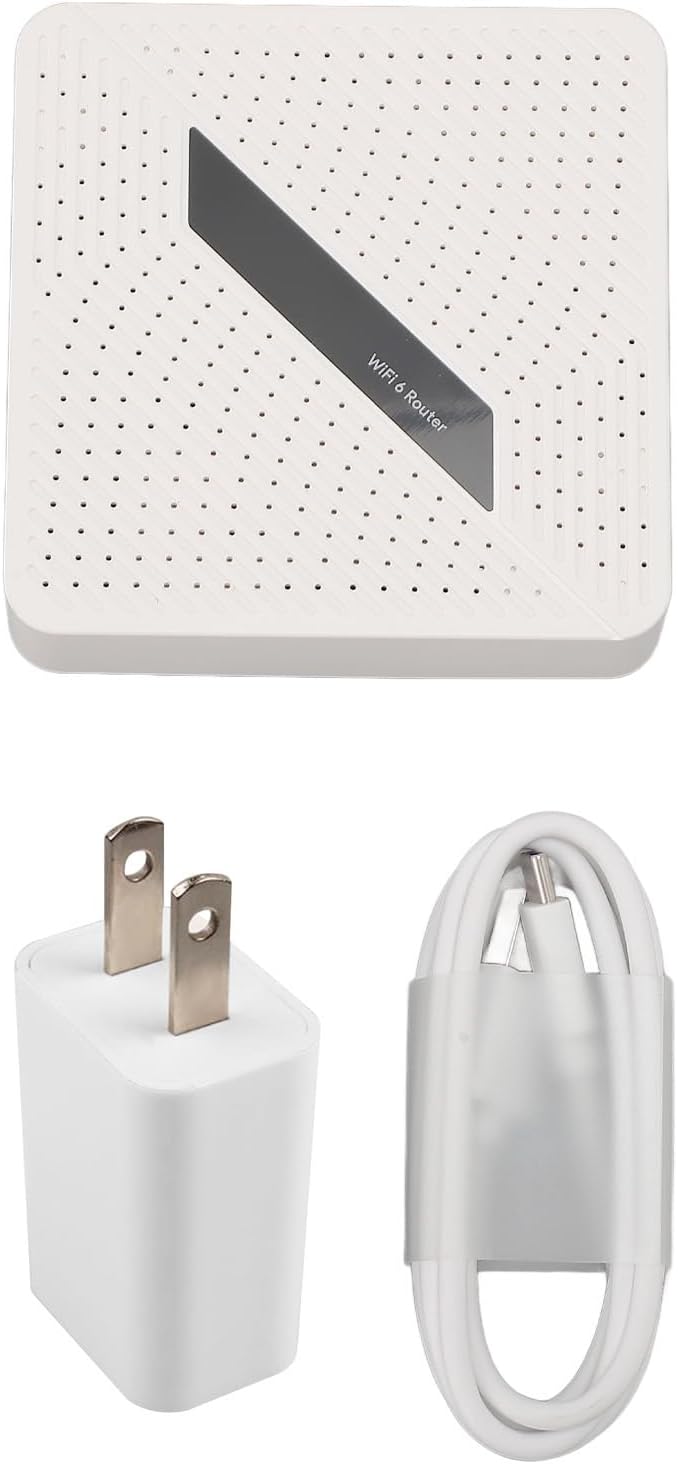
Image: Contents of the Serounder Portable Travel Router package, including the router, power adapter, and USB-C cable.
3.製品オーバーview
ルーターの物理コンポーネントとポートについて理解しておいてください。
フロント View

画像: 正面 view of the router, displaying the Reset button, WAN/LAN port, LAN port, USB 3.0 port, and Type-C power input.
ポートの詳細
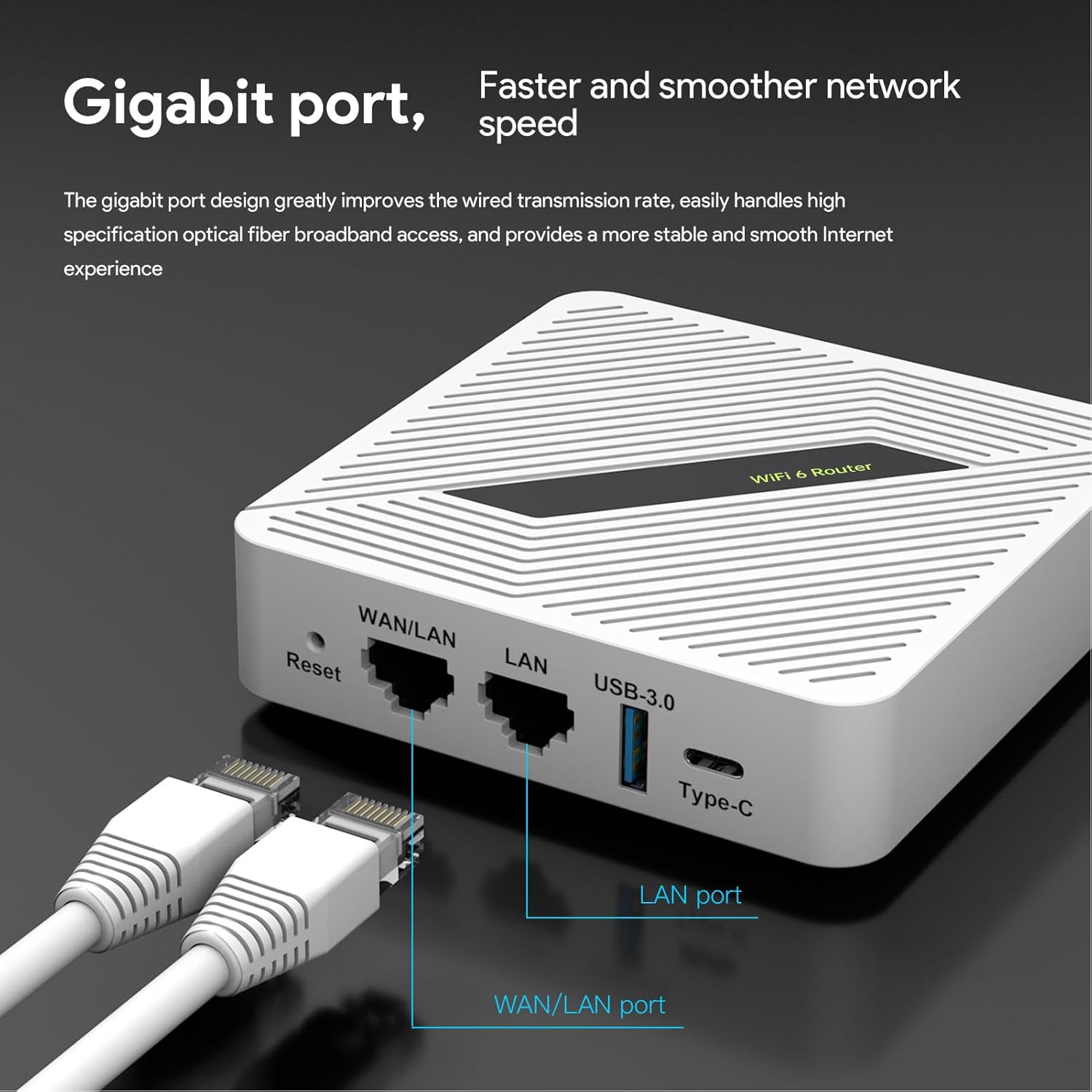
画像: 詳細な view of the router's Gigabit WAN/LAN port, LAN port, USB 3.0 port, and Type-C power input, highlighting their functions.
コンパクトなデザイン

Image: The router's compact travel size, shown alongside a credit card for scale, demonstrating its portability.
4. セットアップ手順
4.1 ルータの電源オン
- Connect the provided Type-C power cable to the Type-C port on the router.
- Plug the other end of the power cable into the power adapter, then plug the adapter into a power outlet.
- ルーターの電源は自動的にオンになります。インジケーターライトが安定するまでお待ちください。

Image: Illustration of the flexible Type-C power supply options, including original charger, USB power from a computer, and mobile power supply.
4.2 ネットワークへの接続
The router supports two primary connection modes:
- Hotel/Public Wi-Fi Mode: Connect the router to the network port (Ethernet) available in your hotel room or public area. The router will then broadcast its own Wi-Fi signal.
- Home Internet Access Mode: Connect the router to the LAN port of your existing home router for wired internet access and Wi-Fi sharing.

Image: Top diagram shows connecting the travel router to a hotel room's network port. Bottom diagram shows connecting the travel router to a home router's LAN port for internet access and Wi-Fi sharing.
4.3初期構成
After connecting the router, use a Wi-Fi enabled device (e.g., smartphone, laptop) to connect to the router's default Wi-Fi network. The default SSID and password are typically found on a label on the router or in a quick start guide. Open a web browser and enter the default IP address (e.g., 192.168.1.1 or 192.168.0.1) to access the router's web interface for further configuration, such as changing the Wi-Fi name and password, or setting up VPN.
5. 操作手順
5.1 High-Speed Dual-Band Wi-Fi
The router operates on dual bands (2.4GHz and 5.8GHz) with a combined speed of up to 1800 Mbps (574 Mbps on 2.4GHz and 1201 Mbps on 5.8GHz). This allows for efficient handling of multiple devices and high-bandwidth activities like streaming and online gaming.
5.2 Advanced Network Technologies
The router incorporates MU-MIMO, OFDMA, and Color technologies to enhance signal coverage, improve network stability, and reduce interference, providing a consistent network connection.
5.3 VPNサポート
For secure and private browsing, the router supports PPTP, L2TP, and OpenVPN protocols. This feature allows you to establish secure connections and access global content while protecting your data.
5.4 NAS機能
Connect an external USB hard drive to the router's USB 3.0 port to enable Network Attached Storage (NAS) functionality. The router is compatible with SAMBA and WebDav protocols, allowing for convenient file sharing and storage across your network.
6. メンテナンス
6.1 クリーニング
Wipe the router with a soft, dry cloth. Do not use liquid cleaners or abrasive materials.
6.2ファームウェアアップデート
定期的にメーカーの webファームウェアのアップデートについては、こちらのサイトをご覧ください。ルーターのファームウェアを最新の状態に保つことで、最適なパフォーマンスとセキュリティを確保できます。
6.3 工場出荷時設定へのリセット
To restore the router to its factory default settings, locate the 'Reset' button (usually a small pinhole) on the device. With the router powered on, use a paperclip or similar pointed object to press and hold the Reset button for approximately 10 seconds until the indicator lights change, then release. The router will restart with default settings.
7。 トラブルシューティング
7.1 インターネット接続なし
- すべてのケーブルがしっかりと接続されていることを確認してください。
- Verify that the main internet source (e.g., hotel network, home router) is active and providing internet.
- Reboot the travel router by unplugging and replugging the power cable.
- ルーターの web interface for connection status and error messages.
7.2 Wi-Fi速度が遅い
- Ensure your device is connected to the 5.8GHz band for higher speeds, if supported.
- デバイスとルーター間の距離を短くします。
- 他の電子機器からの干渉を最小限に抑えます。
- Check the internet speed from your primary source.
7.3 ルータにアクセスできない Web インタフェース
- デバイスがルーターの Wi-Fi ネットワークに接続されているか、イーサネット ケーブル経由で接続されていることを確認します。
- ルーターの正しいIPアドレスを確認してください web インタフェース。
- ブラウザのキャッシュをクリアするか、別のブラウザを使用してみてください。
- 他の方法がすべて失敗した場合は、工場出荷時設定にリセットしてください (セクション 6.3 を参照)。
8. 仕様
| モデル名 | Seroundereiug71r38t-11 |
| 材料 | アブソリュート |
| ワイヤレス標準 | Wi-Fi 6 (802.11ax compatible) |
| ワイヤレス速度 | Up to 1800Mbps (574Mbps 2.4GHz, 1201Mbps 5.8GHz) |
| ポート | 1 x Gigabit WAN/LAN RJ45, 1 x Gigabit LAN RJ45, 1 x USB 3.0, 1 x Type-C Power Input |
| 営業チャンネル | 2.4GHz、5.8GHz |
| データ暗号化 | WPA-PSK/WPA2-PSK、WPA/WPA2/WPA3 |
| 入力ボリュームtage | Type-C 5V-3A or DC 12V-1.5A |
| 特集 | MU-MIMO, OFDMA, Color Technologies, VPN Support (PPTP, L2TP, OpenVPN), NAS Functionality (SAMBA, WebDav) |
9. 保証とサポート
This Serounder product comes with a standard manufacturer's warranty. For specific warranty terms and conditions, please refer to the documentation included with your purchase or visit the official Serounder webサイト。
For technical support, troubleshooting assistance, or any inquiries regarding your Serounder Portable Travel Router, please contact Serounder customer service through their official channels.