
1. はじめに
This manual provides essential information for setting up, operating, and maintaining your GMKtec Mini PC G10. Please read these instructions carefully before using the device to ensure optimal performance and longevity.
2. パッケージ内容
パッケージにすべてのアイテムが揃っていることを確認します。
- GMKtec Nucbox G10 Mini PC
- 電源アダプターとケーブル
- HDMIケーブル
- VESAマウントとネジ
- ユーザーマニュアル

Image: Contents of the GMKtec Mini PC G10 package, including the mini PC, power adapter, HDMI cable, VESA mount, and user manual.
3.製品オーバーview およびインターフェース
The GMKtec Mini PC G10 features a compact design with a variety of ports for connectivity. Familiarize yourself with the available interfaces:
フロントパネル:
- 1x CTIA Audio Jack
- USB 3.2 (5Gbps) ポート x 2
- 電源ボタン x 1
後面パネル:
- 1x USB-C Power Input (PD Only)
- 1x USB-C (Full-function: DisplayPort, Data, Power Delivery)
- USB 1 ポート x 2.0
- 1x 2.5G Gigabit Ethernet (LAN) Port
- 1x HDMI 2.1 (4K@60Hz) Port
- 1x ディスプレイポート 1.4 (4K@60Hz)
- ケンジントンロックスロット x 1

画像: 詳細 view of the front and rear ports of the GMKtec Mini PC G10, illustrating USB, HDMI, DisplayPort, Ethernet, and power connections.
4. セットアップ
Follow these steps to set up your GMKtec Mini PC G10:
- ディスプレイに接続: Connect your monitor(s) to the Mini PC using the HDMI, DisplayPort, or USB-C (DisplayPort Alt Mode) outputs. The device supports up to three displays simultaneously.
- 周辺機器を接続します。 キーボード、マウス、その他の USB デバイスを利用可能な USB ポートに接続します。
- ネットワーク接続: For a wired connection, connect an Ethernet cable to the 2.5G LAN port. For wireless, ensure Wi-Fi is enabled in the operating system settings after initial boot.
- 電源オン: Connect the power adapter to the Mini PC's USB-C power input and then to a power outlet. Press the power button on the front panel to turn on the device.
- 初期設定: 画面の指示に従って、Windows 11 Pro のセットアップを完了します。
5. オペレーティングシステム
The GMKtec Mini PC G10 comes pre-installed with ウィンドウズ11プロ. It is also compatible with Windows 10 and various Linux distributions.
Windows 11 Pro Features:
- 強化されたセキュリティ機能。
- BitLocker device encryption.
- Remote Desktop capabilities.
- Domain Join and Group Policy management.
Ensure your operating system is regularly updated for security and performance improvements.
6. パフォーマンスとストレージ
The Mini PC G10 is designed for efficient daily computing and light gaming, featuring robust components for smooth operation.
プロセッサ:
装備 AMD Ryzen 5 3500U プロセッサー, a 64-bit quad-core CPU with 8 threads, based on AMD's 12nm Zen+ architecture. It offers a base frequency of 2.1 GHz and a boost frequency of up to 3.7 GHz, with a TDP of 15W (configurable up to 35W for higher performance).
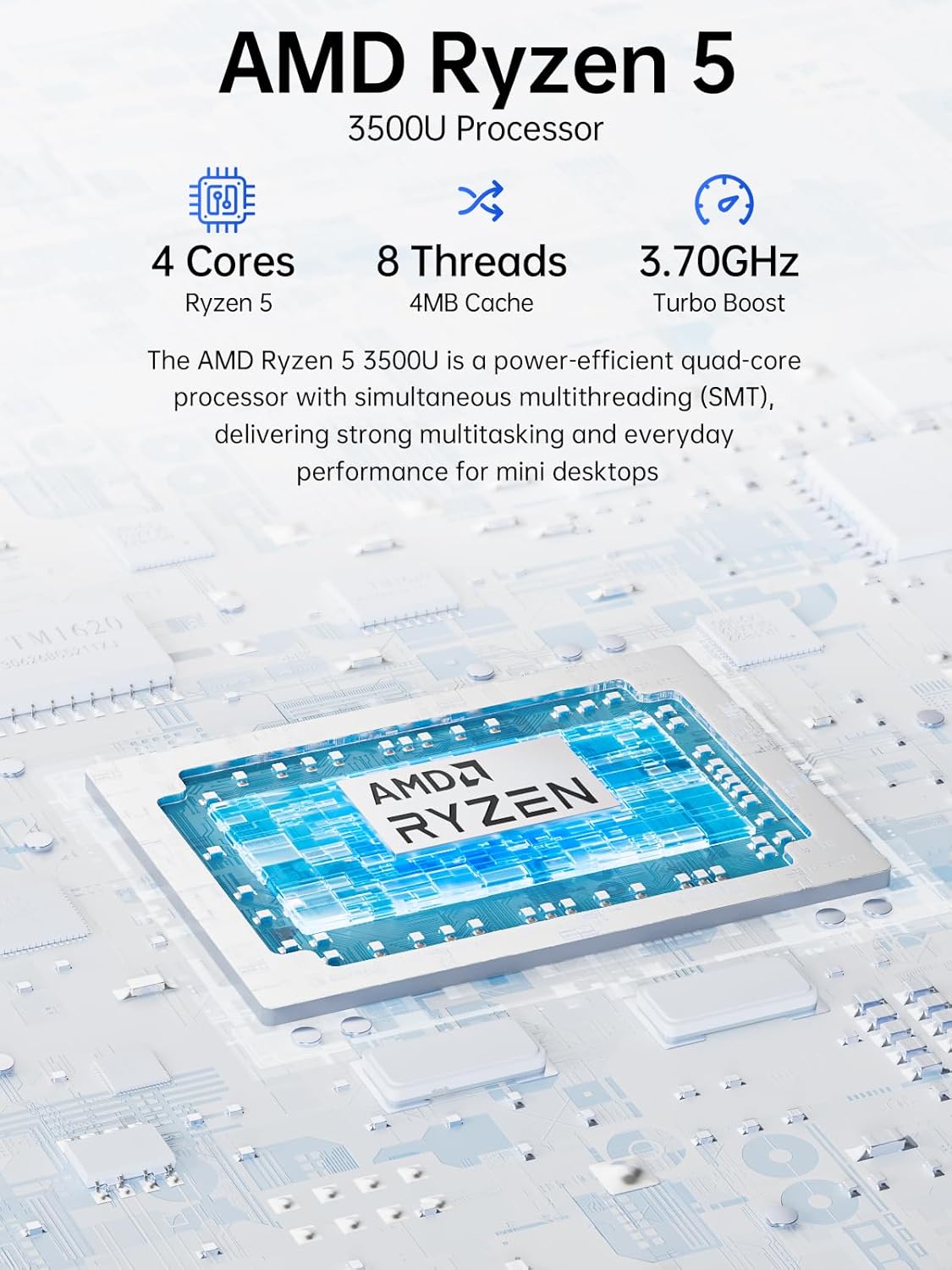
Image: Visual representation of the AMD Ryzen 5 3500U processor, highlighting its 4 cores, 8 threads, 4MB cache, and 3.70GHz turbo boost.
グラフィック:
統合された Radeon Vega 8 グラフィックス (up to 1.2 GHz) provides capable performance for video editing, multimedia playback, and casual gaming.
メモリ(RAM):
システムには以下が含まれます 16GB of DDR4 SO-DIMM dual-channel RAM (2 x 8GB). The memory is expandable up to 32GB.
ストレージ:
特徴 1TB PCIe 3.0 x4 NVMe SSD, offering significantly faster data transfer speeds (up to 3500 MB/s) compared to traditional SATA SSDs. This results in quicker boot times, faster application loading, and smoother file 転送。
画像: 速度の進歩を示す比較tage of PCIe 3.0 NVMe SSDs (up to 3500 MB/s) over SATA SSDs (up to 550 MB/s).
ストレージの拡張:
The Mini PC G10 is equipped with two M.2 2280 PCIe 3.0 slots, allowing for storage expansion up to 16TB (with 2 x 8TB SSDs, not included).

Image: Diagram showing the dual SO-DIMM DDR4 slots for RAM expansion up to 64GB and two M.2 2280 SSD slots for storage expansion up to 16TB.
7. ディスプレイ設定
The GMKtec Mini PC G10 supports a triple display setup, allowing for enhanced productivity and immersive multimedia experiences.
- Connect up to three monitors simultaneously using the HDMI 2.1, DisplayPort 1.4, and full-function USB-C ports.
- All display outputs support 4K resolution at 60Hz.

Image: An illustration of a triple monitor setup connected to the Mini PC, demonstrating its multi-display capability for a productive workspace.
8. 接続性
The Mini PC G10 offers versatile connectivity options for both wired and wireless networks and peripherals.
- Wi-Fi 5: Provides fast wireless internet access.
- Bluetooth 5.0: キーボード、マウス、ヘッドフォンなどのワイヤレス周辺機器を接続します。
- 2.5 ギガビット イーサネット: An ultra-fast wired network connection for high-speed data transfer and low-latency applications.

Image: A visual representation of the Mini PC connected wirelessly via Wi-Fi and Bluetooth, and wired via 2.5GbE Ethernet, highlighting its comprehensive connectivity.
9. Silent Cooling System
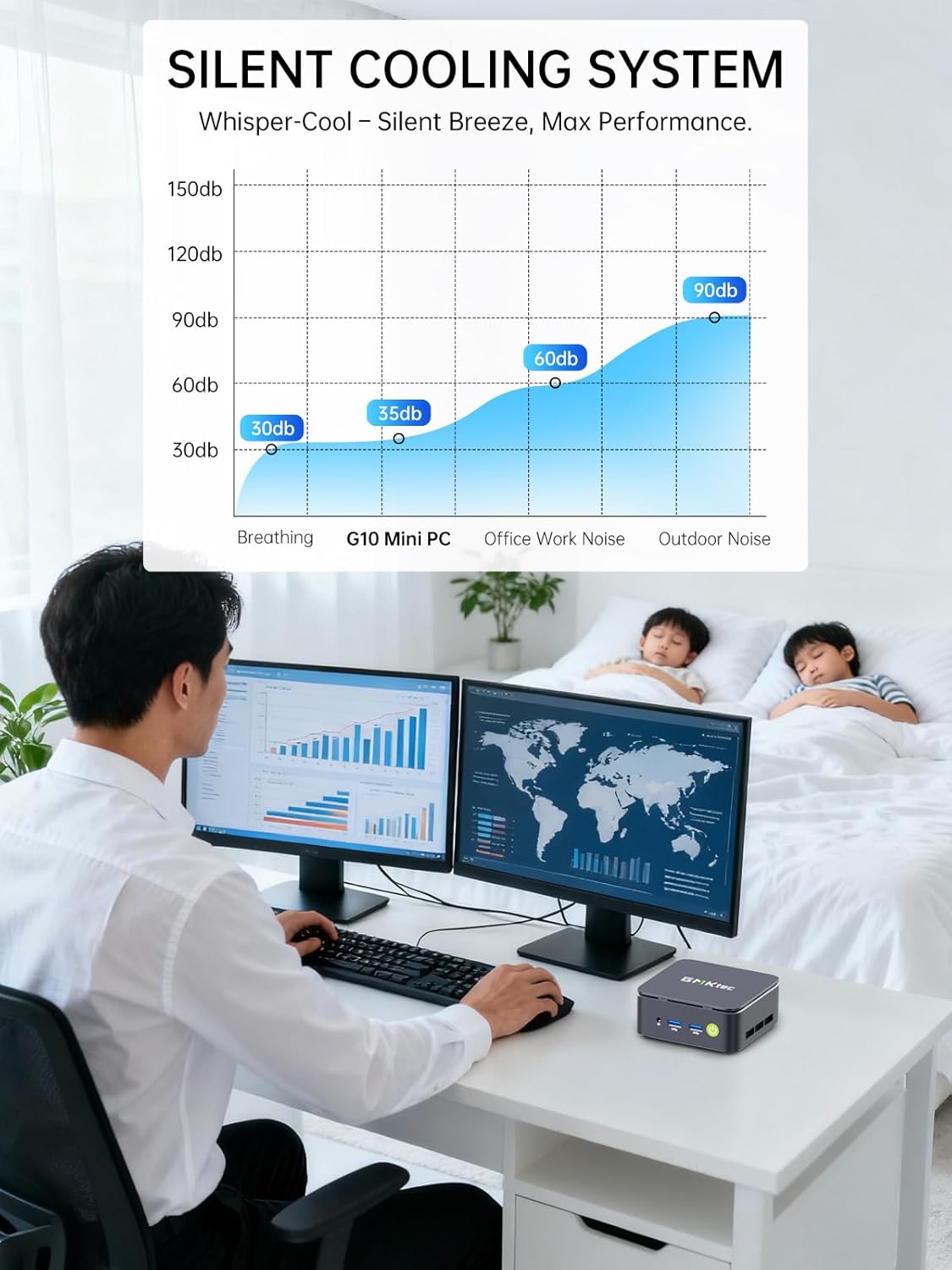
The GMKtec Mini PC G10 incorporates a silent turbo cooling fan designed to maintain optimal operating temperatures while minimizing noise output. This ensures stable performance even under load.

画像: 爆発した view of the Mini PC G10 showing the internal silent turbo cooling fan and its airflow path.
10. メンテナンス
定期的なメンテナンスを行うことで、ミニ PC の寿命が長くなり、最適なパフォーマンスが確保されます。
- クリーニング: Periodically clean the exterior of the Mini PC with a soft, dry cloth. Use compressed air to clear dust from ventilation openings. Ensure the device is powered off and unplugged before cleaning.
- ソフトウェアアップデート: オペレーティングシステムとドライバーを最新バージョンに更新してください。これにより、セキュリティ、安定性、パフォーマンスが向上します。
- 換気: Ensure the Mini PC is placed in a well-ventilated area and that its vents are not obstructed. Proper airflow is crucial for cooling.
- ストレージ管理: 不要なものを削除して定期的にストレージを管理する file最適な SSD パフォーマンスを維持するためのシステムとアプリケーション。
11。 トラブルシューティング
If you encounter issues with your GMKtec Mini PC G10, refer to the following common troubleshooting steps:
電源なし / システムが起動しない:
- 電源アダプタがミニ PC と正常な電源コンセントの両方にしっかりと接続されていることを確認します。
- 別のデバイスを接続して、電源コンセントが機能していることを確認します。
- 電源ボタンをしっかりと押します。
ディスプレイ出力なし:
- HDMI、DisplayPort、または USB-C ケーブルがミニ PC とモニターの両方にしっかりと接続されていることを確認します。
- モニターの電源がオンになっており、正しい入力ソースに設定されていることを確認します。
- 可能であれば、別のディスプレイ ケーブルまたはモニターを試してください。
No Wi-Fi / Bluetooth Connection:
- Check if Wi-Fi or Bluetooth is enabled in the Windows settings.
- ミニ PC とルーター/モデムを再起動します。
- ドライバーが最新であることを確認してください。
パフォーマンスが遅い:
- バックグラウンドで実行されている不要なアプリケーションを閉じます。
- SSD に十分な空きストレージ容量があるかどうかを確認します。
- Ensure the Mini PC is well-ventilated to prevent thermal throttling.
- マルウェアやウイルスがないかシステムスキャンを実行します。
If these steps do not resolve the issue, please contact GMKtec customer support.
12. 仕様
Detailed technical specifications for the GMKtec Mini PC G10:
| 特徴 | 仕様 |
|---|---|
| ブランド | GMKテック |
| モデル | ナックボックス G10 |
| オペレーティング·システム | ウィンドウズ11プロ |
| CPUモデル | AMD ライゼン 5 3500U |
| CPU速度 | 2.1 GHz (Boost up to 3.7 GHz) |
| プロセッサ数 | 4 (8 Threads) |
| グラフィックスコプロセッサ | ラデオン ヴェガ 8 |
| RAM Installed | 16GB DDR4 |
| 最大RAMサイズ | 64ギガバイト |
| RAM Speed | 2400 MHz |
| ストレージ容量 | 1 TB SSD (PCIe 3.0 x4 NVMe) |
| ストレージ拡張 | 2x M.2 2280 PCIe 3.0 slots (up to 16TB total) |
| ビデオ出力インターフェース | HDMI 2.1, DisplayPort 1.4, USB-C (DP Alt Mode) |
| 最大ディスプレイ解像度 | 3840 x 2160 (4K) @ 60Hz |
| ワイヤレステクノロジー | Wi-Fi 5(802.11ac)、Bluetooth 5.0 |
| 有線接続 | 2.5ギガビットイーサネット |
| USBポート | 2x USB 3.2, 1x USB 2.0, 1x USB-C (full-function) |
| オーディオ出力 | 1x CTIA Audio Jack |
| 電源入力 | USB-C (PD) |
| モデルの年 | 2023 |
13. 保証とサポート
GMKtec provides comprehensive warranty and support for your Mini PC G10.
- 保証: Each Mini PC comes with a limited 3-year warranty from the date of purchase. This includes replacement during the first year and repair services for the subsequent two years, covering design and manufacturing defects.
- カスタマーサポート: For any inquiries or technical assistance, you can contact GMKtec's professional after-sales team.
連絡先:
- アマゾンのサポート: Amazon アカウントにログインし、「ご注文」に移動して「製品に関する質問」を選択し、直接サポートを受けてください。
- アフターセールスメール: メールを送信 eu-cs@gmktec.com 24時間7日のカスタマーサポート。

Image: Details on GMKtec's warranty and support, including contact methods for Amazon support and the after-sales email address.