
導入
The Razer Kraken V4 is a versatile wireless gaming headset designed for immersive audio experiences across multiple platforms. It offers three modes of connectivity: 2.4 GHz wireless, Bluetooth, and a wired USB connection. Key features include a retractable HyperClear Super Wideband Mic for clear voice communication, Razer TriForce Titanium 40 mm drivers for detailed sound, THX Spatial Audio for positional sound, and customizable 9-zone Chroma RGB lighting.

Image: The Razer Kraken V4 Wireless Gaming Headset, showcasinデザインが優れており、USB ドングルが付属しています。
パッケージ内容
パッケージにすべてのアイテムが含まれていることを確認します。
- Razer Kraken V4 Wireless Gaming Headset
- USB ワイヤレス トランシーバー (ドングル)
- USB-A - USB-C 充電ケーブル
- 重要な製品情報ガイド

Image: All components included in the Razer Kraken V4 package, laid out on a flat surface.
製品終了view
Familiarize yourself with the various components and controls of your Razer Kraken V4 headset.
Retractable HyperClear Super Wideband Mic
The microphone can be extended or retracted as needed. It captures a wide frequency range for clear voice communication.

画像: クローズアップ view of the Razer Kraken V4 headset, highlighting the retractable HyperClear Super Wideband Microphone in both extended and retracted positions.
オン-Earcupコントロール
The headset features intuitive controls on the earcups for quick adjustments during use.

Image: Detail of the earcup controls on the Razer Kraken V4, showing buttons for game/chat balance and volume adjustment.
9-Zone Chroma RGB Lighting
Each earcup features customizable RGB lighting zones.

Image: The Razer Kraken V4 headset displaying its 9-zone Chroma RGB lighting on the earcups.
設定
1. ヘッドセットの充電
Before initial use, fully charge your Razer Kraken V4 headset. Connect the included USB-A to USB-C charging cable to the headset's USB-C port and to a powered USB port on your computer or a wall adapter. The LED indicator will show charging status.
2. Connecting via 2.4 GHz Wireless (USB Dongle)
This mode provides a low-latency wireless connection for PC, Mac, PS5, Nintendo Switch, and Steam Deck.
- Insert the USB wireless transceiver into an available USB port on your device.
- Power on your Razer Kraken V4 headset.
- The headset should automatically connect to the transceiver. A status indicator on the headset will confirm the connection.
- On your device, ensure the Razer Kraken V4 is selected as the audio output and input device in your sound settings.

Image: The Razer Kraken V4 headset connected via its USB wireless dongle to a laptop, illustrating the 2.4 GHz wireless connectivity.
3.Bluetooth経由で接続する
Use Bluetooth for connecting to smartphones and other compatible devices.
- With the headset powered on, activate Bluetooth pairing mode (refer to the headset's specific button combination for Bluetooth pairing, usually a long press on the power button or a dedicated Bluetooth button).
- デバイスで Bluetooth 設定に移動し、利用可能なデバイスを検索します。
- Select "Razer Kraken V4" from the list of found devices to pair.
4. USB有線接続
For a direct, non-stop gaming experience, connect the headset using a USB cable.
- Connect the USB-A to USB-C cable from the headset's USB-C port to an available USB port on your PC, Mac, PS5, Nintendo Switch, or Steam Deck.
- The headset will function as a wired audio device. Ensure it is selected as the default audio device in your system settings.
操作手順
電源オン/オフ
Press and hold the power button located on the earcup to turn the headset on or off.
ボリュームコントロール
Adjust the master volume using the volume wheel on the earcup. Rotate up to increase volume, down to decrease.
マイクの使用
Extend the retractable microphone for voice communication. To mute the microphone, press the microphone mute button on the earcup. Retract the microphone when not in use.
Game/Chat Mix Balance
Use the dedicated game/chat balance control on the earcup to adjust the audio levels between game sound and voice chat. This allows you to prioritize one over the other without affecting overall volume.
THX空間オーディオ
The headset supports THX Spatial Audio for enhanced positional sound. This feature can be enabled and configured through the Razer Synapse software on compatible devices (PC/Mac) to optimize your audio experience for specific games.
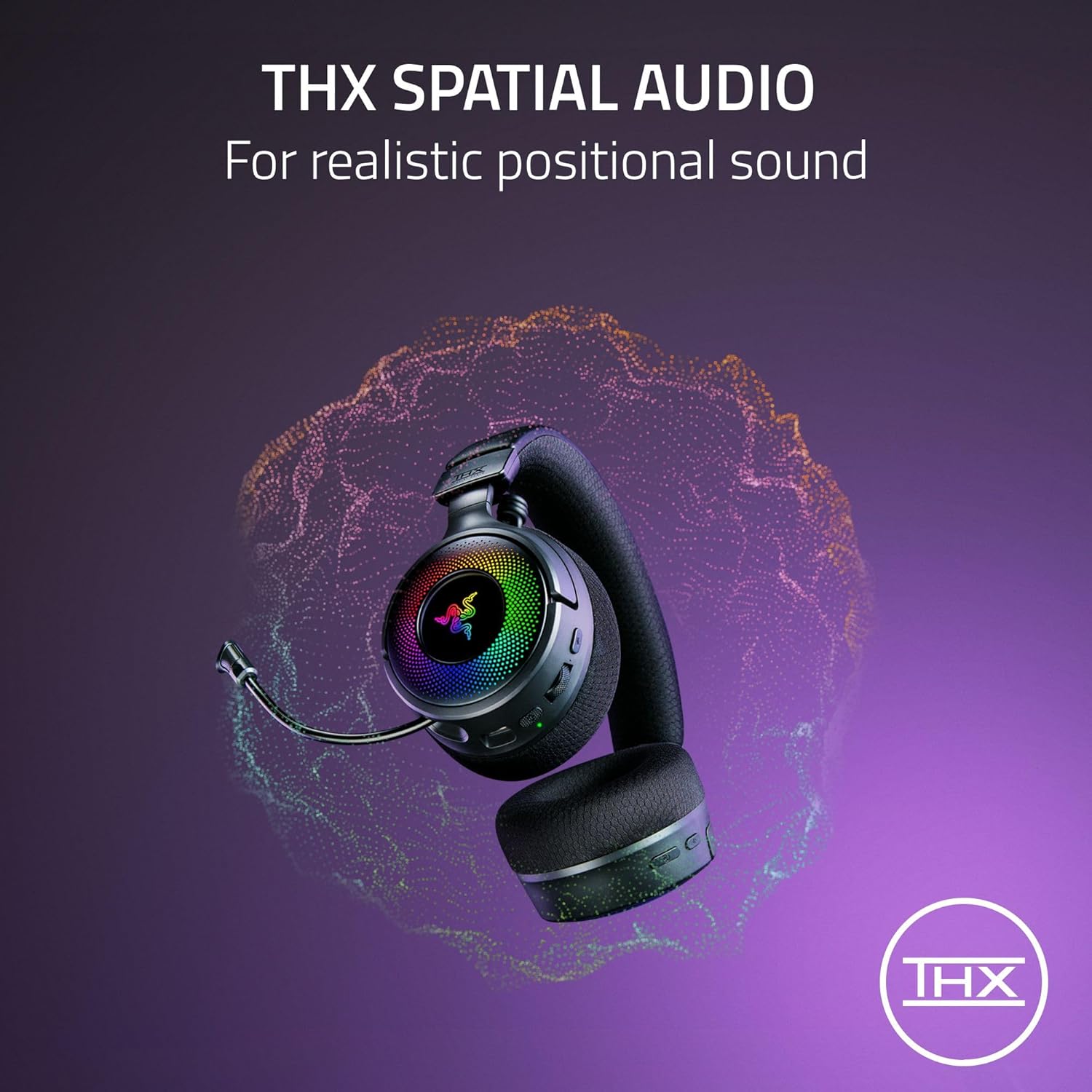
Image: A visual representation of THX Spatial Audio technology, indicating its ability to create realistic positional soundscapes.
Chroma RGB Lighting Customization
Customize the 9-zone RGB lighting on the earcups using the Razer Synapse software. This allows you to select from 16.8 million colors and various lighting effects to personalize your headset.
メンテナンス
クリーニング
- ヘッドセットを柔らかく乾いた布で拭きます。
- イヤークッションは、広告で優しく拭いてくださいamp 必要に応じて布と中性洗剤で拭き取り、完全に自然乾燥させます。
- 刺激の強い化学物質や研磨材を使用しないでください。
ストレージ
ヘッドセットは、直射日光や極端な温度を避け、涼しく乾燥した場所に保管してください。ヘッドセットの上に重いものを置かないでください。
バッテリーケア
バッテリー寿命を延ばすには、ヘッドセットを頻繁に完全に放電させないでください。頻繁に使用しない場合でも、定期的に充電してください。
トラブルシューティング
If you encounter issues with your Razer Kraken V4 headset, refer to the following common solutions:
- 音声なし / 音量が低い:
- Ensure the headset is powered on and properly connected (2.4 GHz, Bluetooth, or USB wired).
- Check the volume wheel on the headset and your device's system volume settings.
- Verify that the Razer Kraken V4 is selected as the default audio output device.
- マイクが機能しない:
- マイクが拡張されており、ミュートされていないことを確認します(ミュート ボタンを確認します)。
- Verify that the Razer Kraken V4 is selected as the default audio input device in your system settings and communication applications.
- Wireless Disconnections (2.4 GHz):
- Ensure the USB wireless transceiver is securely plugged into a working USB port.
- Reduce the distance between the headset and the transceiver.
- Minimize interference from other wireless devices (e.g., Wi-Fi routers, other 2.4 GHz devices).
- Try plugging the transceiver into a different USB port or a different device to rule out port issues.
- Bluetooth ペアリングの問題:
- ヘッドセットが Bluetooth ペアリング モードになっていることを確認します。
- デバイスの Bluetooth をオフにしてからオンにします。
- Bluetooth リストからデバイスを削除し、再度ペアリングを試行します。
- RGB照明が機能しない:
- ヘッドセットの電源がオンになっていることを確認します。
- If customizing, verify that Razer Synapse software is installed and running on your PC/Mac, and the headset is recognized.
仕様
| 特徴 | 詳細 |
|---|---|
| モデル名 | Kraken V4 |
| 接続技術 | Wireless (2.4 GHz with USB dongle, Bluetooth), USB Wired |
| オーディオドライバータイプ | Razer TriForce Titanium 40 mm Dynamic Drivers |
| 周波数範囲 | 20 Hz - 20,000 Hz |
| マイクロフォン | Retractable HyperClear Super Wideband Mic |
| 空間オーディオ | THX空間オーディオ |
| 点灯 | 9-Zone Earcup Chroma RGB Lighting |
| 対応デバイス | PC, Mac, PS5, Nintendo Switch, Steam Deck, Smartphone |
| 制御方法 | App Control (Razer Synapse), On-earcup controls |
| 材料 | レザー(イヤークッション) |
| アイテム重量 | 1.54ポンド |
| バッテリー | 1個のリチウムイオン電池が必要 |
| 欧州連合 | 840272917961 |
保証とサポート
保証情報
The Razer Kraken V4 Wireless Gaming Headset comes with a manufacturer's warranty. Please refer to the Important Product Information Guide included in your package for specific warranty terms and conditions, including duration and coverage details. Keep your proof of purchase for warranty claims.
テクニカルサポート
For further assistance, technical support, or to download the latest drivers and software (such as Razer Synapse), please visit the official Razer support webサイト: